

VTT for Mac
AINative macOS menu-bar dictation app with private on-device transcription plus optional Deepgram, OpenAI, and ElevenLabs cloud engines.
VTT for Mac
Native macOS menu-bar dictation app with private on-device transcription plus optional Deepgram, OpenAI, and ElevenLabs cloud engines.
About VTT for Mac
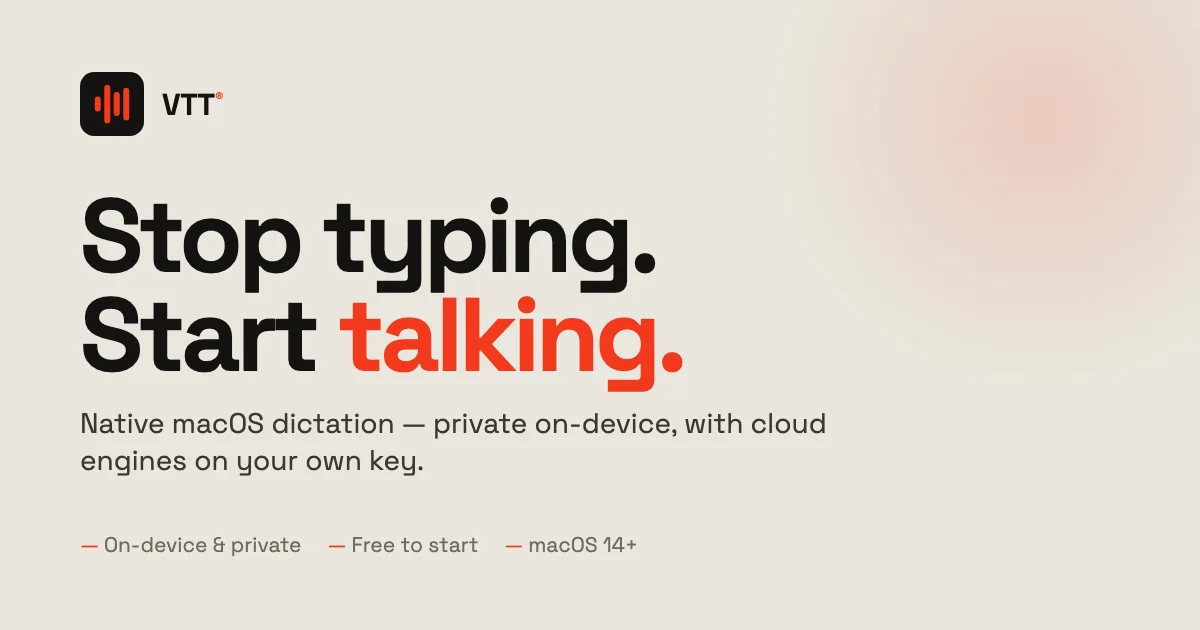
VTT for Mac is a native macOS menu-bar dictation app that converts speech to text with a focus on privacy and a system-native feel. It uses Apple's on-device speech engines, including the new macOS Speech, so audio never has to leave the machine, and it can optionally route to cloud engines from Deepgram, OpenAI, and ElevenLabs using your own keys. Built in Swift and AppKit rather than an Electron wrapper, it offers a global hotkey, a live waveform, and auto-insert into whatever app you are typing in. It supports per-language engine routing so each language is handled by the model that transcribes it best, automatically or by hand. It is macOS-only by design and free to start with no account required.
Screenshots
Key Features
Use Cases



Frequently asked questions about VTT for Mac
What is VTT for Mac?
VTT for Mac is a native macOS menu-bar dictation app that offers private on-device transcription. It also provides optional cloud-based transcription services through advanced engines such as Deepgram, OpenAI, and ElevenLabs, making it a versatile tool for users seeking efficient voice-to-text solutions.
Key Points
- On-Device Transcription: Ensures privacy and speed without relying on internet connectivity.
- Cloud Integration: Optional use of powerful AI transcription engines for enhanced accuracy.
- User-Friendly Interface: Designed for seamless integration with macOS, making dictation easy.
Detailed Explanation
VTT (Voice to Text) for Mac is designed for users who require a reliable dictation tool. With its native macOS integration, VTT sits conveniently in the menu bar, allowing for quick access. Users can dictate text directly into applications without the need for extensive setup.
Features
-
Private On-Device Transcription: VTT processes audio locally, ensuring that sensitive information remains confidential. This feature is particularly valuable for professionals handling proprietary or personal data.
-
Cloud-based Services: For users seeking more advanced transcription capabilities, VTT supports optional integrations with cloud services like Deepgram, OpenAI, and ElevenLabs. These services utilize machine learning models that improve transcription accuracy and support multiple languages.
-
Customizable Settings: Users can personalize their experience by adjusting settings such as voice profiles and transcription language, enhancing the tool's effectiveness based on individual needs.
Use Cases
- Business Professionals: Use VTT to quickly transcribe meeting notes or client calls.
- Content Creators: Authors and podcasters can dictate scripts or show notes efficiently.
- Students: Transcribe lectures or study materials for easier review and understanding.
Best Practices / Tips
- Speak Clearly: To achieve the best transcription results, articulate your words clearly and at a moderate pace.
- Regular Updates: Keep the app updated to benefit from the latest features and improvements.
- Utilize Shortcuts: Familiarize yourself with keyboard shortcuts to enhance productivity while using VTT.
Additional Resources
How does VTT for Mac work?
VTT for Mac operates by utilizing on-device transcription with Apple’s speech engines, ensuring audio remains private. It features a native macOS app built in Swift, a menu-bar workflow for seamless dictation, optional cloud engines for enhanced accuracy, and automatic routing of languages to the most suitable transcription engine.
Key Points
- On-Device Transcription: Ensures privacy by keeping audio data local.
- Native macOS Experience: Built using Swift for optimal performance.
- Flexible Language Routing: Automatically directs languages to the best transcription engine.
Detailed Explanation
VTT for Mac is designed to streamline the dictation process on macOS devices. Here's how it works:
-
On-Device Transcription: By leveraging Apple’s built-in speech engines, VTT allows users to convert speech to text without needing to send audio to the cloud. This is crucial for those concerned about privacy and data security.
-
Native macOS App: The app is developed using Swift and AppKit, providing a lightweight, responsive experience that seamlessly integrates into the macOS environment. Unlike Electron-based apps, this native approach ensures smoother performance and quicker load times.
-
Menu-Bar Workflow: Users can access VTT directly from their menu bar, enabling a global hotkey for instant dictation. This feature lets users dictate text into any application—be it word processors, email clients, or messaging apps—without interrupting their workflow.
-
Optional Cloud Engines: For users needing higher accuracy, VTT supports integration with premium cloud engines like Deepgram, OpenAI, and ElevenLabs. Users can configure their own API keys and select the transcription model that best suits their needs.
-
Per-Language Routing: VTT intelligently routes each spoken language to the most effective transcription engine. This can be done automatically or manually, allowing users to dictate in multiple languages without switching settings.
Best Practices / Tips
- Utilize Global Hotkeys: Set a convenient global hotkey for quick access to VTT, enhancing your dictation efficiency.
- Experiment with Cloud Engines: If you require more accurate transcription, test different cloud engines to find the best fit for your specific use case.
- Regularly Update the App: Keep VTT updated to benefit from the latest features and improvements, particularly for performance and language support.
Additional Resources
What are the main features of VTT for Mac?
VTT for Mac offers several key features, including on-device transcription utilizing Apple’s speech engines, a native macOS application for optimal performance, and a streamlined menu-bar workflow. It also supports optional cloud engines and automatic language routing for enhanced transcription accuracy tailored to specific languages.
Key Points
- On-device Transcription: Utilizes Apple’s advanced speech recognition.
- Native macOS Application: Built with Swift and AppKit for seamless integration.
- Menu-bar Workflow: Features a global hotkey, live waveform display, and auto-insertion capabilities.
Detailed Explanation
VTT for Mac is designed to streamline the transcription process, making it highly efficient for users.
-
On-device Transcription: By leveraging Apple's on-device speech engines, VTT ensures that audio data remains private and secure, as processing occurs entirely on your Mac. This feature is particularly beneficial for users concerned about data privacy, as no audio is sent to external servers.
-
Native macOS Application: The application is built using Swift and AppKit, providing a lightweight, instant experience that feels integrated into the macOS ecosystem. Unlike Electron-based apps, VTT is optimized for performance, making it faster and more responsive.
-
Menu-bar Workflow: VTT offers a user-friendly menu-bar interface with a global hotkey for quick access, a live waveform to visualize audio input, and the ability to auto-insert transcriptions into any application you're typing in. This makes it ideal for professionals who need to transcribe notes quickly while working across different apps.
-
Optional Cloud Engines: Users can choose to integrate cloud transcription services like Deepgram, OpenAI, and ElevenLabs. By bringing your own keys for these services, you can select the model that best fits your transcription needs, whether it's for technical jargon or varying accents.
-
Per-language Routing: This feature allows VTT to automatically or manually route each spoken language to the most suitable transcription engine. This ensures higher accuracy, especially in multilingual environments, making VTT a versatile tool for international users.
Best Practices / Tips
- Optimize Settings: Experiment with different cloud engine settings to find the best match for your transcription needs. Each service may excel in different contexts (e.g., accents or technical vocabulary).
- Use Hotkeys: Familiarize yourself with the global hotkeys for an efficient workflow, reducing the time spent navigating menus.
- Regular Updates: Keep the application updated to benefit from the latest features and improvements in transcription accuracy.
Additional Resources
- VTT Official Documentation: Comprehensive guide and user manual.
- Apple Developer Documentation: Learn more about on-device speech recognition.
- Deepgram API Documentation: Explore options for integrating Deepgram with VTT.
Who is VTT for Mac for?
VTT for Mac is designed for users seeking a private and efficient dictation solution on macOS. It benefits anyone from writers and students to professionals who require high-accuracy transcription, multilingual support, and hands-free note-taking capabilities without relying on cloud services.
Key Points
- Privacy-Focused Dictation: Dictate text directly into any macOS app without sending audio to the cloud.
- Premium Cloud Options: Switch to premium cloud engines for enhanced transcription accuracy when needed.
- Multilingual Support: Transcribe in multiple languages using the best engine for each language.
Detailed Explanation
VTT for Mac offers an innovative dictation experience tailored for various users. Its primary advantage is the ability to dictate text privately, meaning your voice data remains on your device, enhancing confidentiality. This feature is particularly beneficial for individuals who handle sensitive information or work in environments where privacy is paramount.
For users requiring higher transcription accuracy, VTT allows a seamless switch to premium cloud engines. This flexibility ensures that you can achieve optimal results, especially in specialized fields like legal or medical transcription, where precise language is critical.
Furthermore, VTT supports multiple languages, making it an excellent tool for multilingual users or those learning new languages. By selecting the best transcription engine for each language, users can improve their writing and communication skills more effectively.
The global dictation hotkey feature simplifies the process of capturing notes and drafts hands-free. Users can access the dictation tool from the menu bar, enhancing productivity, especially during brainstorming sessions or meetings.
Best Practices / Tips
- Regularly Update: Ensure that VTT for Mac is up-to-date to benefit from the latest features and improvements.
- Explore Hotkeys: Familiarize yourself with global dictation hotkeys to streamline your workflow.
- Test Different Engines: Experiment with various cloud transcription engines to find the one that best suits your needs for accuracy and speed.
- Use in Quiet Environments: For optimal transcription results, use VTT in quieter settings to minimize background noise.
Additional Resources
How much does VTT for Mac cost?
VTT for Mac is completely free to use, making it an accessible tool for users who need video transcription and subtitle generation. There are no hidden fees or subscription models, allowing anyone to take advantage of its features without financial commitment.
Key Points
- VTT for Mac is available at no cost.
- It offers features for creating and editing subtitles.
- The software is user-friendly and accessible for all users.
Detailed Explanation
VTT (WebVTT) for Mac is a versatile tool designed for creating, editing, and managing video subtitles. As a free application, it allows users to generate rich text formats ideal for web-based video content. The software supports various video formats and provides a straightforward interface, making it suitable for both beginners and experienced users.
You can download VTT for Mac from its official website or trusted software distribution channels. Once installed, users can import video files and start creating subtitles instantly. The software's intuitive drag-and-drop functionality simplifies the process of syncing text with video, ensuring a seamless viewing experience.
Use Cases:
- Content Creators: YouTube vloggers can use VTT for Mac to add subtitles to their videos, enhancing accessibility and viewer engagement.
- Educators: Teachers can create subtitles for educational videos, helping students with different learning needs.
- Businesses: Companies can utilize VTT for training videos or promotional content to reach a broader audience by providing subtitles in multiple languages.
Best Practices / Tips
- Regular Updates: While VTT for Mac is free, ensure you check for updates frequently to access new features and improvements.
- File Format Compatibility: Always verify that your video file formats are compatible with VTT to avoid issues during subtitle syncing.
- Exporting Subtitles: When exporting your subtitles, choose the correct format (like .vtt or .srt) based on your target platform to ensure compatibility.
Additional Resources
Utilizing VTT for Mac can enhance your video content significantly, and its cost-free nature makes it a valuable resource for anyone involved in video production.
How do I get started with VTT for Mac?
To get started with VTT for Mac, visit vtt.the-ihor.com to sign up for an account. Once registered, you can explore its features, customize settings, and start using the tool effectively on your Mac.
Key Points
- Sign Up Process: Create an account on the VTT website.
- System Requirements: Ensure your Mac meets the minimum specifications.
- Feature Exploration: Familiarize yourself with the available tools and settings.
Detailed Explanation
To begin using VTT (Virtual Tabletop) on your Mac, follow these steps:
-
Visit the Website: Navigate to vtt.the-ihor.com. This is the official site where you can access the VTT platform.
-
Create an Account: Click on the "Sign Up" button. You'll need to provide basic information like your email address, username, and password. Make sure to verify your email after registration to activate your account.
-
Check System Requirements: Before diving in, ensure your Mac meets the necessary system requirements. Generally, VTT runs smoothly on macOS versions 10.12 and above, with a minimum of 4GB RAM and a stable internet connection.
-
Explore Features: After logging in, take time to familiarize yourself with the interface. VTT offers various features, including customizable maps, character sheets, and game management tools. Utilize the tutorial or help section for guidance.
-
Join or Create Games: You can either join existing games or create your own. Use the game lobby to find sessions that match your interests or invite friends to join your hosted games.
Best Practices / Tips
- Regular Updates: Keep your VTT software updated to access the latest features and security improvements.
- Community Engagement: Join forums or community groups related to VTT. Engaging with other users can provide valuable tips and game ideas.
- Utilize Tutorials: Take advantage of any tutorials provided on the website or YouTube to quickly learn how to use advanced features.
- Optimize Settings: Customize your settings for optimal performance during gameplay. Adjust graphics and network settings depending on your connection speed.
Additional Resources
Explore more AI Ai Tools tools
Browse all Ai Tools tools →Browse by use case: Voice & Audio
Compare VTT for Mac: vs CleanSlop · vs Kalender Sync · vs UseIt Studio · vs Woven Video