

Screencap
AILocal-first macOS screen recorder that captures, labels, and indexes team workflows so knowledge stays searchable and private.
Screencap
Local-first macOS screen recorder that captures, labels, and indexes team workflows so knowledge stays searchable and private.
About Screencap
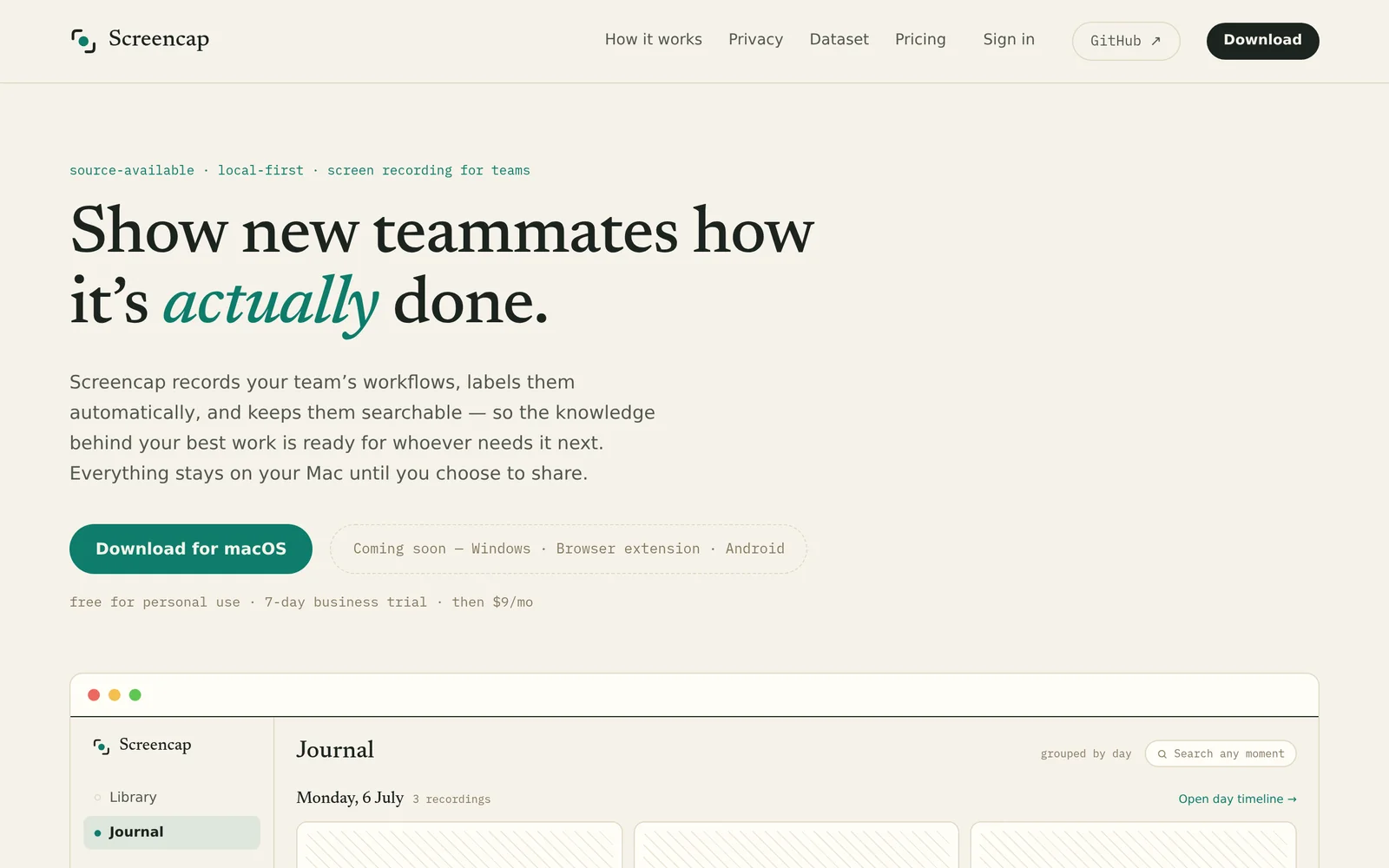
Screencap is a source-available, local-first macOS screen recorder built for teams that want to turn everyday workflows into searchable institutional knowledge. Recordings stay on your Mac by default: an on-device model segments footage into labeled tasks like payroll runs or ticket triage, and indexes every spoken word and on-screen moment for search months later. Password managers and banking are cut before a frame is written, while email and chat are masked as they record, so sensitive material never touches disk. While recording, Screencap can query connected MCP servers to attach the exact record on screen — the Gusto payroll run, the Attio contact, the Linear ticket — inside the video. Sharing is deliberate and per-recording, with names, secrets, and PII scrubbed before anything leaves the machine.
Screenshots
Key Features
Use Cases



Frequently asked questions about Screencap
What is Screencap?
Screencap is a local-first macOS screen recording tool designed to capture, label, and index team workflows. It ensures that knowledge remains searchable and private, making it ideal for teams looking to document processes and share insights effectively without relying on cloud storage.
Key Points
- Local-first technology: Screencap operates entirely on your device, ensuring privacy and security.
- Workflow documentation: Easily capture and label team processes for better understanding and retention.
- Searchable knowledge base: Index recordings for quick access and reference, enhancing team collaboration.
Detailed Explanation
Screencap serves as a powerful tool for teams that prioritize documentation and knowledge sharing. By allowing users to record their screens, Screencap captures everything from presentations to software tutorials. Each recording can be labeled with descriptive tags, making it easier for team members to find relevant information later.
For example, a software development team can use Screencap to record coding sessions, demonstrating how to implement specific features. The labeled recordings can then be indexed, allowing new team members or those unfamiliar with the codebase to quickly access the information they need.
To get started with Screencap, simply download the application from its official site. Once installed, you can initiate a recording by selecting the area of your screen you want to capture. After your session, you can add tags and notes to the recording, making it easier to categorize and share with your team.
Best Practices / Tips
- Plan your recordings: Before starting, outline what you want to capture to ensure your recordings are concise and informative.
- Use descriptive labels: When tagging your recordings, use clear and descriptive labels that will make sense to your team members.
- Regularly update your knowledge base: Encourage team members to contribute recordings and notes regularly to maintain a robust and useful repository of information.
- Review recordings periodically: Schedule time to go through existing recordings to ensure they remain relevant and useful.
Additional Resources
How does Screencap work?
Screencap functions by recording user activity locally on Mac devices, segmenting tasks for easy indexing, and ensuring privacy through real-time masking. It captures workflows for onboarding and documentation while maintaining compliance with sensitive information, making it an indispensable tool for efficient team operations.
Key Points
- Local-First Capture ensures recordings remain on the device.
- On-Device Task Segmentation organizes recordings into labeled tasks.
- Privacy-Enforced Recording protects sensitive data during capture.
Detailed Explanation
Screencap is designed to enhance productivity by allowing users to record their on-screen actions and voice seamlessly. Here’s how it works:
-
Local-First Capture: All recordings are stored in the
~/.screencapdirectory on your Mac, ensuring that files remain private and secure unless shared explicitly. This local storage approach protects user content from unauthorized access. -
On-Device Task Segmentation: Screencap utilizes an on-device model that intelligently breaks long recordings into labeled segments. For example, if you record a session that includes payroll runs and CRM data entry, Screencap will categorize each task, making it easier to locate specific moments later.
-
Full-Text Search of Workflows: Every spoken word and visual element during the recording is indexed, allowing users to search past workflows quickly. This feature is particularly useful for retrieving information from months prior, saving time in training and documentation.
-
Privacy-Enforced Recording: To ensure compliance and confidentiality, Screencap automatically masks sensitive information such as passwords and banking details in real-time. This prevents accidental exposure of personal identifiable information (PII) during recordings.
-
MCP Context Snapshots: While recording, Screencap queries connected servers (like Gusto, Attio, Linear, and Notion) to capture the exact context of what’s displayed on the screen. This integration enriches the recorded content with relevant data, providing a comprehensive view of tasks.
-
Team Onboarding and Institutional Knowledge: Users can compile ordered collections of recordings to train new team members on actual workflows. This practical approach preserves institutional knowledge, capturing tacit steps in processes like payroll reconciliations and quarterly reports.
-
Ops Documentation: Screencap can replace outdated wikis by directing teammates to current, labeled task recordings. This ensures that the documentation evolves with the workflow instead of becoming stale.
-
Compliance-Sensitive Recording: Especially beneficial for sectors like banking and HR, Screencap captures essential back-office tasks without compromising sensitive data, ensuring compliance with regulations and protecting user privacy.
-
Computer-Use Dataset Contribution: Users have the option to contribute reviewed, anonymized recordings to a public dataset for training AI models, promoting research while maintaining privacy.
Best Practices / Tips
- Plan Your Recordings: Before starting a recording session, outline the tasks you want to cover. This will help Screencap segment the recordings effectively.
- Regularly Review and Update Recordings: Keep your task recordings current to reflect changes in workflows or processes. This is crucial for maintaining relevant training materials.
- Utilize Search Effectively: Familiarize yourself with the search functionality to quickly access past recordings and improve productivity.
Additional Resources
What are the main features of Screencap?
Screencap offers essential features like Local-First Capture, On-Device Task Segmentation, Full-Text Search of Workflows, Privacy-Enforced Recording, and MCP Context Snapshots, ensuring secure, efficient, and organized video recording tailored for personal and professional use.
Key Points
- Local-First Capture: Secure storage of recordings.
- On-Device Task Segmentation: Efficient organization of long recordings.
- Full-Text Search: Easy retrieval of past workflows.
Detailed Explanation
Screencap is designed to enhance productivity and privacy while recording workflows.
-
Local-First Capture: All recordings are stored locally in the
~/.screencapdirectory on your Mac, ensuring that your data remains private and secure. This architecture allows users to retain complete control over their recordings until they choose to share them. -
On-Device Task Segmentation: The application employs an advanced on-device model that intelligently segments longer recordings into manageable, labeled tasks. This feature is especially useful for users who frequently record complex workflows, such as payroll processes, expense approvals, or customer relationship management (CRM) tasks. This segmentation allows for quick navigation and review.
-
Full-Text Search of Workflows: Every spoken word and visual element captured during the recording is indexed for future reference. This powerful search functionality enables users to locate specific workflows from months ago effortlessly. Imagine needing to find a particular CRM entry; simply type in a keyword, and Screencap will retrieve the relevant recording.
-
Privacy-Enforced Recording: Screencap takes user privacy seriously. The software automatically eliminates sensitive information like password entries and banking details before they are recorded. Additionally, it masks email and chat contents in real-time, ensuring that confidential information remains protected during the recording process.
-
MCP Context Snapshots: While recording, Screencap can access connected Managed Control Plane (MCP) servers to capture and display the current context from platforms like Gusto, Attio, Linear, or Notion. This feature provides a comprehensive view of the work being done, enriching the recording with contextual information.
Best Practices / Tips
- Utilize Local Storage: Ensure you are familiar with the local storage path to access and manage your recordings efficiently.
- Segment Your Tasks: Take advantage of the task segmentation feature by planning your recordings in advance. Label tasks clearly for easier retrieval.
- Regularly Use the Search Function: Make it a habit to use the full-text search function frequently to familiarize yourself with how it indexes your content.
- Protect Sensitive Information: Always check privacy settings to ensure that sensitive data is masked effectively before recording.
Additional Resources
Who is Screencap for?
Screencap is designed for teams and organizations that need effective tools for onboarding new employees, preserving institutional knowledge, updating operational documentation, ensuring compliance in sensitive environments, and contributing to AI datasets. It streamlines learning through real workflow recordings, making complex tasks easier to understand and replicate.
Key Points
- Team Onboarding: Facilitates seamless integration of new employees.
- Institutional Knowledge Capture: Safeguards essential operational processes.
- Compliance-Sensitive Recording: Ensures privacy in regulated industries.
Detailed Explanation
Screencap serves a diverse range of users, from HR professionals to compliance officers, by providing tools that enhance operational efficiency and knowledge retention.
Team Onboarding
For organizations, Screencap allows the creation of ordered collections of real workflow recordings. This is particularly beneficial for new teammates who need to learn how tasks are performed in practice, thereby reducing the learning curve and increasing productivity.
Institutional Knowledge Capture
Screencap helps preserve tacit knowledge crucial for various processes, such as payroll runs and reconciliations. By capturing these steps in searchable video format, organizations can create a rich library of knowledge that is easily accessible, ensuring that valuable insights are not lost when employees leave.
Ops Documentation
Unlike traditional documentation methods, Screencap provides a modern solution to replace outdated wikis. By directing teammates to labeled task recordings, organizations can ensure that the documentation remains current with actual processes, which is vital for maintaining operational efficiency.
Compliance-Sensitive Recording
In industries such as banking, finance, and HR, Screencap allows users to record back-office work without compromising sensitive information. This feature is crucial for compliance with regulations that protect personally identifiable information (PII) and secure financial data.
Computer-Use Dataset Contribution
Screencap also offers the option to donate reviewed and scrubbed recordings to a public dataset. This initiative contributes to the training of open computer-use models, promoting advancements in AI technology while ensuring user privacy.
Best Practices / Tips
- Utilize Clear Labels: When creating recordings, use clear and descriptive labels to help users quickly identify relevant content.
- Review Content Regularly: Schedule periodic reviews of your recorded workflows to ensure they reflect current practices.
- Train Users on Compliance: Educate your team about the importance of protecting sensitive information during recordings to maintain compliance.
Additional Resources
How much does Screencap cost?
Screencap offers a free tier that allows users to access basic features, while its paid plans start at $9 per month, providing advanced functionalities such as enhanced storage, additional export options, and priority support. Pricing may vary based on specific user needs and subscription length.
Key Points
- Free tier available with basic features.
- Paid plans start at $9 per month.
- Additional features include enhanced storage and priority support.
Detailed Explanation
Screencap is a versatile screen recording tool designed for various users, from content creators to educators. The free tier provides essential features like basic screen recording and sharing capabilities, making it an excellent choice for casual users or those who want to test the platform.
For users needing more advanced functionalities, Screencap offers paid subscriptions that start at $9 per month. These plans unlock features such as:
- Enhanced Storage: Users can store more recordings and access them without worrying about space limitations.
- Additional Export Options: Export videos in various formats for better compatibility with different platforms.
- Priority Support: Gain access to quicker response times and dedicated customer service for any technical issues.
To choose the right plan, consider your usage needs: if you're a casual user, the free tier might suffice, but professionals may find the paid features essential for productivity.
Best Practices / Tips
- Evaluate Your Needs: Before committing to a paid plan, assess your recording frequency and required features.
- Take Advantage of the Free Tier: Use the free tier to familiarize yourself with Screencap's interface and functionalities before upgrading.
- Stay Updated on Promotions: Screencap occasionally runs promotions that could lower subscription costs or offer extended trials.
Additional Resources
How do I get started with Screencap?
To get started with Screencap, visit screencap.sh to sign up for a free account. After signing up, you can explore its features, such as capturing screen recordings, annotations, and sharing tools to enhance your productivity.
Key Points
- Easy sign-up process
- User-friendly interface
- Features for collaboration and sharing
Detailed Explanation
Screencap is a powerful tool designed for screen capturing and recording. To begin, follow these simple steps:
- Visit the Website: Go to screencap.sh.
- Sign Up: Click on the “Sign Up” button. You can register using your email or social media accounts.
- Explore the Dashboard: After signing in, you’ll be directed to the dashboard where you can find options to create a new capture or access your previous recordings.
- Start Capturing: Click on the “New Capture” button. You can choose to record the entire screen, a specific window, or a custom area.
- Use Annotations: During recording, you can add annotations to highlight important information.
- Share Your Work: After completing your recording, Screencap provides options to easily share the video link or download it.
Screencap is ideal for creating tutorials, webinars, or even just capturing important information for personal use. With its intuitive design, users can quickly adapt to the platform without prior experience.
Best Practices / Tips
- Use High-Quality Settings: Ensure you select the highest quality for your recordings to maintain clarity.
- Plan Your Content: Before capturing, outline what you want to demonstrate to improve the flow of your video.
- Test Your Microphone: If you're recording audio, do a quick test to ensure your microphone works correctly.
- Keep It Short: For better engagement, aim for concise recordings that cover key points without unnecessary details.
- Save Regularly: If you’re working on a lengthy project, save your recordings frequently to avoid data loss.
Additional Resources
- Screencap Official Documentation
- Video Tutorials on Using Screencap
- Community Forum for Tips and Tricks
By following these steps, you'll be well on your way to effectively using Screencap for all your screen capturing needs.
Explore more AI Ai Tools tools
Browse all Ai Tools tools →Browse by use case: Automation & Productivity
Compare Screencap: vs Juggler · vs Elva · vs GhostWriter by MyHandler · vs Neopress