

Pencil
AIIn-IDE design canvas that lets engineers design UI and convert designs directly into code to speed development.
Pencil
In-IDE design canvas that lets engineers design UI and convert designs directly into code to speed development.
About Pencil
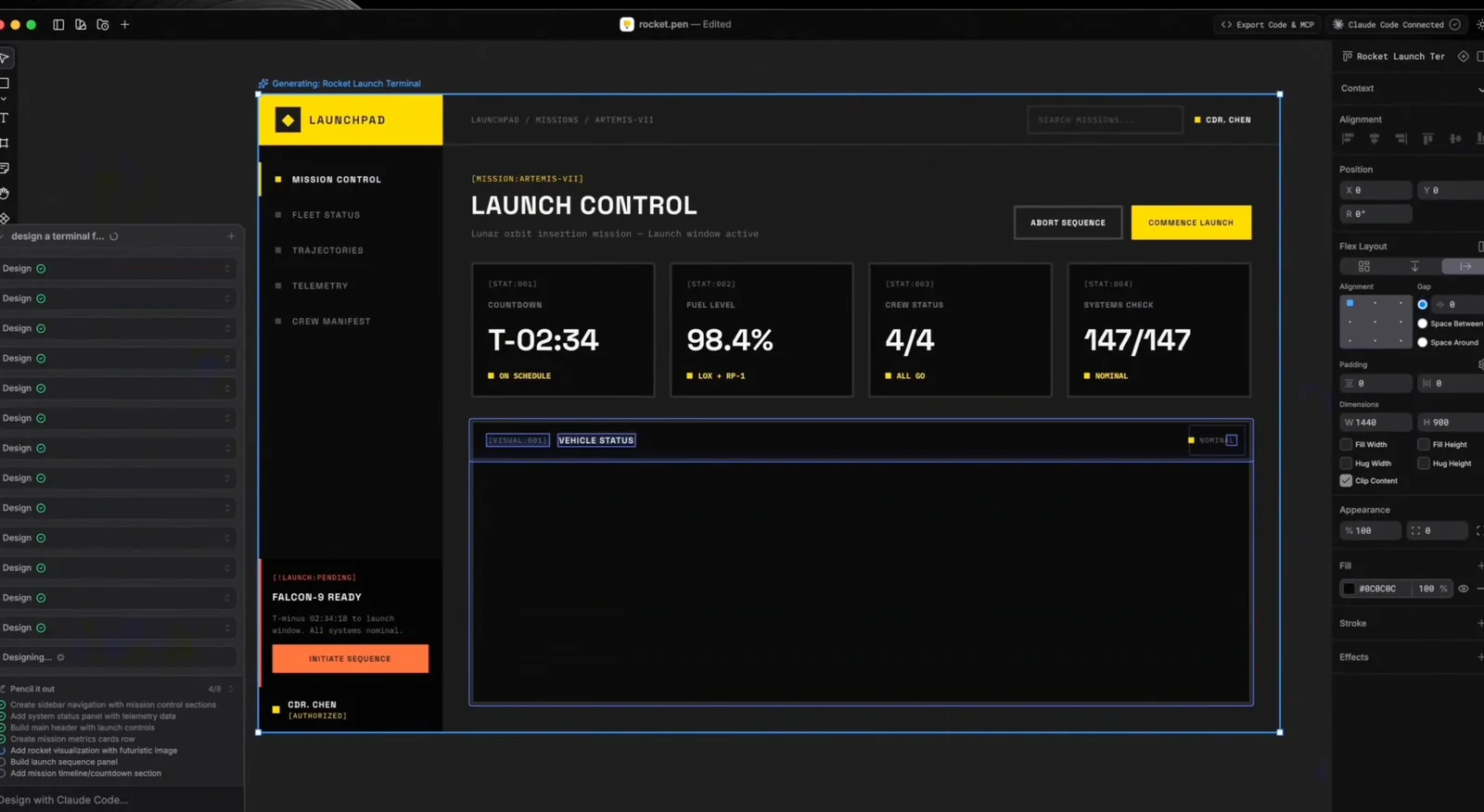
Pencil embeds a design canvas directly into developers' preferred IDEs so designers and engineers can create, iterate, and land UI designs as code without leaving the code environment. It exposes a local MCP-style service that other tools and agent frameworks can discover and integrate with (writes config like ~/.claude.json), supports project- or global-level setup, and provides tooling for port/config synchronization. By reducing design-to-code handoffs and enabling automated integrations, Pencil aims to accelerate engineering velocity and streamline UI implementation.
Screenshots
Key Features
Use Cases



Frequently asked questions about Pencil
How do I get started with Pencil?
To get started with Pencil, download the app from the official website and integrate it with your preferred Integrated Development Environment (IDE). Once installed, you can access the design canvas and start creating user interface (UI) designs immediately.
Key Points
- Download the App: Obtain Pencil from the official website.
- IDE Integration: Choose and integrate with your favorite IDE.
- Begin Designing: Access the design canvas to start creating UI designs.
Detailed Explanation
Pencil is a versatile, open-source tool designed for creating UI mockups and prototypes. To begin your journey with Pencil, follow these steps:
-
Download the App: Visit the official Pencil website and select the appropriate version for your operating system, whether it’s Windows, macOS, or Linux. The installation process is straightforward, requiring only a few clicks.
-
Integrate with IDE: Once installed, you can integrate Pencil with your preferred IDE. Popular choices include Visual Studio Code, Eclipse, or IntelliJ IDEA. This integration allows you to streamline your workflow by easily switching between coding and design.
-
Access the Design Canvas: After integration, launch Pencil to access the design canvas. The user-friendly interface provides a range of design elements, templates, and tools, allowing you to create wireframes and mockups efficiently.
-
Create Your UI Design: Start by selecting a template or creating a new canvas. Use drag-and-drop functionality to add various UI components like buttons, text boxes, and images. Customize these elements to match your project’s branding and functionality.
-
Export Your Designs: Once your design is complete, you can export it in multiple formats, including PNG, PDF, or SVG, making it easy to share with your team or stakeholders.
Best Practices / Tips
- Explore Tutorials: Familiarize yourself with Pencil’s features by exploring online tutorials or documentation. This will enhance your design skills and help you utilize the tool effectively.
- Use Grid Systems: Implement grid systems for better alignment and spacing in your designs. This practice ensures a cleaner, more professional look.
- Iterate Designs: Don’t hesitate to make multiple iterations of your design. Gather feedback from users or team members to refine your UI for better usability.
- Stay Updated: Keep your Pencil application updated to access the latest features and bug fixes, ensuring optimal performance.
Additional Resources
By following these steps and leveraging the provided resources, you'll be well on your way to creating stunning UI designs with Pencil.
What are the main features of Pencil?
Pencil is a powerful design tool that features an in-IDE design canvas, seamless design-to-code export capabilities, local MCP server integration, and project-scoped configuration. This combination allows developers to efficiently create user interfaces and implement them directly within their coding environment, enhancing productivity.
Key Points
- In-IDE Design Canvas: A workspace integrated within your development environment.
- Design-to-Code Export: Transform designs directly into usable code.
- Local MCP Server Integration: Streamlines collaboration and testing.
Detailed Explanation
Pencil is designed to bridge the gap between design and development, offering tools that cater to both designers and developers.
In-IDE Design Canvas
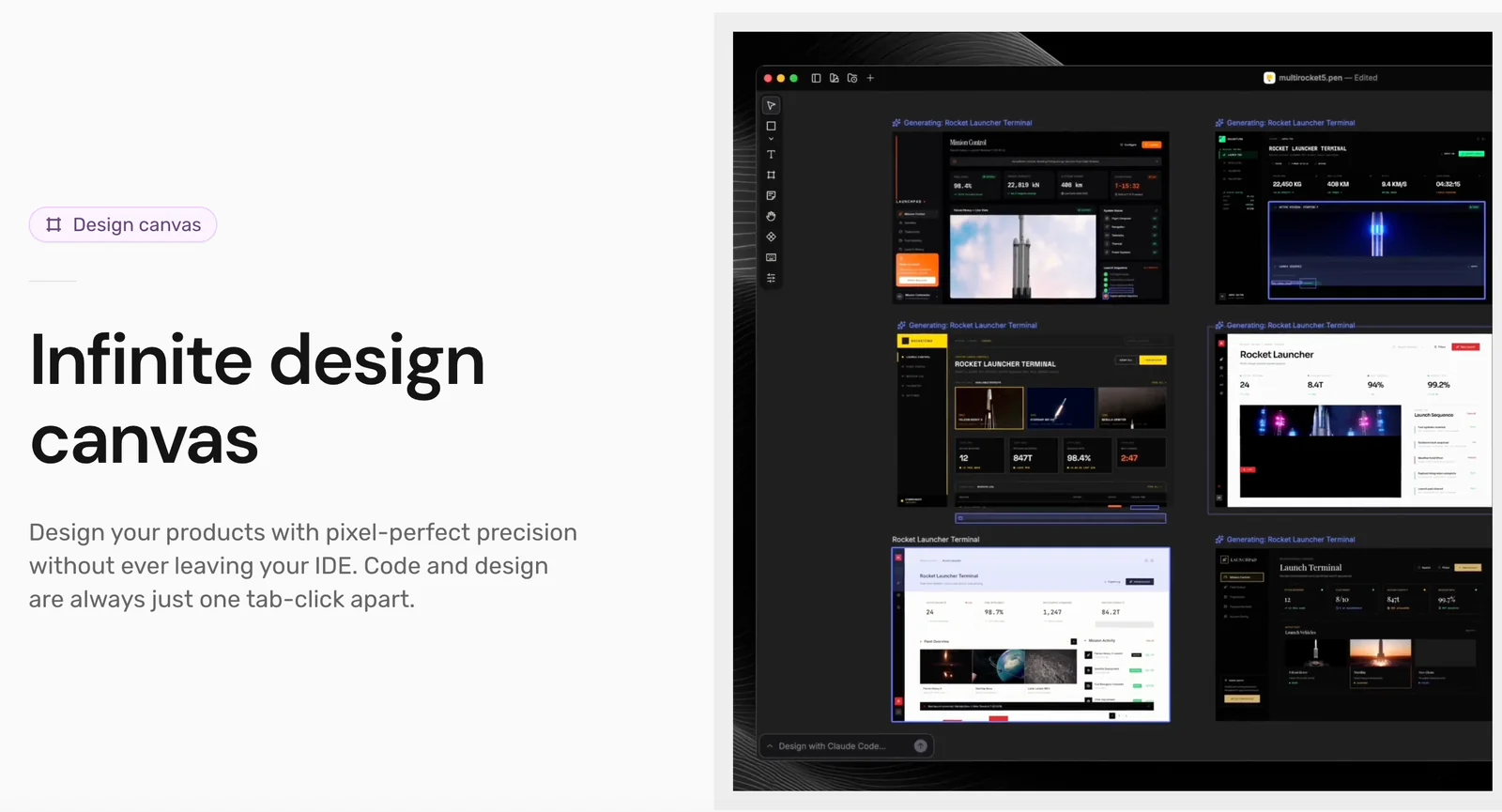
The in-IDE design canvas allows developers to create UI components directly within their existing coding environment. This eliminates the need to switch between applications, reducing context-switching friction and enhancing workflow efficiency. For example, using Pencil, you can drag and drop UI elements like buttons and forms while writing the corresponding code in real-time.
Design-to-Code Export
One of Pencil's standout features is its ability to export designs as clean, production-ready code. This means once a UI is completed, developers can export it directly into HTML, CSS, or JavaScript, significantly speeding up the development process. This feature is particularly useful for prototyping, where quick iterations are essential.
Local MCP Server Integration
With local MCP (Model-Configuration-Provider) server integration, teams can manage their projects effectively. This feature ensures that all configurations and assets are stored locally, making collaboration smoother and allowing for quicker testing and deployment. It’s especially beneficial for teams working on large-scale applications requiring constant updates.
Project-Scoped Configuration
Pencil’s project-scoped configuration enables developers to customize settings and preferences for individual projects. This allows for a more tailored approach, ensuring that each project can utilize specific frameworks or libraries without interference from others.
Best Practices / Tips
- Utilize the Design Canvas: Spend time familiarizing yourself with the in-IDE design canvas to maximize its potential.
- Leverage Export Features: Regularly use the design-to-code export to streamline your workflow. Test the exported code immediately to ensure it meets your requirements.
- Maintain Local Integration: Always keep your MCP server updated to avoid issues with asset management and collaboration.
Additional Resources
Is there a free version of Pencil available?
Yes, Pencil offers a free version during its early access phase. This version provides full access to the app and design canvas without usage limits. However, some model providers may require a separate subscription for advanced features.
Key Points
- Free Access: The free version is available during early access.
- Full Features: Users can access the complete app and design canvas.
- Subscription Requirements: Certain model providers may need an additional subscription.
Detailed Explanation
Pencil is an innovative design tool that allows users to create high-quality graphics and prototypes. During its early access phase, Pencil is offering a free version that includes unrestricted access to all core functionalities. This free access is an excellent opportunity for designers, developers, and businesses to explore its capabilities without financial commitment.
Features of the Free Version
- Unlimited Usage: The free version allows users to utilize the app's full features without limitations on the number of projects or designs.
- Intuitive Design Canvas: Users can create and manipulate designs easily using a user-friendly interface that supports various design elements.
- Collaboration Tools: The app facilitates collaboration among team members, making it easier to share designs and receive feedback.
Model Provider Subscriptions
While the main app is free, Pencil integrates with certain model providers that may require a subscription for advanced AI features or specific content libraries. Users should review these options based on their project needs.
For example, if a designer wants to utilize specific AI-generated assets or templates from a third-party provider, they might need to subscribe to that service. This additional cost can enhance the design experience but is not mandatory for using the core features of Pencil.
Best Practices / Tips
- Explore All Features: Take full advantage of the free version by exploring all the design tools and options available.
- Plan Your Projects: Outline your design projects ahead of time to maximize the use of the app's capabilities.
- Check Model Providers: Regularly check for updates on model provider subscriptions to see if any new features can benefit your workflow.
Additional Resources
- Pencil Official Website – Access tutorials, forums, and community support.
- Pencil Documentation – Detailed guides on using specific features and tools within the app.
- Pencil Community Forum – Connect with other users for tips, tricks, and collaboration opportunities.
Can I integrate Pencil with other tools?
Absolutely! Pencil supports integration with various tools via its MCP config, enabling seamless connections with CI systems, linters, and more. This integration enhances automation and streamlines your development workflow, making it easier to maintain code quality and efficiency.
Key Points
- Wide Range of Integrations: Pencil connects with popular CI/CD tools, linters, and project management software.
- Enhanced Automation: Automate repetitive tasks within your development pipeline for increased productivity.
- Customizable Configurations: Tailor the MCP config to suit your specific project needs.
Detailed Explanation
Pencil provides a flexible MCP (Modular Configuration Protocol) that allows users to integrate with an array of tools essential for modern development processes. This includes Continuous Integration (CI) systems like Jenkins, GitHub Actions, and CircleCI, which automate the software build, test, and deployment processes. By integrating with these CI tools, Pencil helps ensure that code changes are automatically tested and deployed, reducing manual interventions and potential errors.
Additionally, Pencil can connect with linters such as ESLint or Prettier, which enforce coding standards and style guidelines. This integration helps maintain code quality, ensuring that all code adheres to defined standards before merging into the main branch.
For project management, Pencil can be integrated with tools like Jira or Trello, allowing for better tracking of tasks and project progress. This holistic approach to integration promotes a smoother workflow and enhances team collaboration.
Example Use Cases
- Automated Testing: Set up Pencil with a CI tool like Jenkins to run tests automatically whenever new code is committed.
- Code Quality Checks: Use Pencil in conjunction with ESLint to catch coding errors before they reach production.
- Task Management: Integrate with Jira to automatically update ticket statuses based on code deployment activities.
Best Practices / Tips
- Understand Your Needs: Before integrating, analyze your development workflow to identify which tools would provide the most benefit.
- Test Integrations: Start with a test environment to ensure that all integrations work seamlessly before deploying them in production.
- Stay Updated: Regularly check for updates on both Pencil and the integrated tools to leverage new features and improvements.
- Documentation: Keep thorough documentation of your integration setup, as it aids in troubleshooting and onboarding new team members.
Additional Resources
How does Pencil compare to other design tools?
Pencil differentiates itself from other design tools by integrating UI design directly within Integrated Development Environments (IDEs), which minimizes context switching and allows for seamless design-to-code export. This unique feature enhances workflow efficiency compared to traditional design tools that operate as standalone applications.
Key Points
- Seamless Integration: Pencil operates within IDEs, promoting a fluid workflow.
- Immediate Design-to-Code Export: Facilitates faster development processes.
- Reduced Context Switching: Minimizes distractions and improves productivity.
Detailed Explanation
Pencil is an innovative design tool that changes the game for UI/UX designers and developers. Unlike traditional design software like Adobe XD or Sketch, which require users to switch between design and coding environments, Pencil integrates directly into popular IDEs such as Visual Studio Code or IntelliJ IDEA. This integration allows designers to create user interfaces while simultaneously coding, significantly speeding up the development cycle.
For example, when a designer uses Pencil to create a button or a layout, they can export the design directly into code snippets that can be immediately used in their application. This feature eliminates the time-consuming process of manually converting designs into code, a common bottleneck in software development.
Moreover, Pencil's embedded design capabilities mean that developers can instantly preview changes, making it easier to iterate designs based on real-time feedback. This approach not only enhances collaboration between designers and developers but also leads to a more cohesive product that aligns with user expectations.
Best Practices / Tips
- Utilize Keyboard Shortcuts: Maximize your efficiency by learning keyboard shortcuts within Pencil and your IDE.
- Regularly Update: Stay current with Pencil updates to take advantage of new features and improvements.
- Collaborate Frequently: Encourage regular feedback loops with your team to enhance design quality and functionality.
Additional Resources
- Pencil Official Documentation - Comprehensive guide on features and installation.
- Getting Started with Pencil - Step-by-step tutorial for new users.
- Comparative Analysis of Design Tools - A look at how Pencil stacks up against other leading design software.
Explore more AI Ai Tools tools
Browse all Ai Tools tools →Browse by use case: Automation & Productivity
Compare Pencil: vs CleanSlop · vs Kalender Sync · vs UseIt Studio · vs Woven Video