

MyLens for Chrome
AITurns any website or YouTube video into easy-to-understand visuals like mindmaps, timelines, and flowcharts.
MyLens for Chrome
Turns any website or YouTube video into easy-to-understand visuals like mindmaps, timelines, and flowcharts.
About MyLens for Chrome
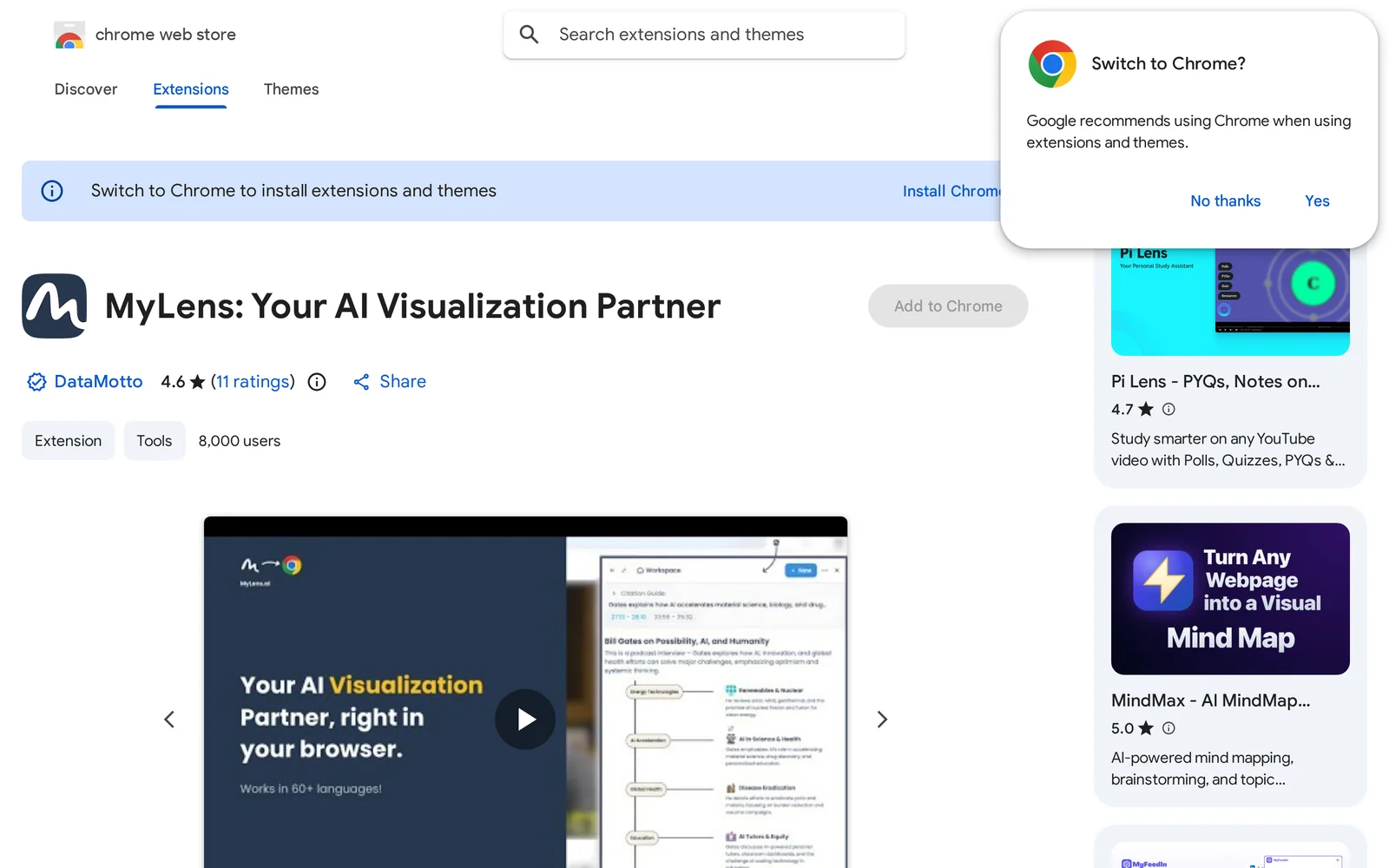
MyLens for Chrome is a browser extension that summarizes web pages and YouTube videos by converting their content into visual formats such as mindmaps, timelines, and flowcharts. It extracts key points from articles or videos and organizes them into structured visuals to make complex content easier to scan, understand, and recall. The tool is designed for quick comprehension, studying, research synthesis, and preparing presentations directly from the Chrome browser.
Screenshots
Key Features
Use Cases



Frequently asked questions about MyLens for Chrome
What is MyLens for Chrome?
MyLens for Chrome is a powerful browser extension that transforms any website or YouTube video into visually engaging formats like mind maps, timelines, and flowcharts. This tool enhances comprehension and retention, making complex information easier to digest and share.
Key Points
- Visual Transformation: Converts text-heavy content into visual diagrams.
- User-Friendly: Simple interface for quick creation of visuals.
- Versatile Applications: Ideal for students, educators, and professionals.
Detailed Explanation
MyLens for Chrome is designed to help users process information more effectively. By converting dense articles, videos, or presentations into visual formats, it addresses various learning styles. For instance, if you have a lengthy blog post, MyLens can create a mind map that highlights key concepts and their relationships.
How It Works:
- Installation: Add MyLens to your Chrome browser from the Chrome Web Store.
- Activation: Click the MyLens icon while on a webpage or YouTube video.
- Selection: Choose the type of visual representation you want (mind map, timeline, or flowchart).
- Customization: Adjust the layout and content as needed.
- Export/Share: Save your visuals or share them directly with others.
This extension is particularly beneficial for students preparing for exams, professionals summarizing reports, or anyone looking to simplify information for presentations.
Best Practices / Tips
- Start Simple: When using MyLens for the first time, begin with less complex content to familiarize yourself with its features.
- Use Keywords: Enhance your visual maps by incorporating keywords that align with your study or project goals.
- Collaborate: Share your visuals with peers for collaborative study sessions or team projects.
- Regular Updates: Keep the extension updated to access the latest features and improvements.
Additional Resources
How does MyLens for Chrome work?
MyLens for Chrome is an AI-powered browser extension designed to streamline daily workflows by leveraging advanced machine learning capabilities. It assists users in tasks such as image recognition, content summarization, and data extraction, making everyday online activities more efficient and user-friendly.
Key Points
- AI-Powered Features: Utilizes advanced machine learning for various tasks.
- User-Friendly Interface: Simplifies complex workflows with an intuitive design.
- Versatile Applications: Supports tasks like image analysis, text summarization, and data extraction.
Detailed Explanation
MyLens for Chrome functions as a versatile AI tool integrated into your web browser. Once installed, it enhances your online interactions through several key features:
-
Image Recognition: MyLens can analyze images found on websites, providing insights or identifying objects and text within those images. For example, if you find a picture of a product, MyLens can help you retrieve information about it or similar items.
-
Content Summarization: When browsing lengthy articles or reports, MyLens can generate concise summaries, allowing you to grasp essential points quickly. This feature is particularly helpful for researchers or students who need to sift through vast amounts of information.
-
Data Extraction: MyLens can assist in pulling relevant data from web pages, which is beneficial for tasks like compiling lists or gathering statistics. For instance, if you're collecting information for a project, you can use MyLens to automate the extraction of key data points without manual entry.
To get started, simply install the MyLens extension from the Chrome Web Store, create an account, and customize your settings based on your preferences. Once set up, you'll be able to access its features with just a few clicks.
Best Practices / Tips
- Regular Updates: Keep the MyLens extension updated to access the latest features and improvements.
- Explore Settings: Customize your preferences in the extension settings to optimize its functionality according to your workflow needs.
- Utilize Keyboard Shortcuts: Familiarize yourself with keyboard shortcuts offered by MyLens to speed up your tasks and improve productivity.
Additional Resources
What are the main features of MyLens for Chrome?
MyLens for Chrome offers a range of powerful features, including advanced AI capabilities for image recognition, enhanced web browsing tools, and personalized content suggestions. These features make it easier for users to find information, analyze images, and improve their online experience efficiently.
Key Points
- AI-Powered Image Recognition: Quickly identify and categorize images.
- Smart Browsing Tools: Enhance productivity with automated suggestions.
- Personalized Content Recommendations: Tailor your browsing experience based on preferences.
Detailed Explanation
MyLens for Chrome is designed to enhance your web browsing experience with several innovative features.
AI-Powered Image Recognition
One of the standout features of MyLens is its AI-driven image recognition capability. This tool allows users to upload or select images directly from the web, which the AI can then analyze. For instance, if you upload a photo of a landmark, MyLens can provide information about its history, location, and related images. This feature is particularly useful for researchers, students, and anyone interested in visual content.
Smart Browsing Tools
MyLens integrates smart browsing tools that streamline your online experience. For example, it can automatically suggest related articles, videos, or products based on your current content. This not only saves time but also enhances your learning and exploration by connecting you with relevant information effortlessly.
Personalized Content Recommendations
The extension also learns from your browsing habits to deliver personalized content recommendations. By analyzing your interests and frequently visited sites, MyLens curates a list of suggestions tailored specifically for you. This feature ensures that you receive content that is relevant and engaging, making your web experience more enjoyable.
Best Practices / Tips
- Regularly Update the Extension: Ensure you are using the latest version of MyLens for optimal performance and new features.
- Explore Settings: Customize the AI settings to align with your preferences for a more personalized experience.
- Utilize Image Recognition: Take full advantage of the image recognition feature by using it for research or creative projects.
Additional Resources
By leveraging these features effectively, users can transform their browsing experience and maximize the utility of MyLens for Chrome.
Who is MyLens for Chrome for?
MyLens for Chrome is designed for professionals, educators, and tech enthusiasts who want to enhance their productivity through AI-driven workflows. It's particularly beneficial for users looking to streamline tasks such as image analysis, data extraction, and real-time information retrieval during daily internet use.
Key Points
- Target Audience: Professionals, educators, and tech enthusiasts.
- Core Features: AI-driven image analysis, data extraction, and real-time information retrieval.
- Use Cases: Enhance productivity in various fields, including research, marketing, and education.
Detailed Explanation
MyLens for Chrome is a versatile tool intended for a broad spectrum of users. Here are some specific groups that can benefit:
-
Professionals: Individuals in marketing, data analysis, or research can leverage MyLens to quickly extract relevant information from images and websites. For instance, marketers can analyze visual content to better understand trends and customer preferences.
-
Educators: Teachers and students can utilize MyLens to enhance learning experiences. For example, educators can use it to extract data from educational materials, while students can analyze images for projects or homework assignments.
-
Tech Enthusiasts: Those interested in AI and technology can experiment with MyLens’s features to explore new ways to enhance their online workflows. This includes using image recognition to automate mundane tasks or gather insights from visual data.
Examples of Use Cases:
- Image Analysis: Quickly analyze an image to gather data points, such as identifying objects or extracting text.
- Research: Use MyLens to find and extract relevant content from research papers or articles, saving time in gathering information.
- Content Creation: Generate visual content insights for blogs or social media posts, improving engagement through data-driven decisions.
Best Practices / Tips
- Stay Updated: Regularly check for updates and new features within MyLens to maximize its potential.
- Experiment with Settings: Adjust the tool's settings for optimal performance based on your specific needs.
- Combine Tools: Use MyLens in conjunction with other productivity tools to create a more robust workflow.
Common pitfalls include not fully exploring all features of MyLens or overlooking its integration capabilities with other tools, which can limit its effectiveness.
Additional Resources
How much does MyLens for Chrome cost?
MyLens for Chrome is available in a free tier, which provides basic functionality. For users seeking advanced features, there are paid plans priced at $9.99 per month or $99.99 per year, offering enhanced capabilities to improve your browsing experience.
Key Points
- Free Tier: Basic functionality with no cost.
- Paid Plans: Advanced features available for $9.99/month or $99.99/year.
- User Benefits: Enhanced browsing and productivity tools.
Detailed Explanation
MyLens for Chrome offers a flexible pricing structure catering to different user needs. The free tier provides essential features, making it accessible for casual users who want to enhance their browsing experience without investment. This includes basic tools for web enhancement and educational content.
For users who require more robust capabilities, paid plans unlock advanced features such as personalized recommendations, enhanced search functionalities, and additional customization options. Priced at $9.99 per month or $99.99 per year, these plans are designed to deliver a more comprehensive experience, specifically for professionals and power users who rely on efficiency and productivity in their daily browsing activities.
For example, a student might benefit from the free tier, while a digital marketer could find the paid plan invaluable for saving time and improving workflow. The tiered pricing model allows you to choose based on your specific needs and usage frequency.
Best Practices / Tips
- Evaluate Your Needs: Start with the free version to assess if the standard features meet your requirements. If you find yourself using the tool often, consider upgrading.
- Annual Subscription: Opt for the annual plan to save money in the long run—this could be a practical choice for frequent users.
- Utilize Free Trials: If available, take advantage of free trials for the paid features to determine if they will significantly enhance your productivity.
Additional Resources
By understanding the cost structure and available features of MyLens for Chrome, you can make an informed decision that best fits your browsing needs and budget.
How do I get started with MyLens for Chrome?
To get started with MyLens for Chrome, visit the Chrome Web Store page at MyLens for Chrome to download and sign up. Follow the installation instructions, and you'll be ready to enhance your browsing experience with AI-driven features.
Key Points
- Easy installation from the Chrome Web Store.
- User-friendly interface for seamless navigation.
- AI-powered features for efficient browsing.
Detailed Explanation
To begin using MyLens for Chrome, first, navigate to the Chrome Web Store. Click on the "Add to Chrome" button to initiate the installation. A pop-up will appear asking for permissions; review and accept them to proceed.
Once installed, you will see the MyLens icon in your Chrome toolbar. Click on it to open the interface, where you can explore various features, such as:
- Image Recognition: Upload or drag and drop images to find information instantly.
- Text Extraction: Highlight text on any webpage and use MyLens to gather contextual data.
- Smart Recommendations: Receive tailored suggestions based on your browsing history.
To set up your account, follow the on-screen prompts. You may need to create a MyLens account, which typically requires an email address and password. After logging in, customize the settings to suit your preferences, such as notification toggles and data privacy options.
Best Practices / Tips
- Explore Tutorials: Familiarize yourself with MyLens by checking out tutorials available through the app or on its official website.
- Regular Updates: Keep your extension updated to access the latest features and security improvements.
- Use Keyboard Shortcuts: Learn and utilize keyboard shortcuts to enhance your efficiency while using MyLens.
Additional Resources
Explore more AI Ai Tools tools
Browse all Ai Tools tools →Browse by use case: Video Generation
Compare MyLens for Chrome: vs CleanSlop · vs Kalender Sync · vs UseIt Studio · vs Woven Video