

FireCut for DaVinci Resolve
AIA plugin that brings AI-driven automation to DaVinci Resolve, speeding edits with silence cutting, auto B-roll, captions, zoom cuts and chapter detection.
FireCut for DaVinci Resolve
A plugin that brings AI-driven automation to DaVinci Resolve, speeding edits with silence cutting, auto B-roll, captions, zoom cuts and chapter detection.
About FireCut for DaVinci Resolve
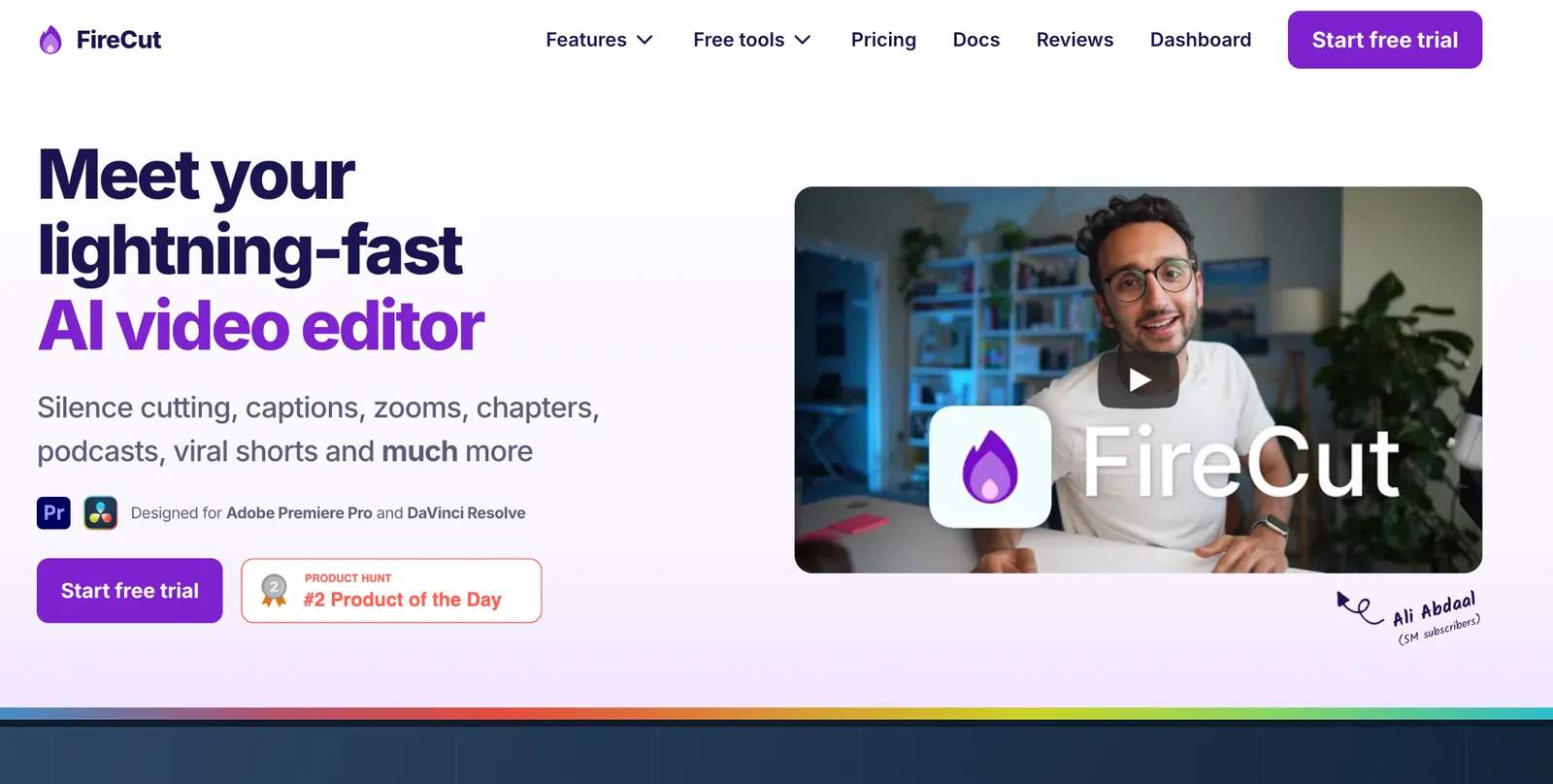
FireCut is an AI-powered video editing plugin designed to integrate into DaVinci Resolve (Free and Studio) and Adobe Premiere Pro to automate repetitive editing tasks. It analyzes footage to detect chapters, silence, and speaker changes, then applies configurable edits such as silence cutting, zoom cuts, and animated captions. FireCut can automatically generate and place B-roll and produce stylized captions to speed up creating social clips and long-form edits. Its value is in reducing manual timeline cleanup and accelerating content iteration while remaining customizable to editors' preferred thresholds and styles.
Screenshots
Key Features
Use Cases



Frequently asked questions about FireCut for DaVinci Resolve
What is the pricing structure for FireCut for DaVinci Resolve?
FireCut for DaVinci Resolve offers a FREEMIUM pricing structure that includes three options: a monthly subscription at $34, an annual promotional rate of $17 per month, and a standard annual rate of $24 per month. New users can also access a free trial to explore the features.
Key Points
- FREEMIUM Model: Offers both free and paid tiers.
- Subscription Options: Monthly or annual plans available.
- Free Trial: New users can try the software without commitments.
Detailed Explanation
FireCut for DaVinci Resolve adopts a flexible pricing strategy to cater to different user needs. The FREEMIUM model means users can start with limited features at no cost, perfect for those wanting to test the software before committing financially.
-
Monthly Subscription: Priced at $34, this option is ideal for users who prefer short-term commitments or are working on specific projects that require immediate access to the software without a long-term agreement.
-
Annual Promotional Rate: At $17/month, this rate is available for a limited time and offers significant savings for users who are ready to commit to a year of service. This plan is beneficial for content creators and video editors who regularly use DaVinci Resolve and want to access FireCut’s full features.
-
Standard Annual Rate: For $24/month, this subscription provides a reliable option for users who may have missed the promotional rate. It still offers cost savings compared to the monthly plan over a year.
-
Free Trial: New users can take advantage of a free trial that allows them to explore the software’s features without any financial commitment. This is crucial for evaluating whether FireCut meets their editing needs.
Best Practices / Tips
- Evaluate Your Needs: Before choosing a subscription, assess how often you'll use FireCut and select the plan that offers the best value for your usage patterns.
- Utilize the Free Trial: Take full advantage of the free trial to explore all features and understand how FireCut integrates with DaVinci Resolve.
- Monitor Promotional Offers: Keep an eye on special offers or discounts that may become available, especially if you are considering the annual plan.
Additional Resources
- FireCut Official Website - For the latest pricing and features.
- DaVinci Resolve Documentation - To understand how FireCut integrates with DaVinci Resolve.
- FireCut User Guides - For tips and tutorials on using FireCut effectively.
What are the key features of FireCut for DaVinci Resolve?
FireCut for DaVinci Resolve offers key features such as silence cutting, automatic B-roll insertion, animated captions, chapter detection, and zoom cuts. These innovative tools significantly enhance editing efficiency and storytelling capabilities without requiring extensive manual effort, making it a valuable asset for video editors.
Key Points
- Silence Cutting: Automatically removes silence to streamline video.
- Automatic B-Roll Insertion: Enhances storytelling with relevant secondary footage.
- Animated Captions: Engages viewers through dynamic text display.
Detailed Explanation
FireCut is designed to simplify the video editing process, particularly for creators using DaVinci Resolve. Here’s a deeper look at its core features:
Silence Cutting
This feature intelligently detects pauses in speech and removes them, allowing editors to produce a more cohesive narrative. For instance, a 30-minute interview can be condensed to 20 minutes by eliminating unnecessary gaps, saving time while maintaining the essence of the conversation.
Automatic B-Roll Insertion
FireCut analyzes the primary footage and suggests B-roll clips that complement the main content. For example, if an editor is creating a video about cooking, FireCut may automatically insert clips of ingredients being prepared or dishes being served, enhancing visual storytelling without manual searching.
Animated Captions
Animated captions grab viewers’ attention and improve accessibility. This feature allows editors to add engaging text overlays that can highlight key points or emphasize dialogue, making the content more dynamic. Editors can customize animations to fit the video’s style, ensuring a professional finish.
Chapter Detection
The chapter detection feature automatically segments videos into chapters, making it easier for viewers to navigate content. For educational videos, this is particularly useful, as it allows learners to jump to specific topics, enhancing user experience and engagement.
Zoom Cuts
Zoom cuts allow editors to create visually engaging transitions by zooming into clips for emphasis. This technique can be particularly effective during critical points in a video, helping to maintain viewer attention and convey messages powerfully.
Best Practices / Tips
- Experiment with Features: Take the time to explore each feature thoroughly to understand how they can best serve your editing style.
- Combine Features: Utilize multiple features simultaneously, such as pairing silence cutting with automatic B-roll insertion for maximum efficiency.
- Stay Consistent: Maintain a consistent style across your video projects by adjusting animated captions and zoom cut settings to match your branding.
Additional Resources
By leveraging these features, FireCut for DaVinci Resolve can significantly enhance your editing workflow, providing tools that not only save time but also improve the overall quality of your videos.
How do I get started with FireCut for DaVinci Resolve?
To get started with FireCut for DaVinci Resolve, download the plugin from the official FireCut website, install it within DaVinci Resolve, and activate your free trial. For optimal use, follow the provided tutorials, which will help you navigate its advanced features effortlessly.
Key Points
- Download and Installation: Access FireCut from the official site.
- Free Trial Activation: Activate your trial to explore features.
- Utilize Tutorials: Leverage tutorials for effective usage.
Detailed Explanation
-
Download and Installation
- Visit the FireCut official website to download the latest version of the plugin.
- Ensure you have DaVinci Resolve installed on your system (version 17 or later recommended).
- Follow the installation instructions carefully, which typically involve dragging the FireCut plugin file into the DaVinci Resolve plugins folder.
-
Activating the Free Trial
- Upon installation, launch DaVinci Resolve and navigate to the FireCut menu.
- Select the option to activate your free trial, usually requiring you to enter your email address.
- Check your email for a confirmation link to finalize the activation.
-
Exploring Tutorials
- Once activated, access the tutorial section available within the FireCut interface. These tutorials cover everything from basic features to advanced techniques.
- Consider utilizing community forums or video tutorials on platforms like YouTube for additional insights and tips from other users.
Best Practices / Tips
- System Requirements: Ensure your computer meets the minimum system requirements for optimal performance while using FireCut.
- Regular Updates: Keep the FireCut plugin updated to access new features and improvements.
- Experiment with Features: Spend time experimenting with different features in FireCut to discover how they enhance your editing workflow.
Additional Resources
By following these steps and utilizing the resources provided, you'll be well on your way to effectively using FireCut with DaVinci Resolve for your video editing projects.
Can FireCut integrate with Adobe Premiere Pro?
Yes, FireCut can seamlessly integrate with Adobe Premiere Pro, enabling users to utilize automated editing rules across multiple non-linear editing (NLE) platforms. This integration enhances workflow efficiency, allowing creators to apply consistent editing styles and techniques in both FireCut and Premiere Pro.
Key Points
- Cross-Platform Compatibility: FireCut supports integration with major NLEs like Adobe Premiere Pro and DaVinci Resolve.
- Automated Editing: Users can apply automated editing rules to streamline their creative processes.
- Enhanced Workflow: The integration allows for consistent editing styles across different software environments.
Detailed Explanation
FireCut's integration with Adobe Premiere Pro is a game-changer for video editors looking to enhance their productivity. FireCut leverages AI technology to automate various editing tasks, such as scene detection and clip selection. By connecting FireCut with Premiere Pro, users can apply the same automated editing rules they use in FireCut directly within their Premiere Pro projects.
For instance, if you define a set of rules in FireCut that prioritize certain types of shots or transitions, those rules can be replicated in Premiere Pro. This integration eliminates the need for repetitive manual editing, allowing editors to focus on creativity and storytelling.
To integrate FireCut with Adobe Premiere Pro, follow these steps:
- Install FireCut: Ensure you have the latest version of FireCut installed on your system.
- Connect to Premiere Pro: Open Premiere Pro and navigate to the integration settings in FireCut to link both applications.
- Set Your Editing Rules: Define your automated editing rules in FireCut based on your specific project needs.
- Export and Edit: Once your edits are done in FireCut, export your project and continue refining it in Premiere Pro.
Best Practices / Tips
- Test Different Rules: Experiment with various editing rules in FireCut to find what works best for your style.
- Keep Software Updated: Regularly update FireCut and Adobe Premiere Pro to ensure compatibility and access to the latest features.
- Use Keyboard Shortcuts: Familiarize yourself with keyboard shortcuts in Premiere Pro to enhance your editing speed.
- Review Automated Edits: Always review automated edits to ensure they align with your creative vision, as AI might not always interpret nuances correctly.
Additional Resources
How does FireCut for DaVinci Resolve compare to other editing tools?
FireCut for DaVinci Resolve excels in the realm of video editing with its AI-driven automation features, such as silence detection and automated B-roll insertion. These capabilities significantly enhance workflow efficiency compared to traditional editing tools, which often require extensive manual input and time-consuming processes.
Key Points
- AI-Driven Features: Automates tedious tasks like silence detection.
- Streamlined Workflow: Reduces editing time and effort.
- User-Friendly Interface: Simplifies the editing experience for both beginners and professionals.
Detailed Explanation
FireCut leverages advanced AI algorithms to revolutionize video editing. Its standout features include:
-
Silence Detection: This feature automatically identifies silent moments in the audio track, allowing editors to cut out unnecessary footage without manually sifting through hours of video. For instance, a long interview can be trimmed down efficiently, focusing only on the key highlights.
-
Automated B-Roll Insertion: FireCut intelligently suggests and inserts relevant B-roll footage based on the context of the primary video content. This means editors can enhance their storytelling without having to manually search for and incorporate additional footage.
-
Seamless Integration with DaVinci Resolve: FireCut is designed to work within the DaVinci Resolve environment, making it easy for users familiar with this powerful editing tool to adopt its features without a steep learning curve.
Compared to traditional editing tools like Adobe Premiere Pro or Final Cut Pro, which often demand more manual intervention for similar tasks, FireCut’s automation saves hours of editing time. This is particularly beneficial for content creators who need to produce videos quickly for social media or marketing purposes.
Best Practices / Tips
- Leverage AI Features: Take full advantage of FireCut’s automation by exploring all available features in-depth. Familiarize yourself with how silence detection and B-roll suggestions work to maximize efficiency.
- Combine with Manual Edits: While automation is powerful, don’t shy away from making manual adjustments for a polished final product. Review AI-generated edits to ensure they align with your creative vision.
- Regular Updates: Stay updated with the latest FireCut enhancements and DaVinci Resolve releases to utilize new features and improvements.
Additional Resources
Explore more AI Ai Tools tools
Browse all Ai Tools tools →Browse by use case: Video Generation · Automation & Productivity
Compare FireCut for DaVinci Resolve: vs CleanSlop · vs Kalender Sync · vs UseIt Studio · vs Woven Video