

CapCut
AIAll-in-one AI-driven video editor and image design platform for web, desktop, and mobile.
CapCut
All-in-one AI-driven video editor and image design platform for web, desktop, and mobile.
About CapCut
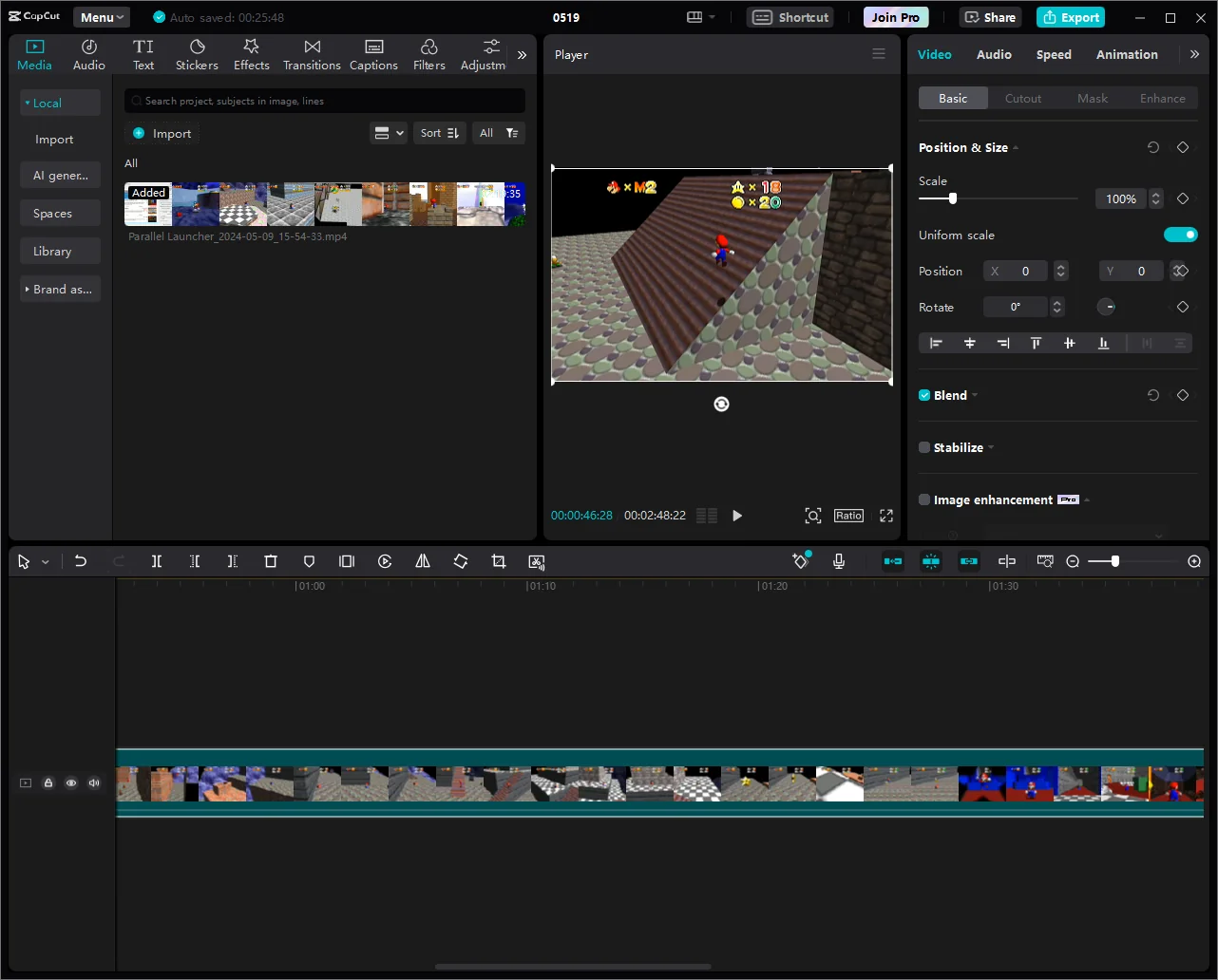
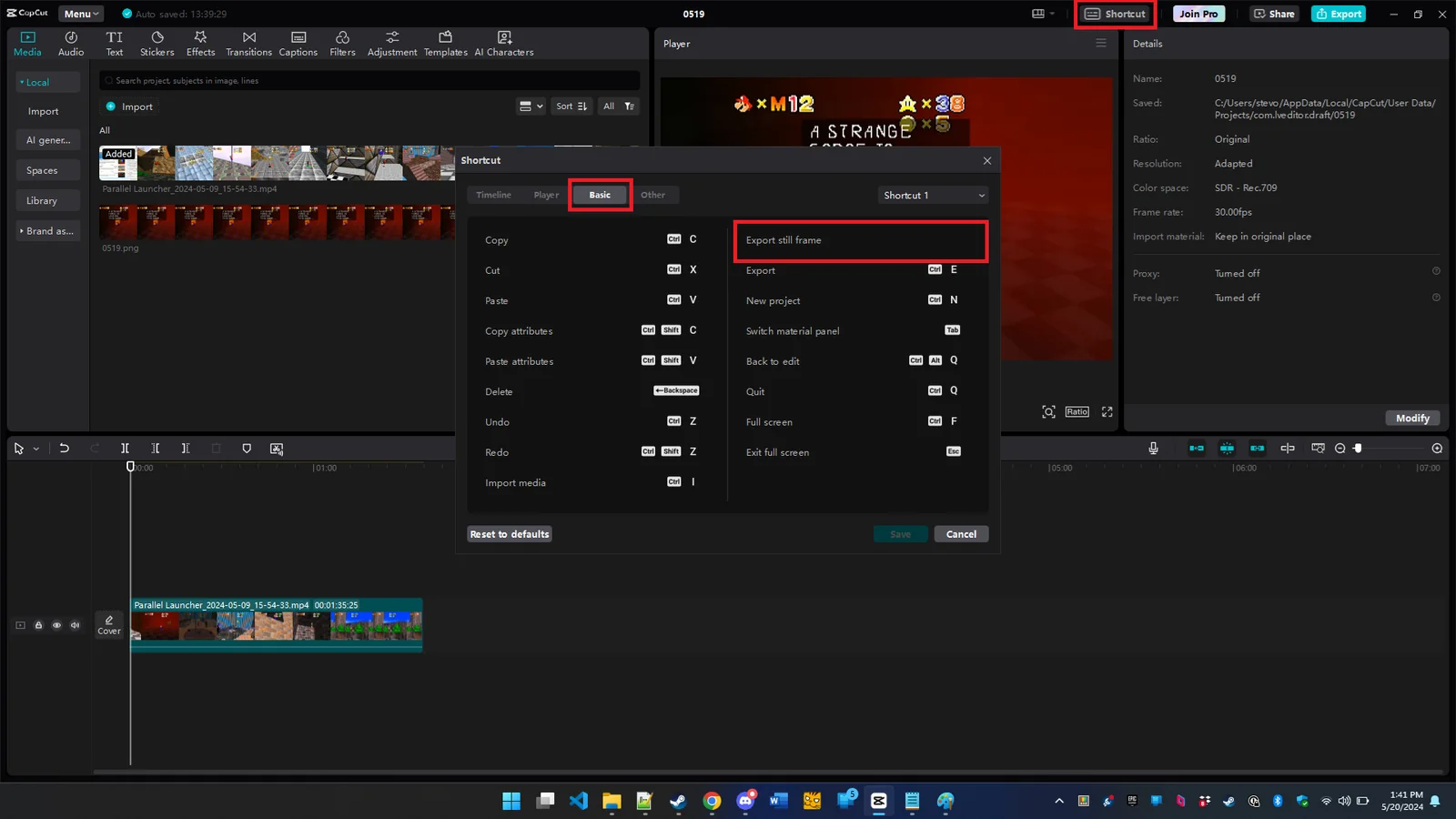
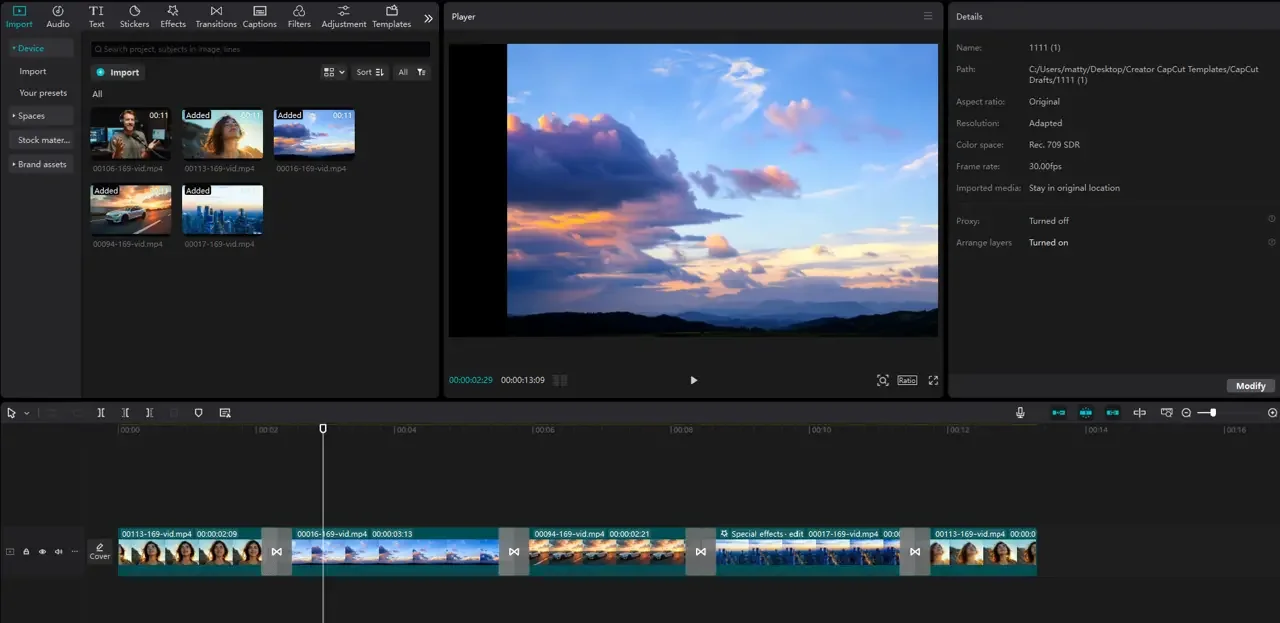
CapCut is a cross-platform creative suite powered by AI that combines video editing and image design tools for browser, Windows, Mac, Android, and iOS. It offers timeline-based and multi-track editing, a library of templates, effects and stock media, and AI-assisted enhancements to speed up tasks like background removal, motion tracking, and scene optimization. CapCut targets creators from casual social-media editors to advanced video producers by providing both simple one-tap tools and advanced controls such as keyframing, chroma key, and high-resolution export options.
Screenshots
Key Features
Use Cases



Frequently asked questions about CapCut
What are the pricing options for CapCut?
CapCut offers a freemium pricing model with three tiers: Free ($0), Standard ($9.99/month), and Pro (ranging from $7.99 to $19.99/month). Each tier unlocks various features, including watermark removal, higher resolution exports, and advanced editing tools, catering to different user needs.
Key Points
- Free Tier: Basic features with watermarks.
- Standard Tier: Enhanced features for $9.99/month.
- Pro Tier: Flexible pricing from $7.99 to $19.99/month with premium features.
Detailed Explanation
CapCut provides a user-friendly video editing experience with its tiered pricing structure.
-
Free Tier: Accessible at no cost, this option includes basic editing tools and features. However, videos exported will contain watermarks, and certain advanced functionalities, like access to a wider range of effects and filters, are limited.
-
Standard Tier: For $9.99/month, users can enjoy additional features, including watermark removal, higher resolution exports, and access to a broader selection of editing tools. This tier is ideal for casual creators who want more freedom without committing to long-term subscriptions.
-
Pro Tier: This tier offers a flexible pricing range between $7.99 and $19.99/month, depending on the commitment length. Subscribing to the Pro tier unlocks all advanced features, including premium effects, full HD exports, and priority support. It is designed for professional creators who need extensive capabilities and higher quality outputs.
Best Practices / Tips
- Evaluate Your Needs: Determine which features you will use most. If you're a casual user, the Free or Standard tier may suffice. For professionals, the Pro tier’s benefits can justify the cost.
- Take Advantage of Free Trials: If available, use free trials before committing to a paid tier to assess if the features meet your editing needs.
- Consider Annual Plans: If you plan to use CapCut long-term, check for annual subscription discounts that can save you money compared to monthly payments.
Additional Resources
How do I use CapCut for video editing?
To use CapCut for video editing, download the app on your device or access it online. Import your media files, utilize the multi-track timeline and various templates, then edit your video. Once satisfied with your project, export it in your desired format to share.
Key Points
- Easy Installation: Available on mobile and web.
- User-Friendly Interface: Intuitive timeline and templates.
- Export Options: Multiple formats for sharing your video.
Detailed Explanation
CapCut is an intuitive video editing tool available for both iOS and Android devices, as well as a web version. Here’s how to get started:
-
Download the App:
- For mobile users, download CapCut from the App Store (iOS) or Google Play Store (Android).
- Alternatively, visit the CapCut website for web-based editing.
-
Import Your Media:
- Open CapCut and create a new project.
- Click on the “+” icon to import photos, videos, and audio files from your device.
-
Editing Your Video:
- Utilize the multi-track timeline feature to arrange your clips.
- Explore various templates to enhance your video’s look quickly.
- Use tools like trimming, splitting, and adjusting speed for precise edits.
- Add effects, transitions, and text overlays to make your video engaging.
-
Exporting Your Video:
- Once editing is complete, tap on the export button.
- Choose your desired resolution (up to 4K) and format (e.g., MP4).
- Save the video to your device or share it directly on social media platforms.
Best Practices / Tips
- Plan Your Project: Sketch out a storyboard before starting to streamline your editing process.
- Use High-Quality Media: Start with the best quality footage and audio for better final results.
- Experiment with Effects: Try different filters and effects to find what enhances your content without overwhelming it.
- Regularly Save Your Work: Ensure you don’t lose progress by saving frequently.
- Watch Tutorials: CapCut has numerous tutorials online to help you master advanced features.
Additional Resources
What are the key features of CapCut?
CapCut features advanced multi-track editing, AI enhancements for automated effects, a variety of premium effects, customizable templates, and high-resolution exports up to 4K/60FPS in premium tiers. It also offers seamless cross-platform editing across web and mobile devices, making it a versatile choice for content creators.
Key Points
- Multi-Track Editing: Allows layering of different video and audio tracks.
- AI Enhancements: Automates tasks like background removal and scene detection.
- Premium Effects and Templates: Offers a rich library for creative customization.
Detailed Explanation
CapCut is a powerful video editing tool that caters to both novice and professional creators. Its multi-track editing feature enables users to layer videos, audio, and effects, creating complex compositions with ease. This is particularly useful for music videos, tutorials, and vlogs, where multiple media elements need to be synchronized.
The AI enhancements in CapCut significantly streamline the editing process. For instance, users can utilize AI-driven features for background removal, which is especially valuable when needing to isolate subjects for a cleaner final product. Scene detection aids in automatically detecting cuts and transitions, simplifying the editing workflow.
CapCut's vast library of premium effects and templates allows users to enhance their videos creatively. Whether you need dynamic transitions, stylish text animations, or visual effects, CapCut offers a plethora of options that can elevate your content. These templates can be customized, allowing for unique branding and personal flair.
Additionally, CapCut supports high-resolution exports, with options for 4K at 60 frames per second available in premium tiers. This is ideal for creators aiming to publish their videos on high-definition platforms like YouTube and Vimeo, ensuring that the final product is visually stunning.
Best Practices / Tips
- Explore Templates: Start with the available templates to save time and inspire creativity.
- Leverage AI Tools: Use AI features to automate repetitive tasks, enhancing efficiency.
- Optimize for Platforms: Tailor exports based on where you plan to share your videos, choosing the appropriate resolution and format.
Additional Resources
By understanding and utilizing these features, you can maximize your video editing efficiency and creativity with CapCut.
How does CapCut compare to other video editing tools?
CapCut differentiates itself from other video editing tools through its user-friendly interface, AI-driven features, and a freemium pricing model. Unlike Adobe Premiere Rush and other competitors, CapCut offers robust basic editing tools for free, making it an ideal choice for beginners and casual users, though it may lack some advanced functionalities.
Key Points
- User-Friendly Interface: CapCut is designed for ease of use, especially for beginners.
- AI-Driven Features: It utilizes artificial intelligence for smart editing, enhancing user experience.
- Freemium Model: Offers a generous free tier compared to subscription-based competitors.
Detailed Explanation
CapCut has gained popularity for its intuitive interface, allowing users to create and edit videos quickly. The app is particularly appealing to beginners and social media enthusiasts who need to produce engaging content without the steep learning curve associated with more advanced software like Adobe Premiere Pro.
User-Friendly Interface
CapCut's layout is straightforward, enabling users to navigate through the various editing tools with ease. The drag-and-drop functionality simplifies the editing process, allowing users to import videos, add music, and apply filters seamlessly. This makes CapCut an excellent choice for those who want a fast editing solution.
AI-Driven Features
One of CapCut's standout features is its AI capabilities. The app includes tools like automatic scene detection and smart background removal, streamlining the video editing process. These features allow users to create polished videos without needing advanced editing skills, making it especially useful for TikTok creators and YouTubers.
Freemium Model
CapCut operates on a freemium model, providing a wide array of basic editing features at no cost. Users can access tools like transitions, text overlays, and sound effects for free. For those looking for premium features, CapCut also offers a subscription plan that unlocks additional assets and advanced functionalities, which is still competitively priced compared to Adobe Premiere Rush.
Best Practices / Tips
- Explore Features: Take time to familiarize yourself with the AI tools CapCut offers. Experimenting will help you understand how to maximize their potential.
- Use Templates: CapCut provides various templates that can speed up your editing process and give your videos a professional touch.
- Stay Updated: Regularly check for updates, as CapCut frequently adds new features and improvements that can enhance your editing experience.
Additional Resources
Does CapCut have an API for integration?
Currently, CapCut does not offer a public API for integration purposes. Users are encouraged to utilize the app's built-in features for video editing and creation without relying on external integrations, making it user-friendly and accessible for all skill levels.
Key Points
- No Public API: CapCut does not provide a public API for third-party integrations.
- Built-in Features: Users can take advantage of CapCut's extensive built-in editing tools.
- User-Friendly Interface: The app is designed to be intuitive, catering to both beginners and experienced users.
Detailed Explanation
CapCut, a popular video editing application developed by ByteDance, focuses on delivering a seamless user experience without the complexity of API integrations. This means that users can edit videos using a variety of built-in features such as trimming, filters, effects, and soundtracks directly within the app. The lack of a public API also means that developers cannot build custom integrations or utilize CapCut’s functionalities in other applications.
For users looking to maximize their editing potential, CapCut offers several advanced features. For instance, the app supports multi-layer editing, allowing users to overlay videos, images, and effects for a more dynamic final product. Additionally, with its easy-to-use interface, users can quickly learn how to navigate the app and create professional-looking videos in just a few taps.
Best Practices / Tips
- Explore Built-in Features: Familiarize yourself with all features CapCut offers, such as transitions, text overlays, and music integration. This knowledge can enhance your video editing skills.
- Stay Updated: Regularly check for app updates, as CapCut frequently adds new features and improvements, which may enhance your editing experience.
- Utilize Tutorials: Many online resources and tutorials can help you learn how to use CapCut effectively without needing an API for additional functionalities.
Additional Resources
Explore more AI Ai Tools tools
Browse all Ai Tools tools →Browse by use case: Video Generation
Compare CapCut: vs CleanSlop · vs Kalender Sync · vs UseIt Studio · vs Woven Video