

Numerous.ai
AIA spreadsheet plugin that embeds ChatGPT into Google Sheets and Excel to extract text, categorize data, and generate formulas.
Numerous.ai
A spreadsheet plugin that embeds ChatGPT into Google Sheets and Excel to extract text, categorize data, and generate formulas.
About Numerous.ai
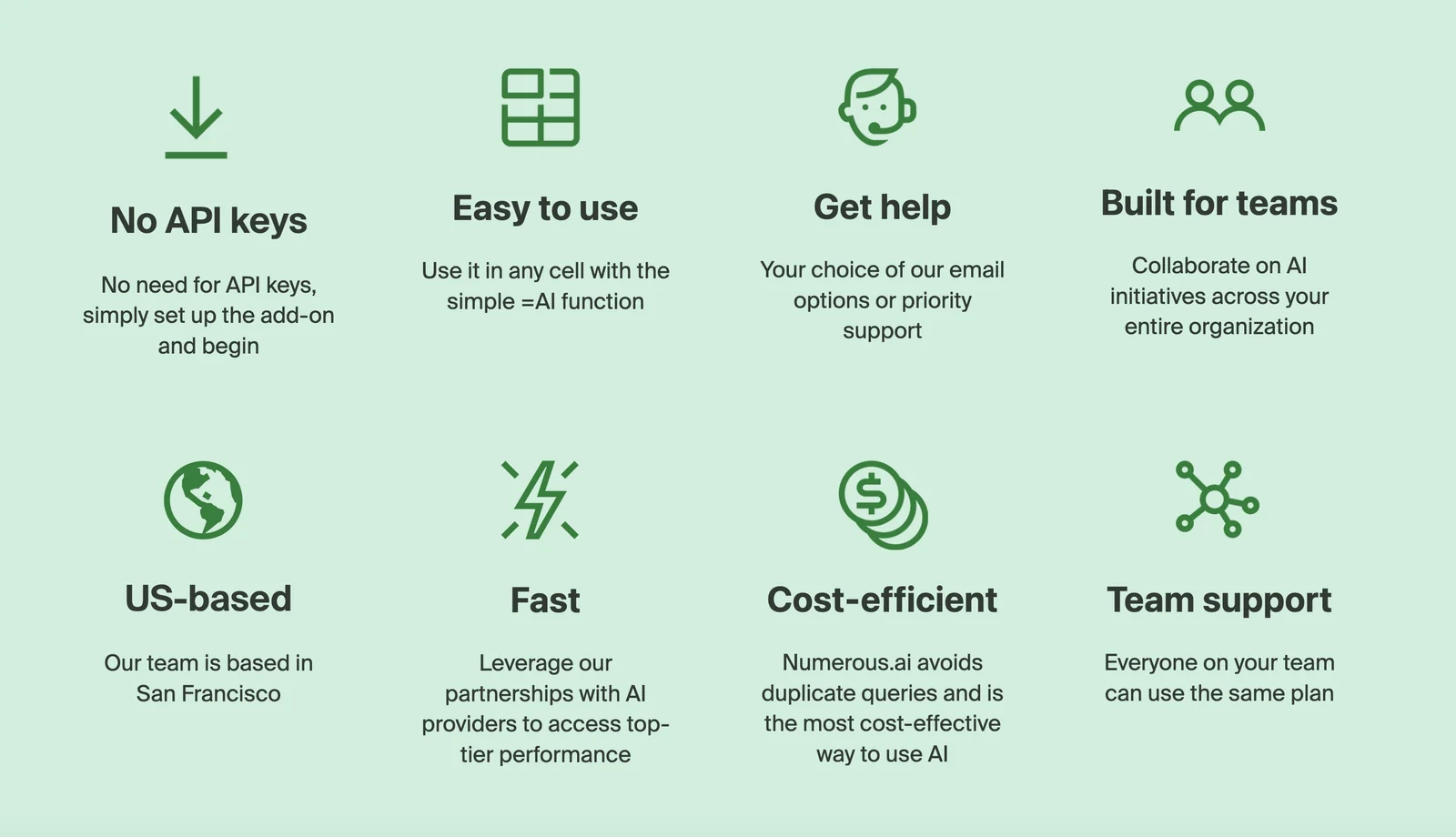
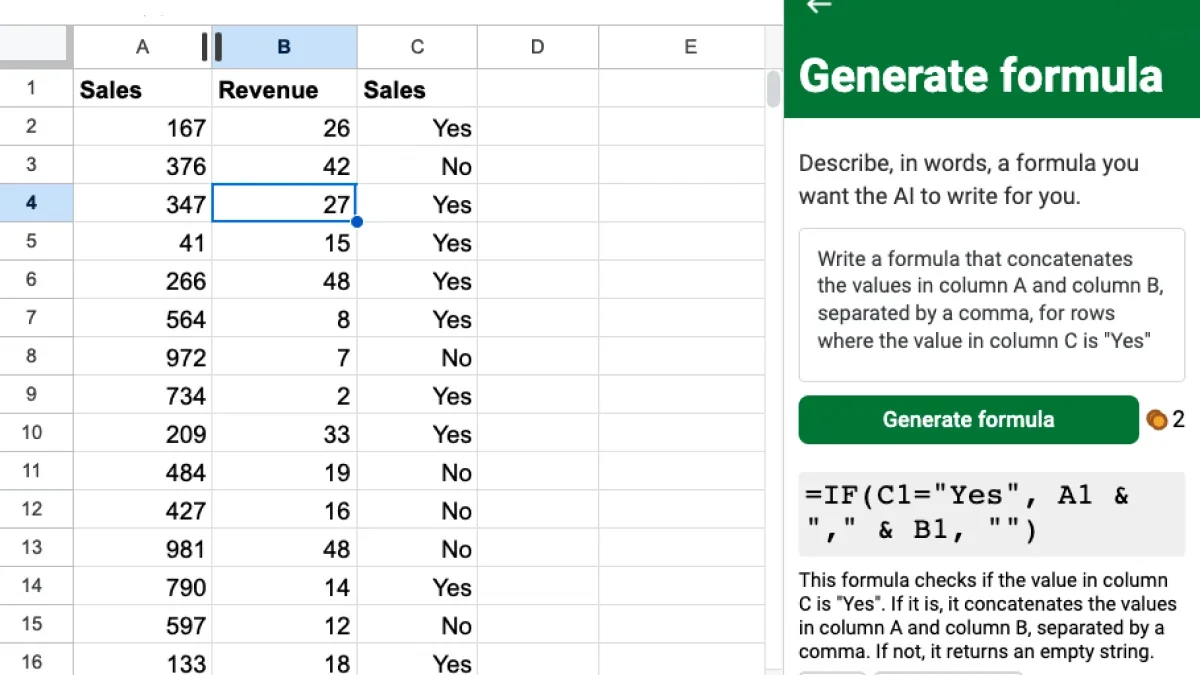
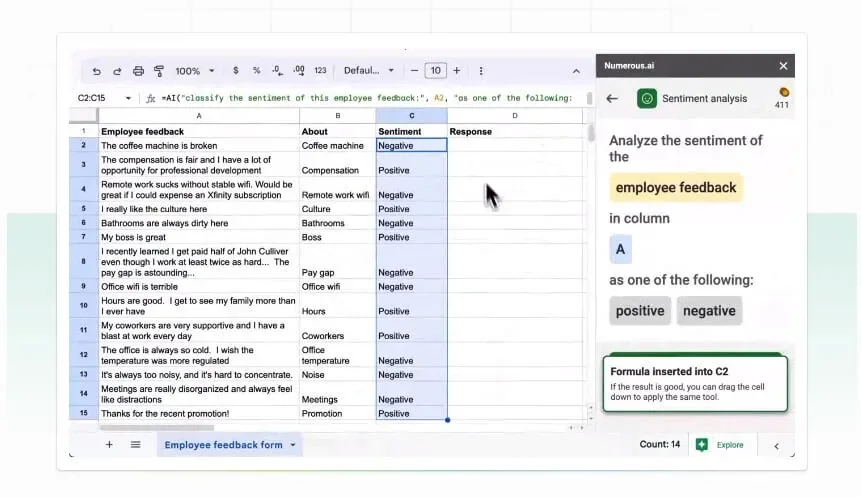
Numerous.ai is a spreadsheet plugin that integrates conversational LLM capabilities directly into Google Sheets and Microsoft Excel. It enables users to run natural-language prompts against spreadsheet data to extract text, categorize rows, generate complex formulas, and produce summaries without leaving the spreadsheet interface. By combining GPT-driven understanding with cell-level operations, Numerous.ai speeds up data cleaning, labeling, formula creation, and ad-hoc analysis, reducing manual spreadsheet work and enabling non-technical users to leverage advanced automation and generation inside familiar tools.
Screenshots
Key Features
Use Cases



Frequently asked questions about Numerous.ai
What are the pricing options available for Numerous.ai?
Numerous.ai offers various pricing options to meet different needs: a $1 7-day trial, a Personal plan at $10/month, a custom Pro plan tailored to user requirements, and an Enterprise plan priced at $8/month per user. Visit the official site for the most current pricing details.
Key Points
- Trial Offer: $1 for 7 days
- Personal Plan: $10/month
- Custom Plans: Tailored Pro options and Enterprise pricing
Detailed Explanation
Numerous.ai is designed to cater to individuals and organizations looking for advanced data analysis and visualization tools.
-
7-Day Trial: For just $1, users can experience the platform's full capabilities for a week. This trial is perfect for individuals or teams wanting to explore Numerous.ai’s features before committing to a subscription.
-
Personal Plan: At $10 per month, the Personal plan provides access to essential tools for data analysis, making it suitable for freelancers, small businesses, or anyone looking to enhance their data-driven decision-making.
-
Custom Pro Plans: Numerous.ai offers customized Pro plans based on specific user requirements. This flexibility is ideal for teams needing additional features or higher data limits, ensuring users pay only for what they need.
-
Enterprise Plan: Priced at $8 per month per user, the Enterprise plan is designed for larger organizations requiring advanced functionalities, collaboration tools, and dedicated support. This plan scales with the size of the team while ensuring robust data management capabilities.
Best Practices / Tips
- Utilize the Trial: Take full advantage of the $1 trial to assess whether Numerous.ai meets your data needs before committing to a monthly plan.
- Compare Plans: Consider your budget and required features when choosing between the Personal and Enterprise plans. Tailor the custom Pro plan to meet specific project demands.
- Monitor Usage: Keep track of your data usage and collaboration needs to ensure you're on the right plan. This can help avoid unexpected costs.
Additional Resources
How do I use Numerous.ai in Google Sheets?
To use Numerous.ai in Google Sheets, first install the Numerous.ai plugin from the Google Workspace Marketplace. After installation, you can embed ChatGPT prompts directly into cells to generate formulas, extract text, or categorize data efficiently, enhancing your spreadsheet's functionality.
Key Points
- Installation: Install the Numerous.ai plugin from Google Workspace Marketplace.
- Functionality: Utilize ChatGPT prompts for various tasks like formula generation and data categorization.
- User-Friendly: Streamlined process for enhanced productivity in Google Sheets.
Detailed Explanation
Using Numerous.ai in Google Sheets enhances your spreadsheet capabilities by integrating AI-driven features. Follow these steps to get started:
-
Install the Plugin:
- Open Google Sheets and navigate to the Extensions menu.
- Select Add-ons > Get add-ons.
- Search for "Numerous.ai" and click Install.
- Grant necessary permissions to allow the add-on access to your sheets.
-
Using ChatGPT Prompts:
- Click on a cell where you want to use the plugin.
- Type your desired prompt in the format
=NUMEROUSAI("Your question or task here"). - For example, to calculate the average of a range, you might use:
=NUMEROUSAI("Calculate the average of A1:A10"). - Press Enter, and the AI will generate the formula or output based on your request.
-
Data Extraction and Categorization:
- Use prompts to extract specific information or categorize datasets. For instance, you can input:
=NUMEROUSAI("Extract keywords from cell B1"). - This feature is particularly useful for large datasets or when dealing with unstructured data.
- Use prompts to extract specific information or categorize datasets. For instance, you can input:
Best Practices / Tips
- Be Specific: The more specific your prompts, the better the results. Instead of vague requests, provide context or details to guide the AI.
- Test Different Prompts: Experiment with various prompts to discover the full potential of the tool.
- Regular Updates: Keep the plugin updated for the latest features and improvements from Numerous.ai.
- Check for Errors: Always verify the output generated by AI to ensure accuracy, especially when using the results for critical tasks.
Additional Resources
- Numerous.ai Official Documentation
- Google Workspace Marketplace for installation and updates.
- AI Tools for Data Management for further reading on utilizing AI in spreadsheets.
What are the main features of Numerous.ai?
Numerous.ai offers powerful features such as text extraction, natural language formula generation, data categorization, and batch processing, all seamlessly integrated with Google Sheets and Excel. These capabilities enhance data management and analysis, making it easier for users to automate tasks and improve productivity.
Key Points
- Text Extraction: Automatically pulls data from various formats.
- Formula Generation: Converts natural language queries into functional formulas.
- Data Categorization: Organizes data for better analysis.
Detailed Explanation
Numerous.ai is designed to streamline data handling within popular spreadsheet applications like Google Sheets and Excel. Each feature serves a specific purpose:
-
Text Extraction: Numerous.ai can extract text from documents, emails, and even images, converting them into structured data. For instance, if you have a PDF containing sales data, you can extract this information directly into your spreadsheet for further analysis.
-
Formula Generation from Natural Language: This innovative feature allows users to type queries in plain English. For example, typing “sum the sales from January to March” will generate the appropriate formula. This is particularly beneficial for non-technical users who may struggle with complex spreadsheet functions.
-
Data Categorization: Numerous.ai automatically categorizes data based on predetermined criteria, allowing users to filter and analyze information quickly. For example, it can classify transaction records by type, date, or amount, making it easier to visualize trends.
-
Batch Processing: Users can process large datasets in bulk, saving time and reducing manual errors. For instance, if you need to apply the same formula across multiple rows or columns, batch processing can do this efficiently.
Best Practices / Tips
- Utilize Natural Language: When generating formulas, be as specific as possible in your queries to ensure accuracy.
- Regular Updates: Keep your Numerous.ai tool updated to access the latest features and enhancements.
- Test with Sample Data: Before applying features to critical datasets, test them with sample data to understand how they work.
Additional Resources
By leveraging these features effectively, users can maximize their productivity and gain valuable insights from their data with ease.
How does Numerous.ai compare to other spreadsheet tools?
Numerous.ai stands out among spreadsheet tools by seamlessly integrating ChatGPT for natural language processing. This feature simplifies complex tasks like formula creation and data analysis, making it user-friendly and efficient for both novices and advanced users compared to traditional spreadsheets.
Key Points
- Natural Language Processing: Easily create formulas using conversational language.
- Real-Time Collaboration: Work with team members simultaneously, enhancing productivity.
- Data Visualization: Generate graphs and charts directly from data inputs for better insights.
Detailed Explanation
Numerous.ai's integration of ChatGPT allows users to interact with their spreadsheets in a more intuitive way. For instance, instead of manually entering complex formulas, users can type questions such as "What is the average sales for Q1?" and receive instant answers without needing deep spreadsheet knowledge. This is a significant advantage over traditional spreadsheet software like Microsoft Excel or Google Sheets, which typically require users to remember and input specific formulas.
Additionally, Numerous.ai supports real-time collaboration, enabling multiple users to work on the same document simultaneously. This promotes teamwork and reduces the chances of version control issues, which are common in other spreadsheet tools.
The platform also excels in data visualization. Users can transform raw data into visually appealing charts and graphs quickly. This feature is particularly useful for professionals in sales, marketing, and finance who need to present data clearly and effectively.
Best Practices / Tips
- Maximize Natural Language Queries: Encourage team members to utilize the natural language feature to streamline their workflow and reduce the learning curve associated with traditional formulas.
- Leverage Collaboration Features: Use the real-time collaboration tools to gather insights and feedback from colleagues, enhancing the decision-making process.
- Explore Visualization Options: Regularly create charts and graphs to gain new perspectives on your data, which can lead to better strategic decisions.
Additional Resources
- Numerous.ai Official Documentation
- ChatGPT in Spreadsheets: A Guide
- Data Visualization Best Practices
By utilizing these features and resources, users can fully leverage Numerous.ai, making it a powerful tool for data management and analysis.
Does Numerous.ai have API integration options?
Currently, Numerous.ai does not provide explicit information regarding API integration options on their official website. For the most accurate and up-to-date technical requirements, it is advisable to check their site directly or contact their customer support for further assistance.
Key Points
- Numerous.ai does not currently list API integration options.
- Official website should be checked for updates.
- Contact customer support for specific inquiries.
Detailed Explanation
Numerous.ai is a data analytics platform designed to help users track and analyze various data points. As of now, they have not publicly announced any API integration capabilities, which means users may need to rely on manual data input or existing integrations with other systems if they want to utilize their services effectively.
Use Cases
- Data Importing: Without API integration, users can only import data manually, which might limit the efficiency of workflows, especially for businesses that require real-time data updates.
- Automation Limitations: Many organizations depend on automated data transfers; the absence of an API can hinder this process, leading to potential delays in decision-making.
- Alternative Solutions: Users may consider other analytics platforms that offer robust API options if integration is a critical requirement for their operations.
Best Practices / Tips
- Stay Updated: Regularly visit the Numerous.ai website or subscribe to their newsletter to receive updates on new features or integrations.
- Direct Contact: If you have specific integration needs, reach out to customer support via email or chat to inquire about potential solutions or upcoming features.
- Explore Alternatives: If API integration is essential for your business, consider evaluating other analytics tools that offer strong API support, such as Google Analytics or Tableau.
Additional Resources
Explore more AI Ai Tools tools
Browse all Ai Tools tools →Browse by use case: Automation & Productivity
Compare Numerous.ai: vs Agnost AI · vs Assistly · vs Memoria · vs nodeterm