

CLI Manager
AIManage Claude Code, Codex CLI, and Gemini CLI from a single dashboard to organize agents and switch editors instantly.
CLI Manager
Manage Claude Code, Codex CLI, and Gemini CLI from a single dashboard to organize agents and switch editors instantly.
About CLI Manager
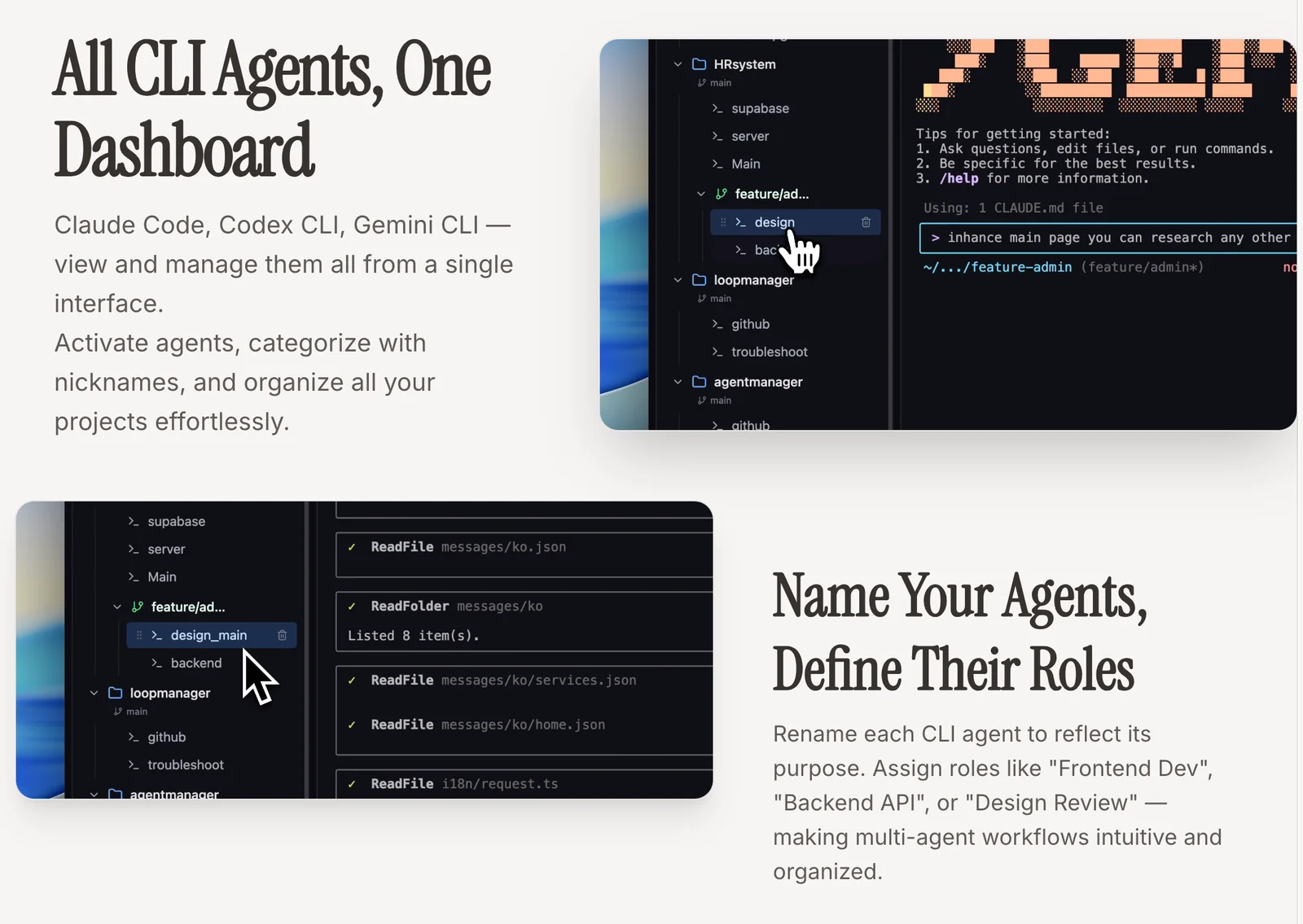
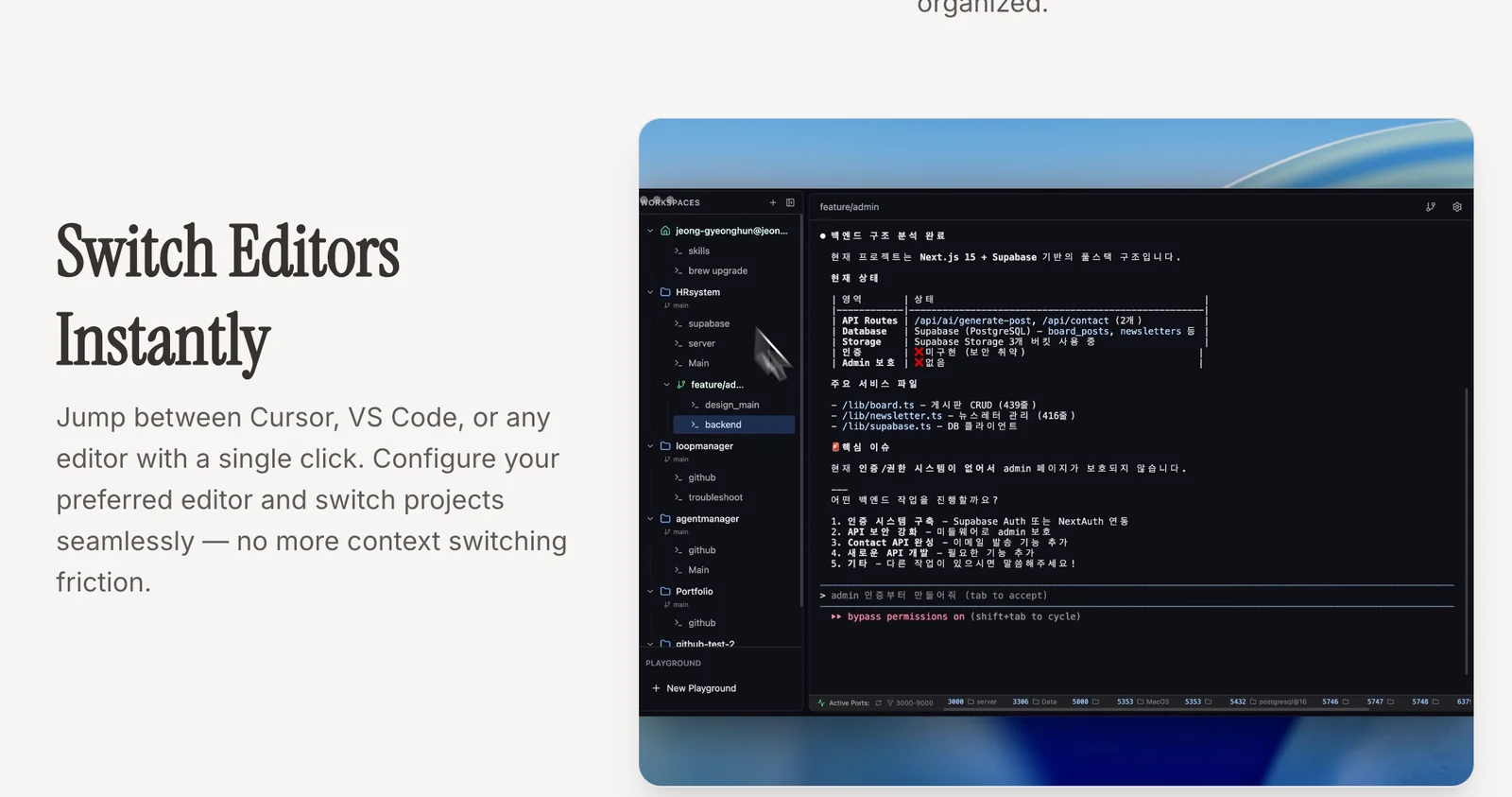
CLI Manager is a centralized dashboard for running, organizing, and managing multiple CLI-based agents (Claude Code, Codex CLI, and Gemini CLI). It lets users rename agents, group them by project, and switch editors instantly to streamline developer workflows that use conversational or code-focused CLIs. By providing a consistent interface across different CLI agent implementations, it reduces context switching and simplifies comparison, testing, and multi-agent orchestration for individual developers and small teams.
Screenshots

Key Features
Use Cases



Frequently asked questions about CLI Manager
What are the pricing options for CLI Manager?
CLI Manager provides a freemium model with a free tier for basic features and a monthly subscription priced at $4.99, granting access to all functionalities. Users can easily cancel their subscription at any time, and there is also a lifetime access option available for those seeking long-term use.
Key Points
- Freemium Model: Offers both free and paid tiers.
- Monthly Subscription: Full access at only $4.99 per month.
- Lifetime Access: One-time payment option for permanent use.
Detailed Explanation
CLI Manager is designed to cater to both casual users and professionals, making it accessible through its freemium pricing structure. The free tier includes essential features, allowing users to experience the platform without any financial commitment. This is particularly beneficial for new users testing the software's capabilities.
For those looking for complete access, the monthly subscription is affordable at $4.99, unlocking all advanced functionalities. This includes premium tools, enhanced support, and regular updates, ensuring users have the latest features at their fingertips. Users can easily manage their subscription through the platform and can opt to cancel anytime, making it a flexible choice.
In addition to the monthly plan, CLI Manager also offers a lifetime access option. This unique pricing plan allows users to pay a one-time fee for permanent access to all features. This can be a cost-effective solution for long-term users who prefer to avoid recurring payments.
Best Practices / Tips
- Evaluate Your Needs: Before choosing a plan, assess whether the free tier meets your requirements or if you need the full features available in the subscription.
- Consider Lifetime Access: If you plan to use CLI Manager extensively, the lifetime access option could save you money in the long run.
- Stay Updated: Regularly check for any promotional offers or discounts that CLI Manager may provide, especially during special events or launches.
Additional Resources
- CLI Manager Official Website - Explore features and pricing details.
- User Guide - Access comprehensive documentation.
- Community Forum - Engage with other users and share experiences.
What key features does CLI Manager provide for agent management?
CLI Manager offers essential features for agent management, including a unified dashboard to control multiple CLI agents, the ability to rename and organize agents for better clarity, instant switching between editors, and project-based grouping of agents to streamline workflows and enhance productivity.
Key Points
- Unified Dashboard: Manage all agents from one interface.
- Agent Organization: Rename and categorize agents for better clarity.
- Instant Editor Switching: Quickly toggle between different editors.
- Project Grouping: Organize agents by project to streamline workflows.
Detailed Explanation
CLI Manager is an intuitive tool designed to optimize agent management for developers and project managers. With its unified dashboard, users can easily oversee multiple CLI agents, reducing the time spent navigating different interfaces.
Unified Dashboard
The dashboard provides a centralized view of all CLI agents, allowing users to monitor their status and activities at a glance. For example, if a developer is working on several projects, they can quickly identify which agents are active, making it easier to manage resources efficiently.
Agent Organization
Users can rename and organize agents based on their specific roles or functionalities. For instance, an agent responsible for deployment can be named "DeployAgent" instead of a generic title. This practice minimizes confusion and enhances collaborative efforts among team members.
Instant Editor Switching
With CLI Manager, switching between different editors is seamless. This feature is particularly useful for developers who need to test scripts in various environments. Instead of closing and reopening applications, users can toggle between editors to improve workflow efficiency.
Project Grouping
Grouping agents by project allows for more focused management. For example, if a team is working on multiple products, they can categorize agents under each project, ensuring that no agent is overlooked during critical updates or deployments. This feature enhances clarity and allows users to allocate resources more effectively.
Best Practices / Tips
- Regularly Update Agent Names: Keep agent names relevant to their functions to avoid confusion.
- Utilize Project Grouping: Regularly group agents based on ongoing projects to stay organized.
- Monitor Dashboard Activity: Frequently check the dashboard to ensure all agents are functioning as expected.
Additional Resources
How do I get started with CLI Manager?
To get started with CLI Manager, sign up for a free account on the official website. After registration, you'll gain access to the core dashboard features, enabling you to seamlessly manage your agents and optimize your workflow from day one.
Key Points
- User-Friendly Registration: Create your account easily through the official CLI Manager website.
- Core Features Access: Utilize the dashboard to manage your agents effectively.
- Enhanced Productivity: Leverage the tools provided to streamline operations.
Detailed Explanation
Getting started with CLI Manager is a straightforward process. First, visit the official CLI Manager website and locate the Sign Up button. Fill out the registration form with your details, including your name, email address, and a secure password. After submitting your information, you will receive a confirmation email. Click the link in the email to verify your account.
Once logged in, you'll be directed to the core dashboard. Here, you can navigate through various features, such as agent management, performance analytics, and integration options. For instance, if you manage multiple agents, the dashboard allows you to assign tasks, monitor performance metrics, and generate reports—all in real-time.
To enhance your experience, consider exploring the tutorial resources available under the Help section. These tutorials provide step-by-step guidance on how to maximize the functionalities of CLI Manager.
Best Practices / Tips
- Set Up Notifications: Customize your notification settings to stay updated on agent activities and system alerts.
- Utilize Documentation: Regularly refer to the CLI Manager documentation for tips on advanced features and troubleshooting.
- Start with a Test Environment: If possible, create a test account to familiarize yourself with the platform before fully deploying it for your team.
Additional Resources
- CLI Manager Official Documentation
- Getting Started Guide
- Community Forums for user support and shared experiences.
Does CLI Manager support integration with other CLI tools?
Yes, CLI Manager supports integration with various CLI tools, enabling users to manage multiple CLI agents such as Claude Code, Codex CLI, and Gemini CLI seamlessly within a single interface. This cross-CLI compatibility enhances productivity and streamlines workflows for developers and system administrators.
Key Points
- Cross-CLI Compatibility: Manage multiple CLI tools from one interface.
- User-Friendly Interface: Simplifies workflows by integrating various CLI agents.
- Enhanced Productivity: Allows simultaneous management, reducing time spent switching between tools.
Detailed Explanation
CLI Manager is designed to be a versatile hub for developers and system administrators, offering seamless integration with multiple CLI tools. This feature allows users to interact with different agents like Claude Code, Codex CLI, and Gemini CLI without needing to switch contexts.
Example Use Case
For instance, a developer working on a software project might use Codex CLI for code generation while simultaneously utilizing Claude Code for AI-driven debugging. By having both tools integrated into CLI Manager, they can switch between tasks effortlessly, enhancing their overall productivity.
Step-by-Step Guidance
- Installation: Begin by installing CLI Manager through your package manager or downloading it from the official website.
- Configuration: Open CLI Manager and navigate to the settings section to connect your preferred CLI tools. Input the necessary API keys or credentials as required.
- Usage: Once configured, use the command prompt within CLI Manager to access commands from any integrated CLI tool without additional setup.
Best Practices / Tips
- Regular Updates: Keep your CLI Manager and integrated tools updated to ensure compatibility and access to the latest features.
- Documentation: Familiarize yourself with the documentation of each CLI tool for optimized usage and command execution.
- Avoid Overloading: While integrating multiple tools, ensure your system resources are capable of handling the load to prevent performance issues.
Additional Resources
How does CLI Manager compare to other similar tools?
CLI Manager excels over similar tools by offering a unified dashboard for managing multiple CLI agents, seamless editor switching, and robust organizational features. This efficiency in handling complex workflows makes it a superior choice for developers and teams compared to alternatives like Termius or Hyper.
Key Points
- Unified Dashboard: Centralizes management of multiple CLI agents.
- Instant Editor Switching: Facilitates quick transitions between code editors.
- Enhanced Organization: Offers features for better workflow management, such as tagging and categorizing tasks.
Detailed Explanation
CLI Manager is designed to streamline the command-line interface (CLI) experience for developers. Unlike many alternatives, it integrates all CLI agents into one unified dashboard, allowing users to monitor and control multiple environments simultaneously. This feature is especially beneficial for teams working on diversified projects, as it reduces the time spent switching between tools.
One of the standout features is instant editor switching. With a simple command, users can toggle between different code editors, such as Visual Studio Code and Sublime Text, without losing context. This functionality not only saves time but also enhances productivity by minimizing interruptions.
Furthermore, CLI Manager provides enhanced organization capabilities. Users can categorize and tag their workflows, making it easier to track progress and manage tasks effectively. This feature is crucial for teams that need to coordinate efforts on multiple projects and maintain clear communication.
For example, a development team working on a microservices architecture can use CLI Manager to monitor different services from a single interface, switch between code editors for different services, and keep their tasks organized and visible to all team members.
Best Practices / Tips
- Leverage the Dashboard: Spend time familiarizing yourself with the unified dashboard to maximize productivity.
- Utilize Tagging: Make use of tagging features to categorize tasks and projects for easier access.
- Keyboard Shortcuts: Learn and use keyboard shortcuts for instant editor switching to save time.
- Stay Updated: Regularly check for updates and new features to ensure you're utilizing CLI Manager to its fullest potential.
Additional Resources
Explore more AI Ai Tools tools
Browse all Ai Tools tools →Browse by use case: Automation & Productivity
Compare CLI Manager: vs Mise · vs BiBimba · vs VoiceCap · vs NM Signals