

Beautiful.ai
AIAI-powered presentation maker that automates slide design to produce professional, client-ready decks quickly.
Beautiful.ai
AI-powered presentation maker that automates slide design to produce professional, client-ready decks quickly.
About Beautiful.ai
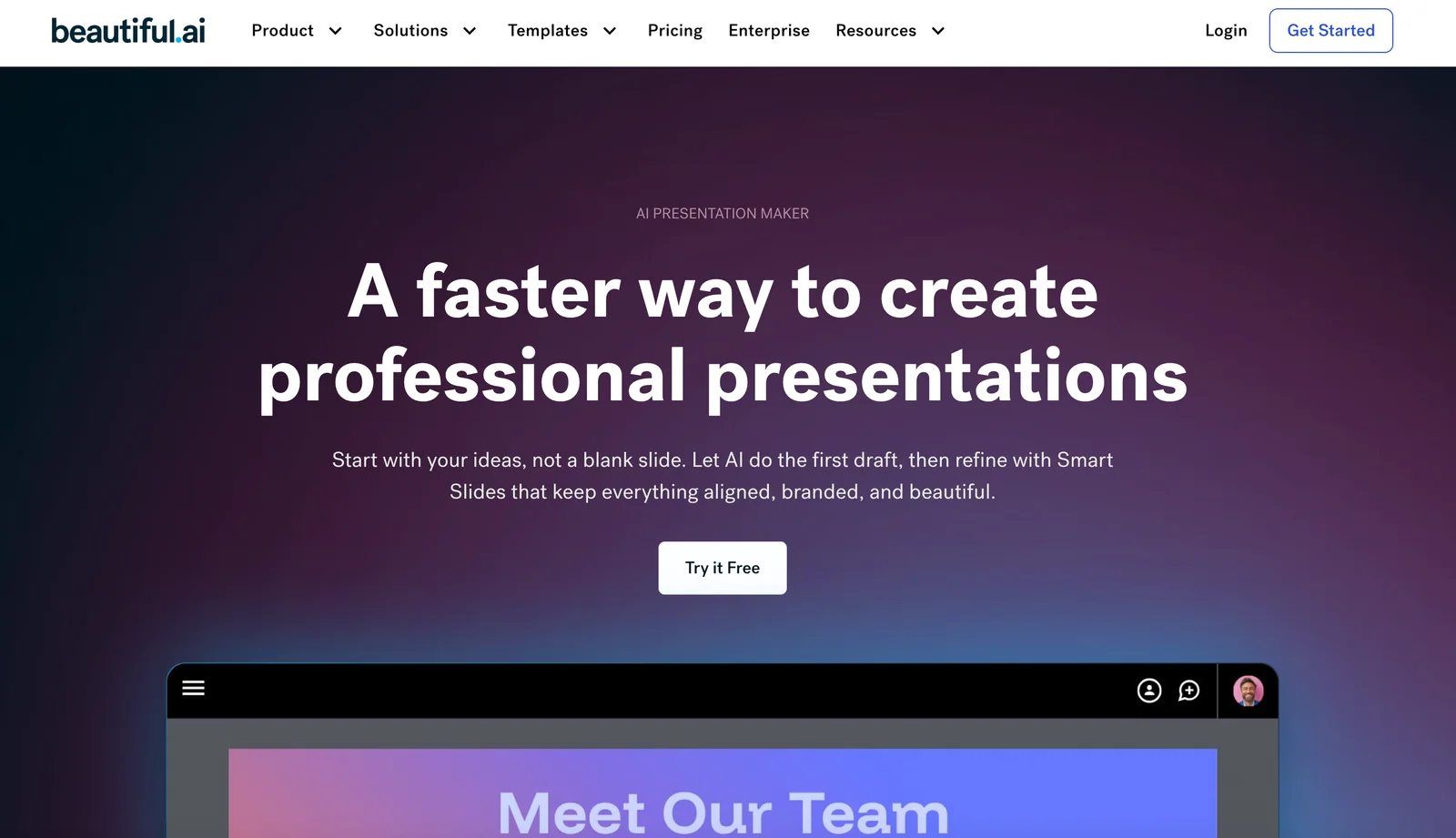
Beautiful.ai is an AI-driven presentation tool designed to simplify and accelerate slide creation by automating design, layout, and styling decisions. It provides smart templates and design rules so users can generate polished, consistent slides in minutes without deep design skills. The product targets individuals and teams who need fast, professional decks for pitches, client proposals, training, and internal communications, and it offers trial access and education-focused offers.
Screenshots
Key Features
Use Cases



Frequently asked questions about Beautiful.ai
What are the pricing options for Beautiful.ai?
Beautiful.ai offers a flexible pricing structure that includes a 14-day free trial, a free Pro subscription for verified students, and paid plans starting at $12/month for individuals and $40/month/user for teams, making it accessible for various users from students to professionals.
Key Points
- Freemium Model: Includes a 14-day free trial and free options for students.
- Individual Pricing: Plans start at $12/month for solo users.
- Team Pricing: Team plans are available at $40/month per user.
Detailed Explanation
Beautiful.ai provides several pricing options tailored to different user needs:
-
Free Trial: Users can explore all features for 14 days without any commitment. This trial is ideal for individuals or teams wanting to assess the platform's capabilities before making a financial commitment.
-
Student Discount: Verified students can access a free Pro subscription. This initiative helps students utilize advanced presentation tools without financial barriers, enhancing their learning experience.
-
Individual Plans: Starting at $12/month, this plan is perfect for freelancers or solo entrepreneurs needing professional presentation tools. This plan includes key features such as customizable templates, collaboration tools, and cloud storage.
-
Team Plans: For groups, pricing is set at $40/month per user. This plan allows for collaborative projects, real-time editing, and shared resources, making it suitable for businesses and organizations that require teamwork and coordination.
-
Enterprise Solutions: For larger organizations, Beautiful.ai offers custom pricing plans tailored to specific business needs. These plans often come with additional features and support options.
Best Practices / Tips
- Take Advantage of the Free Trial: Before committing to a paid plan, utilize the 14-day trial to fully explore Beautiful.ai's features.
- Verify Your Student Status: If you’re a student, ensure you have the necessary documentation to take advantage of the free Pro subscription.
- Assess Team Needs: For teams, evaluate how many users will need access to determine if the team plan is more cost-effective than individual plans.
Additional Resources
- Beautiful.ai Pricing Page for the latest pricing details.
- Beautiful.ai Help Center for tutorials and support.
- Beautiful.ai Blog for tips on creating stunning presentations.
How do I get started with Beautiful.ai?
To get started with Beautiful.ai, visit their official website, sign up for a free trial, and dive into their extensive library of templates and AI features designed to streamline your presentation creation process. It's an intuitive platform that transforms your ideas into visually appealing presentations quickly and easily.
Key Points
- User-Friendly Interface: Beautiful.ai offers an intuitive design experience.
- Free Trial Availability: Start with a free trial to explore features.
- Template Variety: Access a wide range of templates catering to different needs.
Detailed Explanation
Beautiful.ai simplifies the presentation design process through its user-friendly platform. Here’s how to get started:
- Visit the Official Website: Go to Beautiful.ai to access the platform.
- Sign Up for a Free Trial: Click on the “Get Started” button and create an account using your email address. You can also sign up using Google or Microsoft accounts for convenience.
- Explore the Dashboard: Once logged in, familiarize yourself with the dashboard. Here, you will find various tools and features to create your presentations.
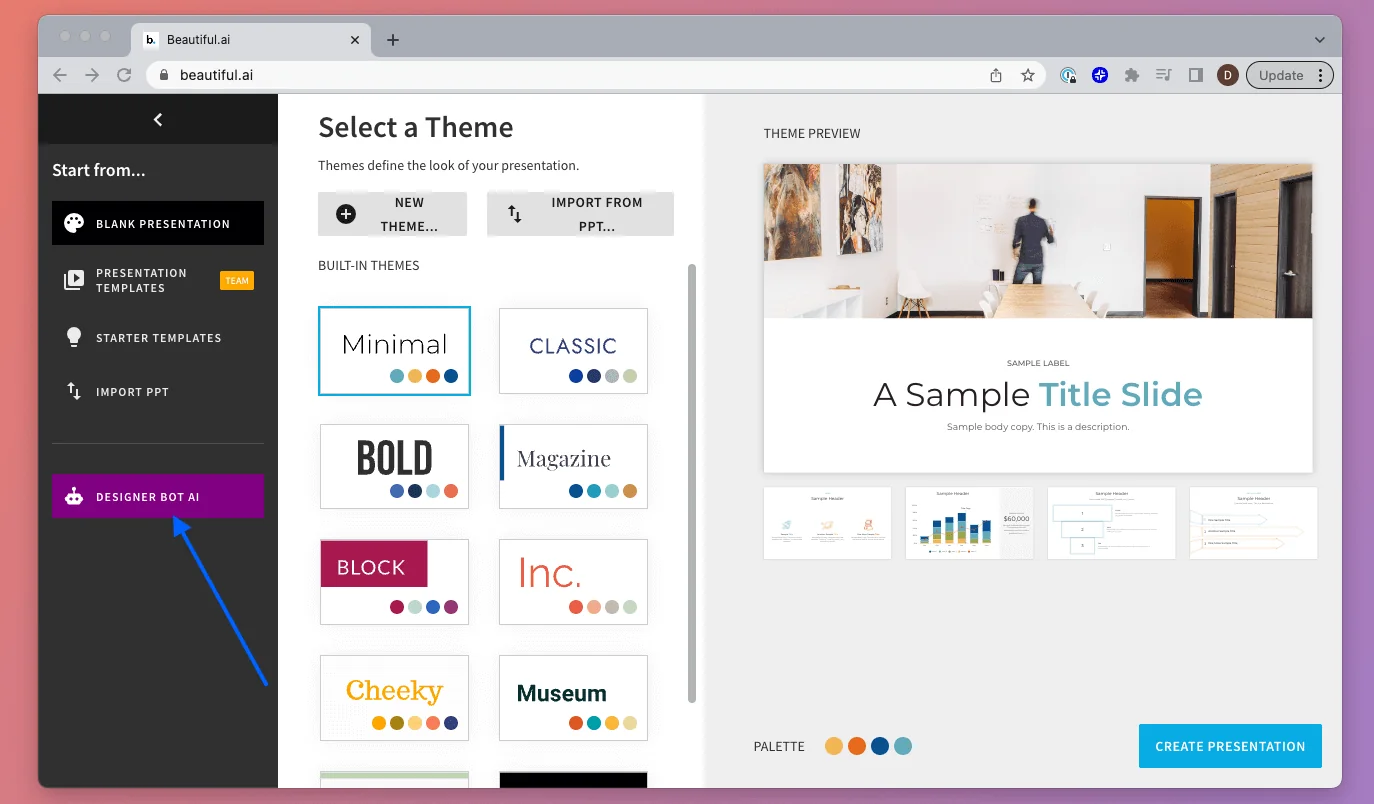
- Choose a Template: Browse through the extensive library of templates. These are categorized by industry and purpose, making it easier to find one that suits your needs.
- Utilize AI Features: Leverage Beautiful.ai's AI-powered design suggestions to enhance your slides. The platform automatically adjusts layouts, ensuring that your content remains visually appealing.
- Customize Your Presentation: Add text, images, and charts. You can easily drag and drop elements to create a polished and professional presentation.
- Collaborate and Share: Invite team members to collaborate in real-time. Share your final presentation via a link or export it in various formats, including PDF and PowerPoint.
Best Practices / Tips
- Experiment with Templates: Don’t hesitate to try different templates to find the best fit for your presentation style.
- Utilize AI Suggestions: Always review the AI suggestions for layout adjustments as they can save you time and improve design quality.
- Keep It Simple: Focus on clarity and simplicity in your slides. Avoid overcrowding them with too much text or complex graphics.
- Regularly Save Your Work: Make it a habit to save your progress frequently to avoid losing any changes.
Additional Resources
- Beautiful.ai Help Center - Comprehensive guides and troubleshooting tips.
- Blog on Presentation Tips - Insights and tips for creating effective presentations.
- YouTube Channel - Tutorials and feature highlights for visual learners.
What are the key features of Beautiful.ai?
Beautiful.ai offers key features like AI-driven slide design automation, smart templates, content-to-slide assistance, branding controls, and versatile export options. These tools empower users to create visually appealing and professional presentations with ease, making it an ideal solution for businesses and individuals alike.
Key Points
- AI Slide Design Automation: Automatically formats slides for a professional look.
- Smart Templates: A variety of pre-designed templates tailored for different presentation needs.
- Content-to-Slide Assistance: Transforms raw content into visually engaging slides.
Detailed Explanation
Beautiful.ai leverages artificial intelligence to simplify the presentation creation process. With AI Slide Design Automation, users can input their content, and the platform automatically adjusts layouts and styles, ensuring a polished look without manual adjustments. This feature is especially beneficial for users who may not have design skills.
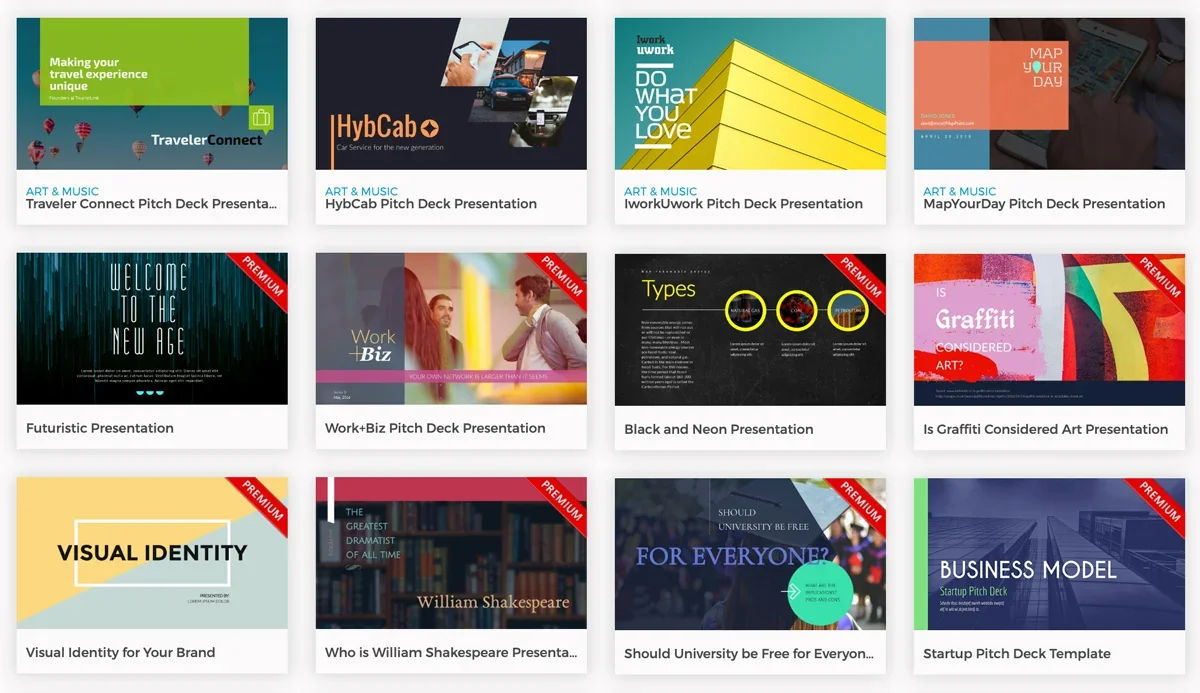
The Smart Templates available in Beautiful.ai cater to various themes and industries, allowing users to select a template that aligns with their brand or message. For example, users can choose from templates designed for business pitches, educational lectures, or marketing reports, ensuring relevance and engagement.
The Content-to-Slide Assistance feature is particularly useful for quickly converting text-heavy documents into visually appealing slides. Users can simply paste their content, and Beautiful.ai will suggest layouts, images, and formatting options, saving time and enhancing creativity.
Additionally, Beautiful.ai includes branding controls that let users customize colors, fonts, and logos, ensuring consistency with their brand identity. The export options allow presentations to be downloaded in various formats, including PDF and PowerPoint, making sharing and collaboration seamless.
Best Practices / Tips
- Leverage Templates: Start with a template that closely aligns with your content to save time and improve design.
- Utilize AI Features: Make full use of the AI-driven suggestions for layout and design to enhance visual appeal.
- Consistency is Key: Maintain brand consistency by customizing the branding controls effectively.
- Collaborate Effectively: Use the export options to share your presentations easily with team members for feedback before finalizing.
Additional Resources
How does Beautiful.ai compare to other presentation tools?
Beautiful.ai excels in comparison to traditional presentation tools like PowerPoint due to its AI-driven design automation, which simplifies the creation process, and its user-friendly interface. This makes it ideal for users who want professional presentations without extensive design skills or time commitment.
Key Points
- AI-Driven Design Automation: Automatically adjusts layouts and designs.
- User-Friendly Interface: Intuitive tools that require minimal design experience.
- Collaborative Features: Real-time collaboration options for teams.
Detailed Explanation
Beautiful.ai offers a unique approach to presentation design through its AI capabilities. Unlike PowerPoint, which requires users to manually adjust elements like text, images, and layouts, Beautiful.ai automates these adjustments based on your content. This means that as you add new information, the design adapts seamlessly to maintain a polished look.
For example, if you input a list of bullet points, Beautiful.ai will automatically transform them into visually appealing charts or graphics that enhance comprehension. This feature saves significant time, allowing users to focus on content rather than design.
Additionally, Beautiful.ai provides various templates tailored for different industries and purposes, ensuring that your presentation is not only visually stunning but also relevant and effective. You can customize these templates with your branding elements, making it suitable for corporate environments or personal projects.
Best Practices / Tips
- Leverage Templates: Start with a pre-designed template that fits your presentation needs to save time.
- Keep It Simple: Use minimal text and high-quality images to ensure clarity and engagement.
- Utilize Collaborative Features: Invite team members to collaborate in real time, enhancing creativity and efficiency.
- Regularly Update Content: Use Beautiful.ai's features to keep your presentations current and responsive to audience feedback.
Additional Resources
Does Beautiful.ai have an API for integrations?
Beautiful.ai does not provide a public API for direct integrations. However, it does support integrations with several third-party tools to enhance its functionality, including features that incorporate AI technologies such as OpenAI and Claude, which users have referenced in community projects.
Key Points
- Beautiful.ai lacks a public API.
- It offers integrations with third-party tools.
- Community projects leverage AI technologies like OpenAI.
Detailed Explanation
Beautiful.ai is a web-based presentation software designed for creating visually appealing slides quickly. While it does not offer a public API, users can still benefit from various integrations with popular productivity tools like Slack, Google Drive, and Dropbox. These integrations streamline the workflow for teams, allowing seamless sharing and collaboration.
For example, users can import images and assets from their Google Drive directly into their Beautiful.ai presentations. Additionally, Beautiful.ai can export slides to formats compatible with other presentation software, enhancing usability.
Moreover, community projects have explored the potential of integrating AI functionalities, such as those offered by OpenAI and Claude. These integrations can assist in generating content ideas or automating design suggestions, although they are not officially supported APIs provided by Beautiful.ai.
Best Practices / Tips
- Utilize Existing Integrations: Maximize productivity by using integrations with tools you already use, such as cloud storage and collaboration platforms.
- Explore Community Solutions: Check community forums for innovative ways to use Beautiful.ai with AI technologies to enhance your presentations.
- Stay Updated: Regularly visit Beautiful.ai’s official website or blog for updates on new features and potential API releases.
Additional Resources
Explore more AI Ai Agents tools
Browse all Ai Agents tools →Browse by use case: Automation & Productivity
Compare Beautiful.ai: vs Proto-Mind · vs Ami · vs Duvi · vs AskDeck