

ACE Studio 2.0
AIDAW-native singing voice cloning and production tool (VST3) for royalty‑free vocal conversion and commercial music workflows.
ACE Studio 2.0
DAW-native singing voice cloning and production tool (VST3) for royalty‑free vocal conversion and commercial music workflows.
About ACE Studio 2.0
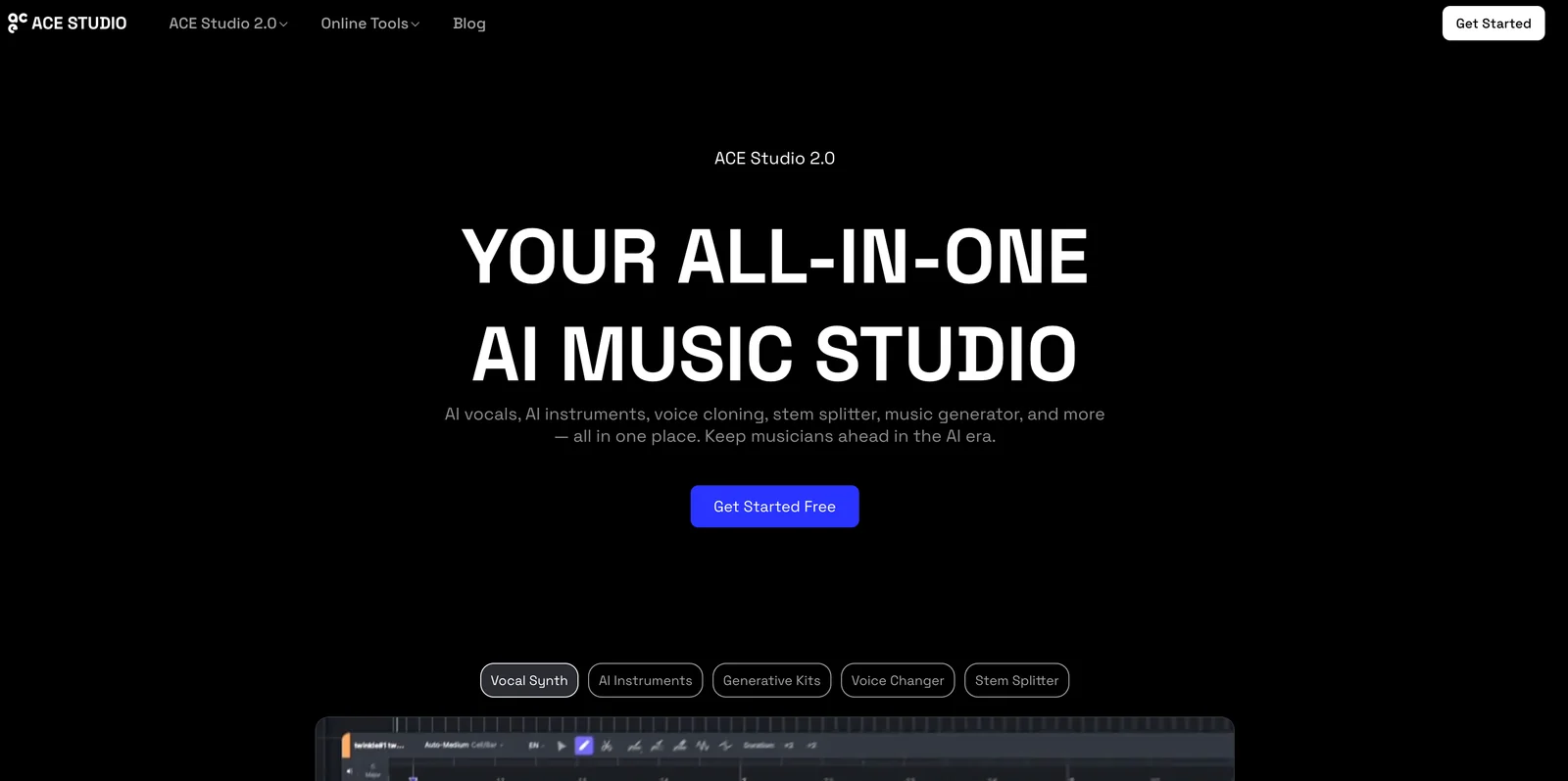
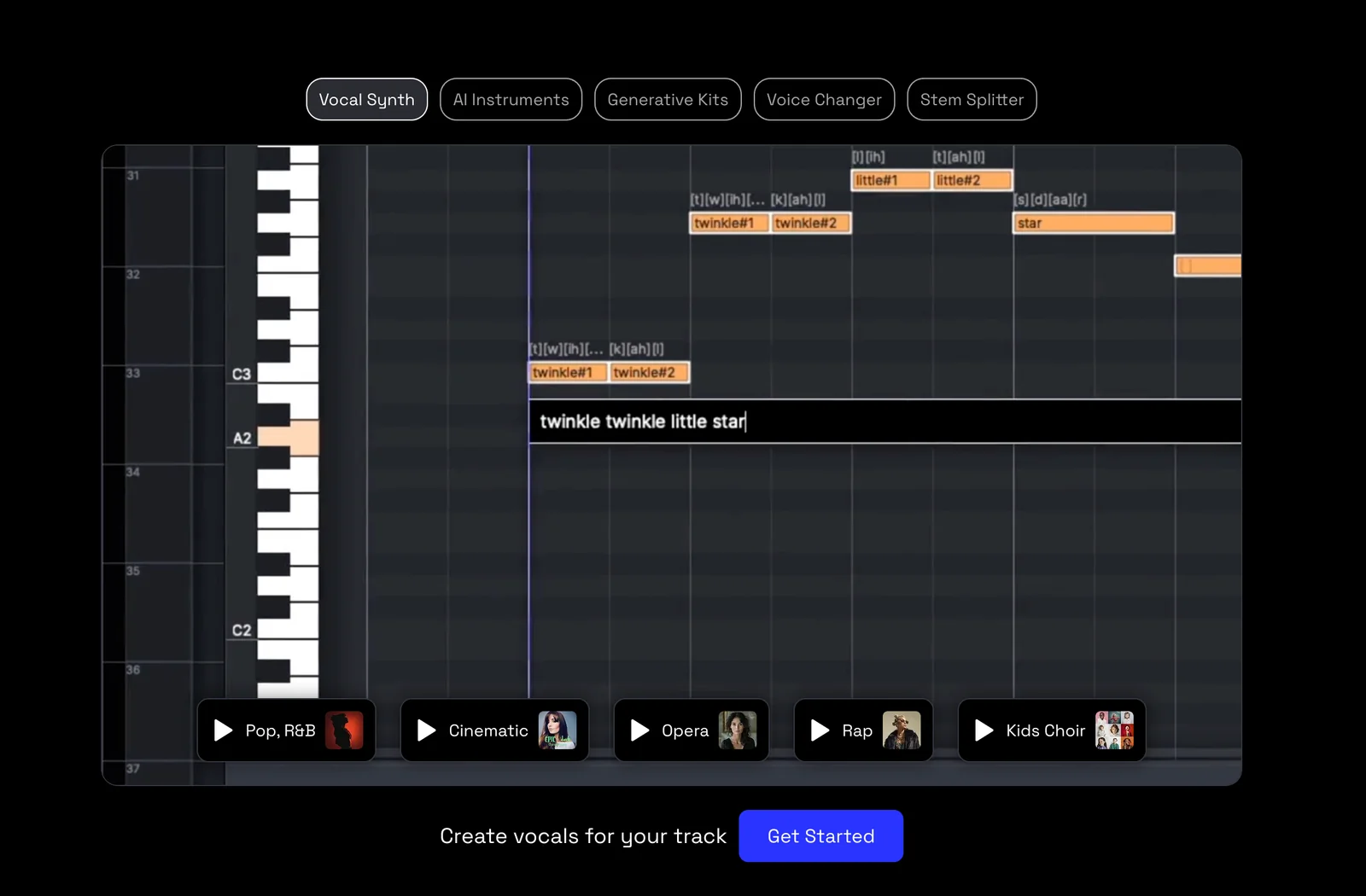
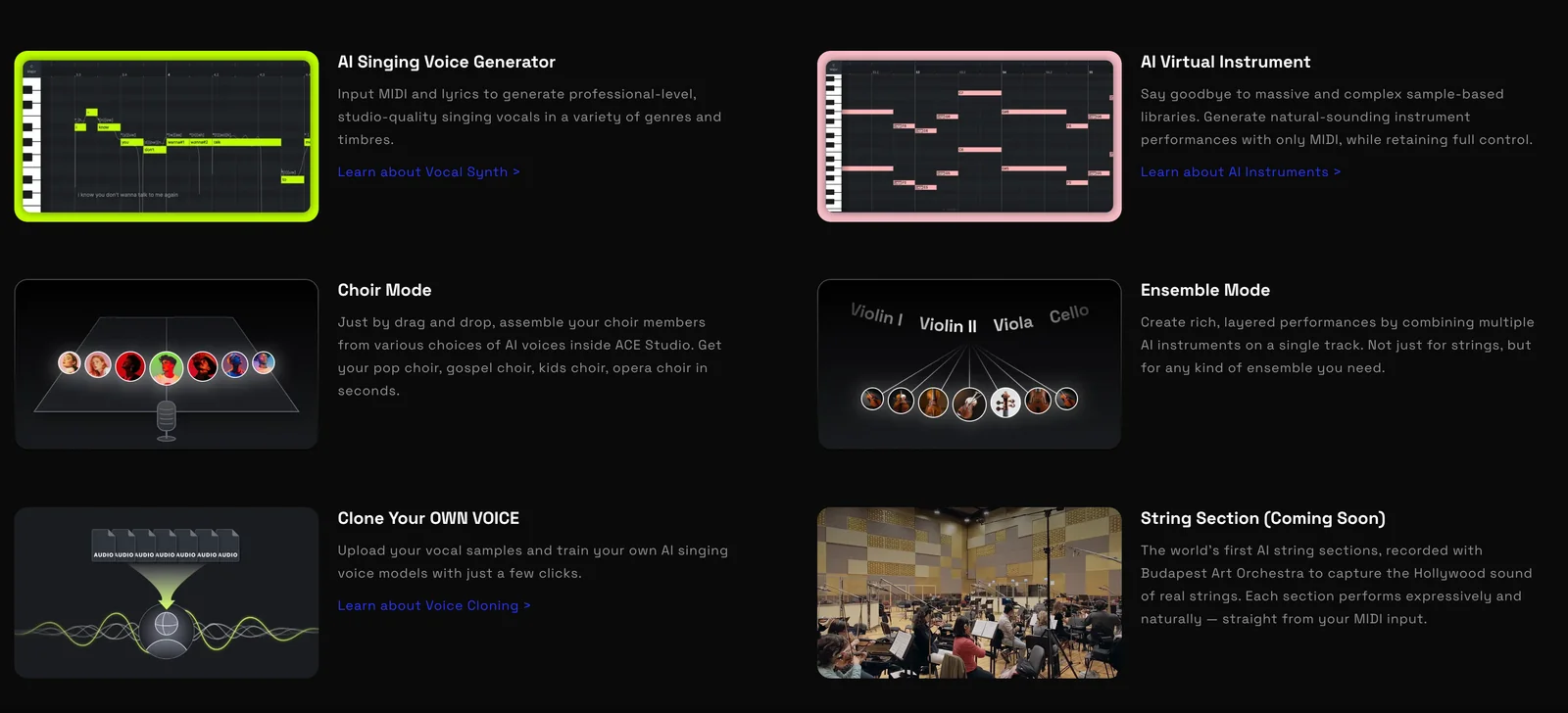
ACE Studio is a music-production-focused vocal cloning and singing-conversion tool that integrates directly into digital audio workstations via a VST3 plugin. It enables producers to create commercially-usable, royalty-free singing voices by training custom voice models from short recordings (e.g., ~30 minutes) and includes modes for choir/harmony generation while preserving performance nuances. ACE Studio is developed alongside research efforts (e.g., the ACE-Step music foundation model) to combine diffusion-based generative models and lightweight transformers, aiming to bridge cutting-edge music-generation models with professional DAW workflows.
Screenshots
Key Features
Use Cases



Frequently asked questions about ACE Studio 2.0
What are the pricing options available for ACE Studio 2.0?
ACE Studio 2.0 offers multiple pricing options: a free plan with limited features, a Pro plan at $9.99/month for commercial use, a Basic plan at approximately $16.58/month, and custom pricing for enterprises. This flexibility allows users to choose a plan that best fits their needs.
Key Points
- Free plan available for basic features.
- Pro plan priced at $9.99/month for commercial use.
- Basic plan around $16.58/month, with options for enterprises.
Detailed Explanation
ACE Studio 2.0 provides a tiered pricing structure designed to accommodate various user needs.
-
Free Plan: This option is ideal for individuals or small projects, offering basic features that allow users to explore the platform without any financial commitment. While it has limitations, it’s a great starting point for new users.
-
Pro Plan: At $9.99 per month, this plan is targeted towards freelancers and small businesses needing commercial use rights. It unlocks additional features such as enhanced analytics, increased export options, and superior customer support, making it a valuable investment for users looking to grow their projects.
-
Basic Plan: Priced at approximately $16.58/month, this plan includes more advanced features than the Pro plan, catering to teams that require additional functionalities like collaborative tools and data integrations. This plan is suitable for medium-sized businesses aiming to enhance their productivity.
-
Enterprise Solutions: For large organizations, ACE Studio 2.0 offers custom pricing plans tailored to specific needs. These options may include bespoke features, dedicated support, and scalability to meet the demands of larger teams.
Best Practices / Tips
- Evaluate Your Needs: Before selecting a plan, assess your project requirements and team size to ensure you choose the most cost-effective option.
- Take Advantage of Free Trials: If available, utilize free trials for higher-tier plans to evaluate their features before committing financially.
- Stay Updated: Keep an eye on ACE Studio’s updates, as they occasionally introduce new features or pricing adjustments that might benefit your use case.
Additional Resources
- ACE Studio Official Pricing Page
- ACE Studio Features Overview
- Customer Support for inquiries about specific plans or custom solutions.
How do I get started with ACE Studio 2.0?
To get started with ACE Studio 2.0, visit the official ACE Studio website, create your user account, and select a suitable pricing plan. After that, download the VST3 plugin and follow the provided tutorial for a seamless setup and usage experience.
Key Points
- Create an Account: Start by registering on the official ACE Studio website.
- Choose a Pricing Plan: Select the plan that best fits your needs and budget.
- Download the VST3 Plugin: Obtain the software required for installation and setup.
Detailed Explanation
To begin using ACE Studio 2.0 effectively, follow these steps:
-
Visit the Official Website: Navigate to ACE Studio’s official site where you'll find all the necessary information and resources.
-
Create an Account: Click on the 'Sign Up' button, fill in your details, and verify your email address. This is crucial for accessing your subscription and support.
-
Select a Pricing Plan: ACE Studio offers several plans catering to different users—ranging from basic to professional tiers. Evaluate your needs, such as features and budget, and choose accordingly. Pricing typically starts at $9.99 per month, with discounts for annual subscriptions.
-
Download the VST3 Plugin: After selecting your plan, go to the downloads section. Choose the VST3 plugin compatible with your DAW (Digital Audio Workstation) and download it.
-
Follow the Setup Tutorial: Once downloaded, refer to the setup tutorial available on the website. This guide provides step-by-step instructions for installation, configuration, and initial use.
Best Practices / Tips
- Check System Requirements: Ensure your system meets the requirements for ACE Studio 2.0 to avoid performance issues.
- Explore Tutorials: Take advantage of online resources, including video tutorials and user forums, to enhance your understanding and usage of ACE Studio.
- Regular Updates: Keep your software updated to benefit from the latest features and security improvements.
Additional Resources
By following these steps and utilizing available resources, you can maximize your experience with ACE Studio 2.0.
Is ACE Studio 2.0 easy to use for beginners?
Yes, ACE Studio 2.0 is exceptionally easy to use for beginners due to its user-friendly interface and streamlined functionality. With minimal technical skills required, users can quickly learn to clone voices and produce high-quality vocals, making it an ideal choice for those entering the field of audio production.
Key Points
- Intuitive Interface: Designed for ease of use with clear navigation.
- Quick Learning Curve: Beginners can start producing audio without extensive training.
- Versatile Features: Offers powerful tools for voice cloning and vocal production.
Detailed Explanation
ACE Studio 2.0 is built with an intuitive interface that simplifies the audio production process. The dashboard is clean and organized, allowing users to easily locate essential tools such as voice cloning, audio editing, and effects application. Beginners can follow straightforward tutorials and walkthroughs provided within the software, ensuring they can create professional-quality audio quickly.
For example, when cloning voices, users can simply select a template and input their desired parameters. The software's AI-driven technology handles the complex processing, delivering results that sound remarkably lifelike. Additionally, ACE Studio 2.0 supports various audio formats, making it versatile for multiple use cases, from podcasting to music production.
Best Practices / Tips
- Explore Tutorials: Take advantage of the built-in tutorials to familiarize yourself with features.
- Experiment with Features: Don't hesitate to explore different voice cloning options to see what works best for your project.
- Save Projects Frequently: Regularly save your work to avoid losing any progress, especially during long sessions.
Additional Resources
What unique features does ACE Studio 2.0 offer compared to other vocal tools?
ACE Studio 2.0 offers unique features such as a DAW-native VST3 plugin, custom voice training, choir and harmony modes, and royalty-free vocal conversion. These capabilities make it an essential tool for music producers seeking to create high-quality vocal outputs with versatility and ease.
Key Points
- DAW-Native VST3 Plugin: Seamless integration with major DAWs.
- Custom Voice Training: Tailor vocals to individual styles.
- Choir and Harmony Modes: Create rich vocal layers effortlessly.
Detailed Explanation
ACE Studio 2.0 stands out in the vocal tool landscape due to its integration capabilities and innovative features:
-
DAW-Native VST3 Plugin: This feature allows ACE Studio 2.0 to work directly within various Digital Audio Workstations (DAWs) such as Ableton Live, FL Studio, and Logic Pro. This seamless integration means that users can utilize ACE Studio without switching between applications, streamlining the production process.
-
Custom Voice Training: This unique feature enables users to train the software to replicate their specific vocal characteristics. By feeding the tool samples of the desired voice, producers can achieve personalized vocal outputs that fit their project's artistic vision, making it particularly useful for custom voiceovers and unique vocal performances.
-
Choir and Harmony Modes: ACE Studio 2.0 simplifies the creation of complex vocal arrangements. With dedicated modes for choirs and harmonies, producers can layer multiple vocal tracks effortlessly, enhancing the richness and depth of their music. This feature is great for genres that rely heavily on vocal harmony, such as pop and gospel.
-
Royalty-Free Vocal Conversion: Unlike many vocal tools that impose licensing restrictions, ACE Studio 2.0 allows users to convert and use vocals freely in their projects. This aspect is particularly appealing for independent artists and producers, enabling them to monetize their work without legal concerns.
Best Practices / Tips
- Experiment with Custom Voice Training: Take time to input diverse samples for training, as this can enhance the quality and authenticity of the generated vocals.
- Utilize Choir and Harmony Modes: Don’t hesitate to layer multiple harmonies to create a fuller sound. Experiment with different vocal arrangements for the best results.
- Stay Updated: Regularly check for updates or new features from ACE Studio 2.0 to maximize the tool's potential.
Additional Resources
These resources can provide further insights into using ACE Studio 2.0 effectively and exploring its full range of capabilities.
Where can I find more technical support for ACE Studio 2.0?
For technical support with ACE Studio 2.0, visit the official ACE Studio website. There, you can access a range of resources, including FAQs, user guides, and direct contact options to connect with the ACE Studio support team for personalized assistance.
Key Points
- Access comprehensive FAQs and user guides.
- Utilize direct contact options for personalized support.
- Explore community forums for user-generated insights and solutions.
Detailed Explanation
ACE Studio 2.0 is a powerful tool for content creation and design. If you encounter technical issues, the official ACE Studio website is your best resource. Here’s how to effectively navigate for support:
-
Visit the Official Website: Start by going to ACE Studio's official support page. This page serves as the hub for all technical assistance.
-
Explore FAQs: The FAQ section addresses common issues users face, such as installation problems, software features, and troubleshooting tips. For example, if you're having trouble with project exports, the FAQ section will guide you through the necessary steps to resolve it.
-
Download User Guides: Comprehensive user manuals and guides are available for download. These documents provide in-depth explanations of features and functionalities, making them invaluable for both beginners and advanced users.
-
Contact Support: If you still need help after consulting the FAQs and guides, use the contact options available on the site. You can reach out via email or live chat for immediate assistance from the ACE Studio support team.
-
Community Forums: Joining community forums can also be beneficial. Here, you can connect with other ACE Studio users to share experiences and solutions. Often, users post about specific issues they’ve solved, which can provide you with unique insights.
Best Practices / Tips
- Document Your Issues: When seeking support, document your issues clearly. Include specific error messages or steps that lead to the problem to expedite assistance.
- Stay Updated: Regularly check for software updates, as many technical issues can be resolved through the latest versions of ACE Studio.
- Utilize Online Resources: Besides the official site, explore video tutorials and webinars available on platforms like YouTube for visual guidance.
Additional Resources
By following these steps and utilizing the resources available, you can efficiently resolve any technical issues with ACE Studio 2.0.
Explore more AI Ai Models tools
Browse all Ai Models tools →Browse by use case: Voice & Audio
Compare ACE Studio 2.0: vs Mouse-1 · vs Milliseconds.ai · vs SWE-2 · vs Desert Ant Labs