

Veed
AIBrowser-based video editor with text-to-video, avatars, auto-subtitles, voice translation and collaborative tools for rapid content creation.
Veed
Browser-based video editor with text-to-video, avatars, auto-subtitles, voice translation and collaborative tools for rapid content creation.
About Veed
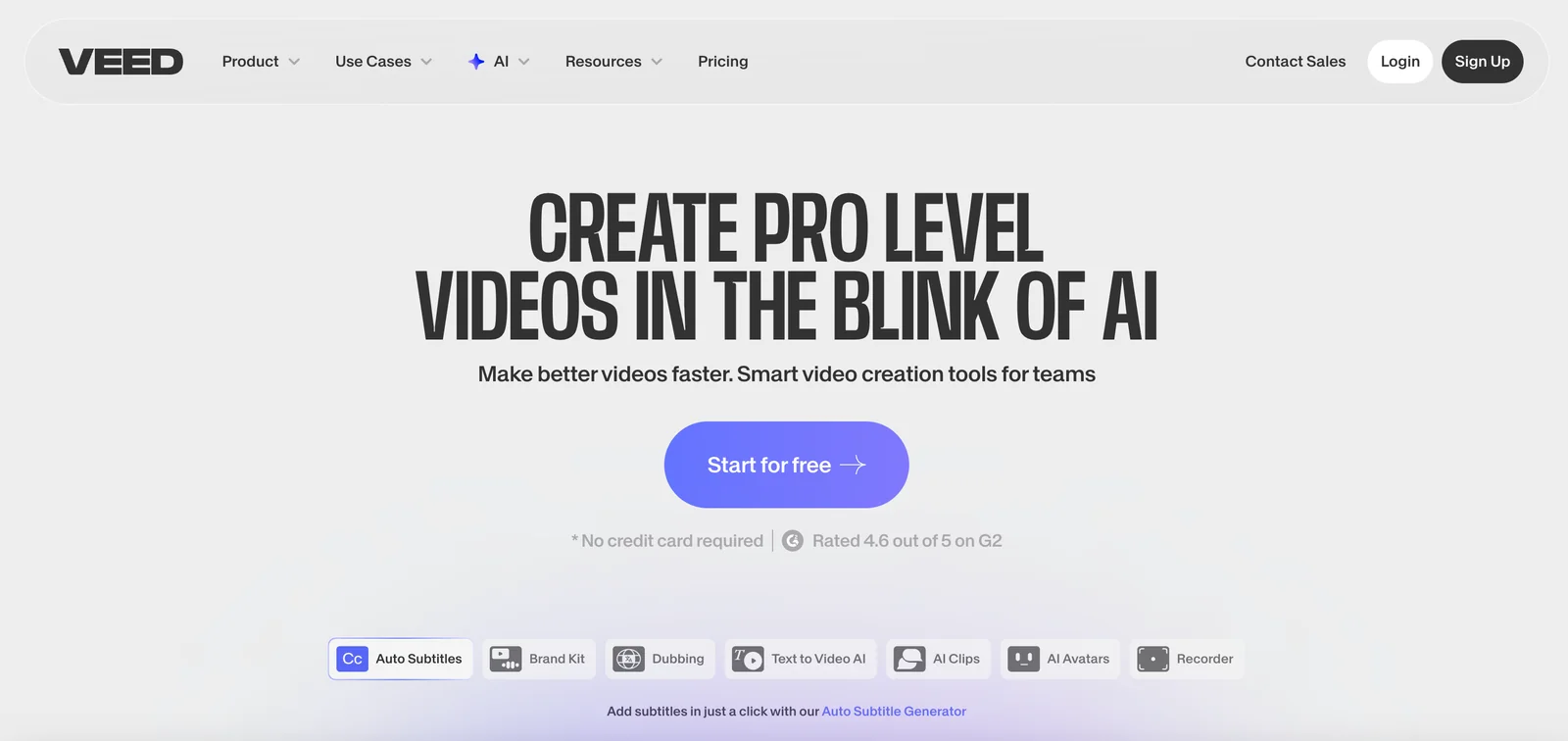
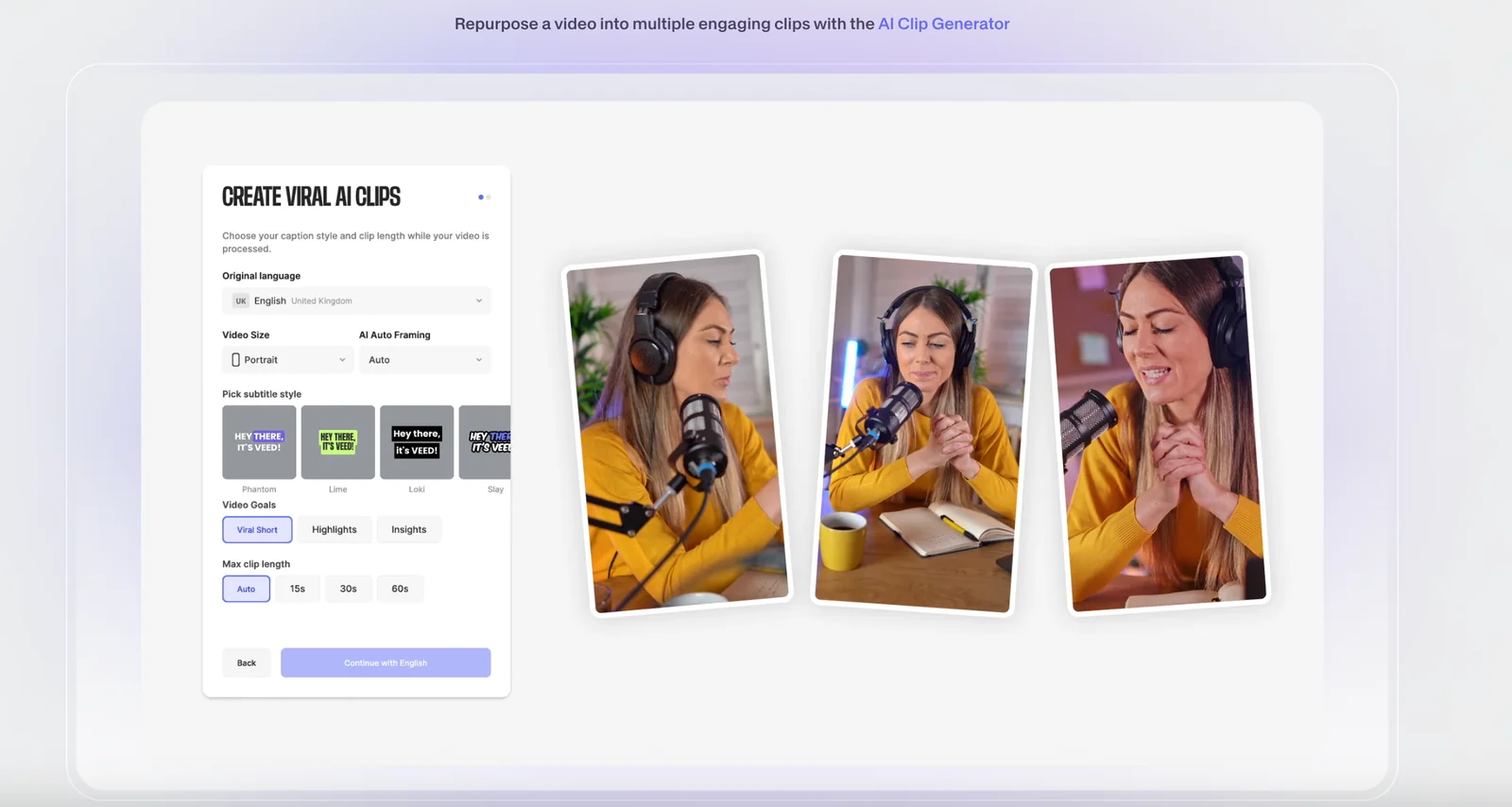
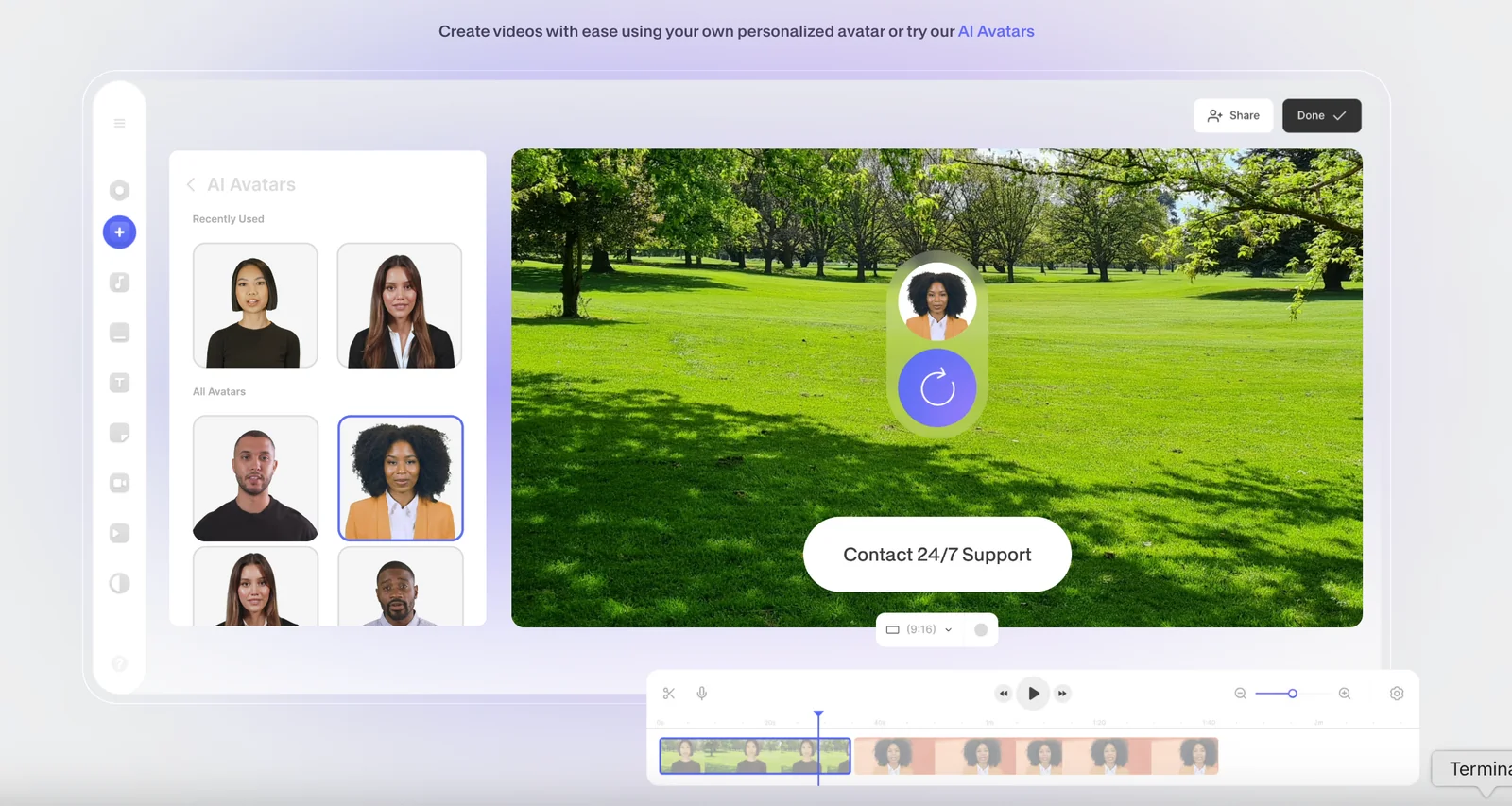
VEED is a browser-first video editing platform that enables users to create, edit, translate and publish videos without desktop software. It combines text-to-video workflows, AI-driven subtitle generation and translation, avatar and voice tools, screen recording, and collaboration features to speed production for social and professional content teams. VEED also exposes an API to automate video processing and integrate editing into backend workflows, making it suitable for both individual creators and teams needing scalable, multi-language video output.
Screenshots
Key Features
Use Cases


Frequently asked questions about Veed
What are the pricing options for Veed?
Veed offers a freemium pricing model with several tiers: Free ($0), Basic ($12/month), Pro ($18-$29/month), Business ($59/month), and custom Enterprise plans. Each tier provides distinct features, export limits, and capabilities tailored to different user needs, from casual creators to professional teams.
Key Points
- Freemium Model: Access basic features without payment.
- Tiered Pricing: Different levels to suit various user requirements.
- Feature Variability: Each plan includes unique functionalities.
Detailed Explanation
Veed's pricing structure caters to a broad audience, making it accessible for beginners and scalable for businesses.
-
Free Tier: Ideal for casual users, the Free plan allows basic video editing capabilities, with limited export options. It includes watermarking and access to standard templates.
-
Basic Plan ($12/month): This tier is suitable for individuals or small teams looking to enhance their video content. It offers additional features such as higher export limits, ad-free exports, and access to premium templates.
-
Pro Plan ($18-$29/month): Designed for more serious creators, the Pro plan provides advanced editing tools, collaboration features, and priority customer support. The price varies based on subscription length, making it flexible for users.
-
Business Plan ($59/month): Targeted at larger teams, this option includes all Pro features plus team management tools, custom branding options, and higher export quality.
-
Enterprise Plans: For organizations with specific needs, Veed offers custom Enterprise plans that can include tailored features, dedicated account management, and enhanced security options.
Best Practices / Tips
- Choose the Right Plan: Evaluate your editing needs and select a plan that offers necessary features without paying for unnecessary extras.
- Utilize Free Trials: Take advantage of any free trial offers to test out features before committing to a paid plan.
- Stay Updated: Monitor Veed’s updates and feature releases to ensure you’re leveraging the latest tools available for your editing tasks.
Additional Resources
This structured pricing overview enables potential users to easily compare plans and choose the best option for their video editing needs.
How do I use Veed for video editing?
To use Veed for video editing, visit their website, create an account, and upload your video. Explore features such as auto-subtitles, text-to-video conversion, and screen recording to enhance your editing experience efficiently. Veed is user-friendly and designed for both beginners and advanced editors.
Key Points
- User-Friendly Interface: Easy navigation for all skill levels.
- Versatile Features: Tools for subtitles, overlays, and screen recording.
- Collaboration Options: Share projects with team members for collective editing.
Detailed Explanation
Veed is an online video editing platform that allows users to edit videos effortlessly. Here’s how to get started:
-
Sign Up: Go to the Veed website and register for a free account. You can choose from various subscription plans, including a free tier and paid options starting at $12 per month for additional features.
-
Upload Your Video: Click on the 'Upload' button to import your video from your device or cloud storage services like Google Drive or Dropbox.
-
Editing Tools:
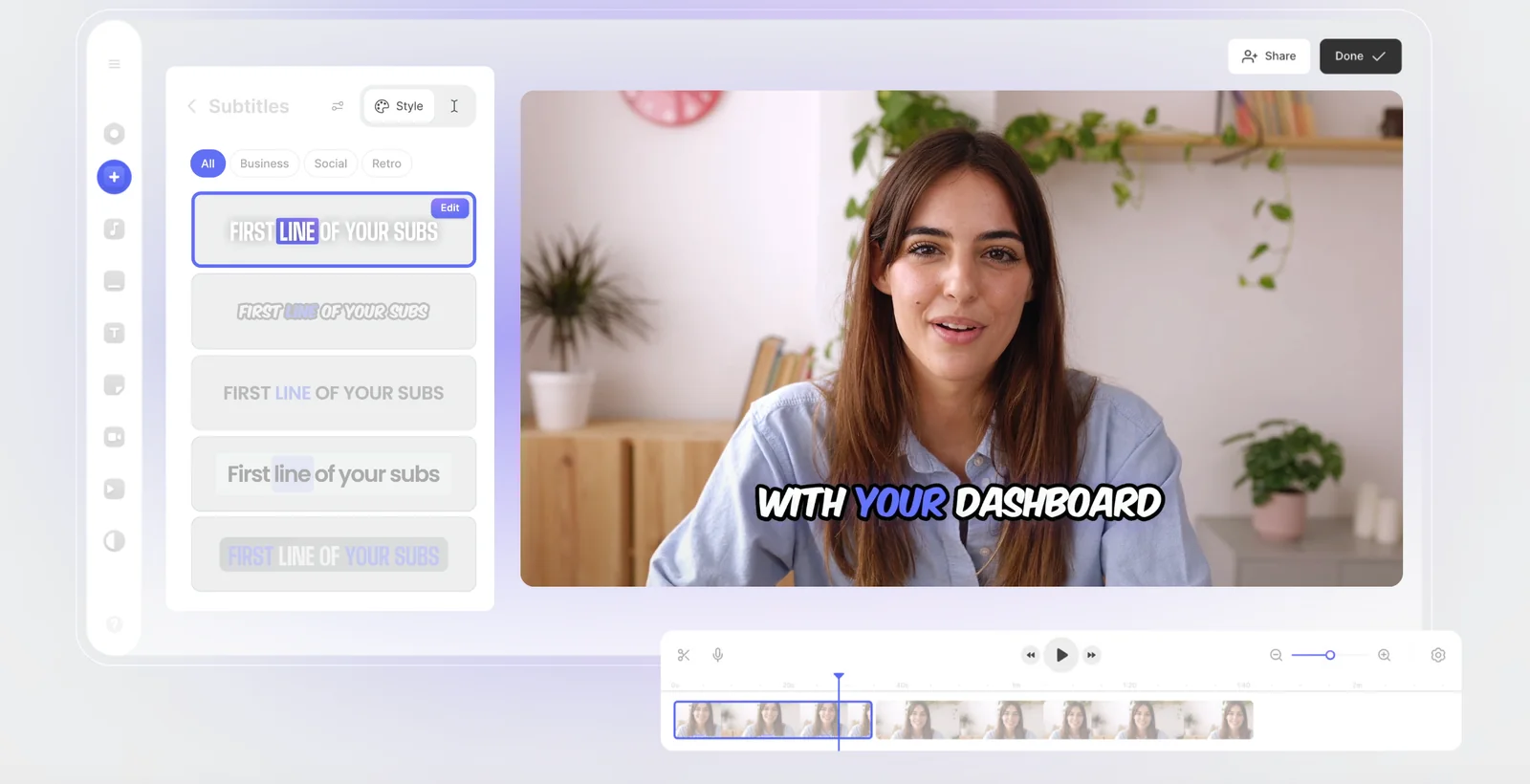
- Auto-Subtitles: Automatically generate subtitles for your videos using Veed's AI technology. This feature saves time and ensures accessibility.
- Text-to-Video: Transform written content into engaging videos by adding text overlays, making your videos more informative.
- Screen Recording: Capture your screen directly from the platform, perfect for tutorials or walkthroughs.
-
Export: After editing, click on the export button, choose your desired video quality, and save your video in various formats, including MP4, WEBM, and GIF.
Best Practices / Tips
- Utilize Templates: Leverage pre-made templates to speed up your editing process.
- Optimize for SEO: Add keywords to your video title, description, and tags to improve discoverability on platforms like YouTube.
- Test Features: Explore different tools and effects available on Veed to find what best fits your project style.
- Check Video Length: Shorter videos tend to perform better online; aim for under 3 minutes if possible.
Additional Resources
What are the key features of Veed?
Veed is a powerful online video editing tool that offers features like text-to-video conversion, auto-subtitles, voice translation, avatars, screen recording, and collaborative editing. These features make it an excellent choice for rapid content creation, enhancing productivity for individuals and teams alike.
Key Points
- Text-to-Video Conversion: Effortlessly transform scripts into engaging videos.
- Auto-Subtitles: Automatically generate subtitles to improve accessibility and viewer engagement.
- Collaborative Editing: Work with teams in real-time, streamlining the content creation process.
Detailed Explanation
Veed's text-to-video conversion functionality allows users to input text and generate videos automatically. This is particularly useful for marketers and educators looking to create video content quickly without extensive editing skills. For example, a marketing professional can convert a blog post into a visually appealing video in minutes.
The auto-subtitles feature enhances user engagement by making videos accessible to a broader audience. It supports multiple languages, ensuring that non-native speakers can also enjoy the content. This is especially beneficial for businesses with an international audience.
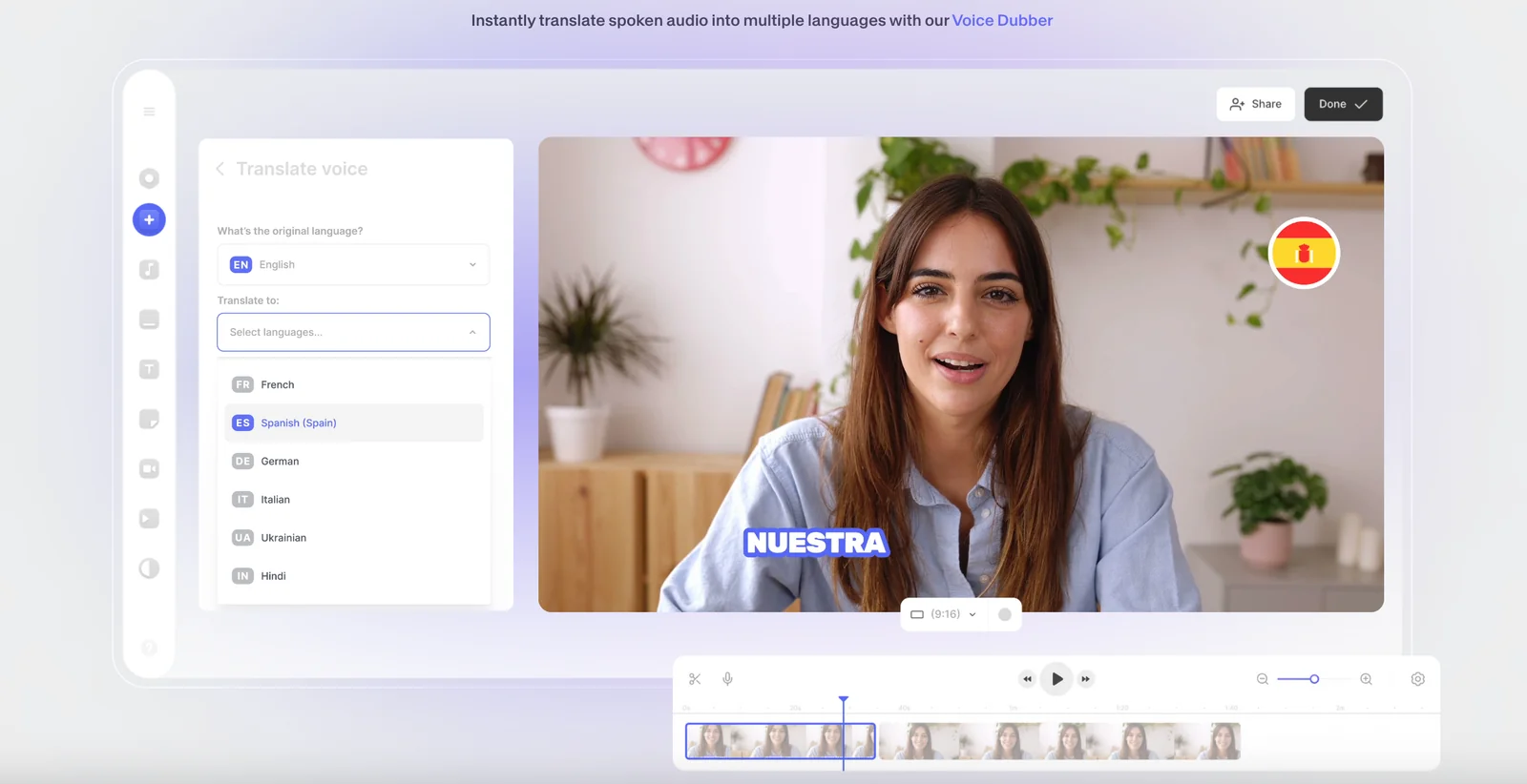
Voice translation enables users to reach global markets by providing translated audio tracks, ensuring that the message resonates with diverse viewers. Coupled with the use of avatars, which can represent the speaker, this feature adds a personal touch to the videos.
With screen recording, users can capture their screen activity, perfect for tutorials, webinars, or product demos. This feature is ideal for educators and trainers aiming to create instructional content efficiently.
Lastly, collaborative editing tools allow multiple users to work on a project simultaneously. This is invaluable for teams that need to share feedback and make real-time adjustments, significantly shortening the production timeline.
Best Practices / Tips
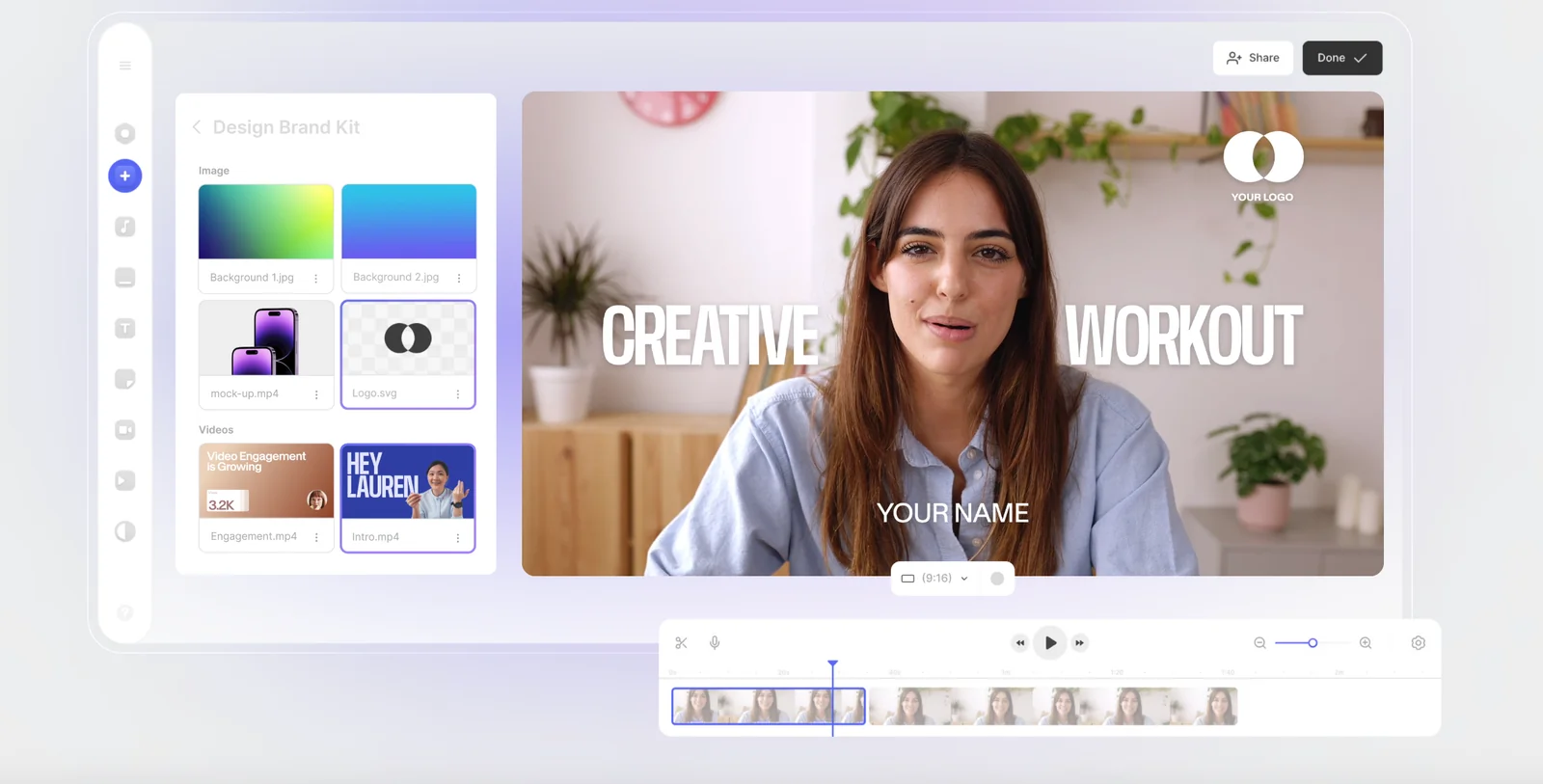
- Utilize Templates: Make use of Veed’s templates to save time and maintain a consistent style across videos.
- Optimize for Search: Incorporate relevant keywords in your video titles and descriptions to improve visibility on platforms like YouTube.
- Check Subtitles for Accuracy: Always review auto-generated subtitles for errors to ensure professionalism.
- Leverage Analytics: Use Veed’s analytics tools to assess viewer engagement and refine future video strategies.
Additional Resources
These resources provide valuable insights into maximizing the use of Veed's features for effective video content creation.
How does Veed compare to other video editing tools?
Veed excels among video editing tools due to its AI-driven features, including automatic subtitles and voice translation. Its user-friendly, browser-based platform allows seamless editing without downloads, making it ideal for individuals and businesses seeking efficient online video production.
Key Points
- AI-Driven Features: Automatic subtitles and voice translation enhance accessibility.
- User-Friendly Interface: Browser-based platform simplifies the editing process.
- Cost-Effective: Offers competitive pricing compared to traditional software.
Detailed Explanation
Veed stands out in the crowded video editing landscape with several notable features. One of its most compelling aspects is its AI-driven functionality. For instance, the automatic subtitle generation allows users to create accessible content quickly, while voice translation broadens the audience reach by enabling multilingual videos. This is particularly beneficial for businesses looking to expand their market.
In contrast to traditional video editing software, which often requires installations and updates, Veed's browser-based platform ensures that users can access their projects from any device with an internet connection. This flexibility is crucial for collaborative projects where multiple users may need to edit or review content simultaneously in real-time.
When it comes to pricing, Veed offers a range of plans tailored to different user needs, starting with a free tier for basic editing and scaling up to more robust options that include advanced features and higher export qualities. This cost-effectiveness makes it an attractive choice for freelancers, educators, and small to medium-sized businesses.
Best Practices / Tips
- Leverage AI Features: Take advantage of auto-subtitles and voice translation to improve engagement and accessibility.
- Explore Templates: Utilize Veed’s built-in templates for faster editing and more professional results.
- Regular Updates: Stay informed about new features and updates by subscribing to Veed’s newsletter.
Common Pitfalls to Avoid
- Overcomplicating Edits: Keep your edits simple to maintain viewer engagement; too many effects can distract from the message.
- Ignoring Export Settings: Always check your export settings to ensure optimal quality for your intended platform, whether it’s social media or a website.
Additional Resources
Does Veed offer an API for integrations?
Yes, Veed offers an API for seamless integrations, allowing users to automate video tasks such as bulk processing and connecting with backend services. Comprehensive API documentation is readily available on their website, enabling developers to effectively leverage these capabilities.
Key Points
- Automation of Video Tasks: Streamline processes like bulk video editing and transcoding.
- Integration with Backend Services: Connect with existing applications and databases for enhanced functionality.
- Comprehensive Documentation: Access detailed guides and examples for efficient API usage.
Detailed Explanation
Veed’s API is designed for developers who need to automate workflows and enhance their video processing capabilities. Key features include:
-
Bulk Processing: The API allows users to upload and process multiple videos simultaneously, significantly improving efficiency for businesses that handle large volumes of content.
-
Integration Capabilities: Users can integrate Veed with various backend services, such as content management systems (CMS), e-commerce platforms, and social media, facilitating a smoother workflow across different applications.
-
API Documentation: Veed provides extensive documentation, covering all API endpoints, request formats, and response structures. This includes code snippets in popular programming languages, making it accessible for developers at any level.
Example Use Case
For instance, a digital marketing agency can use Veed’s API to automatically create video ads from user-generated content. By setting up a script that interacts with the API, the agency can pull in video files, apply branding, and export the final products without manual intervention.
Best Practices / Tips
- Understand API Limits: Familiarize yourself with any rate limits and quotas to avoid disruptions in service.
- Test Thoroughly: Use a sandbox environment to test your API integrations before going live to ensure everything works seamlessly.
- Stay Updated: Regularly check for API updates or changes in documentation to leverage new features and maintain compatibility.
Additional Resources
- Veed API Documentation – Comprehensive guides and reference materials.
- Getting Started with Veed API – Step-by-step tutorial for beginners.
- Veed Support Center – Assistance for troubleshooting and FAQs.
Explore more AI Ai Models tools
Browse all Ai Models tools →Browse by use case: Video Generation · Voice & Audio · Automation & Productivity
- Soup CLI
- VibeVoice
- Laguna by Poolside
- Arena AI: The Official AI Ranking & LLM Leaderboard
- PromptLayer
- PHBench
Compare Veed: vs Soup CLI · vs VibeVoice · vs Laguna by Poolside · vs Arena AI: The Official AI Ranking & LLM Leaderboard