

Confluence
AIOfficial MCPConfluence is Atlassian's collaborative team workspace for documentation, knowledge bases, and project collaboration with Jira integration.
Confluence
Confluence is Atlassian's collaborative team workspace for documentation, knowledge bases, and project collaboration with Jira integration.
About Confluence
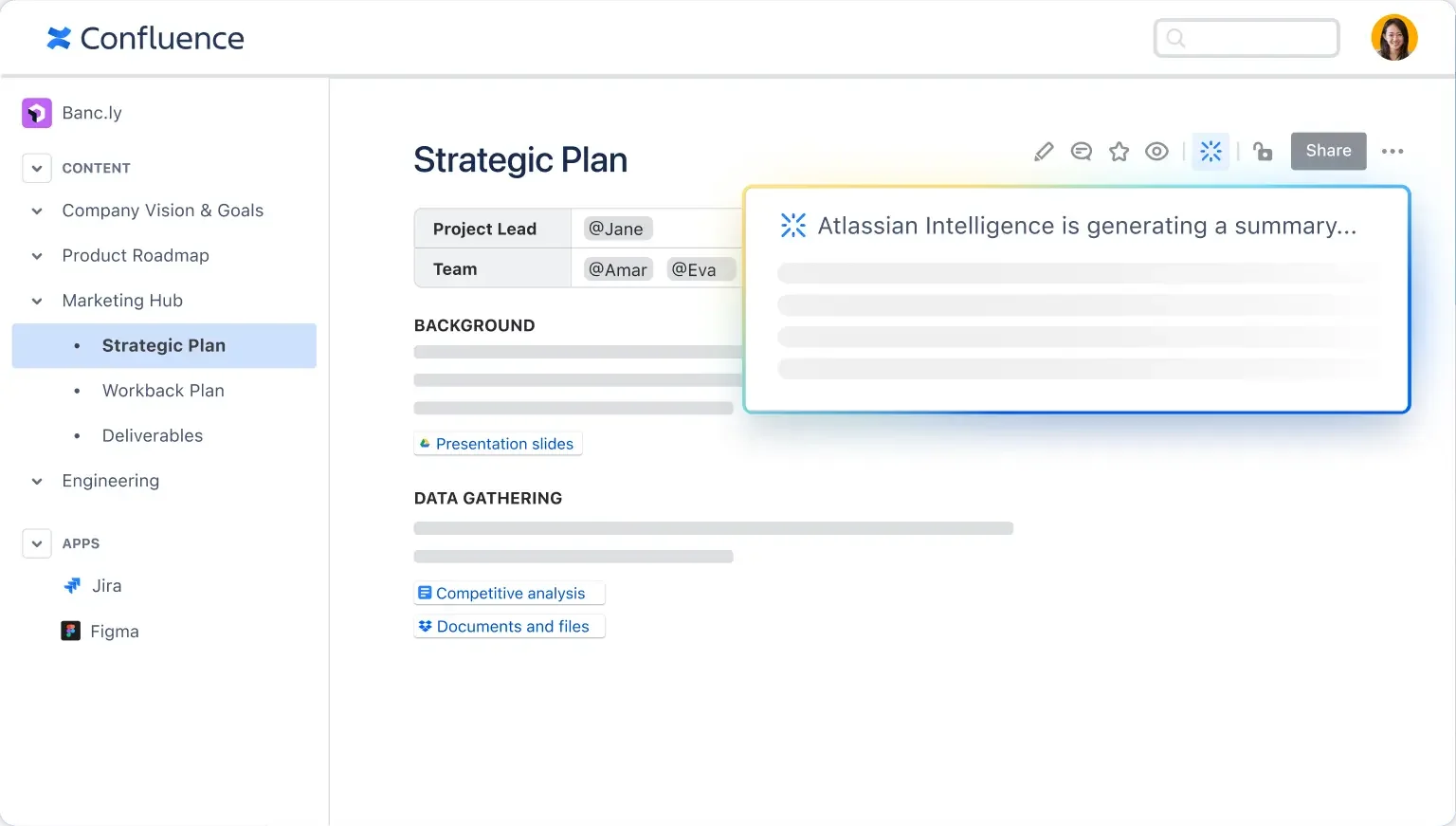
Confluence is a web-based team workspace for creating, organizing, and sharing documentation, meeting notes, requirements, and knowledge across organizations. It provides structured spaces and pages, a rich collaborative editor with inline comments and version history, page templates, and fine-grained permissions to manage content access. Confluence integrates deeply with Atlassian products (notably Jira) and third-party tools, exposes a REST API and macros for embedding dynamic content, and supports cloud and self-hosted deployments to fit enterprise requirements. Its value lies in centralizing team knowledge, enabling traceable documentation workflows, and connecting work artifacts across development and business tools.
Screenshots
Key Features
Use Cases
MCP Server
https://www.atlassian.com/platform/remote-mcp-serverhttps://mcp.atlassian.com/v1/sse💡 MCP (Model Context Protocol) enables AI assistants to securely interact with local and remote resources.


Frequently asked questions about Confluence
What are the pricing options for Confluence?
Confluence offers four pricing tiers: Free ($0/month for up to 10 users), Standard ($5/user/month), Premium ($10/user/month), and Enterprise (custom pricing). Each tier includes varying features and support levels, catering to different team sizes and needs.
Key Points
- Free Tier: Ideal for small teams and startups.
- Standard Tier: Best for growing teams needing more collaboration tools.
- Premium Tier: Offers advanced features for larger organizations.
- Enterprise Tier: Custom pricing for extensive support and features.
Detailed Explanation
Confluence provides a range of pricing plans to accommodate teams of various sizes and requirements.
-
Free Tier:
- Cost: $0/month for up to 10 users.
- Features: Basic functionalities including collaborative pages, templates, and limited integrations. This tier is perfect for small teams or startups looking to manage projects without incurring costs.
-
Standard Tier:
- Cost: $5/user/month.
- Features: Enhanced collaboration features such as page and space permissions, priority support, and advanced search capabilities. This is suitable for medium-sized teams that require more robust project management tools.
-
Premium Tier:
- Cost: $10/user/month.
- Features: All Standard features plus advanced functionalities like analytics, admin insights, and enhanced security measures. This tier is ideal for larger teams or organizations with specific compliance needs.
-
Enterprise Tier:
- Cost: Custom pricing.
- Features: Tailored solutions designed for large organizations, offering dedicated support, advanced security features, and unlimited users. This plan is best for enterprises that need a scalable solution.
Best Practices / Tips
- Evaluate Needs: Before choosing a plan, assess your team's size and specific collaboration needs to avoid overpaying for unnecessary features.
- Trial Period: Take advantage of free trials to test premium features and see if they genuinely benefit your workflow.
- Plan for Growth: Consider selecting a tier that can scale with your team to prevent frequent upgrades as your organization expands.
Additional Resources
How do I get started with Confluence?
To get started with Confluence, visit the official Atlassian website, sign up for a free account, and familiarize yourself with its intuitive interface for creating spaces and pages. Utilize the available tutorials and resources to enhance your understanding and maximize your productivity with this collaboration tool.
Key Points
- Access the official Atlassian website.
- Sign up for a free account.
- Explore user-friendly features like spaces and pages.
Detailed Explanation
Confluence, developed by Atlassian, is a powerful collaboration tool designed for teams to create, share, and manage content. Here’s how you can get started:
-
Visit the Official Website: Go to Atlassian’s Confluence page to learn about its features and pricing.
-
Sign Up for a Free Account: Click on the "Try it free" button. You’ll need to provide your email address and create a password. Atlassian offers a free trial for small teams (up to 10 users) which allows you to explore the platform without any financial commitment.
-
Explore the Interface: Once registered, log in to your Confluence account. The dashboard provides an overview of recent activity and spaces you have access to. Spend some time navigating the user-friendly interface, focusing on creating spaces, pages, and using templates.
-
Use Tutorials and Resources: Confluence provides an array of tutorials and documentation. Check out the Confluence Cloud documentation for step-by-step guides on how to create your first page, organize content, and manage permissions.
-
Create Your First Space: To create a space, click on the "Spaces" menu and select "Create Space." Choose a template that fits your needs (like Team Space or Documentation Space) and start adding content.
Example Use Case:
For a project team, setting up a dedicated space in Confluence can centralize all project-related documentation, meeting notes, and updates. This allows team members to collaboratively edit documents and track changes in real-time.
Best Practices / Tips
- Utilize Templates: Confluence offers various templates that can save you time and ensure consistency across your documents.
- Organize Content: Regularly structure your spaces and pages for better navigation. Use categories, labels, and a logical hierarchy.
- Integrate with Other Tools: Connect Confluence with Jira, Trello, or Slack to streamline workflows and enhance collaboration.
- Regularly Update Content: Keep your pages current to ensure that all team members have access to the latest information.
Additional Resources
- Confluence Cloud Documentation
- Atlassian Community for user discussions and support.
- Confluence Tutorials on YouTube for visual guidance.
What are the key features of Confluence?
Confluence is a powerful collaboration tool that offers a rich collaborative editor, hierarchical page organization, seamless Jira integration, granular permissions for team members, and advanced search capabilities. These features collectively enhance team collaboration, streamline documentation processes, and improve project management across various industries.
Key Points
- Rich Collaborative Editor: Create and edit content effortlessly.
- Hierarchical Page Organization: Structure information logically.
- Jira Integration: Connect project management tools seamlessly.
Detailed Explanation
Confluence is designed to facilitate teamwork and streamline documentation across organizations. Here’s a closer look at its key features:
Rich Collaborative Editor
The collaborative editor in Confluence allows multiple users to edit pages in real time. This feature supports various content types, including text, images, and videos. For example, teams can collaboratively draft meeting notes or project plans, ensuring everyone is on the same page.
Hierarchical Page Organization
Confluence employs a hierarchical structure for pages, making it easy to categorize and find information. Users can create parent and child pages to maintain a logical flow of documentation. This structure is particularly beneficial for large projects, enabling teams to navigate complex information effortlessly.
Jira Integration
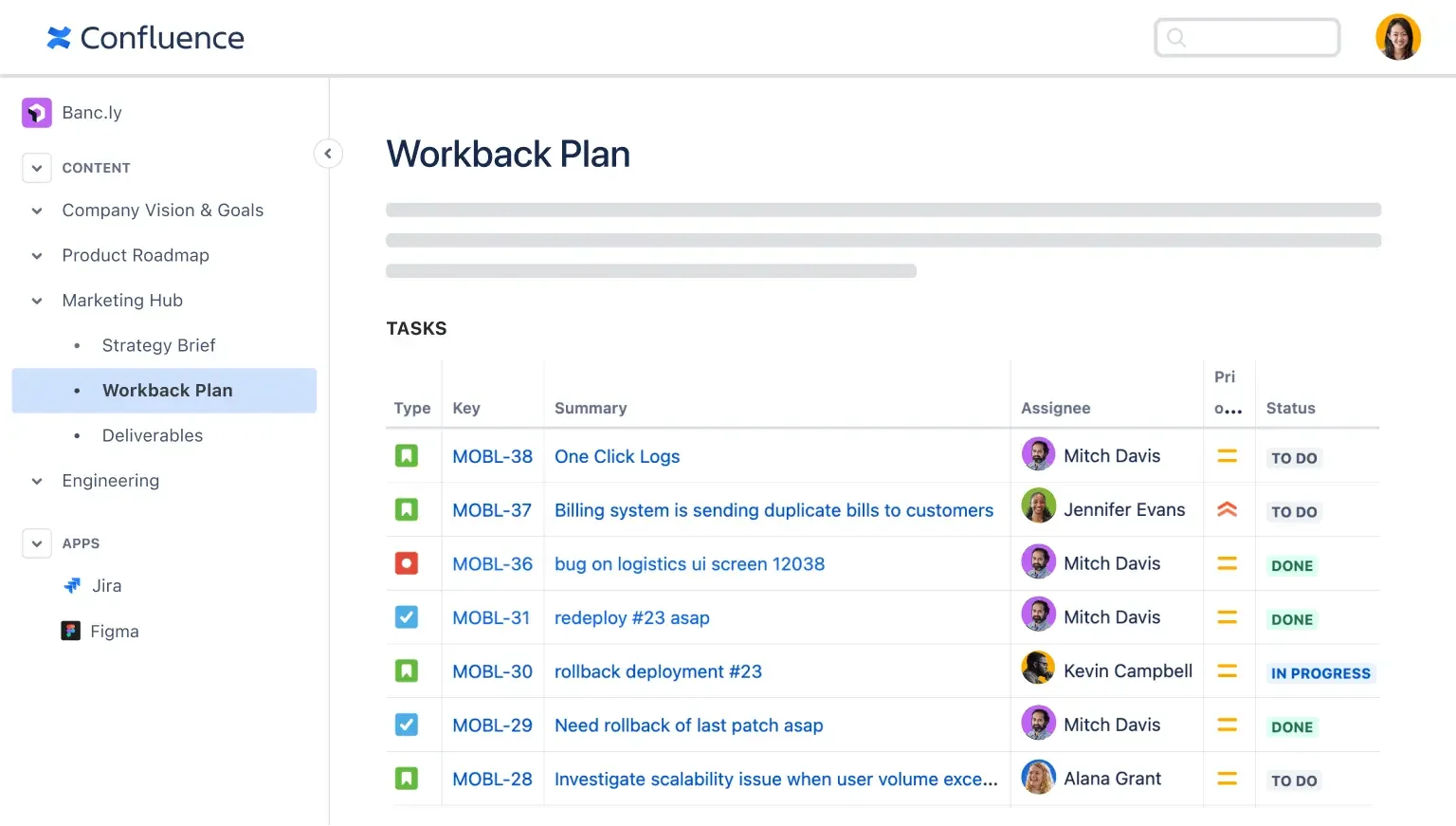
One of Confluence's standout features is its integration with Jira, a popular project management tool. This integration allows teams to link documentation directly to Jira issues, providing context and enhancing visibility. For instance, project managers can create a Confluence page detailing project requirements while linking relevant Jira tickets for tracking progress.
Granular Permissions
Confluence offers granular permissions to control who can view or edit specific pages. This feature is essential for organizations that handle sensitive information, ensuring that only authorized users can access certain content. For example, HR documents can be restricted to HR personnel, while project documentation can be made available to all team members.
Advanced Search Capabilities
The advanced search function in Confluence enables users to locate content quickly. Users can filter search results by labels, types, and dates, making it easier to find specific documents or data. This feature is crucial in large organizations with extensive documentation.
Best Practices / Tips
- Utilize Templates: Leverage Confluence’s pre-existing templates for consistency and speed in document creation.
- Regularly Update Content: Keep your documentation current to ensure relevance and accuracy.
- Train Your Team: Conduct workshops to familiarize team members with Confluence features for optimal usage.
- Organize with Labels: Use labels for better categorization and easier searching of related content.
Additional Resources
How does Confluence integrate with Jira?
Confluence integrates seamlessly with Jira, enabling users to link Jira issues directly to Confluence pages, create project documentation, and automate updates. This integration enhances collaboration, improves project management visibility, and streamlines workflows between teams using both platforms.
Key Points
- Linking Issues: Easily connect Jira issues to Confluence documentation.
- Automated Updates: Keep project documentation in sync with Jira status updates.
- Enhanced Collaboration: Foster teamwork by combining project management with documentation.
Detailed Explanation
Confluence and Jira integration significantly enhances project management by facilitating seamless communication between teams.
-
Linking Jira Issues: Users can easily create links to specific Jira issues within Confluence pages. This feature allows team members to access relevant project details without switching platforms. For instance, when documenting a project, you can insert a Jira issue link to provide context directly to stakeholders.
-
Creating Project Documentation: Utilizing Confluence's robust documentation features, teams can create comprehensive project documentation that includes details from Jira. This can include project plans, meeting notes, and retrospectives. With templates available, teams can ensure consistency in documentation.
-
Automated Updates: The integration allows for real-time updates between Jira and Confluence. For example, when an issue's status changes in Jira, that update can automatically reflect in Confluence documentation, ensuring everyone is on the same page regarding project progress.
-
Use Cases: Common use cases for this integration include sprint planning, release notes documentation, and project retrospectives. Teams can leverage Confluence to maintain a living document that evolves alongside project milestones.
Best Practices / Tips
- Utilize Templates: Confluence offers templates specifically designed for project documentation. Make use of these to save time and ensure consistency across your documents.
- Regular Updates: Schedule regular reviews of linked content to ensure that documentation remains current with the latest project developments.
- Training: Provide training for your team on how to effectively use the integration to maximize its benefits. This includes linking Jira issues, using macros, and creating informative dashboards.
Additional Resources
What are the pros and cons of using Confluence compared to other tools?
Confluence offers robust collaboration features and seamless integration with Jira, making it ideal for team-based projects. However, new users might face a steep learning curve, and its pricing can be a drawback for larger teams compared to some free alternatives like Notion or Google Docs.
Key Points
- Collaboration Features: Excellent tools for teamwork.
- Integration with Jira: Streamlined project management.
- Cost Considerations: Pricing can be a barrier for large teams.
Detailed Explanation
Confluence is a powerful collaboration platform developed by Atlassian, primarily designed for software development and project management teams. Its strengths lie in the following areas:
Collaboration Features
Confluence excels in its collaborative capabilities. Users can create, edit, and comment on documents in real time, which fosters teamwork. With features like inline comments, page version history, and customizable templates, teams can streamline their workflows effectively. For instance, software development teams can use Confluence to document user requirements, project plans, and technical specifications collaboratively.
Integration with Jira
One of Confluence's standout features is its seamless integration with Jira, another Atlassian product. This integration allows teams to link Jira issues directly to Confluence pages, enabling users to create comprehensive documentation that includes live data from their projects. For example, project managers can automatically pull in Jira ticket statuses into Confluence, providing a dynamic overview of project progress.
Cost Considerations
While Confluence is highly effective, its pricing structure may not suit every organization. The cost can escalate with the number of users, particularly for larger teams. Currently, Confluence offers a free plan for up to 10 users, but for teams exceeding this limit, costs start at approximately $5 per user per month. In contrast, tools like Notion or Google Docs may offer more cost-effective solutions, especially for small businesses or startups.
Best Practices / Tips
- Leverage Templates: Use Confluence's built-in templates to save time and maintain consistency across documents.
- Training Resources: Invest in training for new users to mitigate the learning curve. Atlassian offers comprehensive tutorials and community forums.
- Evaluate Alternatives: Regularly assess your team's needs against tool capabilities to ensure you're using the most cost-effective solution.
Additional Resources
Explore more AI Mcps tools
Browse all Mcps tools →Compare Confluence: vs DocsAlot · vs Toolport · vs Kit for AI · vs In Parallel MCP