

Remaker
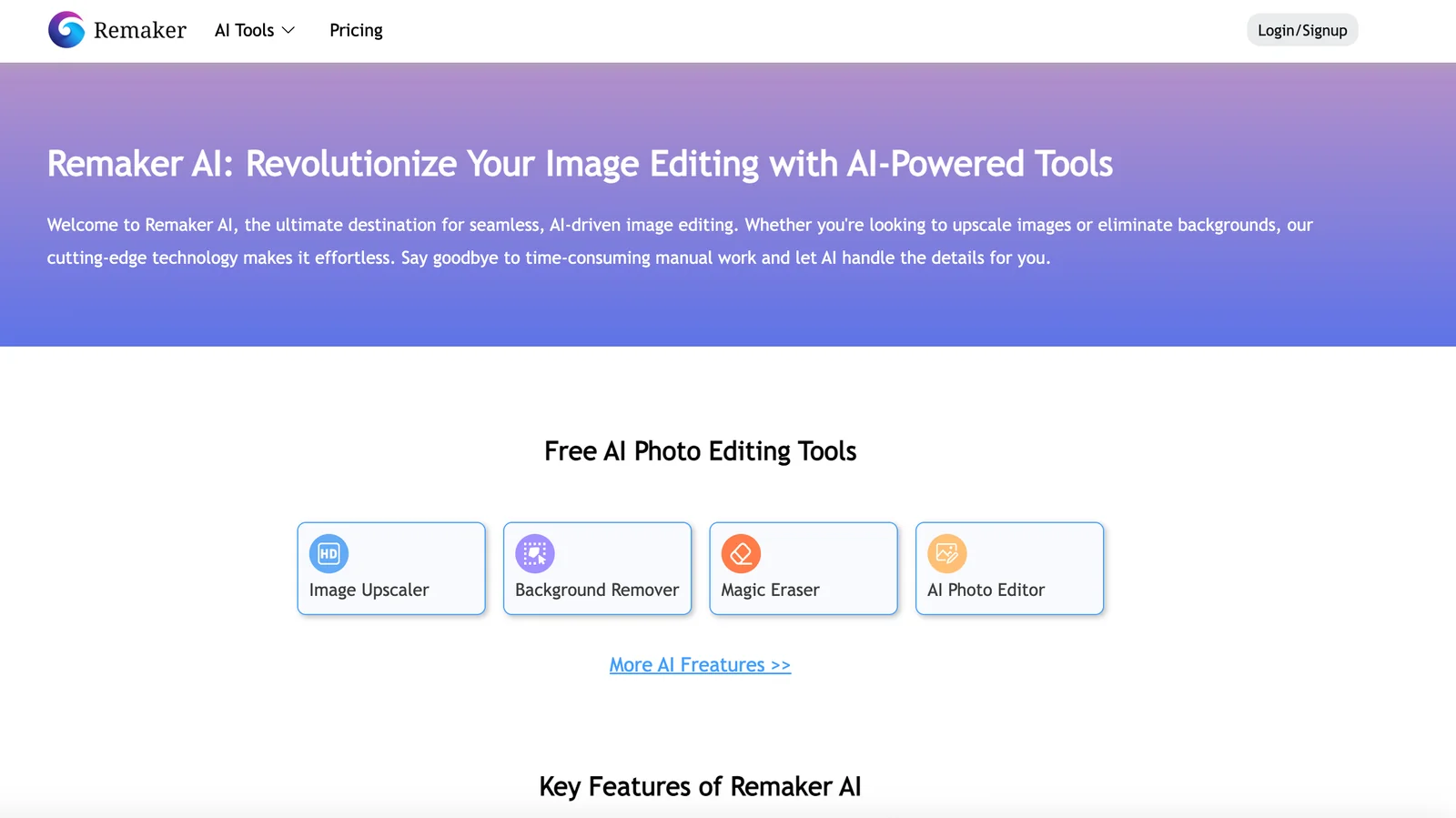
AIWeb-based AI image editor for upscaling, background removal, and automated photo enhancement.
Remaker
Web-based AI image editor for upscaling, background removal, and automated photo enhancement.
About Remaker
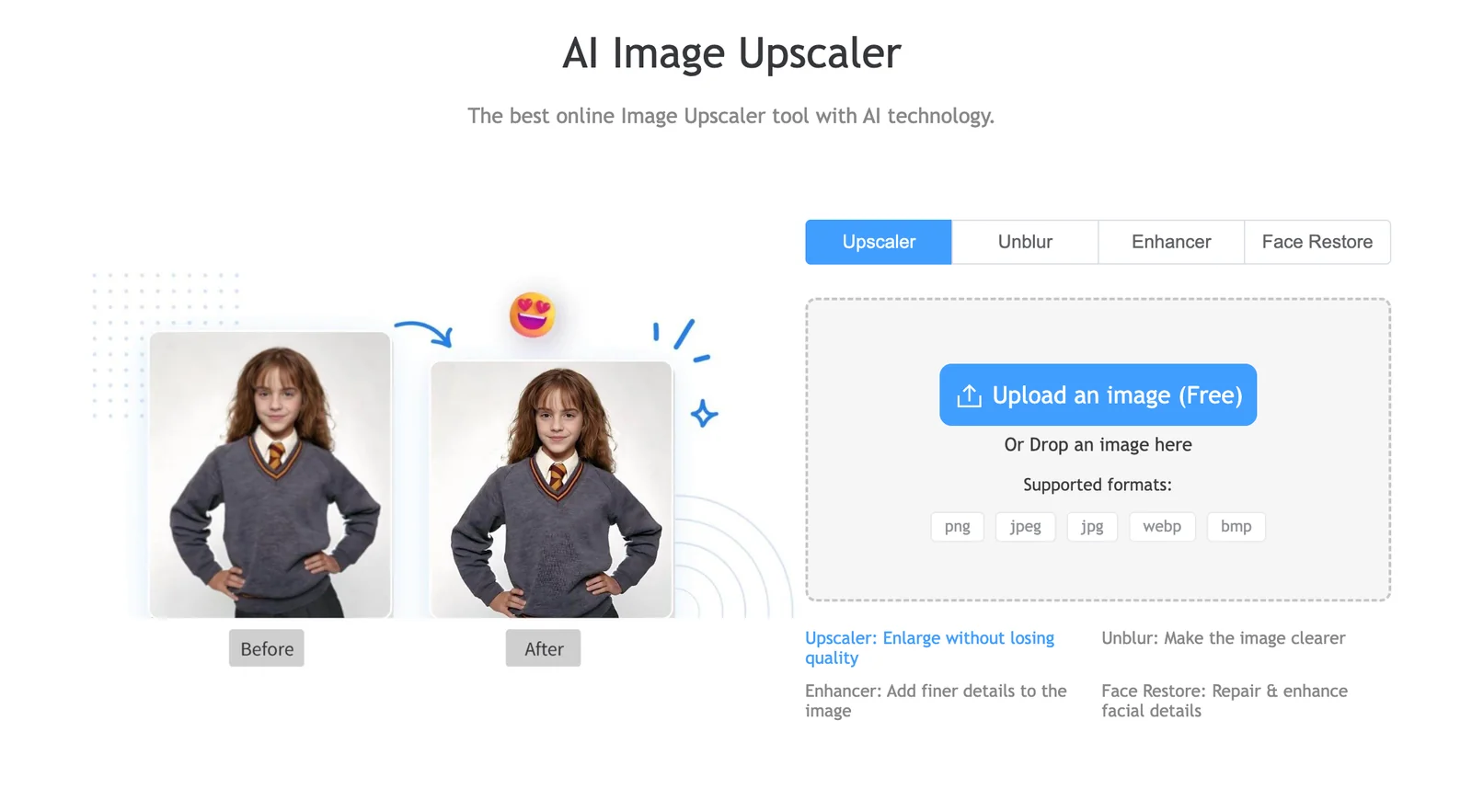
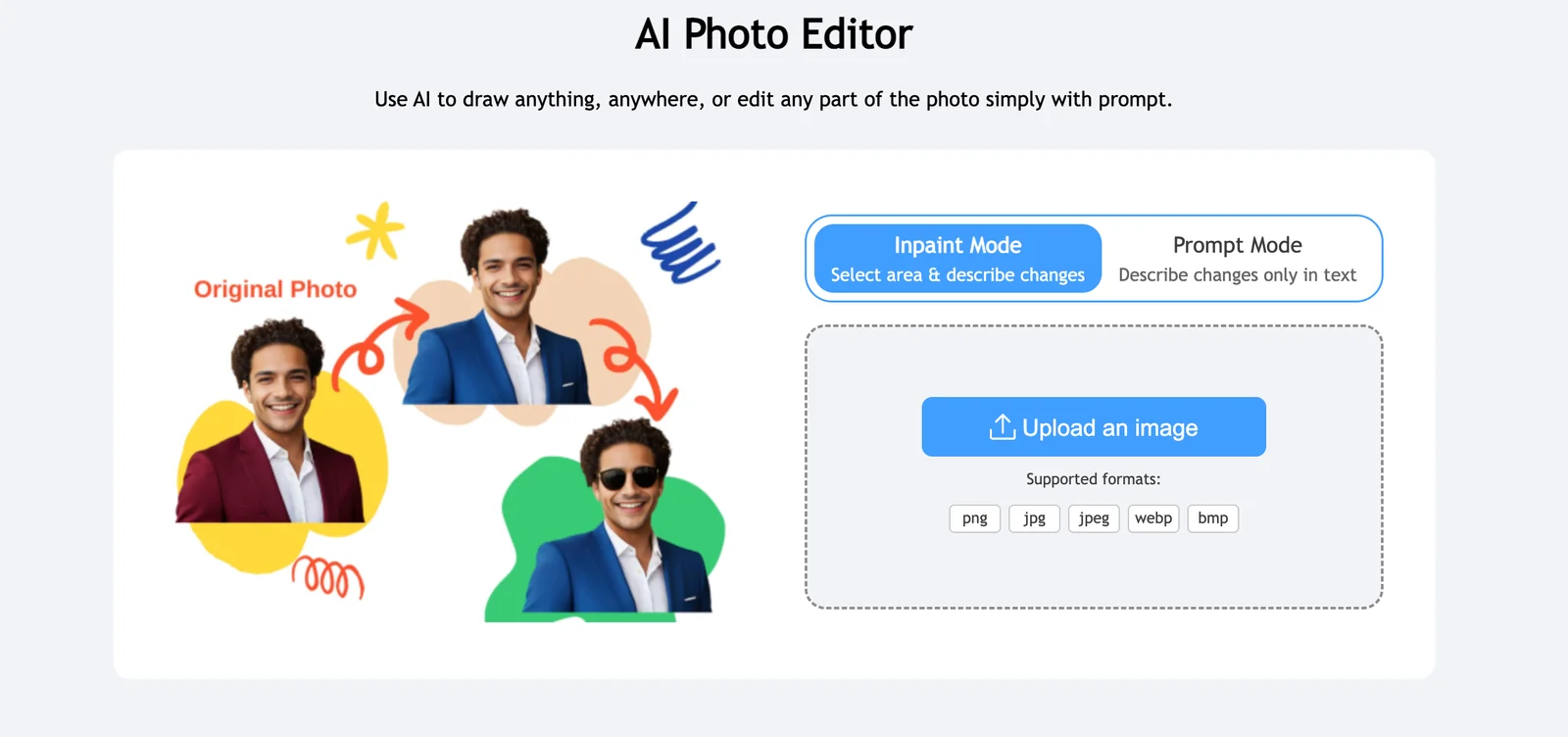
Remaker is an online image-editing service that applies machine learning to automate common photo tasks such as upscaling, background removal, denoising, and retouching. It provides a browser-based workflow that lets users quickly process single images or batches, producing export-ready files for web, print, and social media. Remaker's value is reducing manual editing time by combining multiple automated adjustments (edge-aware matting, detail-preserving upscaling, and artifact reduction) into a simple UI so non-experts can achieve professional-looking results.
Screenshots

Key Features
Use Cases

Frequently asked questions about Remaker
What are the pricing options for Remaker AI?
Remaker AI provides a free plan at $0/month with basic features, and paid plans starting at $2.99/month for enhanced features and faster processing. Custom enterprise plans are available to accommodate larger teams and specific business needs.
Key Points
- Free plan includes basic features at $0/month.
- Paid plans begin at $2.99/month with additional benefits.
- Custom enterprise options are available for tailored solutions.
Detailed Explanation
Remaker AI's pricing structure is designed to cater to a wide range of users, from individuals to large enterprises.
-
Free Plan: The free plan allows users to explore basic features, making it an excellent option for newcomers or those with minimal needs. This plan is ideal for testing the platform and gaining familiarity without financial commitment.
-
Paid Plans: Starting at just $2.99/month, the paid plans offer enhanced usage limits and faster processing speeds. These plans are suitable for regular users who require more flexibility and efficiency in their projects. As users scale up their needs, they can opt for higher tiers that provide additional features such as priority support and advanced analytics.
-
Custom Enterprise Plans: For businesses or teams that require specialized capabilities, Remaker AI offers custom enterprise solutions. These plans are tailored to fit specific requirements, including larger processing capacities, dedicated account management, and personalized onboarding. Pricing for enterprise solutions varies based on the organization’s needs.
Best Practices / Tips
- Evaluate Your Needs: Before selecting a plan, assess your usage requirements. If you're just starting, the free plan may suffice. However, if you anticipate frequent use or need advanced features, consider a paid plan.
- Take Advantage of Free Trials: If available, utilize any trial offers to test premium features without immediate commitment.
- Consult Customer Support: For enterprise solutions, reach out to customer support to discuss your specific needs and get a custom quote that aligns with your budget.
Additional Resources
How do I use Remaker AI for background removal?
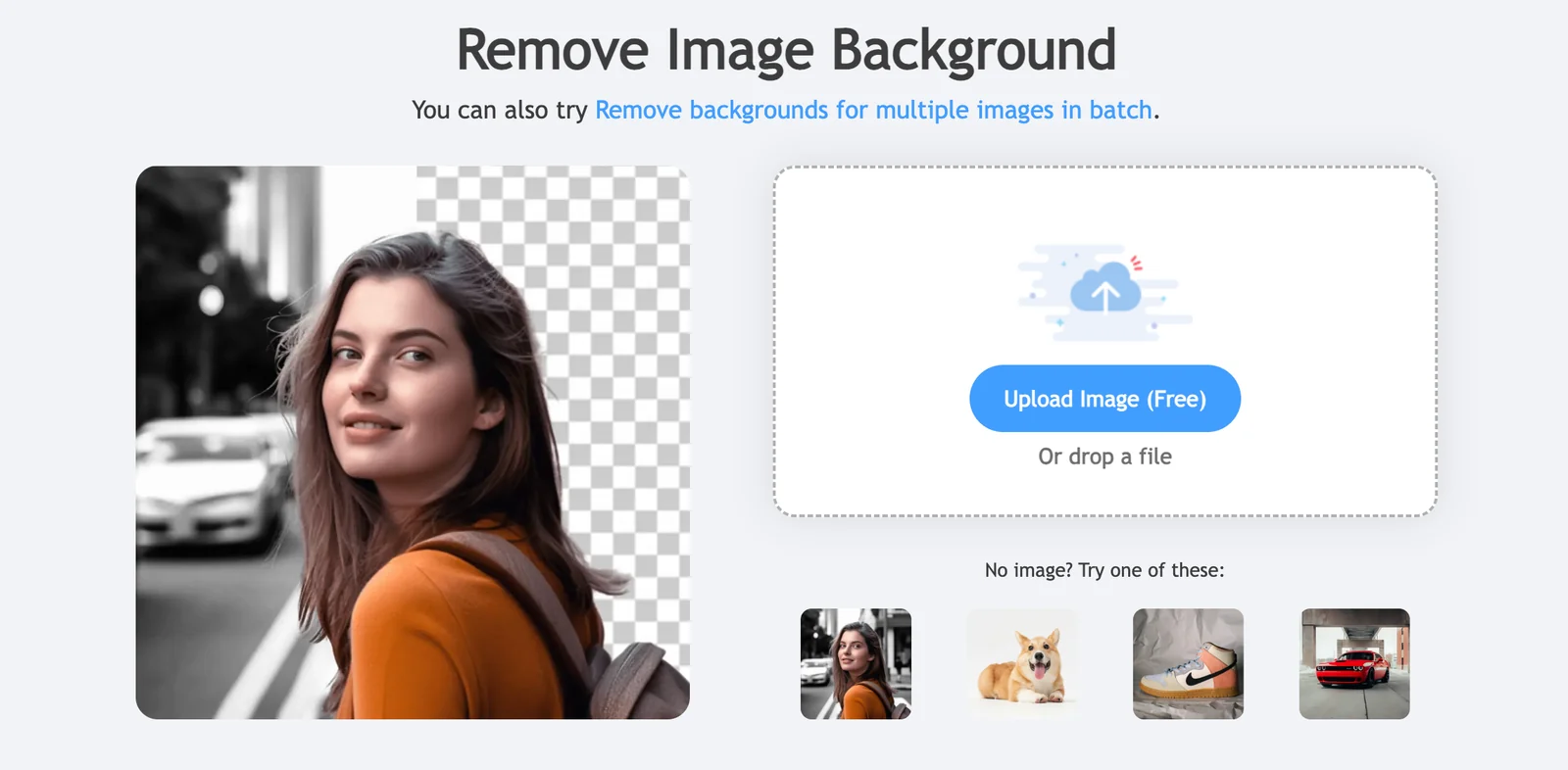
To use Remaker AI for background removal, upload your image in the web-based editor, choose the background removal tool, and let the AI automatically detect and eliminate the background. This process is quick and user-friendly, making it ideal for both beginners and professionals.
Key Points
- User-Friendly Interface: Remaker AI offers an intuitive design.
- Automatic Detection: The AI efficiently identifies and removes backgrounds.
- Versatile Applications: Suitable for various projects, from personal to professional uses.
Detailed Explanation
Remaker AI is a powerful online tool designed for simple and effective background removal. Here’s a step-by-step guide to using it:
-
Upload Your Image: Start by accessing the Remaker AI website. Click on the upload button and select the image you want to work with. Supported formats include JPEG, PNG, and BMP.
-
Select the Background Removal Tool: Once your image is uploaded, navigate to the editing options. Look for the background removal tool—usually represented by an icon or menu option.
-
Automatic Background Detection: The AI will automatically analyze your image. It uses advanced algorithms to differentiate between the foreground (the main subject) and the background. This typically takes just a few seconds.
-
Review and Adjust: After the AI completes its task, you can review the results. If necessary, use the manual adjustment tools to fine-tune the edges, ensuring a clean cut. You can zoom in for precision.
-
Download Your Image: Once satisfied with the background removal, click the download button to save your edited image. You can usually choose the format (PNG is recommended for images with transparency).
Use Cases
- E-commerce: Enhance product images by removing distracting backgrounds, making them more appealing to customers.
- Social Media: Create stunning graphics for posts or profiles by isolating subjects.
- Marketing Materials: Use clean images in presentations, flyers, and advertisements.
Best Practices / Tips
- High-Quality Images: Start with high-resolution images for better AI performance.
- Clear Subjects: Ensure the subject is distinct from the background for optimal results.
- Manual Refinements: Don’t hesitate to manually adjust if the AI misses details—this can significantly improve the final output.
Common Pitfalls
- Busy Backgrounds: Complex backgrounds may confuse the AI, leading to poor results. Simplifying the background before uploading can help.
- Rushed Edits: Take your time during the manual adjustment phase. Rushing can result in jagged edges or incomplete removals.
Additional Resources
What features does Remaker AI offer compared to other image editors?
Remaker AI offers advanced features such as background removal, image upscaling, and batch processing, alongside unique capabilities like automated photo enhancement and noise reduction. These features distinguish Remaker AI from traditional image editors, making it an efficient tool for both casual users and professionals seeking superior image quality.
Key Points
- Automated Background Removal: Quickly and accurately removes backgrounds with minimal user input.
- Image Upscaling: Enhances image resolution without losing quality, ideal for print and digital use.
- Batch Processing: Allows multiple images to be edited simultaneously, saving time and effort.
Detailed Explanation
Remaker AI stands out in the crowded image editing market for its innovative features tailored for efficiency and quality:
-
Automated Background Removal: This feature utilizes AI algorithms to detect and eliminate backgrounds in images swiftly. Whether for e-commerce product photos or personal portraits, users can achieve professional-looking results without the manual effort required by traditional tools.
-
Image Upscaling: Remaker AI’s upscaling technology ensures that images retain their clarity and sharpness when enlarged. This is particularly useful for photographers and graphic designers who need high-quality images for marketing materials or online content.
-
Batch Processing: This functionality allows users to process multiple images at once, making it a time-saver for businesses and individuals dealing with large volumes of photos. For instance, if you need to enhance 100 product images for a website, batch processing can streamline the workflow significantly.
-
Automated Photo Enhancement and Noise Reduction: These features improve the overall quality of images by automatically adjusting brightness, contrast, and reducing graininess. This is especially beneficial for images taken in low-light conditions or with high ISO settings.
Best Practices / Tips
- Take Advantage of Batch Processing: Whenever possible, use the batch processing feature to edit multiple images at once. It greatly enhances productivity.
- Experiment with Settings: Don’t hesitate to tweak the automated settings for photo enhancement to match your specific needs and preferences.
- Utilize the Preview Feature: Always preview changes before finalizing edits to ensure that the enhancements meet your expectations.
Additional Resources
Does Remaker AI have an API for integration into other applications?
Currently, Remaker AI does not publicly offer an API for integration with other applications. However, users interested in custom solutions can contact their sales team to explore potential enterprise options tailored to specific needs.
Key Points
- No publicly available API for Remaker AI.
- Custom solutions may be available for enterprise users.
- Contact the sales team for personalized options.
Detailed Explanation
Remaker AI focuses on offering its innovative tools for content creation, but as of now, it does not advertise a public API for developers seeking to integrate its functionalities into their applications. This limits direct automation and integration possibilities for smaller businesses and individual developers. However, for larger enterprises with specific needs, Remaker AI may provide custom integration solutions.
To explore these options, potential users should reach out directly to the Remaker AI sales team. During this consultation, you can discuss your requirements, project scope, and how Remaker AI's capabilities can fit into your existing workflows. Custom solutions may include tailored APIs or dedicated support for integration into proprietary systems.
Use Cases
- Large Enterprises: Companies looking to streamline their content generation processes could benefit from a tailored integration that connects Remaker AI with their existing CMS platforms.
- Marketing Agencies: Agencies managing multiple clients may find value in a custom API to automate content creation and management across various projects.
- E-commerce Businesses: Integrating Remaker AI into e-commerce platforms could enhance product descriptions and marketing materials dynamically, improving SEO and user engagement.
Best Practices / Tips
- Contact Early: If you anticipate needing an API, initiate contact with the sales team early in your project planning to understand capabilities and timelines.
- Detail Your Needs: Clearly outline your requirements and expected outcomes when discussing custom solutions. This will help the team provide the most relevant options.
- Stay Updated: Regularly check Remaker AI's official website or subscribe to their newsletter for announcements regarding any new features, including potential future API releases.
Additional Resources
What are the limitations of the free version of Remaker AI?
The free version of Remaker AI offers basic editing tools but imposes limitations on processing speed, output resolution, and monthly usage credits, making it ideal for users with casual editing needs. Users may find it insufficient for more extensive or professional projects due to these constraints.
Key Points
- Processing Speed: Limited compared to premium versions.
- Output Resolution: Lower quality than paid subscriptions.
- Monthly Usage Credits: Restricted number of edits or features available monthly.
Detailed Explanation
The free version of Remaker AI serves as an introductory tool for users who want to experiment with AI-powered editing features. However, there are notable limitations that can affect the user experience:
-
Processing Speed: Users may experience slower rendering times, particularly with complex edits or high-resolution files. This can be frustrating for those accustomed to faster, more responsive tools.
-
Output Resolution: The resolution of exported files in the free version is typically capped at a lower quality, making it unsuitable for professional projects, such as marketing materials or high-quality video content.
-
Monthly Usage Credits: The free plan usually provides a limited number of credits for processing edits each month. Once these credits are exhausted, users will need to wait until the next billing cycle or consider upgrading to access additional features.
These limitations mean that while the free version is perfect for hobbyists or casual users wanting to test the waters of AI editing, those with more demanding needs might find it lacking.
Best Practices / Tips
- Evaluate Needs: Assess whether your editing needs exceed the capabilities of the free version before committing to extensive projects.
- Upgrade Consideration: If you find yourself frequently hitting the limits, consider upgrading to a paid plan for enhanced features and capabilities.
- Utilize Credits Wisely: Plan your edits strategically to make the most of your monthly usage credits. Prioritize important projects to ensure they are completed within the available limits.
Additional Resources
Explore more AI Ai Tools tools
Browse all Ai Tools tools →Browse by use case: Image Generation · Automation & Productivity
Compare Remaker: vs nodeterm · vs A.I.G (AI Infra Guard) · vs Trama · vs Agents Never Sleep