

Stable Diffusion Web UI
AIOpen SourceFreeA Gradio-based local web interface for running, managing, and extending Stable Diffusion models with extensive scripts and platform support.
Stable Diffusion Web UI
A Gradio-based local web interface for running, managing, and extending Stable Diffusion models with extensive scripts and platform support.
About Stable Diffusion Web UI
Stable Diffusion Web UI (AUTOMATIC1111) is an open-source, Gradio-based browser interface that lets users run and interact with Stable Diffusion models locally. It provides convenient launch scripts, automatic installers for Windows/Linux, and platform-specific instructions (including Apple Silicon and AMD/NVIDIA GPUs). The project supports community-developed extensions and custom scripts, model/checkpoint management, and integrations such as face-restoration tools. Its value lies in providing a rich, extensible GUI that simplifies model experimentation, prompt tuning, batch generation, and integration of experimental features developed by the community.
Screenshots
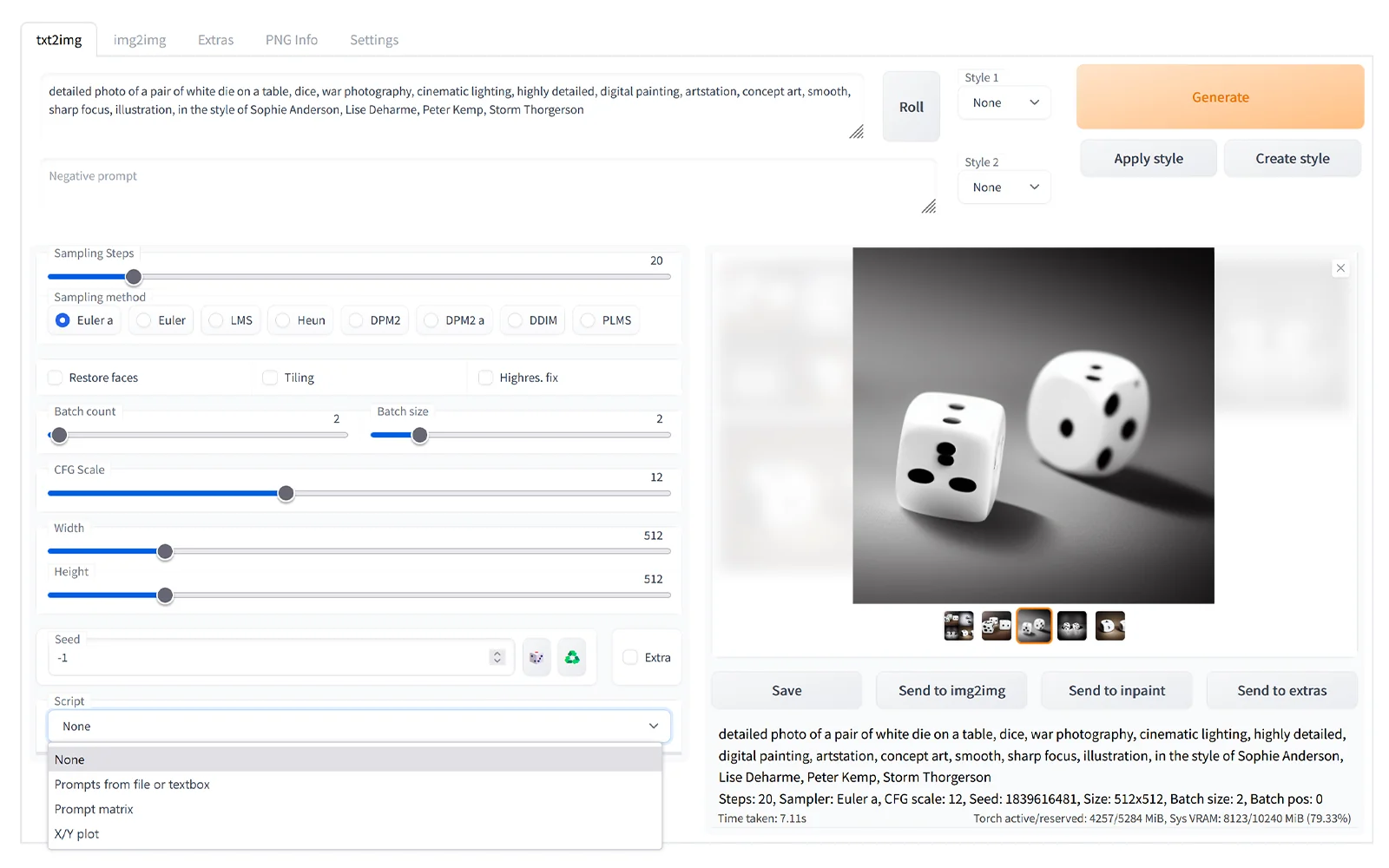
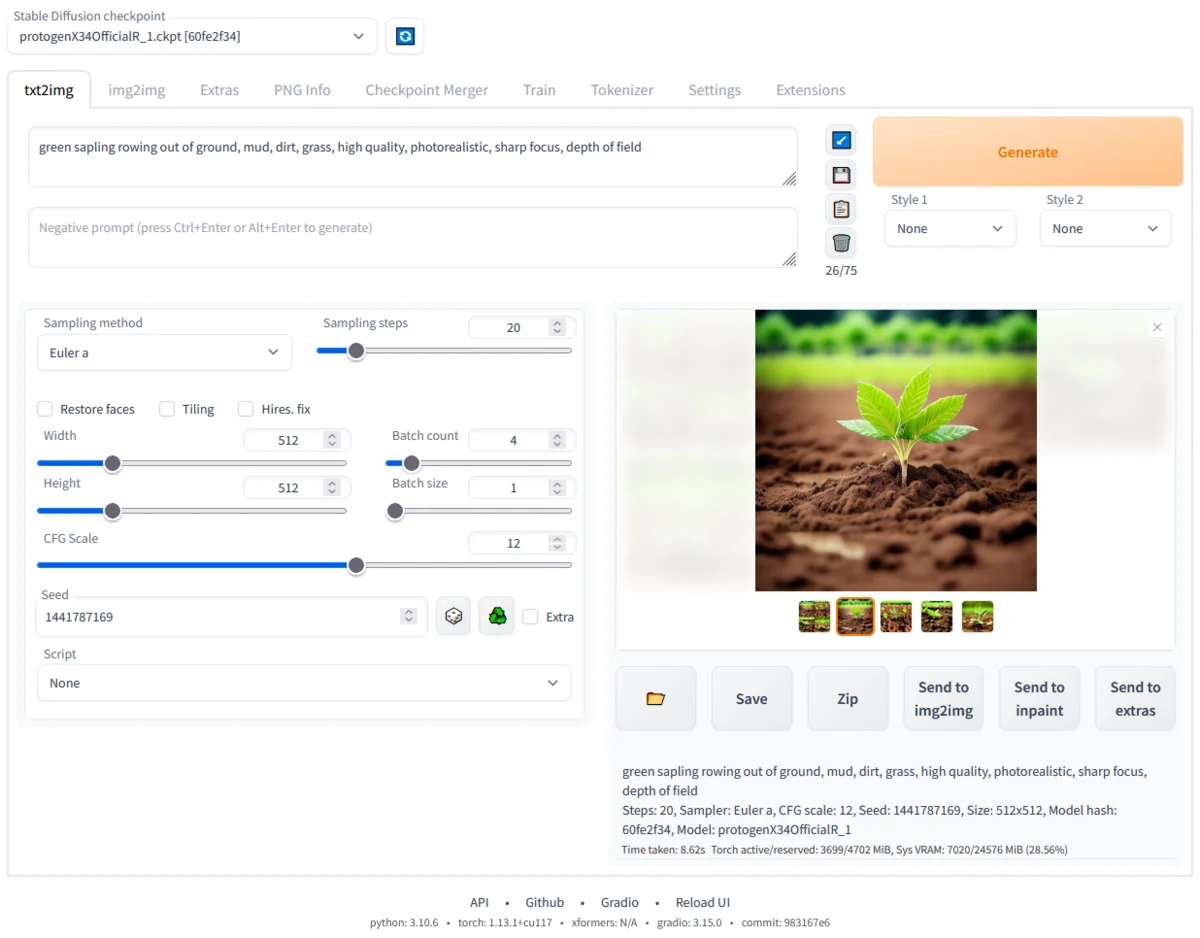
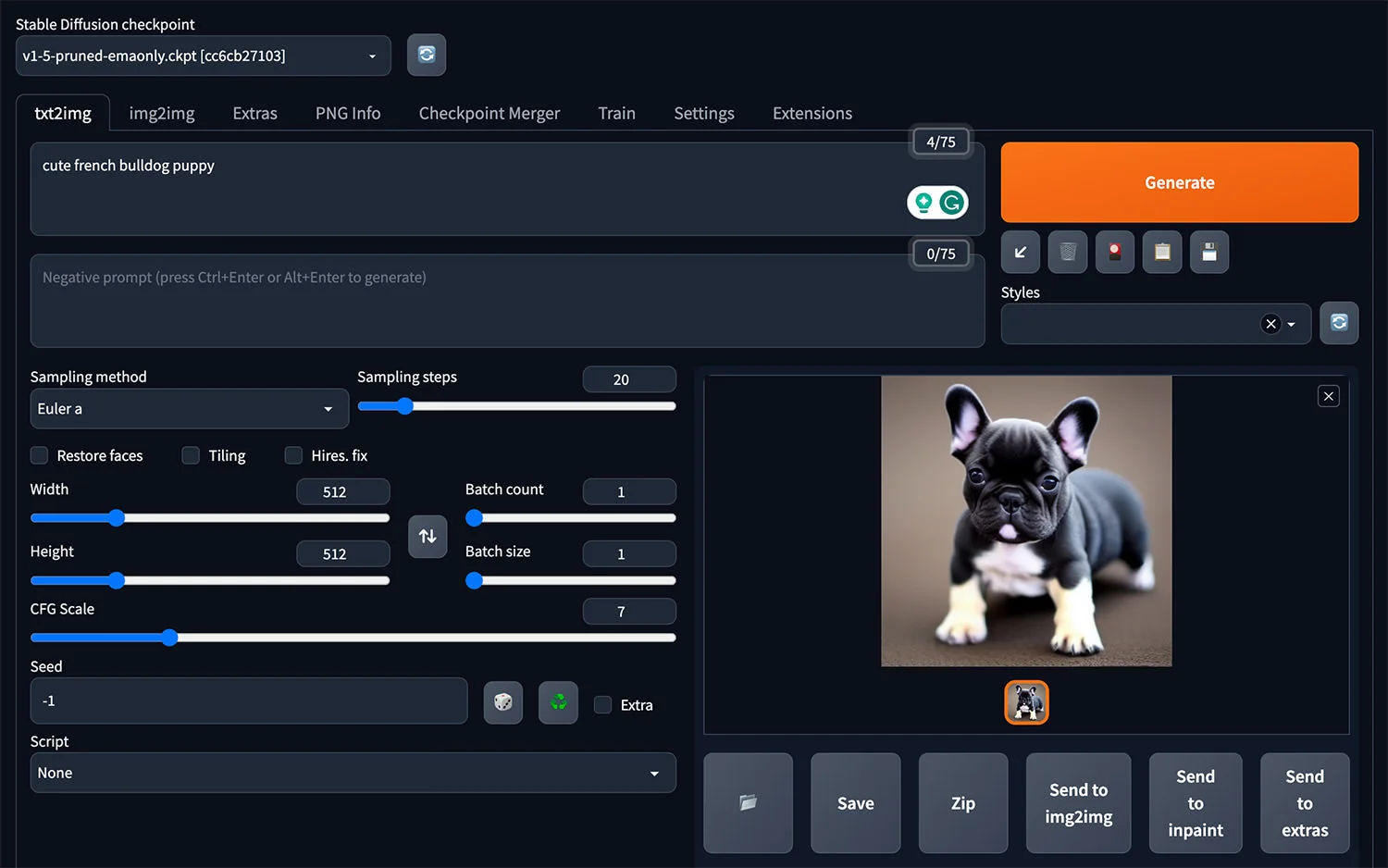
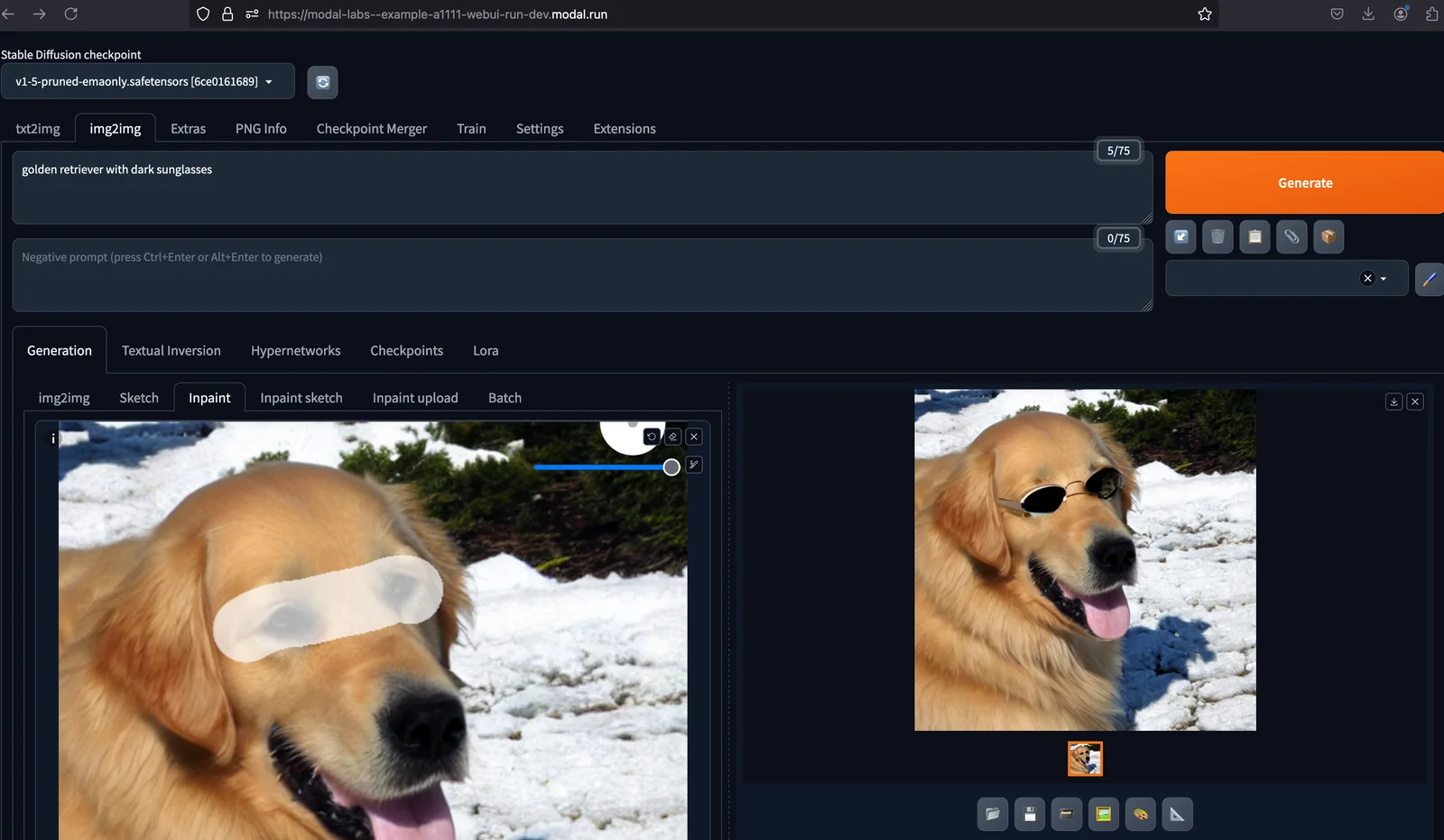
Key Features
Use Cases


Frequently asked questions about Stable Diffusion Web UI
Is Stable Diffusion Web UI free to use?
Yes, Stable Diffusion Web UI is completely free and open-source, enabling users to self-host it without any official paid plans. The only costs incurred are related to user hardware and optional third-party models, making it an accessible option for anyone interested in AI art generation.
Key Points
- Completely Free: No hidden fees or subscriptions.
- Open-Source: Users can modify and customize the software.
- Self-Hosting: Requires user hardware for optimal performance.
Detailed Explanation
Stable Diffusion Web UI is a powerful tool for generating images from text prompts using AI. As an open-source platform, it allows users to download and run the software on their hardware without any associated costs. This accessibility encourages a wide range of users, from hobbyists to developers, to experiment with AI-generated art.
How to Get Started
- Download the Software: Visit the official GitHub repository to download the latest version of Stable Diffusion Web UI.
- Set Up Your Environment: Ensure that your system meets the hardware requirements, typically a GPU with at least 6GB of VRAM for optimal performance.
- Install Dependencies: Follow the instructions to install necessary libraries and tools, such as Python and PyTorch.
- Run the Application: Launch the Web UI locally, where you can input text prompts and generate images.
Use Cases
- Art Creation: Artists and designers can create unique artworks based on specific prompts.
- Prototyping: Developers can quickly prototype concepts using AI-generated visuals.
- Learning Tool: Educators can use it to teach concepts of AI and machine learning.
Best Practices / Tips
- Optimize Hardware: Upgrade your GPU for faster processing and better results.
- Explore Models: Experiment with various third-party models that may enhance image quality or offer unique styles.
- Community Support: Engage with online forums and communities for troubleshooting and ideas.
Additional Resources
By leveraging these resources and following best practices, you can maximize your experience with Stable Diffusion Web UI and explore the vast possibilities of AI-generated art.
What are the main features of Stable Diffusion Web UI?
Stable Diffusion Web UI offers a user-friendly Gradio-based browser interface for efficient image generation, robust model management, customizable scripts, and support for multiple GPUs. This versatility makes it an ideal choice for both amateur and professional creatives looking to leverage AI in their projects.
Key Points
- Gradio-Based Interface: Intuitive design for easy navigation and usage.
- Model Management: Seamless integration and handling of various AI models.
- Multi-GPU Support: Enhanced processing power for faster image generation.
Detailed Explanation
Stable Diffusion Web UI stands out due to its Gradio-based interface, which simplifies the interaction between users and the underlying AI models. This browser-based setup allows users to generate images with just a few clicks, eliminating the need for complex command-line operations.
Features Breakdown:
- Image Generation: Users can create high-quality images by simply inputting text prompts. The AI interprets these prompts to produce visually stunning results.
- Model Management: The interface supports easy switching between different models, enabling users to experiment with various styles and outputs. For instance, you can load a specific model tailored for landscapes or portraits.
- Custom Scripts: Advanced users can write and integrate custom scripts to enhance functionality, allowing for tailored workflows that suit specific artistic needs.
- Multi-GPU Support: This feature is crucial for users running large-scale projects, as it enables the software to leverage multiple GPUs simultaneously, significantly speeding up image processing times.
Use Cases:
- Artists and Designers: Create unique artworks based on textual descriptions.
- Marketing Professionals: Generate visual content for campaigns quickly and effectively.
- Researchers: Experiment with AI models for academic purposes or to develop new algorithms.
Best Practices / Tips
- Experiment with Prompts: Use different wording and styles in your text prompts to explore a variety of image outputs.
- Optimize GPU Usage: Ensure that your hardware meets the necessary specifications for multi-GPU support to maximize performance.
- Backup Models and Scripts: Regularly save your custom scripts and model settings to avoid data loss and streamline your workflow.
Additional Resources
These resources provide further insights and support for users looking to dive deeper into the capabilities of Stable Diffusion Web UI.
How do I get started with Stable Diffusion Web UI?
To get started with Stable Diffusion Web UI, download it from its GitHub repository, follow the installation instructions specific to your operating system, and launch the Gradio interface. This will enable you to generate stunning images using text prompts effortlessly.
Key Points
- Download from GitHub.
- Follow platform-specific installation instructions.
- Launch Gradio interface for image generation.
Detailed Explanation
Stable Diffusion Web UI is a powerful tool for generating images from text prompts using AI. To begin, visit the Stable Diffusion GitHub repository where you can find the latest release. Here’s a step-by-step guide:
-
Download the Software: Navigate to the "Releases" section on GitHub and download the appropriate version for your operating system (Windows, macOS, or Linux).
-
Installation:
- Windows: Extract the ZIP file and run the
webui.batfile. Ensure you have Python installed (preferably version 3.8 or later) along with Git. - macOS/Linux: Open the terminal, navigate to the downloaded folder, and run the command
bash webui.shto initiate the setup.
- Windows: Extract the ZIP file and run the
-
Launching the Gradio Interface: Once installed, execute the relevant launch script. This action will start the Gradio interface, typically accessible via
localhost:7860in your web browser. -
Inputting Text Prompts: In the Gradio interface, you will find a text box where you can enter descriptive prompts for the images you wish to generate. The AI will process this input and create unique images based on your description.
Best Practices / Tips
- Use Detailed Prompts: The more detailed your text prompt, the more accurate and visually appealing the generated images will be. Include specifics like styles, colors, and subjects.
- Experiment with Parameters: Adjust settings such as resolution and sampling methods for varied results. Explore the options available in the Gradio interface to see what works best for your needs.
- Check System Requirements: Ensure your hardware meets the necessary requirements, particularly the GPU specifications, to efficiently run Stable Diffusion and avoid performance issues.
Additional Resources
By following these steps and tips, you can effectively utilize Stable Diffusion Web UI to create stunning AI-generated images from text prompts.
Can I integrate Stable Diffusion Web UI with other tools?
Yes, you can integrate Stable Diffusion Web UI with various tools, including restoration solutions like GFPGAN. Additionally, it provides community resources for creating custom scripts and extensions, enhancing its functionality and versatility for users and developers alike.
Key Points
- Integration with Restoration Tools: Supports tools like GFPGAN.
- Community Resources: Offers scripts and extensions for customization.
- Enhanced Functionality: Allows for tailored user experiences and improved workflows.
Detailed Explanation
Stable Diffusion Web UI allows seamless integration with multiple tools to enhance its capabilities. For instance, integrating with GFPGAN helps restore faces in images, providing a significant boost to image quality. To integrate GFPGAN, you typically need to install it via the command line and configure it within the Stable Diffusion environment.
Beyond GFPGAN, users can explore a wealth of community resources available on platforms like GitHub. These resources often include user-generated scripts that automate tasks or enhance image generation features. By diving into community forums, you can discover various custom extensions tailored to specific needs, such as batch processing or unique style transfers.
Use Cases
- Art Restoration: Using GFPGAN, artists can restore and upscale their digital artworks effectively.
- Custom Workflow Automation: Developers can create scripts to streamline repetitive tasks, making the image generation process faster and more efficient.
- Enhanced User Experience: With custom extensions, users can modify the UI to better suit their workflow, improving accessibility and usability.
Best Practices / Tips
- Research Community Contributions: Explore community forums to find the most effective scripts and tools that suit your needs.
- Regular Updates: Keep your tools and scripts updated to ensure compatibility and access to the latest features.
- Test Integrations: Before fully implementing new tools, conduct tests to ensure they work harmoniously with your existing setup.
Additional Resources
How does Stable Diffusion Web UI compare to other AI image generation tools?
Stable Diffusion Web UI is a leading AI image generation tool, distinguished by its open-source framework, strong community support, and the ability to run locally without usage limits. This contrasts with many hosted services that impose monthly fees and restrictions, making it a flexible choice for creators.
Key Points
- Open-Source Flexibility: Users can modify and extend functionalities.
- Local Execution: No internet dependency or usage caps.
- Community Support: Robust forums and resources for troubleshooting and enhancement.
Detailed Explanation
Stable Diffusion Web UI offers several advantages over other AI image generation tools. Its open-source nature allows developers and artists to access the underlying code, making customization easy. This flexibility means users can tailor the tool to fit specific artistic needs, whether creating unique filters or integrating with other software.
Running the software locally means that users do not face limitations on usage, unlike subscription-based models found in platforms like DALL-E or Midjourney. These services often charge upwards of $10 to $30 per month for access to their tools and may impose limits on the number of images generated per day.
The vibrant community surrounding Stable Diffusion Web UI is another compelling factor. Users have access to numerous tutorials, forums, and GitHub repositories, making it easier to resolve issues, share tips, and collaborate on projects. This support network enhances the user experience, giving both newcomers and seasoned artists the resources they need to succeed.
Best Practices / Tips
- Explore Community Forums: Engage with other users to discover techniques and solutions.
- Experiment with Parameters: Tweak settings like resolution, aspect ratio, and styles to achieve different artistic effects.
- Stay Updated: Regularly check for updates and new features to maximize capabilities.
- Backup Custom Models: If you create or modify models, ensure they are backed up to avoid loss.
Additional Resources
Explore more AI Ai Models tools
Browse all Ai Models tools →Browse by use case: Image Generation
Compare Stable Diffusion Web UI: vs Mouse-1 · vs Milliseconds.ai · vs SWE-2 · vs Desert Ant Labs