
Shadow
AIAI meeting assistant that captures what's said and shown to preserve context and enable flawless follow-ups.
Shadow
AI meeting assistant that captures what's said and shown to preserve context and enable flawless follow-ups.
About Shadow
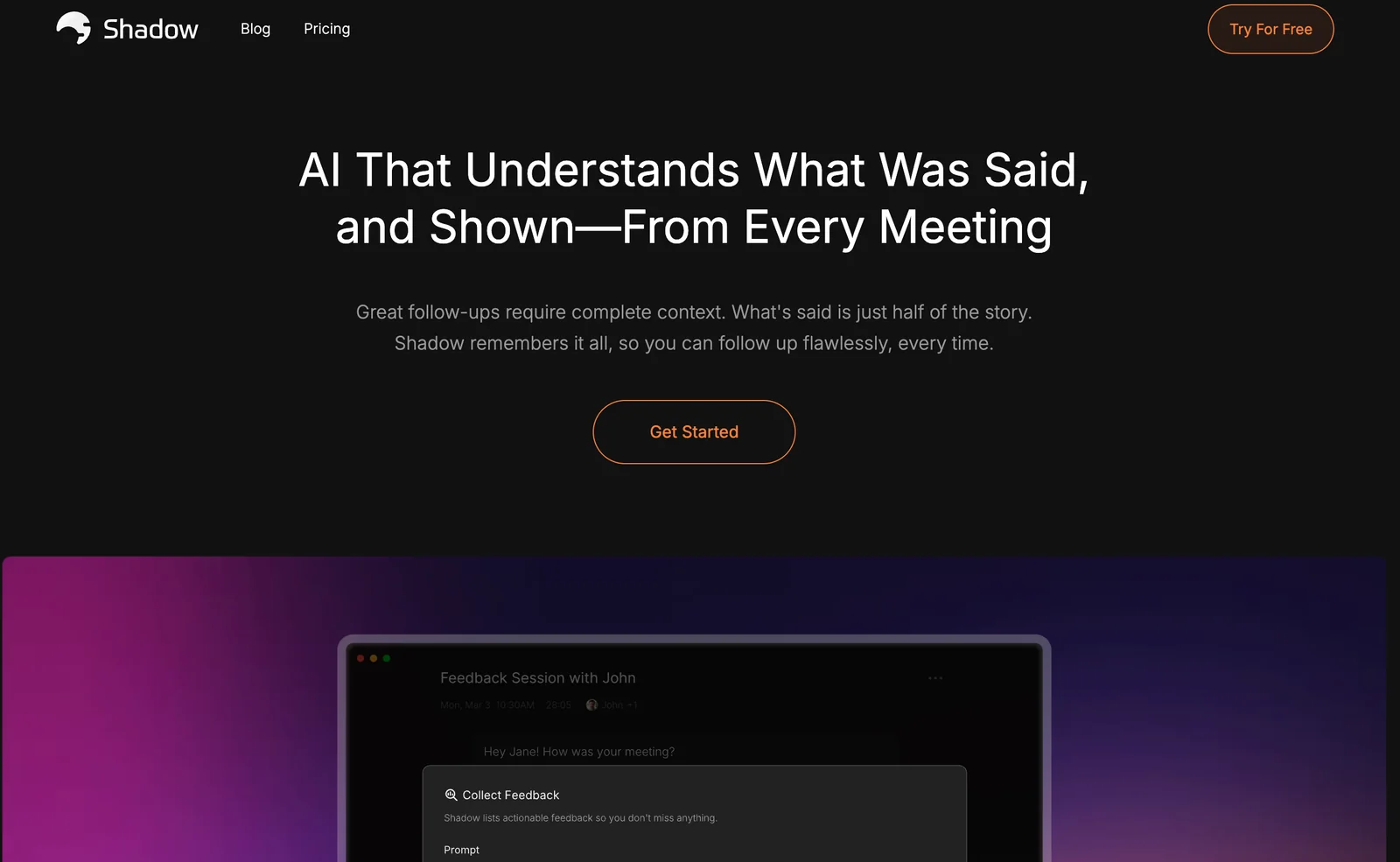
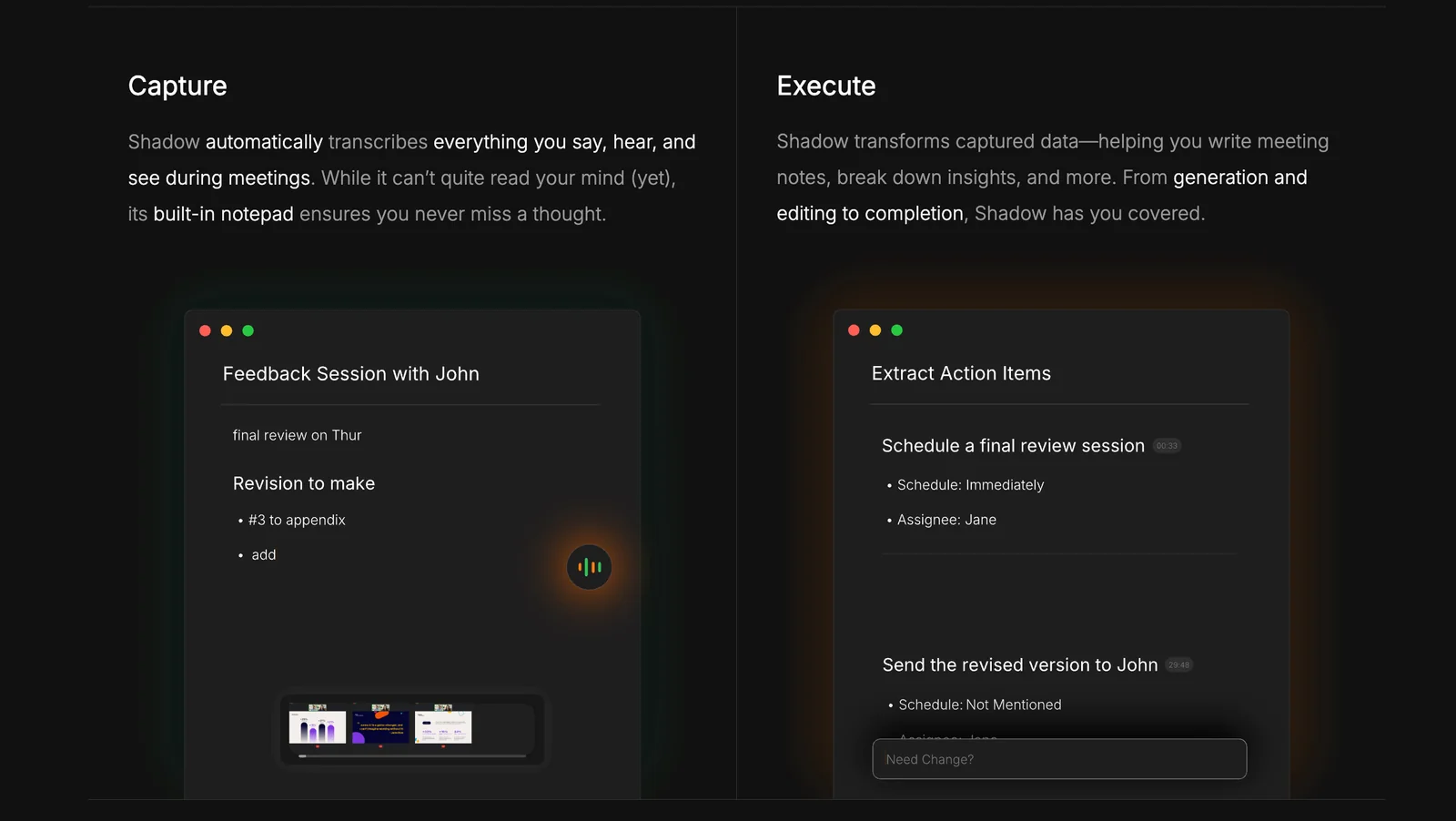
Shadow is an AI meeting assistant designed to capture both spoken content and visual materials shown during meetings so teams never lose context. It records what is said and what is shown (slides, demos, screen shares), producing searchable records that streamline follow-ups, summaries, and knowledge sharing. By preserving audio, visual context, and derived summaries or highlights, Shadow helps teams reduce misunderstandings, onboard people faster, and maintain accurate meeting archives.
Screenshots
Key Features
Use Cases


Frequently asked questions about Shadow
What are the pricing options for Shadow?
Shadow operates on a FREEMIUM model, offering various pricing options tailored to different user needs. However, specific pricing details are not publicly listed on their website. For the most accurate and up-to-date information, users should contact Shadow's sales team or sign up directly on their official website.
Key Points
- Shadow uses a FREEMIUM model to appeal to a broad range of users.
- Specific pricing tiers are not available publicly.
- Users can obtain detailed pricing information by contacting sales or visiting the official site.
Detailed Explanation
Shadow provides cloud computing services through a unique FREEMIUM model, which allows users to access basic features for free while offering premium options for advanced functionalities. The pricing structure may vary based on the selected plan, which typically includes options for individuals, gamers, and businesses.
Plans Overview
- Basic Plan: This tier usually offers limited resources suitable for casual users or those wanting to try the service.
- Premium Plan: Designed for gamers and professionals, this plan provides enhanced performance and additional features.
- Enterprise Solutions: Customized for businesses requiring scalable solutions, including dedicated resources and support.
While the exact pricing can fluctuate based on promotions or changes in service offerings, users are encouraged to sign up for the latest updates or directly inquire with the sales team for personalized assistance.
Best Practices / Tips
- Stay Updated: Regularly check Shadow's official website for any changes in pricing or new features.
- Contact Sales: If you're uncertain about which plan suits you best, reaching out to the sales team can help clarify options and pricing.
- Consider Your Needs: Evaluate your usage requirements—whether casual gaming or intensive business applications—to choose the right plan.
Additional Resources
- Shadow Official Website - for the latest pricing and plan details.
- Shadow Support Center - for FAQs and user guides.
- Shadow Blog - for updates on features and enhancements.
How does Shadow capture meeting context effectively?
Shadow effectively captures meeting context by recording both audio and visual content, including screen shares and presentations. This comprehensive approach ensures that all critical discussions and visuals are preserved for later review, allowing teams to revisit important information and decisions.
Key Points
- Audio and Visual Recording: Captures clear audio along with video content.
- Screen Sharing: Records presentations and shared documents for comprehensive context.
- Searchable Archive: Creates a searchable database for easy retrieval of past meetings.
Detailed Explanation
Shadow utilizes advanced technology to record meetings effectively, ensuring that all elements of the discussion are captured. The platform records high-quality audio, which is essential for understanding conversations, especially in larger meetings where multiple participants contribute.
Additionally, Shadow captures video content, including screen shares, which are often pivotal in illustrating points during discussions. For instance, if a team is reviewing a project proposal presented on screen, Shadow ensures that both the audio commentary and visual elements are accessible later.
Once the meeting is concluded, Shadow organizes the recorded content into a searchable archive. This feature allows users to quickly locate specific discussions or visual aids from past meetings, saving time and enhancing productivity. Users can search by keywords or topics, enabling efficient retrieval of information.
Best Practices / Tips
- Ensure Clear Audio: Use high-quality microphones to enhance audio clarity during recordings.
- Test Screen Sharing: Always test the screen sharing feature beforehand to avoid technical issues during the meeting.
- Organize Content: Develop a consistent naming convention for recorded meetings to facilitate easier searching later.
- Regularly Review Archives: Regularly check past meeting recordings to refresh memory on key decisions and action items.
Additional Resources
How can I get started using Shadow for my meetings?
To get started using Shadow for your meetings, visit the official Shadow website and create an account. After registration, follow the on-screen instructions to integrate Shadow seamlessly into your meeting workflow, enhancing collaboration and productivity.
Key Points
- Create an Account: Sign up on the official website.
- Follow On-Screen Instructions: Complete the setup process.
- Integrate with Your Workflow: Use Shadow effectively in your meetings.
Detailed Explanation
To use Shadow for your meetings, begin by navigating to Shadow's official website. Click on the "Sign Up" button, where you’ll need to provide your email address and create a password. After verification, log in to your new account.
Once logged in, you’ll encounter a user-friendly dashboard. Shadow provides step-by-step prompts to set up your profile, including options for personalizing your notification settings and connecting with team members.
Integration is crucial for maximizing Shadow's potential. You can link it with popular calendar applications such as Google Calendar or Microsoft Outlook. This allows Shadow to access your schedule and automatically create meeting links, sending reminders to participants.
For optimal functionality, familiarize yourself with Shadow's features like screen sharing, video conferencing, and collaborative tools that enhance meeting interaction. For example, you can record meetings for future reference or use live polling to engage attendees.
Best Practices / Tips
- Optimize Your Profile: Ensure your profile is complete with a professional photo and accurate contact information.
- Schedule Regular Meetings: Use Shadow’s calendar integration to keep your team aligned and informed.
- Utilize Training Resources: Take advantage of tutorials and support forums available on the website to learn advanced features.
- Avoid Overloading Features: Start with essential tools to prevent overwhelming users, then gradually introduce more complex functionalities as your team becomes comfortable.
Additional Resources
Does Shadow support integration with other tools?
Yes, Shadow supports integration with various collaboration tools through its export features. Users can export summaries and transcripts, making it easy to share insights with platforms such as Slack, Microsoft Teams, and Google Workspace, facilitating seamless communication and collaboration.
Key Points
- Export Functionality: Shadow allows users to export transcripts and summaries.
- Compatibility: Integrates effortlessly with popular collaboration tools.
- Enhances Workflow: Streamlines information sharing among team members.
Detailed Explanation
Shadow's design prioritizes user collaboration by enabling easy export of summaries and transcripts. While specific integrations are not detailed, the exported files can be shared in multiple formats (like PDF or TXT), which are compatible with several collaboration platforms.
For instance, if your team uses Slack, you can export a summary of a meeting and share it directly in your workspace, ensuring everyone is on the same page. Similarly, exporting to Google Docs or Microsoft Word allows further editing and documentation, making it simple to keep records or create reports.
This functionality is particularly beneficial for teams that rely on real-time communication tools, allowing for quick dissemination of information without the need for manual note-taking. For example, after a brainstorming session, the team can export the transcript and share it instantly with members who were unable to attend.
Best Practices / Tips
- Utilize Export Formats: Choose the export format that best suits your team's collaboration tools for maximum efficiency.
- Regularly Update Tools: Ensure your collaboration tools are up-to-date to support the latest file types and integration capabilities.
- Feedback Loop: Encourage team members to provide feedback on the exported summaries to improve clarity and usefulness in future meetings.
Additional Resources
How does Shadow compare to other AI meeting assistants?
Shadow stands out among AI meeting assistants by integrating audio and screen capture with automatic transcription and context summaries, which significantly enhances usability for follow-ups. This unique combination allows users to revisit key discussions effortlessly, improving productivity and collaboration.
Key Points
- Integration of Features: Combines audio, screen capture, and transcription.
- Enhanced Usability: Provides context summaries for easy follow-up.
- User-Friendly Experience: Simplifies the process of revisiting meetings.
Detailed Explanation
Shadow's distinct features set it apart from other AI meeting assistants. It not only captures audio but also records on-screen activities, making it ideal for virtual presentations or software demonstrations. The automatic transcription feature converts spoken dialogue into text, ensuring no critical information is lost.
For example, during a team meeting, Shadow can record discussions, display shared screens, and transcribe dialogues in real-time. After the meeting, it generates context summaries that highlight key points and action items, making it easier for team members to follow up on tasks or decisions made.
In contrast, many other AI meeting tools may only focus on one aspect, such as transcription, which limits their effectiveness in dynamic environments where visual context is essential. This comprehensive approach enhances collaboration, especially for remote teams and those needing to revisit complex discussions.
Best Practices / Tips
- Leverage Context Summaries: Use Shadow’s summaries to quickly catch up on meetings you missed.
- Organize Recordings: Keep recorded sessions well-organized within the app for easy retrieval.
- Regularly Review Transcripts: Regularly check transcripts to ensure accuracy and identify any missed action items.
- Customize Settings: Tailor recording and transcription settings to suit your specific meeting needs.
Additional Resources
- Shadow Official Website – Explore features and pricing.
- User Guides – Access detailed instructions on maximizing Shadow's capabilities.
- Comparison with Other Tools – See how Shadow stacks up against other AI meeting assistants.
Explore more AI Ai Services tools
Browse all Ai Services tools →Compare Shadow: vs BAND for Developers · vs NitroStack · vs GBrain · vs MentionBird