

Qoder JetBrains Plugin
AIA JetBrains plugin bringing Qoder's agentic coding capabilities — context-aware completion, test generation, and IDE agents — into JetBrains IDEs.
Qoder JetBrains Plugin
A JetBrains plugin bringing Qoder's agentic coding capabilities — context-aware completion, test generation, and IDE agents — into JetBrains IDEs.
About Qoder JetBrains Plugin
Qoder JetBrains Plugin integrates Qoder's agentic coding platform directly into JetBrains IDEs, allowing developers to invoke intelligent agents, receive context-aware code completions, and generate tests without leaving their development environment. The plugin maintains project context, automates complex workflows, and exposes commandable agents via the IDE and CLI to accelerate development, improve code quality, and streamline repetitive tasks. It supports all major JetBrains IDEs (IntelliJ IDEA, PyCharm, Android Studio, etc.) and is designed to work across Windows, macOS, and Linux.
Screenshots
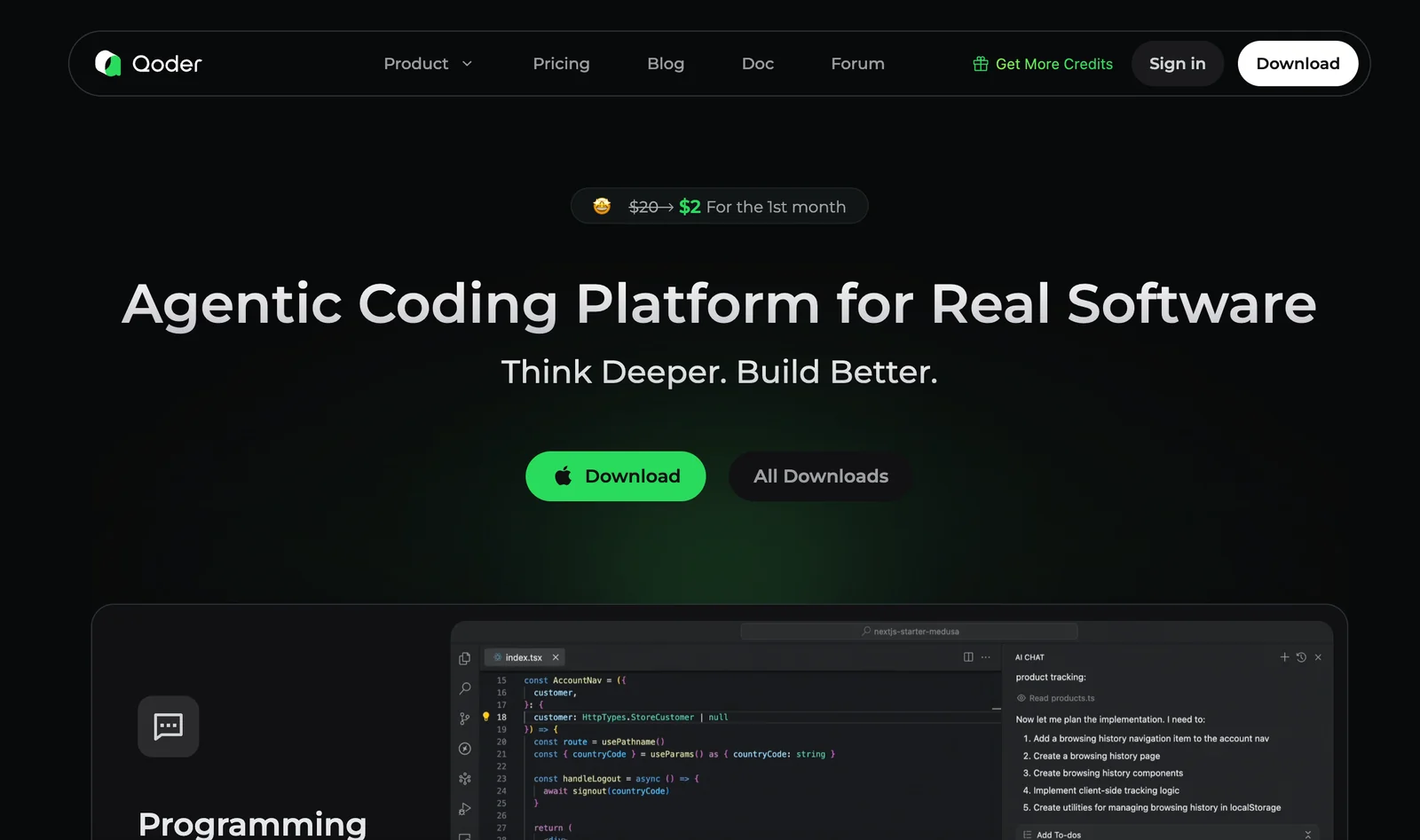
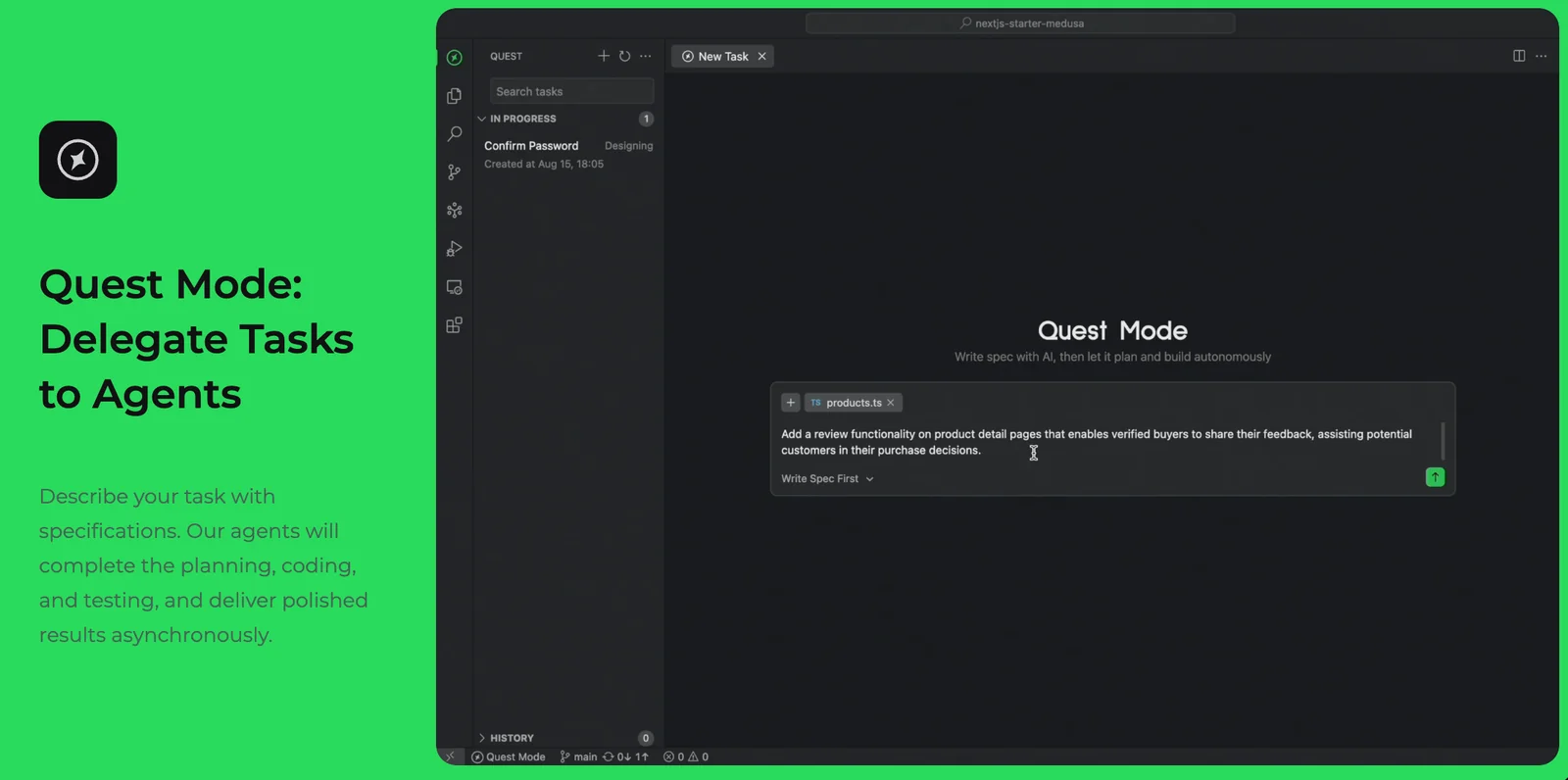
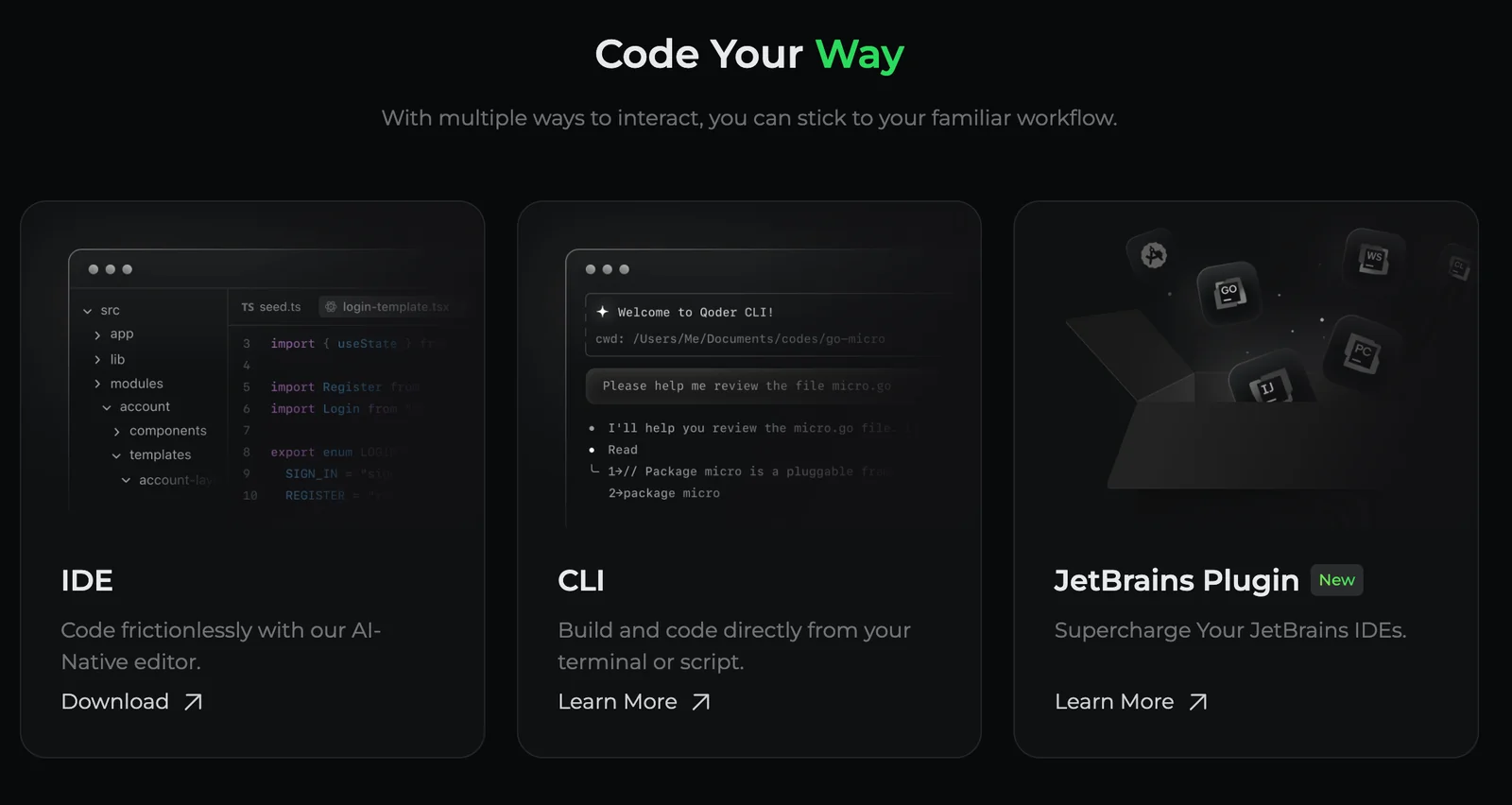
Key Features
Use Cases



Frequently asked questions about Qoder JetBrains Plugin
What pricing options are available for the Qoder JetBrains Plugin?
Qoder offers a freemium pricing model for its JetBrains Plugin. Users can choose a free plan with unlimited usage, while the Pro plan features custom pricing based on resource consumption. Additional tiers, Pro+ and Ultra, also come with tailored pricing options to meet different user needs.
Key Points
- Freemium Model: A free plan with no limits.
- Pro Plan: Custom pricing based on resource usage.
- Additional Tiers: Pro+ and Ultra with flexible pricing options.
Detailed Explanation
Qoder's JetBrains Plugin is designed to enhance productivity with various pricing options to cater to different user needs.
-
Free Plan: This option provides users with unlimited access to core features, making it ideal for individual developers or small teams who want to test the plugin's capabilities without financial commitment.
-
Pro Plan: Tailored for teams or enterprises, the Pro plan offers custom pricing based on the specific resources used. This means that the more you utilize the plugin, the more you pay, allowing for scalability depending on your project demands.
-
Pro+ and Ultra Tiers: These tiers provide added features and support, designed for larger organizations or those requiring advanced functionalities. Like the Pro plan, pricing is customized, ensuring that users only pay for what they need.
Use Cases
- Freelancers: Start with the free plan to manage small projects efficiently.
- Small Teams: Upgrade to the Pro plan to accommodate growing resource needs.
- Large Organizations: Utilize Pro+ or Ultra for enhanced features and support tailored to complex projects.
Best Practices / Tips
- Evaluate Your Needs: Start with the free plan to assess if the features meet your requirements before committing to a paid tier.
- Monitor Resource Usage: For the Pro plan, regularly check your resource consumption to optimize costs effectively.
- Consider Future Growth: If you anticipate scaling your projects, explore Pro+ or Ultra tiers for additional capabilities.
Additional Resources
What are the key features of the Qoder JetBrains Plugin?
The Qoder JetBrains Plugin offers essential features like context-aware code completion, automated test generation, and commandable AI agents. These functionalities streamline workflows within JetBrains IDEs, significantly enhancing developer productivity and improving overall code quality.
Key Points
- Context-Aware Code Completion: Provides intelligent suggestions based on code context.
- Automated Test Generation: Creates unit tests automatically to ensure code reliability.
- Commandable AI Agents: Automates repetitive tasks, allowing developers to focus on critical coding aspects.
Detailed Explanation
The Qoder JetBrains Plugin is designed to integrate seamlessly with various JetBrains IDEs, such as IntelliJ IDEA, PyCharm, and WebStorm.
Context-Aware Code Completion
This feature utilizes AI to analyze your coding patterns and the existing codebase to provide relevant suggestions. For instance, while typing a function, the plugin might suggest parameters or variable names that match previous usage, significantly reducing coding time and minimizing errors.
Automated Test Generation
Automating unit test creation is a game-changer for developers. The Qoder Plugin can generate tests based on your code logic and structure, ensuring that critical paths are covered without the need for manual test writing. For example, if you write a new function, the plugin can instantly create a set of tests, streamlining the testing process.
Commandable AI Agents
AI agents in the Qoder plugin can be instructed to perform repetitive tasks such as formatting code, refactoring, or even managing version control. By simply issuing commands, developers can save substantial time, allowing them to concentrate on more complex and creative aspects of their projects. This feature is invaluable for teams working in agile environments where speed and adaptability are key.
Best Practices / Tips
- Customize Suggestions: Tailor the context-aware code completion settings to match your coding style for more relevant suggestions.
- Review Generated Tests: Always review automated tests to ensure they align with your testing strategy and catch edge cases.
- Leverage AI Agents: Regularly explore new commands for AI agents; this can uncover hidden features that enhance your workflow.
Additional Resources
- Qoder JetBrains Plugin Official Documentation
- JetBrains IDEs Overview
- Best Practices for Automated Testing
By leveraging these features of the Qoder JetBrains Plugin, developers can enhance their coding efficiency and produce high-quality software more effectively.
How do I get started with the Qoder JetBrains Plugin?
To get started with the Qoder JetBrains Plugin, first, create a free Qoder account. Next, install the plugin from the JetBrains Marketplace and follow the setup instructions available on the official Qoder website to configure it for your projects.
Key Points
- Create a free Qoder account.
- Install the plugin from the JetBrains Marketplace.
- Follow setup instructions on the official Qoder website.
Detailed Explanation
To effectively use the Qoder JetBrains Plugin, follow these steps:
-
Create Your Qoder Account: Visit the Qoder website and sign up for a free account. This will allow you to access all features and services provided by Qoder.
-
Install the Plugin:
- Open your JetBrains IDE (like IntelliJ IDEA, PyCharm, or WebStorm).
- Go to File > Settings > Plugins.
- Search for "Qoder" in the JetBrains Marketplace.
- Click Install to add the plugin to your IDE.
-
Configure the Plugin: After installation, restart your IDE. Navigate to the Qoder settings through File > Settings > Qoder. Here, you will need to log in with your Qoder account credentials to link the plugin with your account.
-
Follow Setup Instructions: Visit the Qoder Documentation for detailed setup instructions tailored to your specific development environment. This will provide guidance on integrating Qoder functionalities into your coding workflow.
Best Practices / Tips
- Explore Tutorials: Qoder offers various tutorials on their website. Familiarizing yourself with these resources can enhance your experience and productivity.
- Regular Updates: Ensure that your JetBrains IDE and Qoder plugin are updated regularly to benefit from the latest features and security patches.
- Utilize Community Support: Engage with the Qoder community through forums or social media. This can provide valuable insights and troubleshooting tips from other users.
Additional Resources
- Qoder Official Documentation
- JetBrains Marketplace - Qoder Plugin (replace 'xxxx' with the actual plugin ID)
- Qoder Community Forum for user discussions and support.
What technical requirements are needed for the Qoder JetBrains Plugin?
The Qoder JetBrains Plugin is compatible with JetBrains IDEs such as IntelliJ IDEA, PyCharm, and Android Studio, functioning seamlessly on Windows, macOS, and Linux platforms. This broad compatibility ensures developers can integrate AI capabilities into their preferred development environments easily.
Key Points
- Supported IDEs: IntelliJ IDEA, PyCharm, Android Studio
- Operating Systems: Windows, macOS, Linux
- Ideal for Developers: Enhances coding efficiency and productivity
Detailed Explanation
The Qoder JetBrains Plugin streamlines the development process by integrating AI tools directly into popular JetBrains IDEs. To install the plugin, developers should ensure their IDE is updated to the latest version. The installation process involves navigating to the plugin repository within the IDE, searching for "Qoder," and clicking "Install."
System Requirements:
- Windows: Windows 10 or later, 4 GB RAM minimum, and 1.5 GHz processor.
- macOS: macOS 10.14 or later, 4 GB RAM minimum, and 1.5 GHz processor.
- Linux: Any modern distribution with a 64-bit architecture, 4 GB RAM minimum, and 1.5 GHz processor.
Use Cases:
- Web Development: Leverage Qoder for faster code suggestions and autocomplete features.
- Data Science: Use AI-driven insights to enhance Python scripts in PyCharm.
- Mobile Development: Improve productivity in Android Studio with intelligent code analysis.
Best Practices / Tips
- Update Regularly: Keep the plugin and your IDE updated to ensure compatibility and access to the latest features.
- Explore Settings: Familiarize yourself with the plugin settings to customize AI suggestions to your preferences.
- Monitor Performance: If you experience lag, consider adjusting your IDE’s memory allocation settings.
Additional Resources
How does the Qoder JetBrains Plugin compare to other coding assistants?
The Qoder JetBrains Plugin excels compared to other coding assistants due to its context-aware code completion and unique agentic workflows that facilitate the execution of complex, multi-step tasks. This functionality significantly boosts developer productivity and enhances coding efficiency beyond what many competing tools offer.
Key Points
- Context-aware code completion: Offers tailored suggestions based on existing code.
- Agentic workflows: Automates multi-step tasks to streamline development.
- Enhanced productivity: Helps developers save time and reduce errors.
Detailed Explanation
The Qoder JetBrains Plugin integrates seamlessly with JetBrains IDEs, providing developers with advanced context-aware code completion that adapts to the specific coding environment. This means that as you type, the plugin predicts and suggests relevant code snippets, reducing the time spent searching for syntax or functions.
In contrast to other coding assistants, Qoder utilizes “agentic workflows.” This feature allows developers to execute multi-step tasks with a single command. For example, if you need to refactor a piece of code and update related documentation, Qoder can handle this in one go, whereas other tools may require multiple manual interventions.
Use Case Example
Imagine a developer working on a project that requires frequent updates to a large codebase. Instead of switching between documentation, version control, and coding windows, the Qoder plugin can automate these interactions, allowing the developer to focus on building features rather than managing tasks.
Best Practices / Tips
- Leverage context: Make sure to utilize the context-aware suggestions fully by providing enough information in your code.
- Explore agentic workflows: Familiarize yourself with the plugin’s capabilities to automate repetitive tasks, which can significantly improve efficiency.
- Regular updates: Keep the plugin updated to benefit from new features and improvements that enhance productivity.
Additional Resources
- Qoder JetBrains Plugin Official Documentation
- JetBrains Plugin Marketplace - Discover more tools to enhance your coding experience.
- Coding Efficiency Tips - Explore additional strategies to optimize your workflow.
Explore more AI Ai Agents tools
Browse all Ai Agents tools →Browse by use case: Code Generation · Automation & Productivity
Compare Qoder JetBrains Plugin: vs TryCase · vs Aside · vs Wisry · vs Cline