

Microsoft Designer
AIA Microsoft graphic design app that uses AI to create social posts, invitations, postcards, and custom visuals quickly.
Microsoft Designer
A Microsoft graphic design app that uses AI to create social posts, invitations, postcards, and custom visuals quickly.
About Microsoft Designer
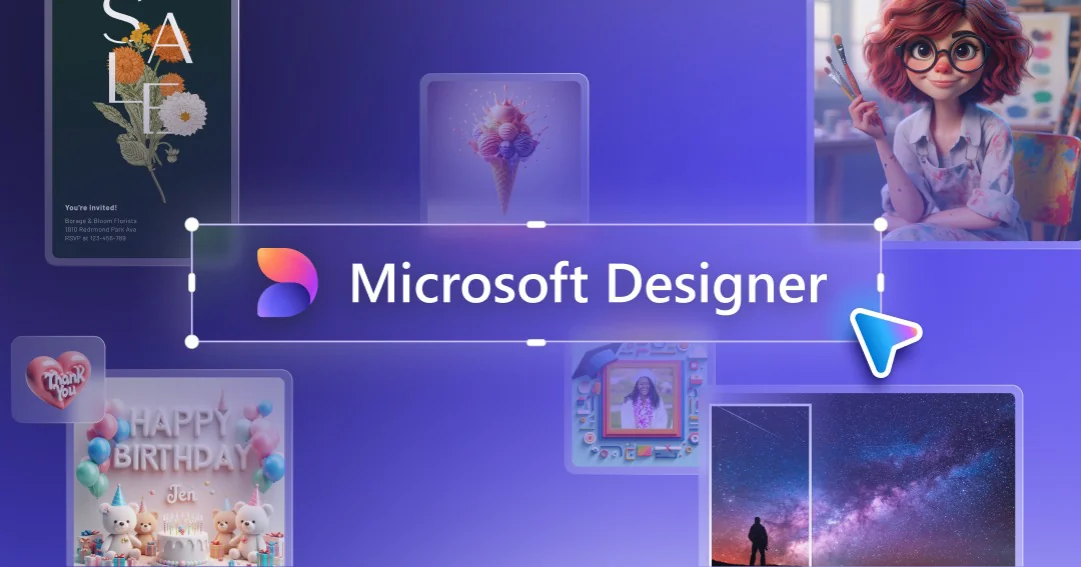
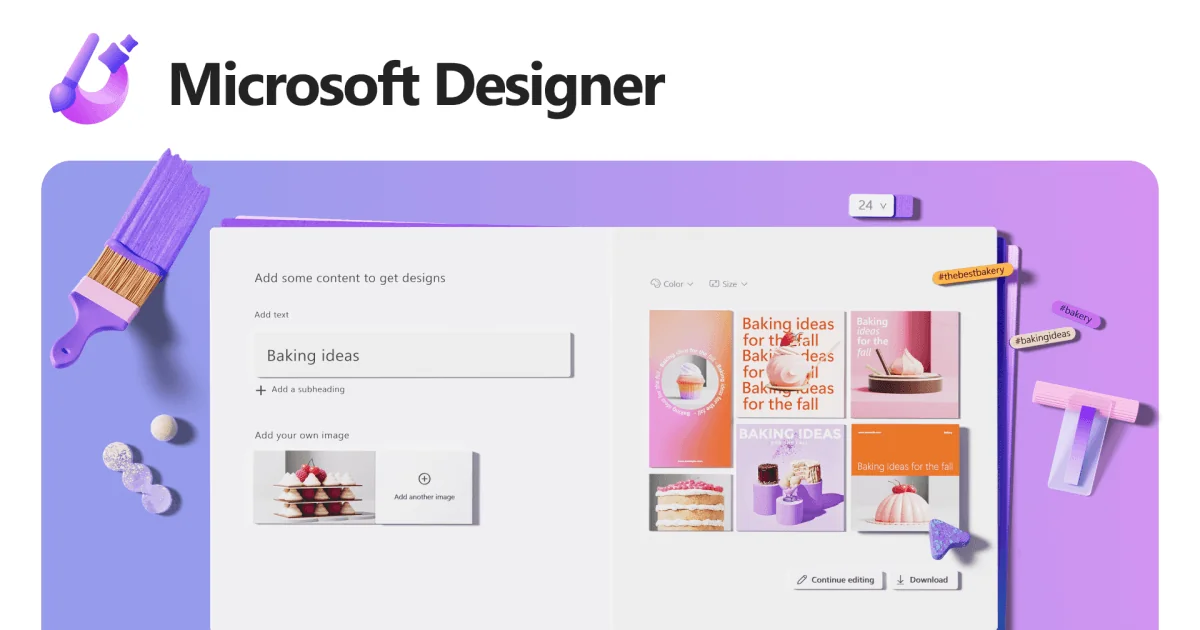
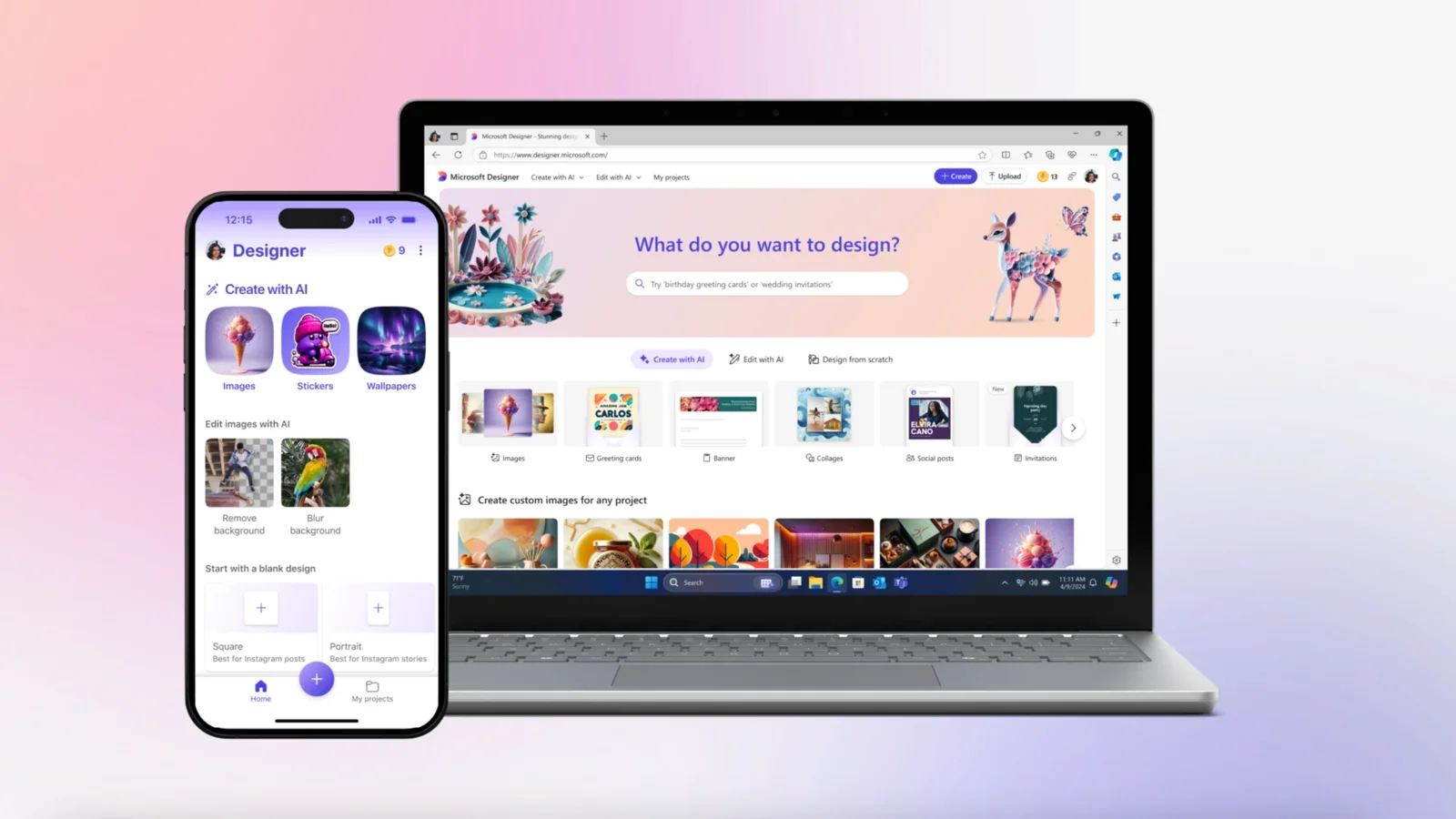
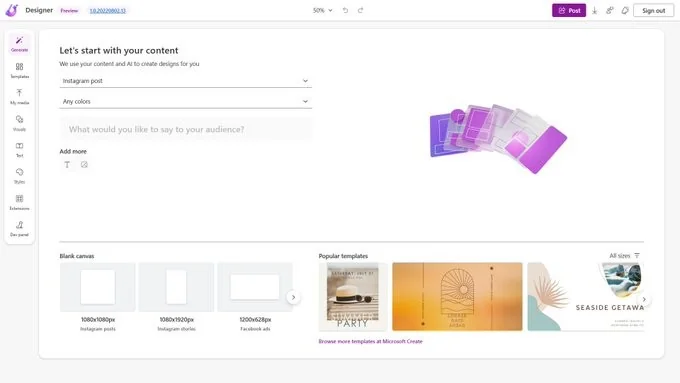
Microsoft Designer is a web-based graphic design application that helps users create professional-quality visuals—social media posts, invitations, digital postcards, thumbnails, and other graphics—using AI-driven suggestions and generation tools. It combines template libraries, layout recommendations, text-to-image generation, and image-editing utilities to speed up design workflows for individuals and teams. Designer integrates with Microsoft accounts and Microsoft 365 assets to support brand consistency and easy export/sharing across platforms, enabling non-designers to produce polished creatives quickly.
Screenshots
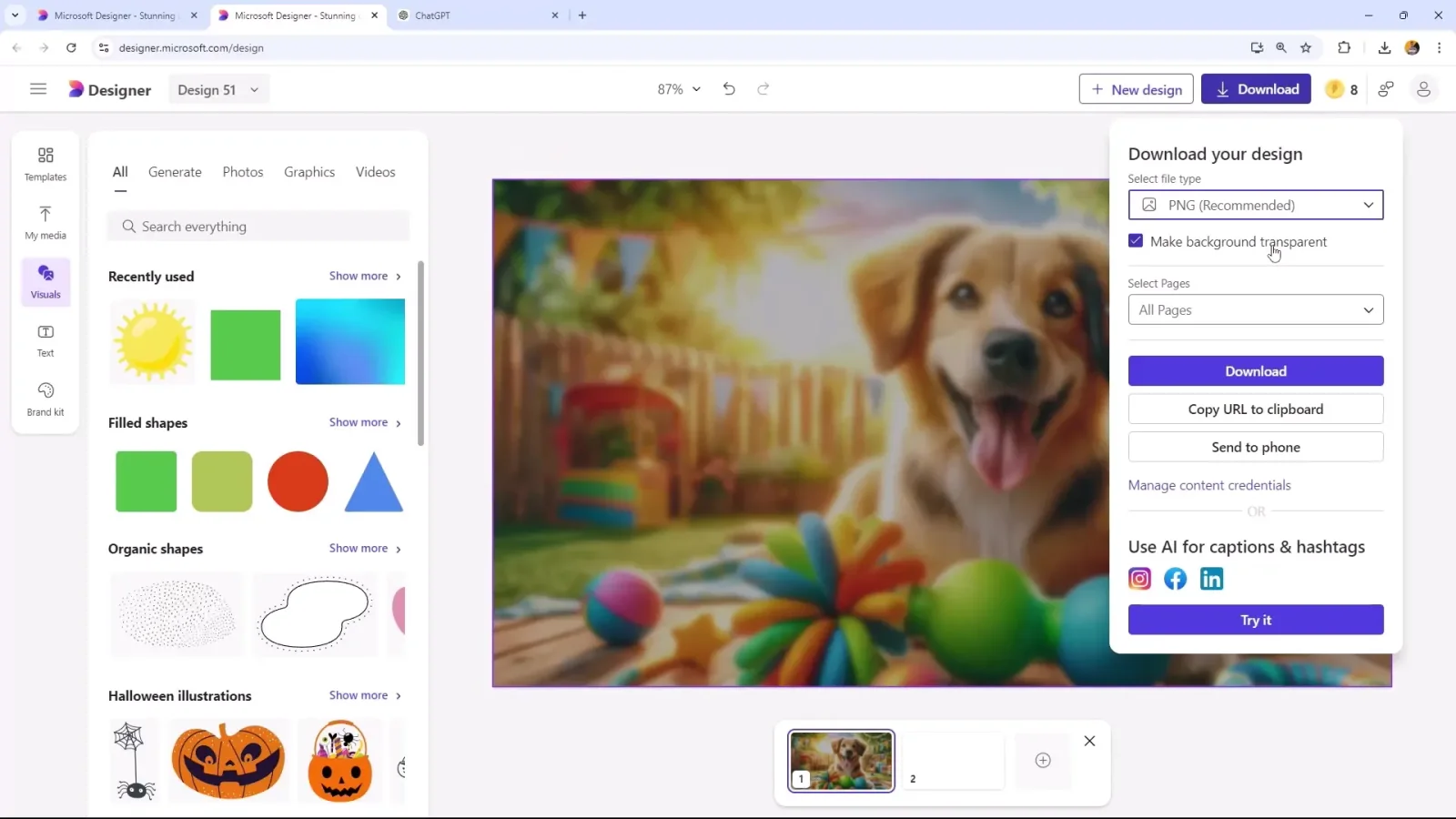
Key Features
Use Cases



Frequently asked questions about Microsoft Designer
What are the pricing options for Microsoft Designer?
Microsoft Designer operates on a freemium model, providing basic features for free. Users can unlock enhanced capabilities and exclusive assets through Microsoft 365 subscriptions, with pricing varying based on the selected plan, typically starting from $6 per month for individuals.
Key Points
- Microsoft Designer offers a freemium model.
- Free tier includes basic design features.
- Microsoft 365 subscriptions unlock additional functionalities.
Detailed Explanation
Microsoft Designer is an innovative design tool that allows users to create stunning graphics, presentations, and social media content. The freemium model means anyone can start using it without any initial investment. The free tier provides essential tools suitable for casual users, such as basic templates, fonts, and images.
For those seeking advanced features, a Microsoft 365 subscription is necessary. This subscription not only enhances Microsoft Designer's capabilities, providing access to premium templates and an extensive library of design assets, but also integrates seamlessly with other Microsoft applications like Word and PowerPoint. Pricing for Microsoft 365 varies:
- Microsoft 365 Personal: Approximately $6.99 per month or $69.99 per year, ideal for individual users.
- Microsoft 365 Family: About $9.99 per month or $99.99 per year, allowing up to six users.
- Business plans start at around $5 per user per month, suitable for small to medium enterprises.
Subscribing to Microsoft 365 not only boosts your design capabilities but also provides additional cloud storage and collaborative tools, enhancing overall productivity.
Best Practices / Tips
- Explore the free tier first to assess your needs before upgrading.
- Compare plans on the official Microsoft website to find the best fit for your usage.
- Take advantage of trials offered for Microsoft 365 to test premium features.
- Stay updated with any promotional offers or discounts for subscriptions.
Additional Resources
What features does Microsoft Designer offer for graphic design?
Microsoft Designer offers a variety of features for graphic design, including AI-driven design suggestions, text-to-image generation, an extensive template library, powerful image editing tools, and multiple export options. These features make it a versatile solution for creating eye-catching visual assets for various purposes.
Key Points
- AI-Powered Suggestions: Leverages artificial intelligence to enhance design creativity.
- Text-to-Image Generation: Converts written prompts into stunning visuals.
- Extensive Template Library: Provides numerous ready-to-use designs for quick creation.
Detailed Explanation
Microsoft Designer is designed to streamline the graphic design process, catering to both beginners and professionals. Here’s a deeper look at its core features:
1. AI-Powered Design Suggestions
One of the standout features of Microsoft Designer is its AI capabilities. By analyzing user input and preferences, it offers personalized design suggestions. For instance, if you’re creating a marketing flyer, Designer can recommend layouts, color schemes, and font pairings that enhance the flyer’s effectiveness.
2. Text-to-Image Generation
This innovative feature allows users to generate images directly from text prompts. Simply type a description of what you envision, and the AI will create a unique image. This is especially useful for users who may not have graphic design skills but need custom visuals for social media posts, blogs, or presentations.
3. Extensive Template Library
Microsoft Designer boasts a rich library of templates across various categories such as social media, marketing materials, and personal projects. Users can easily customize these templates, adjusting elements like text, colors, and images to fit their brand identity. This saves time and ensures professional-quality results.
4. Powerful Image Editing Tools
In addition to design creation, Microsoft Designer offers robust image editing capabilities. Users can modify images through cropping, filtering, and overlaying text. This empowers users to refine their visuals to meet specific requirements, enhancing engagement and visual appeal.
5. Multiple Export Options
Once your design is complete, exporting it in various formats (JPEG, PNG, PDF, etc.) is seamless. This flexibility is crucial for users who need to share designs across different platforms or print them for physical distribution.
Best Practices / Tips
- Explore AI Features: Take advantage of the AI suggestions to spark creativity and overcome design blocks.
- Utilize Templates: Start with templates to save time and ensure your designs are on-trend.
- Experiment with Text-to-Image: Play around with different text prompts to see varied results, enhancing your content diversity.
- Review Export Settings: Before finalizing, ensure you select the correct export format for your intended use, whether for online publication or printing.
Additional Resources
- Microsoft Designer Official Documentation
- Getting Started with Microsoft Designer
- Tutorials on Graphic Design Basics
These resources provide further insights into maximizing the potential of Microsoft Designer for your graphic design needs.
How does Microsoft Designer compare to other graphic design tools?
Microsoft Designer stands out among graphic design tools due to its AI-driven features, seamless integration with Microsoft 365 apps, and innovative text-to-image generation. While it offers unique advantages, it may not provide the depth of advanced functionalities found in specialized design software like Adobe Creative Suite or CorelDRAW.
Key Points
- AI-Driven Features: Offers intelligent design suggestions for enhanced creativity.
- Integration with Microsoft 365: Easily collaborates with tools like Word and PowerPoint.
- Text-to-Image Generation: Unique feature that allows users to create images from textual descriptions.
Detailed Explanation
Microsoft Designer leverages artificial intelligence to streamline the design process, making it user-friendly for beginners and efficient for professionals. Here are some key areas where it excels:
-
AI-Driven Features: Microsoft Designer uses AI to suggest layout adjustments, color schemes, and font pairings based on your input. This feature not only saves time but also enhances the overall design quality without requiring extensive graphic design knowledge.
-
Integration with Microsoft 365: One of the standout features is its tight integration with Microsoft 365. Users can easily import graphics into applications like Word, Excel, or PowerPoint, facilitating a smoother workflow across different projects. This integration is particularly beneficial for teams that rely on collaboration and quick access to design assets.
-
Text-to-Image Generation: This innovative capability allows users to generate visuals based on descriptive text. For example, typing "a serene beach at sunset" will produce a corresponding image, making it easier for marketers, bloggers, and content creators to find the right visuals for their projects.
However, while Microsoft Designer offers these unique features, it may fall short in advanced functionalities. Professional designers often require capabilities such as vector editing, advanced photo manipulation, or complex animation, which tools like Adobe Illustrator or Photoshop provide.
Best Practices / Tips
- Utilize Templates: Start with pre-designed templates to save time and ensure professional-quality designs.
- Experiment with AI Suggestions: Don’t hesitate to explore the AI suggestions provided by Designer. They can inspire new creative directions.
- Leverage Microsoft 365 Tools: Use Designer in conjunction with other Microsoft apps to enhance productivity and collaboration.
Additional Resources
Does Microsoft Designer have an API or integration capabilities?
Currently, Microsoft Designer does not offer a public API for developers. However, it provides integration capabilities with Microsoft 365 applications like Word and PowerPoint, enhancing document and presentation designs by streamlining layout and visual elements.
Key Points
- No public API available for Microsoft Designer.
- Seamless integration with Microsoft 365 apps.
- Enhances visual design for Word and PowerPoint projects.
Detailed Explanation
Microsoft Designer is a graphic design tool that operates primarily within the Microsoft ecosystem. While it lacks a dedicated public API, which limits third-party developers from building custom applications or workflows, its integration with Microsoft 365 applications significantly boosts productivity.
Integration with Microsoft 365
-
Word: When creating documents, users can leverage Microsoft Designer to access a variety of templates, images, and layouts, making it easier to produce visually appealing content. This is particularly useful for reports, presentations, or marketing materials.
-
PowerPoint: In PowerPoint, Microsoft Designer automatically suggests design layouts based on the content you input. This feature helps users create engaging slides quickly, enhancing their presentations with professional-quality designs without needing graphic design expertise.
Use Case Example
For instance, if you're preparing a business presentation, you can type in your content, and Microsoft Designer will suggest various layouts and design elements. By selecting one of these suggestions, you can instantly elevate the visual appeal of your presentation, making it more engaging for your audience.
Best Practices / Tips
- Utilize Built-in Features: Take full advantage of Microsoft Designer’s automated design suggestions to save time.
- Stay Updated: Regularly check for updates from Microsoft, as new features and integration capabilities may be introduced.
- Feedback Loop: Provide feedback to Microsoft regarding potential API needs; user demand can influence future development.
Additional Resources
Explore more AI Ai Models tools
Browse all Ai Models tools →Browse by use case: Image Generation
Compare Microsoft Designer: vs Mouse-1 · vs Milliseconds.ai · vs SWE-2 · vs Desert Ant Labs