

Kimi CLI
AIOpen-source terminal AI coding agent by Moonshot AI that reads and edits code, runs shell commands, fetches the web, and integrates via ACP and MCP.
Kimi CLI
Open-source terminal AI coding agent by Moonshot AI that reads and edits code, runs shell commands, fetches the web, and integrates via ACP and MCP.
About Kimi CLI
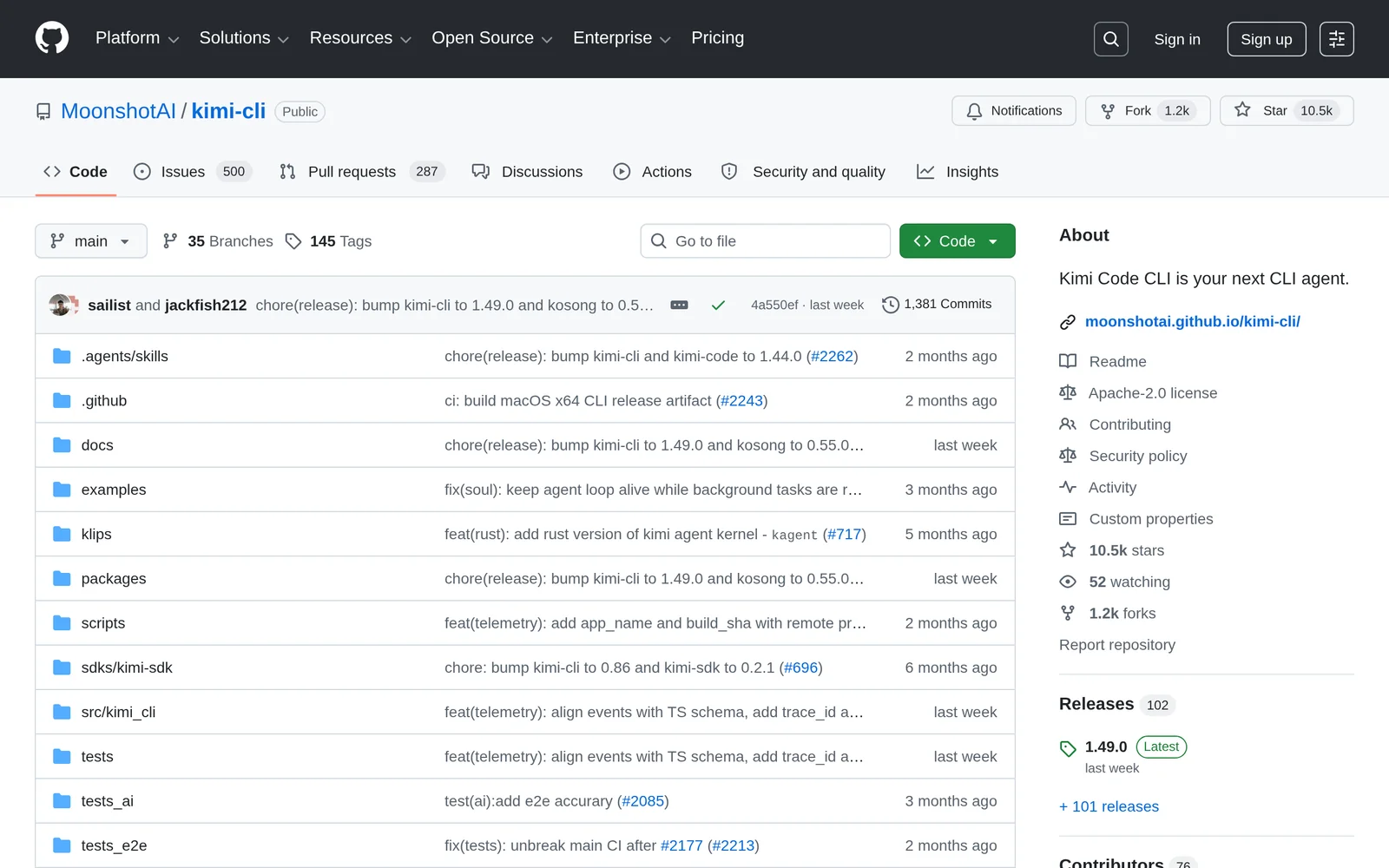
Kimi CLI is an open-source terminal AI agent from Moonshot AI that helps developers complete software-development and shell tasks from the command line. It can read and edit code, execute shell commands, search and fetch web pages, and autonomously plan and adjust its actions during a session. Beyond the pure agent loop, it doubles as a shell (press Ctrl+X to switch to shell command mode and run commands without leaving the tool), ships a VS Code extension, integrates with any ACP-compatible editor such as Zed or JetBrains via `kimi acp`, and supports the Model Context Protocol so external MCP servers can extend its tool set. A companion zsh-kimi-cli plugin brings agent capabilities into a normal Zsh workflow. The project is transitioning into Kimi Code CLI from the same team, with existing installs migrating automatically.
Screenshots
Key Features
Use Cases



Frequently asked questions about Kimi CLI
What is Kimi CLI?
Kimi CLI is an open-source terminal AI coding agent developed by Moonshot AI. It enables users to read and edit code, execute shell commands, fetch web content, and seamlessly integrate with applications via ACP (Application Communication Protocol) and MCP (Machine Communication Protocol).
Key Points
- Open-source Accessibility: Kimi CLI is freely available for developers to use and modify.
- AI-Powered Functionality: It utilizes advanced AI to assist in coding tasks efficiently.
- Integration Capabilities: Supports integration with various applications through ACP and MCP.
Detailed Explanation
Kimi CLI stands out as a robust tool for developers looking to streamline their coding processes. By utilizing artificial intelligence, Kimi can understand and manipulate code, making it an invaluable asset for both novice and experienced programmers. Here are some core functionalities:
-
Reading and Editing Code: Kimi CLI can analyze existing codebases, suggesting improvements or modifications based on best practices. For instance, it can help refactor a function to enhance performance or readability.
-
Running Shell Commands: You can execute shell commands directly within the Kimi CLI environment. This feature is particularly useful for automating repetitive tasks, such as batch file processing or system updates.
-
Fetching Web Content: Kimi can retrieve information from the web, allowing users to access documentation, libraries, or APIs without leaving the terminal. This makes it easier to gather necessary resources quickly.
-
Integration with ACP and MCP: Kimi CLI's ability to integrate through Application Communication Protocol (ACP) and Machine Communication Protocol (MCP) allows it to work seamlessly with other software tools, enhancing its functionality.
Best Practices / Tips
- Explore Documentation: Familiarize yourself with Kimi CLI's official documentation to understand all available commands and features.
- Experiment in Safe Environments: Before implementing Kimi CLI in production, test its capabilities in a controlled setting to avoid unintended code changes.
- Stay Updated: As an open-source tool, Kimi CLI receives regular updates. Keep your installation current to benefit from new features and improvements.
- Contribute to the Community: Engage with the Kimi CLI community by reporting bugs or suggesting enhancements, which can improve the tool for everyone.
Additional Resources
How does Kimi CLI work?
Kimi CLI is a command-line interface tool that enhances developer productivity by integrating terminal coding, shell command execution, web fetching, and IDE support. It enables users to manage multi-step development tasks, automate workflows, and debug interactively without leaving the terminal environment.
Key Points
- Terminal Coding Agent: Reads, edits, and executes code while managing development tasks.
- Shell Command Mode: Quickly switch to a shell for executing commands without losing context.
- IDE Integration: Compatible with ACP-enabled editors like Zed and JetBrains for seamless development.
Detailed Explanation
Kimi CLI empowers developers by providing a comprehensive suite of tools directly from the command line. Here’s how it works in detail:
-
Terminal Coding Agent: Kimi reads and edits your code, allowing for the execution of shell commands and the planning of complex development tasks directly from the CLI. This reduces the need for GUI-based tools, streamlining development workflows.
-
Shell Command Mode: By pressing
Ctrl+X, users can switch Kimi into shell command mode. This allows for the execution of standard terminal commands without leaving the context of the Kimi agent, making it easier to perform system-level tasks. -
Web Fetch and Search: Kimi CLI includes built-in tools for searching and fetching web pages. This feature helps developers ground their code changes and answers in current sources, enhancing the reliability of information used during development.
-
MCP Tool Support: Users can manage Model Context Protocol (MCP) servers through
kimi mcpsub-commands. This functionality extends the capabilities of Kimi CLI, allowing integration with various internal tools such as databases and cloud APIs. -
ACP IDE Integration: Kimi runs as an Agent Client Protocol (ACP) server via
kimi acp. This integration allows compatible IDEs like Zed and JetBrains to host Kimi within their agent panels, providing a fluid development experience that combines the best of both worlds. -
Interactive Debugging: The agent can run failing commands, inspect outputs, and help users iteratively adjust code fixes. This interactive debugging feature saves time by allowing developers to troubleshoot issues directly within the terminal.
-
MCP-Powered Automations: By attaching MCP servers, developers can enhance Kimi's capabilities to act across their entire tech stack, improving automation in development processes.
-
Shell-Native Task Automation: With the Zsh plugin, Kimi CLI can be seamlessly integrated into everyday terminal workflows, enabling task automation that fits naturally into developers' existing habits.
Best Practices / Tips
- Regular Updates: Keep Kimi CLI updated to take advantage of new features and performance improvements.
- Explore Documentation: Familiarize yourself with the command set and capabilities by reviewing the official documentation.
- Leverage IDE Integration: Use Kimi within your preferred IDE to maximize productivity and streamline your development process.
Additional Resources
What are the main features of Kimi CLI?
Kimi CLI features a Terminal Coding Agent for code management, Shell Command Mode for executing commands seamlessly, Web Fetch and Search for gathering information, MCP Tool Support for managing servers, and ACP IDE Integration for compatibility with major editors like Zed and JetBrains.
Key Points
- Terminal Coding Agent: Automates code editing and execution.
- Shell Command Mode: Allows command execution without leaving the agent.
- Web Fetch and Search: Enables real-time web searches for coding assistance.
Detailed Explanation
Kimi CLI is a powerful command-line interface tool designed for developers, enhancing productivity through its innovative features:
Terminal Coding Agent
This feature acts like a smart assistant, allowing users to read and edit code directly from the terminal. It can execute shell commands and autonomously plan multi-step development tasks. For instance, if you need to refactor a codebase, the Terminal Coding Agent can suggest changes and implement them without requiring manual input for every step.
Shell Command Mode
By pressing Ctrl+X, users can switch Kimi CLI into Shell Command Mode, enabling them to perform standard shell commands without disrupting their workflow. This is particularly useful for developers who frequently switch between coding and terminal commands, allowing for a seamless experience.
Web Fetch and Search
Kimi CLI includes built-in tools that allow the agent to search and retrieve web pages to support code changes and answer queries. For example, if you're unsure how to implement a specific function, the agent can fetch relevant documentation or code snippets, thereby speeding up the development process.
MCP Tool Support
The Model Context Protocol (MCP) feature allows users to manage their servers through kimi mcp sub-commands. This provides extended capabilities for developers who require flexibility in server management and integration with various workflows.
ACP IDE Integration
Kimi CLI runs as an Agent Client Protocol (ACP) server via kimi acp. This integration allows popular IDEs like Zed and JetBrains to host Kimi in their agent panels, providing a cohesive development environment. This feature enables developers to access Kimi’s functionalities directly within their favorite coding platforms.
Best Practices / Tips
- Utilize Shortcuts: Familiarize yourself with keyboard shortcuts like
Ctrl+Xto maximize efficiency. - Explore Integration Options: Take advantage of ACP IDE Integration to streamline your coding workflow.
- Leverage Web Fetch: Regularly use the web fetch feature for up-to-date information, which can significantly reduce coding errors.
Additional Resources
Who is Kimi CLI for?
Kimi CLI is designed for developers who embrace Terminal-First Development, offering tools for interactive debugging, IDE integration, and task automation. It benefits those who prefer coding alongside shell commands, enhancing productivity and streamlining workflows in environments like Zed or JetBrains.
Key Points
- Terminal-First Development: Ideal for developers who prefer working directly in the terminal.
- Interactive Debugging: Enables real-time debugging by executing commands and adjusting code dynamically.
- IDE Integration: Seamlessly integrates with popular IDEs to enhance coding efficiency.
Detailed Explanation
Kimi CLI is a versatile command-line interface tool tailored for developers, particularly those who favor a terminal-first approach to coding. Here’s a closer look at its key features and benefits:
-
Terminal-First Development: Kimi CLI allows developers to read, refactor, and generate code directly in the terminal. This approach minimizes the need to switch between a graphical user interface (GUI) and the command line, significantly speeding up the development process.
-
Interactive Debugging Sessions: One of the standout features of Kimi CLI is its ability to facilitate interactive debugging. Developers can run failing commands, inspect the output in real-time, and iteratively adjust their code fixes. This hands-on approach not only helps in identifying bugs more effectively but also enhances understanding of the code's behavior.
-
IDE Agent Integration: Kimi CLI can be integrated into popular integrated development environments (IDEs) such as Zed or JetBrains. As an ACP (Agent Control Protocol) agent, it allows developers to manage tasks and debug processes directly from the IDE’s agent panel, streamlining the workflow and reducing context-switching.
-
MCP-Powered Automations: By connecting to MCP (Multi-Channel Processing) servers, Kimi CLI can automate tasks across various internal tools, including databases and cloud APIs. This functionality is particularly useful for teams looking to enhance their automation capabilities and improve internal tool efficiency.
-
Shell-Native Task Automation: With the Zsh plugin, Kimi CLI adds agent capabilities to everyday terminal workflows. This integration allows users to automate repetitive tasks, making it a powerful asset for any developer looking to save time and increase efficiency.
Best Practices / Tips
- Embrace Terminal Usage: To maximize Kimi CLI's potential, practice using it for all coding tasks. The more comfortable you become, the more efficient you'll be.
- Utilize Debugging Features: Take full advantage of the interactive debugging capabilities by running tests and making adjustments in real time. This will lead to faster bug resolution.
- Explore IDE Integrations: If using Zed or JetBrains, explore all features of Kimi CLI’s integration to enhance your development experience.
- Automate Regular Tasks: Identify repetitive tasks that can be automated with Kimi CLI to increase your workflow efficiency.
Additional Resources
How much does Kimi CLI cost?
Kimi CLI is entirely free to use, offering a powerful command-line interface for developers and data scientists without any associated costs. This open-source tool is designed to streamline workflows and enhance productivity without requiring any financial investment.
Key Points
- Kimi CLI is free for all users.
- It is open-source, encouraging community contributions.
- No subscription or hidden fees are involved.
Detailed Explanation
Kimi CLI is an innovative command-line interface that simplifies various tasks for developers and data scientists. Being an open-source tool, it provides users with the freedom to download, use, and modify the software without incurring any costs. This makes Kimi CLI an attractive option for those looking to enhance their development efficiency without the burden of financial investment.
The open-source nature of Kimi CLI also means it benefits from contributions by a community of developers. Users can report bugs, suggest features, or even contribute code improvements. This collaborative approach not only fosters innovation but also ensures that the tool remains updated and relevant to current industry standards.
Kimi CLI supports various programming languages and frameworks, making it versatile for different project needs. For instance, users can integrate it with Python for data processing tasks or with Node.js for web development projects. The documentation provides comprehensive guidance on installation, usage, and troubleshooting, ensuring that even beginners can get started quickly.
Best Practices / Tips
- Explore Community Forums: Engage with the Kimi CLI community on platforms like GitHub to learn tips, tricks, and best practices from experienced users.
- Stay Updated: Regularly check for updates or new releases to benefit from the latest features and improvements.
- Utilize Documentation: Make full use of the official documentation to understand all functionalities and avoid common pitfalls.
Additional Resources
How do I get started with Kimi CLI?
To get started with Kimi CLI, visit Kimi CLI GitHub to sign up and access the tool’s resources. Follow the provided documentation to install, configure, and begin using Kimi CLI effectively for your AI development projects.
Key Points
- Easy signup through GitHub
- Comprehensive installation guide
- Access to community support
Detailed Explanation
Kimi CLI is a command-line interface designed to streamline AI development workflows. To begin, navigate to Kimi CLI GitHub and click on the 'Sign Up' button. Ensure you have Git installed on your computer, as it’s essential for cloning the repository.
-
Installation: Follow the installation instructions in the README file. You will typically clone the repository using:
git clone https://github.com/MoonshotAI/kimi-cli.gitAfter cloning, navigate into the directory and install dependencies using:
npm install -
Configuration: Once installed, configure Kimi CLI by creating a configuration file. This file helps personalize your experience, allowing you to set preferences for projects, commands, and API keys.
-
Usage: Start using Kimi CLI by executing commands in your terminal. A simple command to test your installation is:
kimi --helpThis will display available commands and options, helping you get familiar with the tool.
Best Practices / Tips
- Read the Documentation: Always review the official documentation for updates and best practices. This ensures you’re using the latest features and techniques.
- Join the Community: Engage with other Kimi CLI users through forums or GitHub discussions. This can provide valuable insights and troubleshooting tips.
- Regular Updates: Keep your version of Kimi CLI up to date to access the latest features and security patches.
Additional Resources
- Official Kimi CLI Documentation
- Kimi CLI Examples and Use Cases
- Community Support on GitHub Discussions
By following these steps and utilizing the resources provided, you’ll be well on your way to effectively using Kimi CLI in your AI projects.
Explore more AI Ai Agents tools
Browse all Ai Agents tools →Browse by use case: Code Generation
Compare Kimi CLI: vs Playad · vs Concierge by Juniors AI · vs Scout by Fini · vs Ruflo