

Gemini CLI
AIOpen SourceFreeAn open-source command-line agent that brings Google's Gemini capabilities into the terminal for interactive assistance and automation.
Gemini CLI
An open-source command-line agent that brings Google's Gemini capabilities into the terminal for interactive assistance and automation.
About Gemini CLI
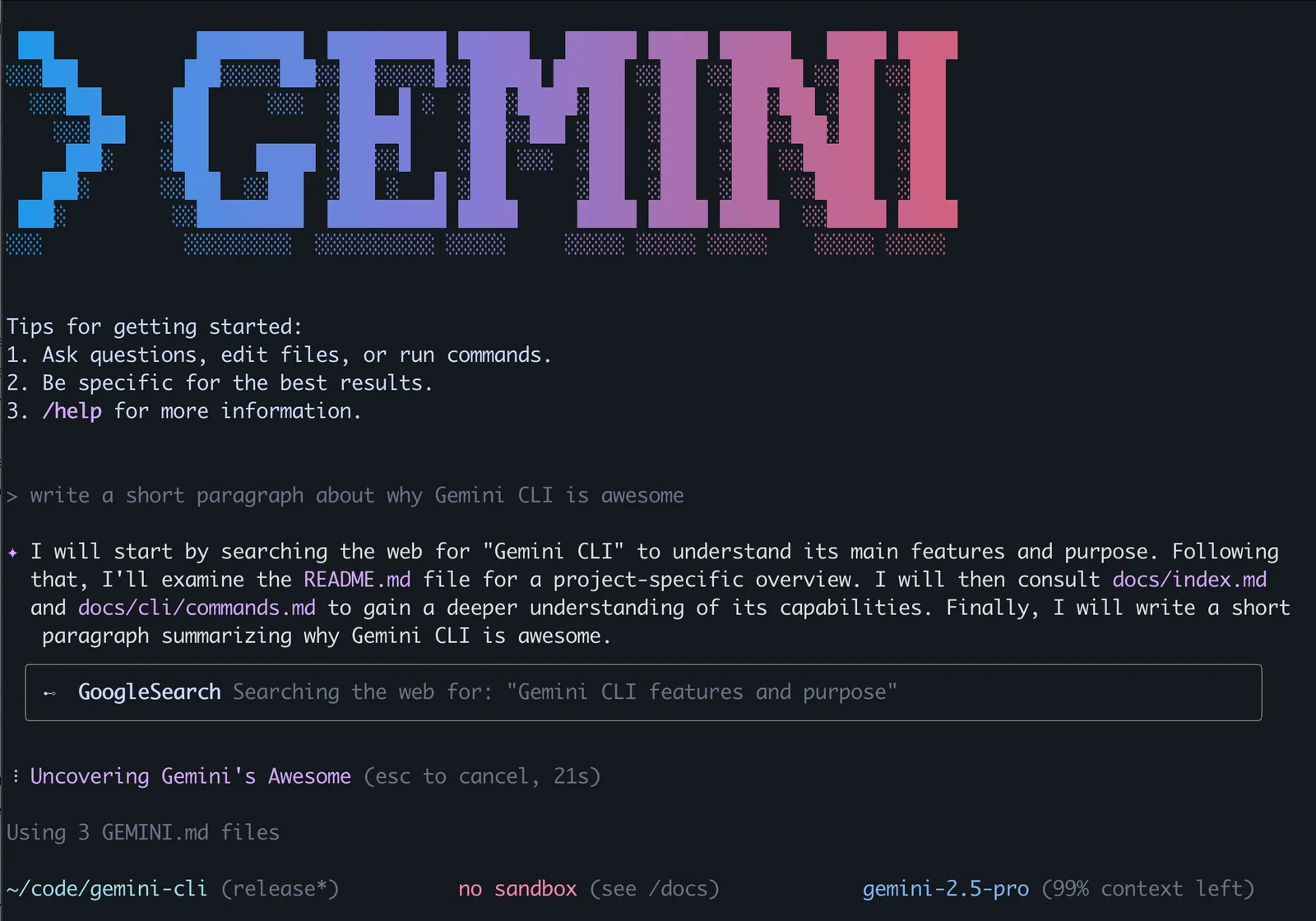
Gemini CLI is an open-source command-line agent that integrates Google’s Gemini models into developer workflows via a terminal interface. It provides interactive chat, project-aware context, and automation hooks so users can get on-demand explanations, debugging help, and task delegation directly from the command line or within GitHub workflows. The tool supports authentication via Google login, custom context files to tailor behavior per repository, and extensibility through configurable MCP servers and a GitHub Action for repository integration. Its value lies in combining Gemini model capabilities with developer tooling and CI/CD integration to speed debugging, code review, and local productivity.
Screenshots
Key Features
Use Cases



Frequently asked questions about Gemini CLI
What is the pricing structure for Gemini CLI?
Gemini CLI is completely free and open-source, providing users with a robust command-line interface for managing their projects. However, certain integrated features may require a separate Gemini Code Assist license for hosted services, so it’s advisable to check the official Gemini website for specific details.
Key Points
- Free and Open-Source: Gemini CLI is fully accessible without any cost.
- Optional Licensing: Some features may require a paid Gemini Code Assist license.
- Official Resources: Visit the official website for the most accurate and up-to-date information.
Detailed Explanation
Gemini CLI is designed to allow developers to streamline their workflow and enhance productivity through its command-line interface. The tool itself is free to download and use, making it an attractive option for developers looking for cost-effective solutions. Users can access the core functionalities without any financial investment.
However, certain advanced features, particularly those involving hosted services and enhanced support, necessitate the purchase of a Gemini Code Assist license. This license unlocks additional capabilities that can significantly improve the user experience and efficiency of the tool in collaborative environments.
For instance, if you are working on a large-scale project that requires frequent updates and team collaboration, investing in the Gemini Code Assist license might be beneficial. It provides features such as real-time code assistance, which can save time and reduce errors.
Best Practices / Tips
- Evaluate Your Needs: Before investing in a license, assess whether the standard features suffice for your project requirements.
- Stay Updated: Regularly check the official website for updates on pricing and features, as these can change.
- Community Support: Engage with the user community to gain insights and tips from other users who may have experience with the paid features.
Additional Resources
How do I get started with Gemini CLI?
To get started with Gemini CLI, install it using npm or Homebrew, then authenticate through your Google account. You can configure your project settings by editing the GEMINI.md file to ensure tailored assistance for your specific needs.
Key Points
- Installation Options: Use npm or Homebrew for quick setup.
- Authentication: Connect your Google account for seamless access.
- Configuration: Customize settings using the GEMINI.md file for project-specific needs.
Detailed Explanation
Gemini CLI is a powerful command-line interface for managing Gemini projects. To initiate, you have two primary installation methods:
-
Using npm: Open your terminal and run:
npm install -g gemini-cliThis method is suitable for users familiar with Node.js and npm.
-
Using Homebrew: If you're on macOS, you can install Gemini CLI by running:
brew install gemini-cliThis is a straightforward option for Mac users and ensures that you have the most recent version.
After installation, you need to authenticate your CLI with your Google account. Execute the following command:
gemini login
This will prompt you to log in via a web browser. Follow the instructions to grant access.
Next, create a GEMINI.md file in your project directory. This file allows you to specify configuration settings such as project name, environment variables, and custom commands. For example:
# Project Configuration
name: MyProject
env:
  NODE_ENV: production
This setup enables Gemini CLI to understand your project context and provide optimal command execution.
Best Practices / Tips
- Stay Updated: Regularly check for updates to Gemini CLI to benefit from new features and fixes. Run
gemini updateperiodically. - Use Version Control: Maintain your GEMINI.md file in a version control system (like Git) to track changes and collaborate effectively.
- Read Documentation: Familiarize yourself with the official documentation for advanced features and troubleshooting tips.
Additional Resources
What are the key features of Gemini CLI?
Gemini CLI is a powerful command-line interface that provides terminal integration for interactive sessions, supports custom context files via GEMINI.md, enables GitHub Actions for seamless code reviews, and offers extensibility through MCP servers for creating custom tools tailored to your workflow.
Key Points
- Terminal Integration: Offers interactive session capabilities.
- Custom Context Files: Utilizes GEMINI.md for personalized configurations.
- GitHub Actions Support: Facilitates efficient code review processes.
- Extensibility: Allows integration of custom tools through MCP servers.
Detailed Explanation
Gemini CLI is designed for developers seeking enhanced productivity and customization in their command-line interactions.
1. Terminal Integration
The terminal integration feature allows users to run interactive sessions directly within their command line. This capability means developers can execute commands, receive real-time feedback, and manage tasks without switching contexts. For example, a user can run tests and receive instant results that help in debugging code efficiently.
2. Custom Context Files
With support for custom context files via GEMINI.md, Gemini CLI enables users to define their environment settings and configurations. This feature is especially useful for teams working on multiple projects, as they can maintain unique configurations for each. For instance, a project-specific context file might include API keys, database connections, and environment variables, ensuring that all necessary settings are loaded for each session.
3. GitHub Actions Support
Gemini CLI integrates seamlessly with GitHub Actions, streamlining the code review process. This integration allows developers to automate workflows, such as running tests or building applications, every time code is pushed to a repository. For example, a developer could set up a workflow that triggers automated tests on every pull request, ensuring that only code that passes all tests is merged.
4. Extensibility through MCP Servers
The extensibility feature of Gemini CLI through MCP (Modular Command Protocol) servers allows developers to create and integrate their custom tools into the CLI. This means that teams can build bespoke commands tailored to their specific needs, enhancing their workflow. For instance, a team might develop a custom command that interacts with their database, allowing for quick data queries directly from the command line.
Best Practices / Tips
- Start with Default Configurations: Use the default settings provided by Gemini CLI as a baseline, then gradually customize your GEMINI.md for specific project needs.
- Utilize GitHub Actions: Set up GitHub Actions early in your project to automate testing and deployment processes.
- Explore MCP Servers: Take time to understand how to implement MCP servers effectively; creating your tools can significantly streamline repetitive tasks.
Additional Resources
How does Gemini CLI integrate with GitHub?
Gemini CLI integrates seamlessly with GitHub via a GitHub Action, enabling users to access code assistance directly within issues and pull requests. By mentioning @gemini-cli, developers can request on-demand support, streamlining their workflow and enhancing collaboration within their projects.
Key Points
- GitHub Action Integration: Leverages GitHub Actions for automation.
- On-Demand Code Assistance: Users can request help by mentioning @gemini-cli.
- Enhanced Collaboration: Facilitates communication between team members during code reviews.
Detailed Explanation
Gemini CLI's integration with GitHub is designed to enhance developer productivity and collaboration. When you set up the GitHub Action, it allows Gemini CLI to listen for specific triggers in your repository, such as comments on issues or pull requests.
Setup Process
- Install Gemini CLI: Begin by installing Gemini CLI on your local machine or CI/CD pipeline.
- Add GitHub Action: Create a new GitHub Action in your repository:
name: Gemini CLI on: issue_comment: types: [created] pull_request_review_comment: types: [created] jobs: gemini: runs-on: ubuntu-latest steps: - name: Invoke Gemini run: | echo "Requesting assistance from Gemini CLI" - Mention @gemini-cli: In your GitHub comments, simply type
@gemini-clifollowed by your query. This action will trigger the integration, and Gemini CLI will respond with relevant code assistance tailored to your needs.
Use Cases
- When encountering a bug during a code review, a developer can ask for help directly in the pull request.
- Team members can request suggestions for code optimization or best practices by mentioning @gemini-cli, leading to quicker resolutions and better coding standards.
Best Practices / Tips
- Be Specific: When mentioning @gemini-cli, provide as much context as possible to receive accurate assistance.
- Use Clear Language: Avoid jargon or ambiguous terms to improve understanding.
- Regular Updates: Keep your Gemini CLI and GitHub Action configurations up to date to leverage new features and improvements.
Additional Resources
How does Gemini CLI compare to other AI tools?
Gemini CLI distinguishes itself from other AI tools through its free open-source model, deep integration with GitHub, and unique command-line functionality. This combination allows for tailored project assistance that enhances developer productivity, making it a preferred choice for many coding professionals.
Key Points
- Open-Source Advantage: Gemini CLI is free, allowing customization and collaboration.
- GitHub Integration: Seamless integration with GitHub enhances workflow efficiency.
- Command-Line Functionality: Provides tools directly within a terminal for faster access and usage.
Detailed Explanation
Gemini CLI is a powerful tool that offers a variety of features making it competitive in the AI space. Unlike many proprietary AI solutions that come with high costs, Gemini CLI is open-source, enabling developers to modify the code as needed. This flexibility promotes community-driven enhancements and collaboration.
-
Open-Source Advantage: Being open-source means that users can access the source code, which allows for unlimited customization. Developers can add plugins or features that suit their specific needs, creating a tailored experience that proprietary tools cannot match. This is particularly beneficial for teams that require unique workflows.
-
GitHub Integration: Gemini CLI's integration with GitHub streamlines project management. Users can run commands directly related to their repositories, making it easier to pull, commit, and push changes without leaving the command line. This integration accelerates the development process by reducing context-switching, which is often a productivity killer for developers.
-
Command-Line Functionality: Many developers prefer command-line interfaces due to their speed and efficiency. Gemini CLI supports a range of commands that facilitate quick actions, making it particularly suitable for automation tasks. This is a significant advantage over GUI-based AI tools, which can slow down workflows, especially during repetitive tasks.
Best Practices / Tips
- Explore Customization: Take advantage of the open-source nature by customizing Gemini CLI to better fit your project needs. Consider contributing to the community by sharing your enhancements.
- Utilize GitHub Features: Leverage the integration with GitHub to create automated workflows that can trigger actions based on commits or pull requests.
- Learn the Commands: Familiarize yourself with common commands offered by Gemini CLI to maximize efficiency. Shortcuts can significantly reduce the time spent on routine tasks.
Additional Resources
By understanding these key elements, users can effectively leverage Gemini CLI to enhance their development processes compared to other AI tools in the market.
Explore more AI Ai Agents tools
Browse all Ai Agents tools →Browse by use case: Code Generation · Automation & Productivity
Compare Gemini CLI: vs Playad · vs Concierge by Juniors AI · vs Scout by Fini · vs Ruflo