

Everywhere
AIOpen SourceFreeContext-aware desktop AI assistant that senses your screen, understands application context, and acts in-place across platforms.
Everywhere
Context-aware desktop AI assistant that senses your screen, understands application context, and acts in-place across platforms.
About Everywhere
Everywhere is a context-aware, interactive desktop assistant built on .NET and Avalonia that integrates directly into the user’s desktop environment. It captures screen content and application context without requiring screenshots or app switching, letting users summon an overlay assistant next to any UI element via keyboard shortcuts. Everywhere supports multiple model providers and MCP tools (OpenAI, Anthropic/Claude, Google Gemini, Ollama, DeepSeek, Moonshot Kimi, OpenRouter, SiliconCloud, etc.), renders Markdown, accepts voice input, and can perform actionable tasks such as summarization, translation, email drafting, and contextual troubleshooting. It is cross-platform (Windows, macOS, Linux), open-source (Apache-2.0), and designed to streamline workflows by providing in-place, contextually relevant AI assistance.
Screenshots
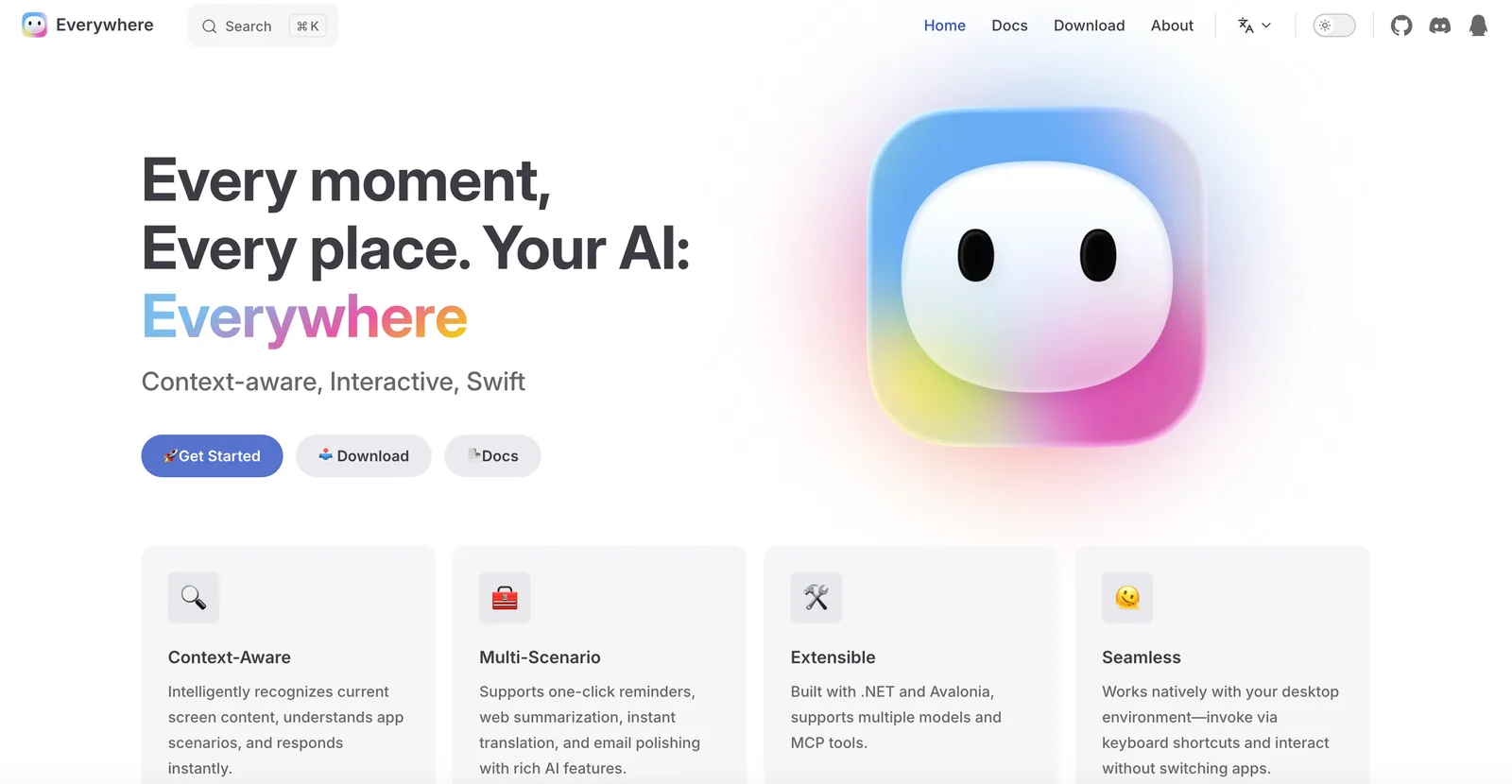




Key Features
Use Cases



Frequently asked questions about Everywhere
What pricing options are available for Everywhere?
Everywhere is free and open-source software licensed under the Apache-2.0 license. Users can choose to self-host the desktop assistant at no cost or receive community support through GitHub, making it an accessible option for those looking to utilize AI-driven tools without financial barriers.
Key Points
- Cost-Free Access: Everywhere is completely free and open-source.
- Self-Hosting Options: Users can self-host the software to utilize its features.
- Community Support: Access community-driven help and resources via GitHub.
Detailed Explanation
Everywhere allows users to leverage advanced AI capabilities without any financial commitment. As an open-source tool under the Apache-2.0 license, it promotes collaboration and innovation. Here are the primary ways to engage with Everywhere:
-
Self-Hosting: Users can download the software and set it up on their local machines or servers. This option provides full control over the environment and customization but may require technical expertise for installation and maintenance.
-
Community Support: For individuals who prefer not to self-host, Everywhere's community support via GitHub offers a wealth of resources, including forums, documentation, and FAQs. Users can seek help from fellow developers and contribute to the project by reporting issues or suggesting features.
-
Development and Contributions: Being open-source, Everywhere invites contributions from users. This means that anyone can help improve the software, report bugs, or develop new features. Engaging with the community can enhance your experience and help the tool evolve.
Best Practices / Tips
- Explore Documentation: Familiarize yourself with the official documentation before self-hosting, as it provides necessary setup instructions and troubleshooting tips.
- Engage with the Community: Participate in forums and discussions on GitHub to enhance your understanding and make the most of the tool.
- Stay Updated: Regularly check for updates or new releases to ensure you have the latest features and security enhancements.
Additional Resources
What are the key features of Everywhere AI assistant?
Everywhere AI assistant features context-aware invocation, support for multiple AI models, an inline overlay user interface, actionable responses, and seamless cross-platform integration on Windows, macOS, and Linux. These capabilities enhance user experience by making interactions more intuitive and efficient.
Key Points
- Context-Aware Invocation: Understands user context for better responses.
- Multimodel Provider Support: Integrates various AI models for diverse tasks.
- Cross-Platform Integration: Works on Windows, macOS, and Linux seamlessly.
Detailed Explanation
Everywhere AI assistant is designed to optimize user interactions through advanced features.
-
Context-Aware Invocation: This feature enables the assistant to recognize the context of a user’s request, allowing it to provide more relevant answers. For example, if a user asks about the weather, the assistant can detect the user's location and give localized forecasts.
-
Multimodel Provider Support: The assistant supports multiple AI models, making it versatile for various tasks. Users can switch between models based on their needs. For instance, if someone requires detailed writing assistance, they can choose a model optimized for text generation, whereas for data analysis, another model may be more suitable.
-
Inline Overlay User Interface: The inline overlay UI allows users to interact with the assistant without disrupting their workflow. This feature can be especially useful during presentations or while coding, as it provides instant access to information without switching screens.
-
Actionable Responses: The assistant doesn't just provide information; it offers actionable responses. For example, if a user asks how to schedule a meeting, the assistant can offer direct integration with calendar applications to set it up instantly.
-
Cross-Platform Integration: One of the standout features of the Everywhere AI assistant is its capability to function across multiple operating systems—Windows, macOS, and Linux. This ensures that users have a consistent experience, regardless of their device, making it ideal for teams that operate in diverse environments.
Best Practices / Tips
- Utilize Context: When using the assistant, provide as much context as possible for more accurate responses.
- Explore Model Options: Take advantage of the multimodel support by testing different AI models to find the best fit for your specific tasks.
- Stay Updated: Regularly check for updates or new features that enhance the assistant's capabilities.
- Integrate with Other Tools: Maximize productivity by integrating the AI assistant with your preferred tools and applications.
Additional Resources
How do I get started using Everywhere on my desktop?
To get started using Everywhere on your desktop, download the open-source client from GitHub, install it on your operating system, and follow the setup instructions to configure API keys for your preferred AI model providers as needed.
Key Points
- Download the open-source client from GitHub.
- Install the software on your desktop platform.
- Configure API keys for model providers.
Detailed Explanation
Getting started with Everywhere on your desktop involves several straightforward steps:
-
Download the Client: Visit the Everywhere GitHub repository and download the latest version of the open-source client suitable for your operating system (Windows, macOS, or Linux).
-
Installation:
- For Windows: Run the installer and follow the on-screen instructions.
- For macOS: Drag the application to your Applications folder.
- For Linux: Use your package manager or compile from the source if necessary. Ensure you have the necessary dependencies installed.
-
Setup Instructions:
- Once installed, launch the client. You will be prompted to enter API keys for the AI model providers you wish to use, such as OpenAI or Hugging Face. You can obtain these keys by signing up on their respective platforms.
- Follow the detailed instructions provided within the client to configure settings according to your preferences.
-
Testing the Setup: After configuration, test the client by sending a simple query to ensure everything is functioning correctly. Check the logs for any error messages and adjust your settings as needed.
Best Practices / Tips
- Keep Software Updated: Regularly check for updates on the GitHub repository to benefit from new features and security improvements.
- Secure Your API Keys: Store your API keys securely and do not share them publicly to prevent unauthorized access.
- Explore Community Support: Engage with the community forums or GitHub issues page for troubleshooting tips and best practices shared by other users.
Additional Resources
- Everywhere GitHub Repository: Access the latest client versions and documentation.
- API Documentation for Model Providers: Read about how to obtain and use API keys from different providers.
- Community Forums: Join discussions and seek help from other Everywhere users.
What technical requirements are there for running Everywhere?
Everywhere requires a compatible desktop operating system, such as Windows, macOS, or Linux. Additionally, users must set up API keys for any external model providers they wish to integrate, ensuring smooth functionality and access to necessary features.
Key Points
- Compatible desktop operating systems: Windows, macOS, Linux
- API key setup for external model integration
- Internet connection required for cloud-based features
Detailed Explanation
To run Everywhere effectively, ensure your desktop operating system meets the minimum requirements. Supported operating systems include:
- Windows: Versions 10 and above
- macOS: Version 10.15 (Catalina) and newer
- Linux: Various distributions (Ubuntu, Fedora, etc.) with appropriate support
Once your OS is confirmed, the next step is to set up API keys for any external model providers you plan to use. This process generally involves:
- Registering with the Model Provider: Create an account on the provider's platform (e.g., OpenAI, Google AI).
- Generating API Keys: Navigate to the API section of your account settings to generate your unique keys.
- Inputting API Keys in Everywhere: Enter the keys in the designated settings area within the Everywhere application to enable model integration.
It's important to ensure a stable internet connection, as many features depend on cloud-based services.
Best Practices / Tips
- Regularly Update Your OS: Keeping your operating system updated ensures compatibility with Everywhere and improves security.
- Manage API Keys Securely: Store your API keys in a secure location, and avoid sharing them publicly to prevent unauthorized access.
- Check Provider Documentation: Each external model provider may have specific integration steps; review their documentation for any additional requirements or settings.
Additional Resources
How does Everywhere compare to other AI desktop assistants?
Everywhere distinguishes itself from other AI desktop assistants through its advanced context-aware capabilities, support for multiple models, and open-source framework. This combination offers users unparalleled flexibility and enhanced privacy features, making it a compelling alternative to many commercial AI solutions that often prioritize profit over user control.
Key Points
- Context-Aware Capabilities: Understands user intent and adapts responses accordingly.
- Multimodal Support: Integrates text, voice, and visual inputs for a seamless experience.
- Open-Source Nature: Provides customization options and enhanced privacy.
Detailed Explanation
Everywhere excels in several areas that set it apart from traditional AI desktop assistants like Siri, Google Assistant, or Alexa.
-
Context-Aware Capabilities: Unlike many AI assistants that provide generic answers, Everywhere uses machine learning algorithms to assess the user's context. For instance, if you ask for a restaurant recommendation while discussing a specific cuisine, it can tailor its suggestions based on previous interactions and your current location.
-
Multimodal Support: Everywhere supports various modes of interaction, including text, voice, and visual inputs. This means you can communicate with the assistant in whatever way feels most comfortable. For example, you can verbally ask for your calendar appointments, type a query about the weather, or even upload a photo for visual recognition tasks.
-
Open-Source Nature: As an open-source tool, Everywhere allows developers to modify the software to meet specific needs. This flexibility often results in a more tailored experience for users who value privacy and customization. In contrast, commercial AI assistants frequently collect user data for advertising purposes, raising privacy concerns.
Best Practices / Tips
- Explore Customization Options: Take advantage of the open-source nature by customizing the assistant to better suit your workflows.
- Utilize Multimodal Features: Experiment with different input methods to find the most efficient way to interact with Everywhere.
- Stay Updated: Regularly check for updates and community contributions, as the open-source community often enhances the software with new features and improvements.
Additional Resources
By leveraging these features and resources, users can significantly enhance their productivity and enjoy a more personalized assistant experience.
Explore more AI Ai Agents tools
Browse all Ai Agents tools →Browse by use case: Automation & Productivity
Compare Everywhere: vs Phoenix.vu · vs Dropstone · vs Apache Maka · vs Construct Computer