

Copilot
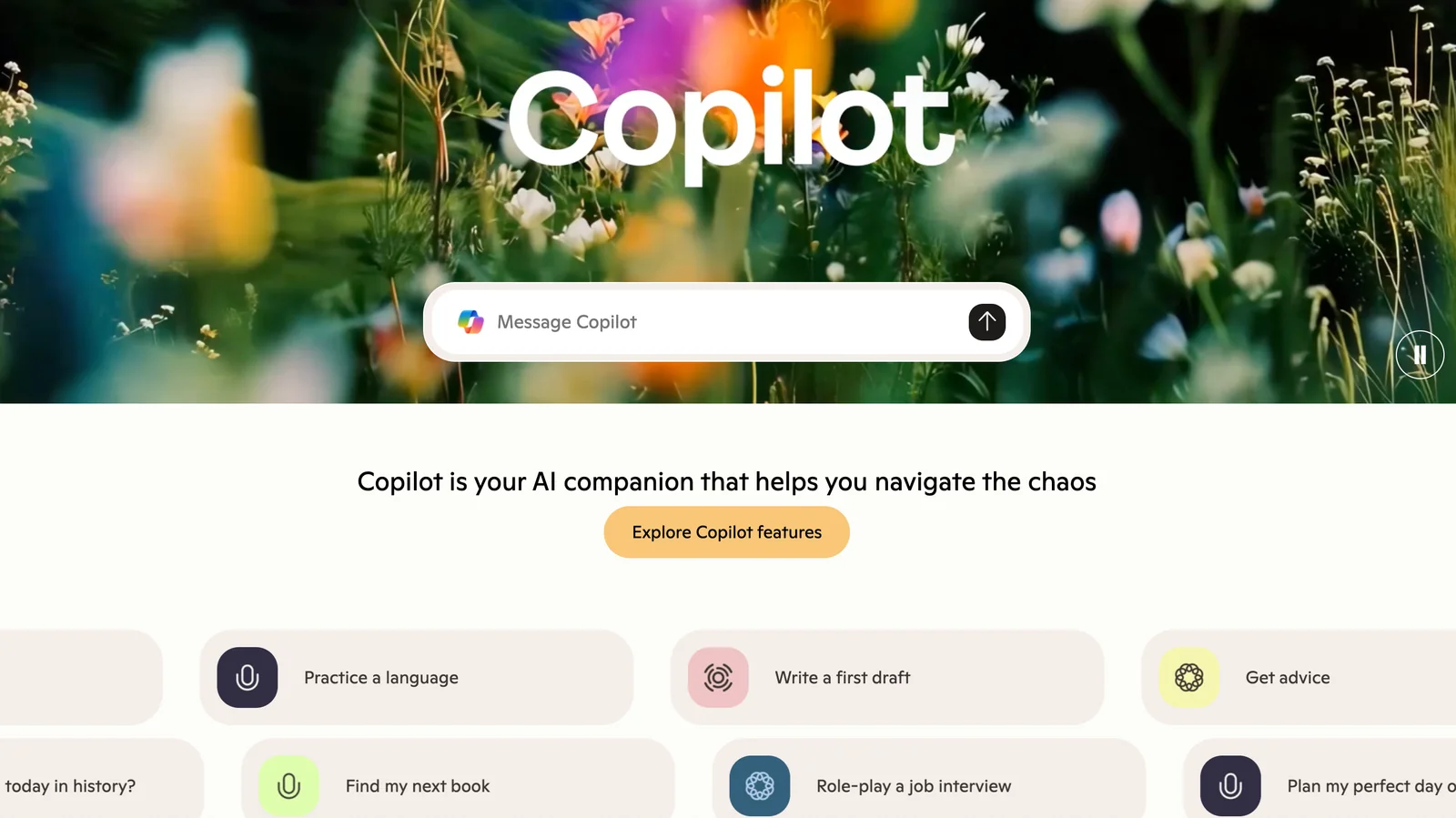
AIMicrosoft Copilot is a conversational AI companion that provides answers, advice, feedback and creative assistance to inform, entertain, and inspire.
Copilot
Microsoft Copilot is a conversational AI companion that provides answers, advice, feedback and creative assistance to inform, entertain, and inspire.
About Copilot
Microsoft Copilot is a conversational AI assistant designed to provide straightforward answers, advice, feedback, and creative content across a wide range of topics. It functions as a companion for information retrieval, brainstorming, explanation, and entertainment, responding to user prompts with synthesized, contextual responses. Copilot emphasizes accessible conversational interactions to help users learn, make decisions, iterate on ideas, and generate content quickly, reducing friction in everyday knowledge and creative tasks.
Screenshots
Key Features
Use Cases



Frequently asked questions about Copilot
What are the pricing options for Microsoft Copilot?
Microsoft Copilot offers a variety of pricing options: a free version with essential features, Copilot Pro for $20 per month, and business plans starting at $30 per month. For more detailed information and updates, visit the official Microsoft website.
Key Points
- Free Version: Access basic functionalities without cost.
- Copilot Pro: Individual plan priced at $20/month.
- Business Plans: Tailored solutions starting at $30/month for organizations.
Detailed Explanation
Microsoft Copilot provides users with several flexible pricing tiers to accommodate different needs. The Free Version allows users to experience core features, making it suitable for individuals or those exploring AI tools.
The Copilot Pro plan, available for $20 per month, is designed for professionals who require advanced functionalities like enhanced data analysis and productivity features. This plan is ideal for freelancers or small teams looking for powerful AI assistance without a significant financial commitment.
For organizations, Microsoft offers Business Plans starting at $30 per month. These plans include additional collaboration features, security enhancements, and administrative controls necessary for larger teams. Pricing may vary based on the number of users and specific features required, making it essential for businesses to evaluate their unique needs.
To ensure you select the right plan, consider the size of your team, the specific features you need, and your budget. Each pricing tier is structured to provide value based on the level of functionality and support required.
Best Practices / Tips
- Evaluate Your Needs: Assess the features you require before choosing a plan. The free version may suffice for personal use, while businesses may need the Pro or Business plans for collaboration tools.
- Trial Periods: Take advantage of any trial periods to explore features in-depth before committing to a paid plan.
- Monitor Usage: Regularly review your usage and team needs. You can adjust your plan as your requirements change over time.
- Stay Updated: Microsoft frequently updates its offerings. Keep an eye on their official site for new features or changes in pricing.
Additional Resources
How do I use Microsoft Copilot effectively?
To use Microsoft Copilot effectively, begin by asking specific questions or requesting assistance within your Microsoft 365 applications. Copilot tailors its responses to your needs, providing insightful answers, creative suggestions, and practical advice to enhance your productivity and workflow.
Key Points
- Utilize natural language for inquiries.
- Explore Copilot's features across different Microsoft 365 apps.
- Provide context for more tailored responses.
Detailed Explanation
Microsoft Copilot is designed to assist users in various Microsoft 365 applications, such as Word, Excel, PowerPoint, and Outlook. To maximize its effectiveness:
-
Start with Clear Questions: Use straightforward language to ask Copilot specific questions. For example, instead of asking, "Can you help me with this document?" say, "How do I format a report in Word?" This precision helps Copilot deliver more relevant responses.
-
Explore Features: Each application may have unique Copilot functionalities. In Excel, you can ask Copilot to analyze data trends or create visualizations. In PowerPoint, request design ideas for a presentation, or in Outlook, ask for tips on drafting professional emails.
-
Provide Context: Including relevant details in your questions will allow Copilot to generate more accurate responses. For instance, if you're working on a financial report, specify the data set or analysis type you need help with.
Best Practices / Tips
- Be Specific: Detail your requests to get the most relevant assistance. For example, instead of "Help with Excel," ask "How can I create a pivot table in Excel?"
- Iterate Your Queries: If the first response isn't quite right, refine your question or ask follow-up questions for clarification.
- Leverage Copilot for Learning: Use Copilot not just for immediate tasks but also to learn new features and functionalities within Microsoft 365.
Common pitfalls include vague questions that yield generic responses or overlooking specific capabilities of Copilot in each application.
Additional Resources
What features does Microsoft Copilot offer?
Microsoft Copilot offers features such as conversational answers, creative content generation, contextual engagement, and coding assistance. This powerful tool enhances productivity across Microsoft applications like Word and Excel, allowing users to streamline tasks and improve efficiency through intelligent automation.
Key Points
- Conversational Answers: Provides instant responses to queries.
- Creative Content Generation: Assists in creating various types of content.
- Contextual Engagement: Adapts to user needs and application context.
Detailed Explanation
Microsoft Copilot integrates seamlessly with popular Microsoft applications, enhancing user experience and productivity.
-
Conversational Answers: Utilizing AI, Copilot can interpret user inquiries and deliver accurate responses in natural language. This feature is particularly useful in applications like Word and Outlook, where users can ask questions about formatting or scheduling. For example, "How do I create a table?" will generate step-by-step instructions.
-
Creative Content Generation: In Word, Copilot can help users draft articles, reports, and creative writing pieces by suggesting phrases, structuring paragraphs, or even generating entire documents based on prompts. This capability is beneficial for marketers and writers looking to enhance their content quality and reduce time spent on repetitive tasks.
-
Contextual Engagement: Copilot understands the context of the user's work, allowing it to provide relevant suggestions tailored to their specific tasks. For instance, in Excel, it can analyze data trends and suggest visualizations, making data interpretation easier. Users can ask, "What chart should I use for this data?" and receive contextual recommendations.
-
Coding Assistance: In applications like Visual Studio, Copilot can assist developers by suggesting code snippets, debugging, and even writing entire functions based on user input. This feature accelerates the development process and reduces errors, making coding more efficient.
Best Practices / Tips
- Utilize Voice Commands: Leverage Copilot's conversational capabilities by using voice commands to ask questions or request assistance, enhancing hands-free productivity.
- Experiment with Prompts: Try various prompts to see how Copilot can assist you in different tasks. The more specific you are, the better the assistance you’ll receive.
- Stay Updated: Regularly check for updates to Copilot, as Microsoft continuously enhances its features and capabilities based on user feedback and technological advancements.
Additional Resources
How does Microsoft Copilot compare to other AI tools?
Microsoft Copilot excels among AI tools with its deep integration into Microsoft 365 applications, offering features like contextual coding assistance, natural language processing, and creative content generation. This unique functionality positions it as a formidable competitor in the AI landscape, enhancing productivity for users in various fields.
Key Points
- Seamless Integration: Works within familiar Microsoft 365 apps.
- Contextual Assistance: Provides coding help and content generation tailored to user needs.
- User-Friendly Features: Simplifies complex tasks through AI-driven suggestions.
Detailed Explanation
Microsoft Copilot distinguishes itself by embedding AI capabilities directly into widely used applications like Word, Excel, and PowerPoint. This integration allows users to leverage AI without leaving their workflow. For instance, in Word, Copilot can assist with drafting documents by suggesting text based on context, while in Excel, it can analyze data patterns and offer insights.
Unique Features of Microsoft Copilot
- Contextual Coding Assistance: In tools like Visual Studio, Copilot can suggest code snippets based on what developers are currently writing, improving coding efficiency and accuracy.
- Creative Content Generation: Copilot can generate marketing copy, social media posts, or even creative writing prompts, making it a versatile tool for content creators.
- Enhanced Collaboration: With features like real-time editing suggestions and automated meeting summaries in Teams, Copilot streamlines collaboration among team members.
Best Practices / Tips
- Explore Integration: Take advantage of Copilot within the Microsoft ecosystem to streamline your tasks.
- Utilize Contextual Features: Always provide clear context for the best suggestions. For example, specify the type of document or analysis you need.
- Stay Updated: Regularly check for new features and updates within Microsoft 365 to maximize the benefits of Copilot.
Additional Resources
What are the technical requirements for integrating Microsoft Copilot?
To integrate Microsoft Copilot, you must have compatible Microsoft 365 applications like Word or Excel, a stable internet connection, and adhere to the specific API requirements outlined in the official Microsoft documentation. Proper licensing and permissions are also essential for optimal functionality.
Key Points
- Compatible Microsoft 365 applications (e.g., Word, Excel)
- Stable internet connection
- Compliance with API requirements
Detailed Explanation
Integrating Microsoft Copilot requires several key components to ensure a successful setup. First, you need a subscription to Microsoft 365, which includes access to applications like Word, Excel, and PowerPoint. These applications are designed to leverage the capabilities of Copilot, enhancing productivity through AI-generated suggestions and automations.
Steps for Integration:
- Check Compatibility: Ensure that your Microsoft 365 subscription is active and includes the necessary applications.
- Internet Connectivity: A reliable internet connection is crucial, as Copilot operates in the cloud and requires continuous access to Microsoft servers.
- API Integration: For developers looking to integrate Copilot into custom applications, refer to the Microsoft Copilot API documentation for detailed guidelines. This includes understanding authentication protocols, data handling, and response formatting.
- Licensing and Permissions: Ensure you have the right licenses for Copilot features and that users have the necessary permissions to access AI functionalities.
Use Cases:
- Document Editing: In Word, Copilot can help draft, summarize, and format documents.
- Data Analysis: In Excel, it can automate data insights and generate complex formulas.
Best Practices / Tips
- Test Environment: Before full deployment, set up a test environment to assess Copilot performance with your specific datasets and workflows.
- User Training: Provide training sessions for users to familiarize them with Copilot's functionalities, ensuring they can maximize its benefits.
- Monitor Performance: Regularly evaluate how Copilot is enhancing productivity and adjust settings based on feedback.
Additional Resources
Explore more AI Ai Agents tools
Browse all Ai Agents tools →Browse by use case: Code Generation · Chatbots & Assistants · Automation & Productivity
Compare Copilot: vs Mycel · vs Proto-Mind · vs Ami · vs Duvi