
Always-on Meeting AI by SuperIntern
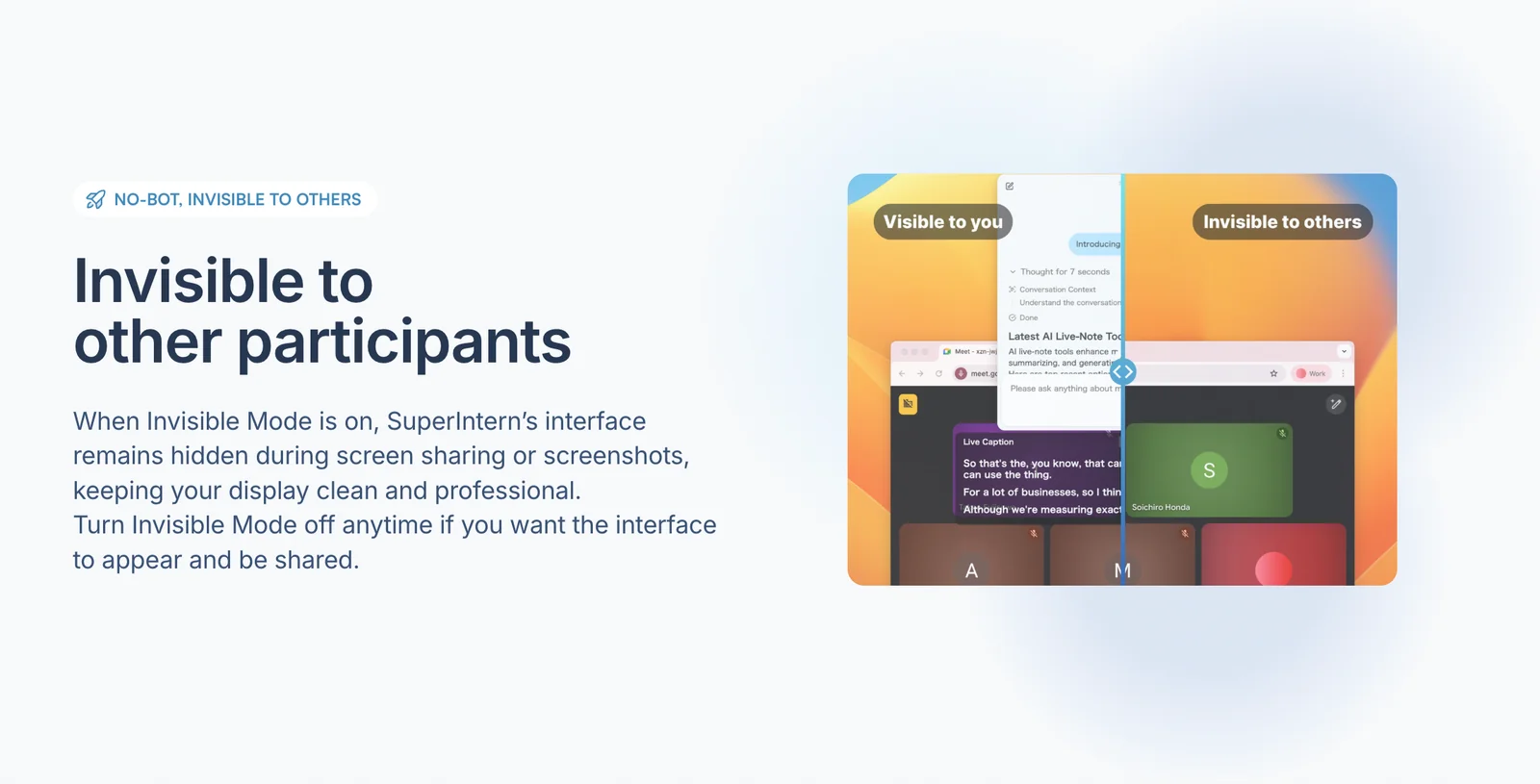
AIAlways-on meeting copilot that translates calls live, generates structured real-time summaries, and stays invisible to other participants.
Always-on Meeting AI by SuperIntern
Always-on meeting copilot that translates calls live, generates structured real-time summaries, and stays invisible to other participants.
About Always-on Meeting AI by SuperIntern
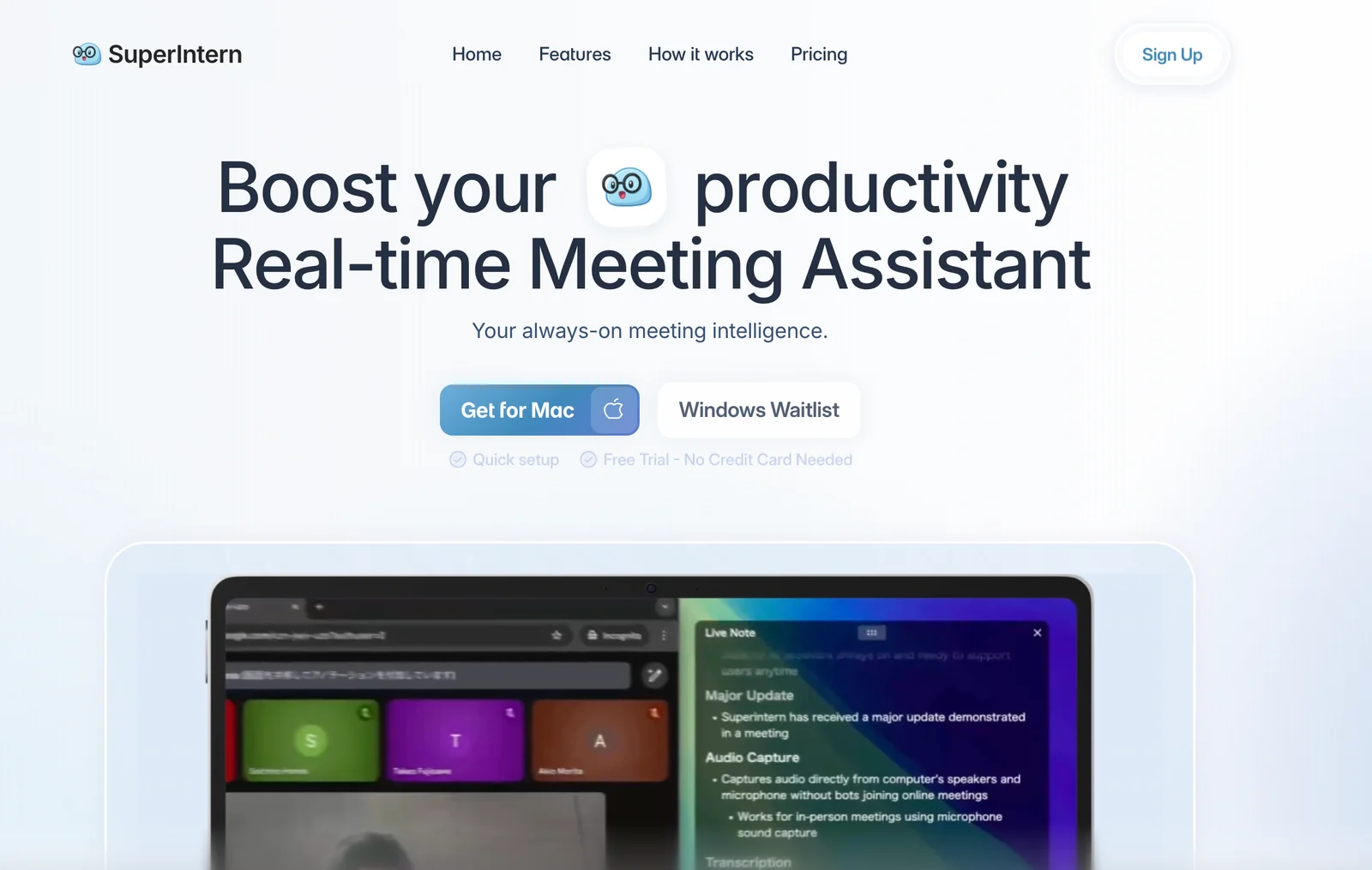
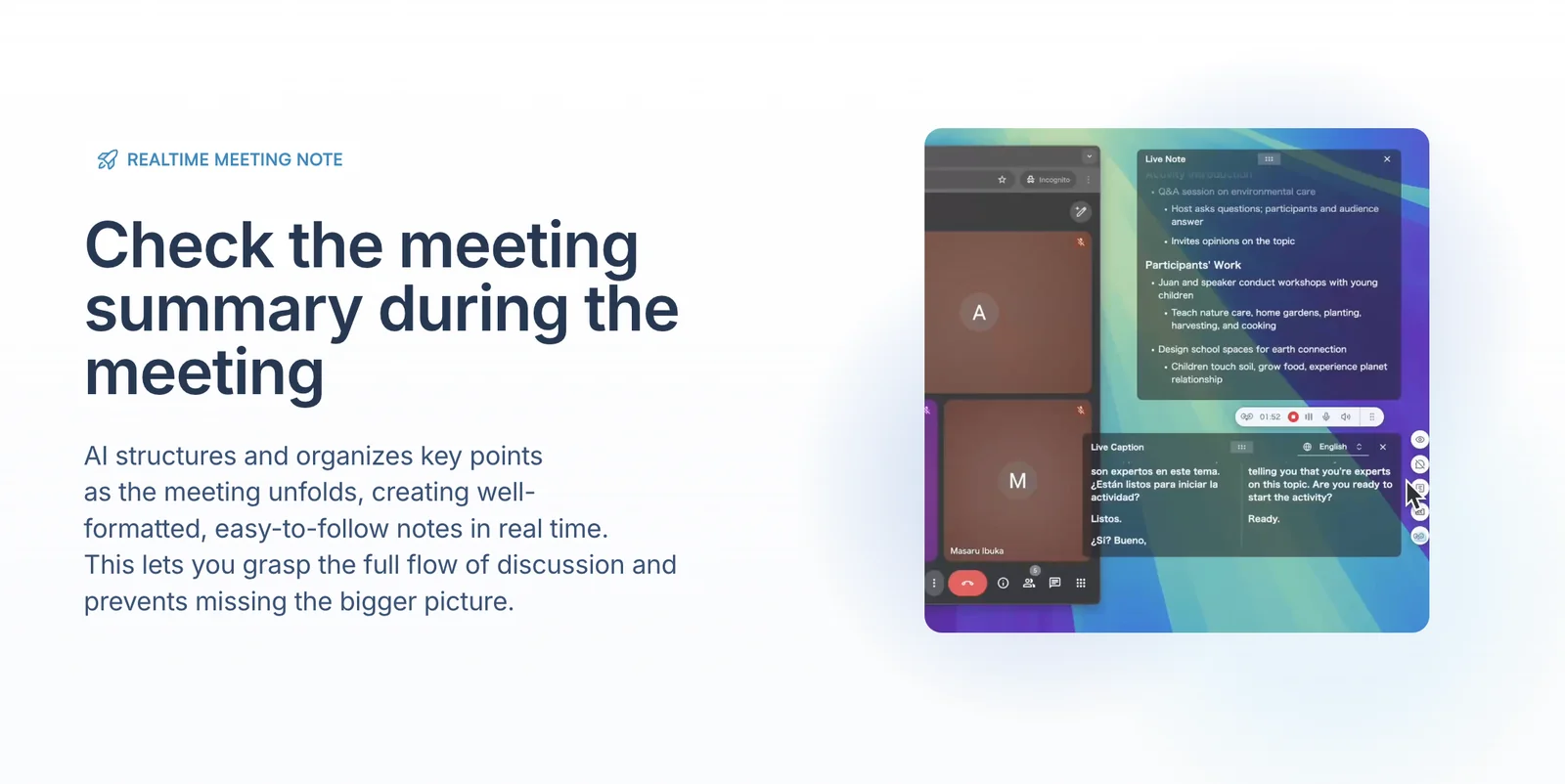
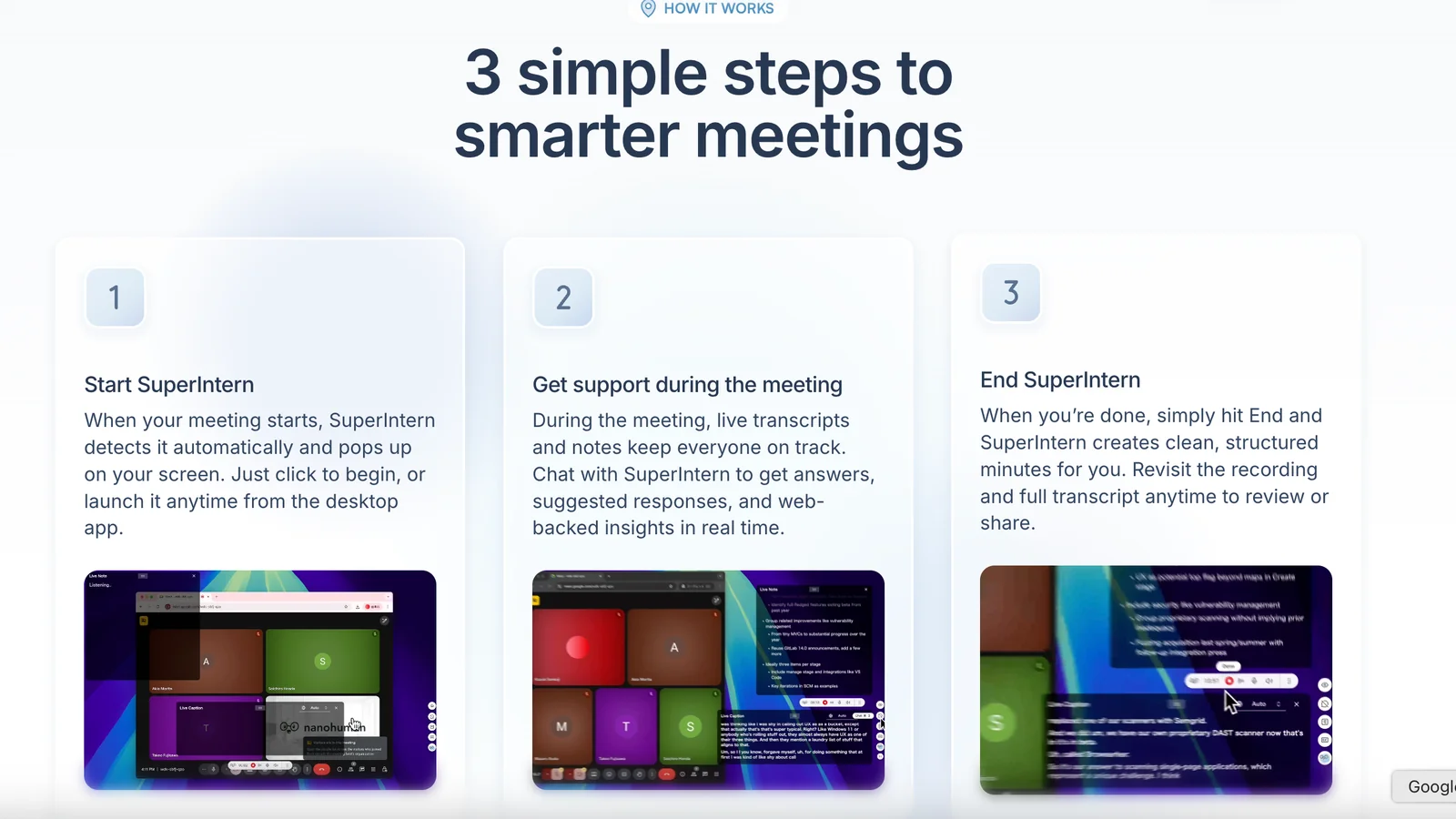
SuperIntern is a realtime, always-on meeting assistant that listens to live conversations, translates spoken language in real time, and auto-generates structured meeting summaries and action items. It operates as an unobtrusive copilot — able to remain invisible to participants while converting spoken content into organized outputs. SuperIntern also produces structured notes that automatically organize meeting outputs and (in later versions) can surface answers from integrated documents and past decisions, enabling instant contextual responses during meetings.
Screenshots
Key Features
Use Cases


Frequently asked questions about Always-on Meeting AI by SuperIntern
What are the pricing options for Always-on Meeting AI by SuperIntern?
Always-on Meeting AI by SuperIntern offers a flexible pricing structure, including a free tier, a one-time 60-minute free trial, a pay-as-you-go plan at $0.02 per minute, a Plus plan at $20/month, and a customizable Enterprise package for larger organizations.
Key Points
- Freemium Model: Start for free and explore basic features.
- Pay-as-You-Go: Only pay for what you use at $0.02 per minute.
- Monthly Subscription: The Plus plan provides enhanced features at a fixed rate.
Detailed Explanation
Always-on Meeting AI provides various pricing options to cater to different user needs:
-
Free Tier: This entry-level option allows users to experience the basic functionalities without any cost, making it ideal for individuals or small teams trying out the service.
-
One-time 60-Minute Free Trial: Users can access a full-featured version for a limited time, offering a taste of the premium capabilities before committing financially.
-
Pay-as-You-Go Plan: This flexible option charges $0.02 per minute, making it economical for occasional users. For example, if you use the service for 100 minutes, the total cost would be just $2. This plan is great for users who need occasional meetings without a long-term commitment.
-
Plus Plan: At $20 per month, this subscription unlocks additional features and benefits, such as enhanced AI capabilities, priority support, and advanced analytics. It’s suitable for regular users or teams requiring consistent meeting support.
-
Enterprise Offering: Tailored for larger organizations, this custom plan provides scalable solutions and pricing based on specific needs, including dedicated support and integration options.
Best Practices / Tips
- Evaluate Your Needs: Assess how often you'll use the service to choose the most cost-effective plan.
- Trial Use: Take advantage of the free trial to fully understand the features before making a financial commitment.
- Monitor Usage: For pay-as-you-go users, keep track of your meeting durations to manage costs effectively.
- Upgrade When Necessary: If you find yourself using the service frequently, consider switching to the Plus plan for better value.
Additional Resources
How does the live translation feature work in Always-on Meeting AI?
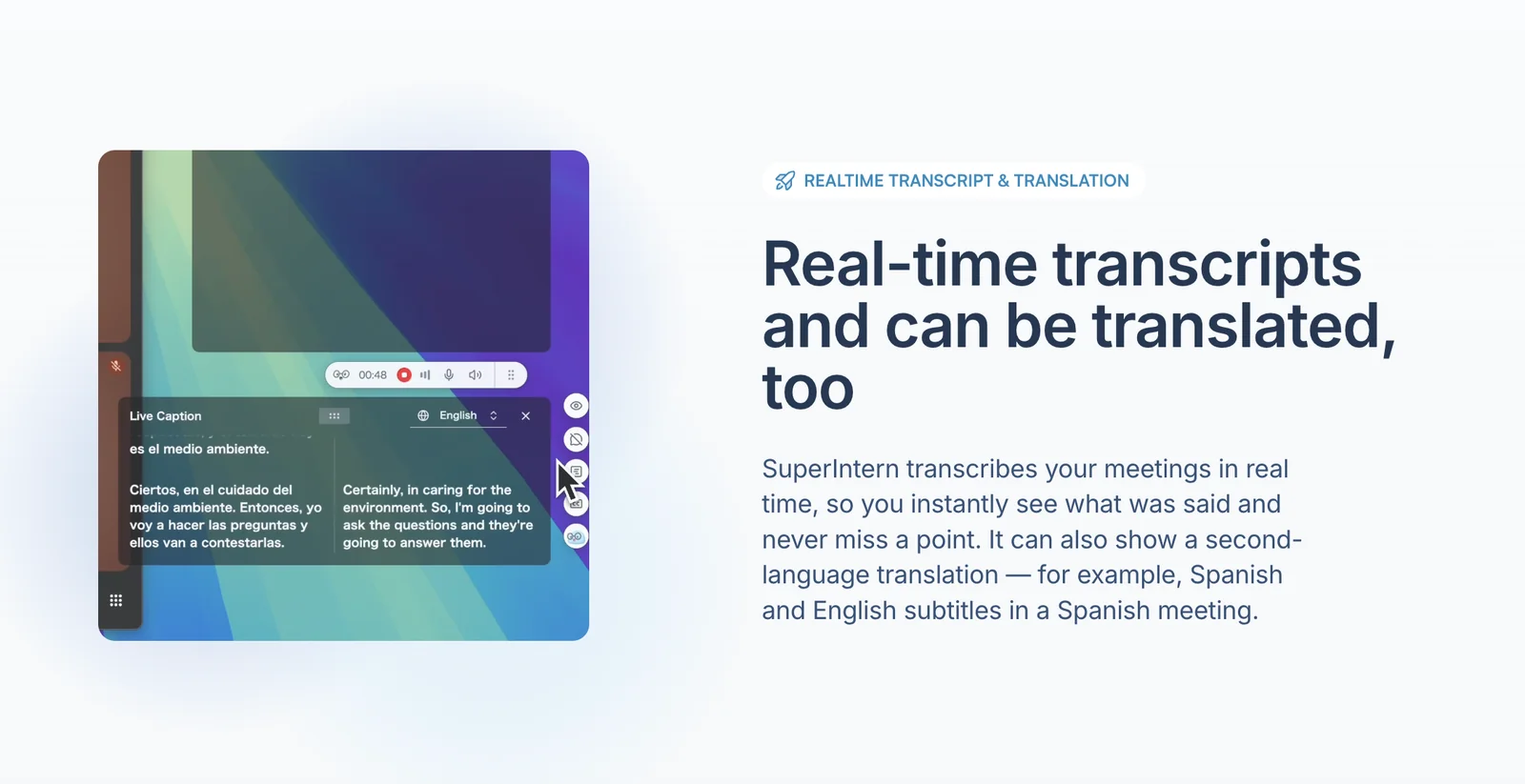
The live translation feature in Always-on Meeting AI provides real-time translation of spoken language during calls, enabling multilingual teams to understand conversations seamlessly. This functionality eliminates the need for manual interpretation, fostering collaboration and enhancing communication across language barriers in diverse work environments.
Key Points
- Real-Time Translation: Translates spoken words instantly during meetings.
- Multilingual Support: Facilitates communication among team members who speak different languages.
- Enhanced Collaboration: Improves engagement and understanding in diverse teams.
Detailed Explanation
The live translation feature utilizes advanced AI algorithms to listen to the spoken dialogue in real time and convert it into the desired language. For instance, when a team member speaks in Spanish, the AI instantly translates and delivers the message in English to other participants. This capability is particularly useful in global companies where team members may speak various languages.
Here's how it works in practice:
- Activation: Users enable the live translation feature before the meeting starts.
- Language Selection: Participants select their preferred languages from the settings menu.
- Real-Time Processing: As conversations unfold, the AI processes the audio, translating it on the fly and displaying it on-screen or through audio output.
- User-Friendly Interface: The translations can be viewed in text format, allowing participants to follow along visually.
This feature not only enhances understanding but also encourages participation from all team members, regardless of their language proficiency.
Best Practices / Tips
- Test the Feature: Before important meetings, conduct a test run to ensure the live translation is functioning correctly.
- Choose Common Languages: Opt for widely spoken languages to maximize the effectiveness of the translation.
- Clear Speech: Encourage participants to speak clearly and at a moderate pace to improve translation accuracy.
- Feedback Loop: After meetings, gather feedback on the translation quality to make necessary adjustments for future sessions.
Additional Resources
How can I start using Always-on Meeting AI for my meetings?
To start using Always-on Meeting AI, visit the official website and sign up for a free trial. This trial grants access to essential features such as live translation and meeting summaries, allowing you to experience the AI's capabilities in enhancing your meetings.
Key Points
- Sign up for a free trial to access core features.
- Utilize live translation for global participants.
- Explore meeting summary tools to save time.
Detailed Explanation
Getting started with Always-on Meeting AI is straightforward. First, navigate to the Always-on Meeting AI website. Click on the “Free Trial” button, which typically requires you to create an account by providing your email address and setting a password. Once registered, you can log in and explore the interface.
The free trial period usually lasts for 14 days, allowing you to test features such as live translation, which supports multiple languages, making it ideal for international teams. This feature ensures that language barriers do not hinder communication, facilitating smoother discussions.
Another key feature is meeting summaries. After each meeting, the AI generates concise summaries that highlight key points, action items, and decisions made. This is particularly useful for team members who may have missed the meeting, ensuring everyone stays informed.
Best Practices / Tips
- Use the onboarding resources: After signing up, take advantage of any tutorials or guides provided to familiarize yourself with the tool’s functionalities.
- Integrate with existing tools: Check if Always-on Meeting AI can integrate with your calendar or communication tools (like Zoom or Microsoft Teams) for seamless experience.
- Set clear objectives: Determine what you want to achieve with each meeting—whether it’s brainstorming, decision-making, or project updates—to maximize the AI features effectively.
Avoid common pitfalls like not preparing your meeting agenda in advance or failing to utilize the live translation feature for non-native speakers, as this can limit the effectiveness of your meetings.
Additional Resources
By leveraging these resources, you can enhance your use of Always-on Meeting AI, ensuring your meetings are productive and engaging.
What technical requirements are needed to integrate Always-on Meeting AI?
Always-on Meeting AI integrates seamlessly into existing video conferencing platforms, requiring no additional hardware or software. While specific technical requirements are not provided, it functions as an invisible copilot, enhancing meetings without disrupting your current workflow.
Key Points
- Seamless Integration: Works with popular video conferencing tools.
- No Additional Hardware: No need for extra equipment.
- Invisible Operation: Enhances user experience without interference.
Detailed Explanation
Always-on Meeting AI is designed to enhance virtual meetings by providing real-time suggestions and insights without requiring any significant changes to your existing setup. It operates as an invisible assistant, meaning users can enjoy its benefits without needing to install new software or hardware.
Compatible Platforms
The AI tool is compatible with various video conferencing applications such as Zoom, Microsoft Teams, and Google Meet. This compatibility allows organizations to leverage the AI's capabilities without disrupting their current technology stack.
User Experience
One of the standout features of Always-on Meeting AI is its ability to function unobtrusively during meetings. For instance, it can suggest agenda items, provide follow-up reminders, or summarize discussions in real-time. This feature is particularly beneficial for teams that frequently hold meetings and need to capture actionable insights quickly.
Best Practices / Tips
- Ensure Platform Compatibility: Confirm that your current video conferencing tool is supported by Always-on Meeting AI.
- Train Your Team: Provide training sessions to help team members utilize the AI effectively during meetings.
- Monitor Performance: Regularly assess how the AI is impacting meeting productivity and adjust your usage accordingly.
Additional Resources
How does Always-on Meeting AI compare to other meeting transcription tools?
Always-on Meeting AI distinguishes itself from other meeting transcription tools by offering live translation, invisible monitoring, real-time summaries, and contextual answers. Unlike traditional tools, which primarily focus on transcription, Always-on Meeting AI enhances communication and productivity for multilingual teams.
Key Points
- Live Translation: Supports multilingual communication in real-time.
- Invisible Monitoring: Operates discreetly, ensuring a seamless meeting experience.
- Contextual Answers: Provides relevant insights and summaries during discussions.
Detailed Explanation
Always-on Meeting AI integrates advanced features that significantly enhance the meeting experience.
-
Live Translation: This feature allows participants from different linguistic backgrounds to engage effectively. For example, during a meeting where English and Spanish speakers are present, Always-on Meeting AI translates discussions in real-time, ensuring everyone comprehends the ongoing dialogue without delays.
-
Invisible Monitoring: Unlike traditional transcription tools that require user interaction, Always-on Meeting AI operates invisibly in the background. This means users can focus on the conversation without the distraction of managing transcription services.
-
Contextual Answers: The tool not only transcribes but also analyzes conversations to provide instant summaries and responses based on the context of the discussion. For instance, if a participant asks for data related to a previous point, the AI can fetch that information quickly, streamlining decision-making.
These features make Always-on Meeting AI particularly beneficial for businesses that conduct international meetings, as it fosters clearer communication and reduces misunderstandings.
Best Practices / Tips
- Utilize Translation Features: Make sure to enable live translation for meetings involving participants who speak different languages.
- Test Before Use: Conduct a trial run of the software to familiarize yourself with its functionalities and ensure it meets your team's needs.
- Feedback Loop: Regularly gather feedback from users to identify areas for improvement and optimize the AI's performance during meetings.
Additional Resources
Explore more AI Ai Agents tools
Browse all Ai Agents tools →Browse by use case: Chatbots & Assistants · Automation & Productivity
Compare Always-on Meeting AI by SuperIntern: vs Mycel · vs Proto-Mind · vs Ami · vs Duvi