

Genspark
AIAll-in-one no-code AI workspace and agent platform that generates slides, docs, calls, videos, and automated outcomes from prompts.
Genspark
All-in-one no-code AI workspace and agent platform that generates slides, docs, calls, videos, and automated outcomes from prompts.
About Genspark
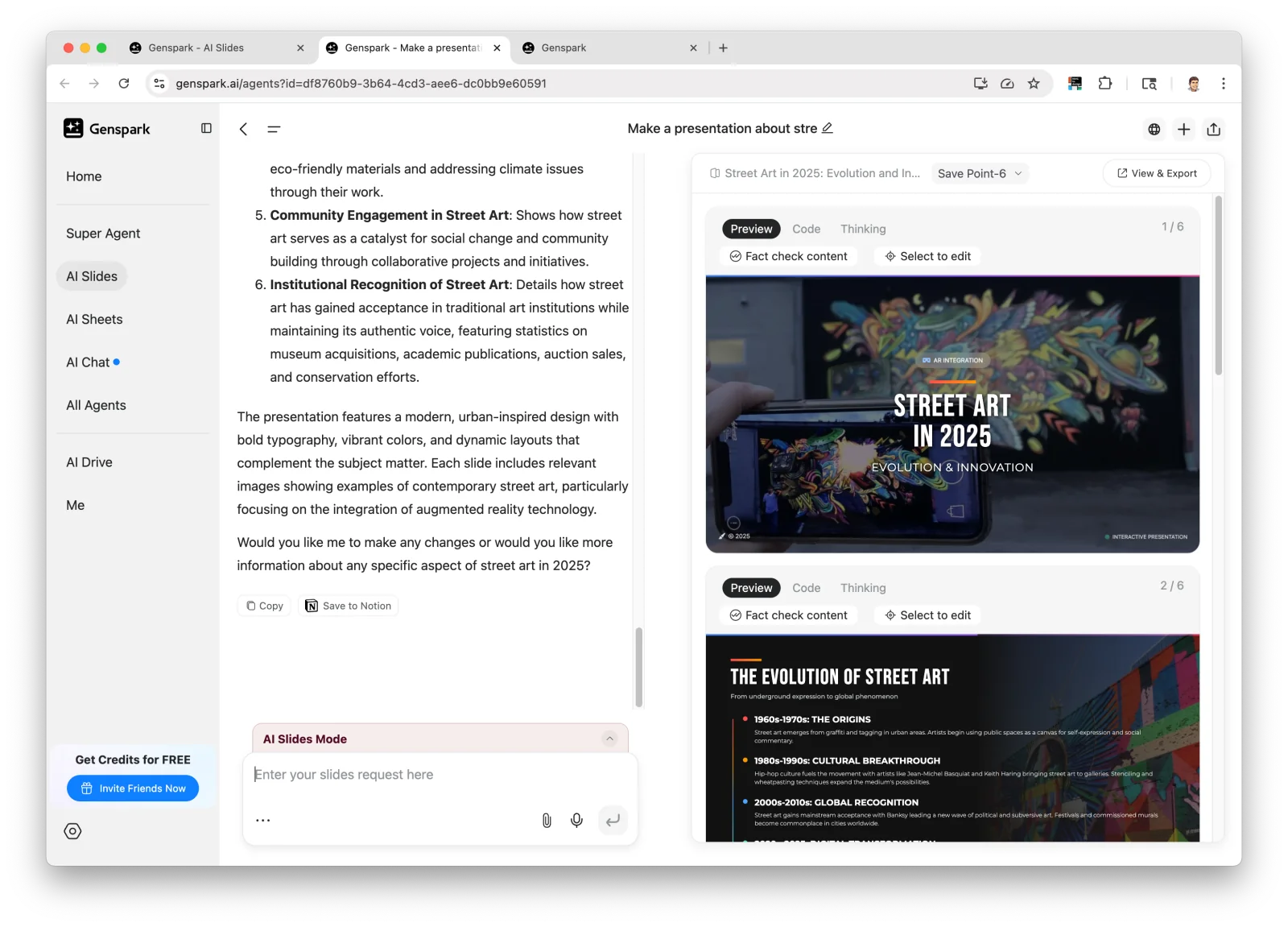
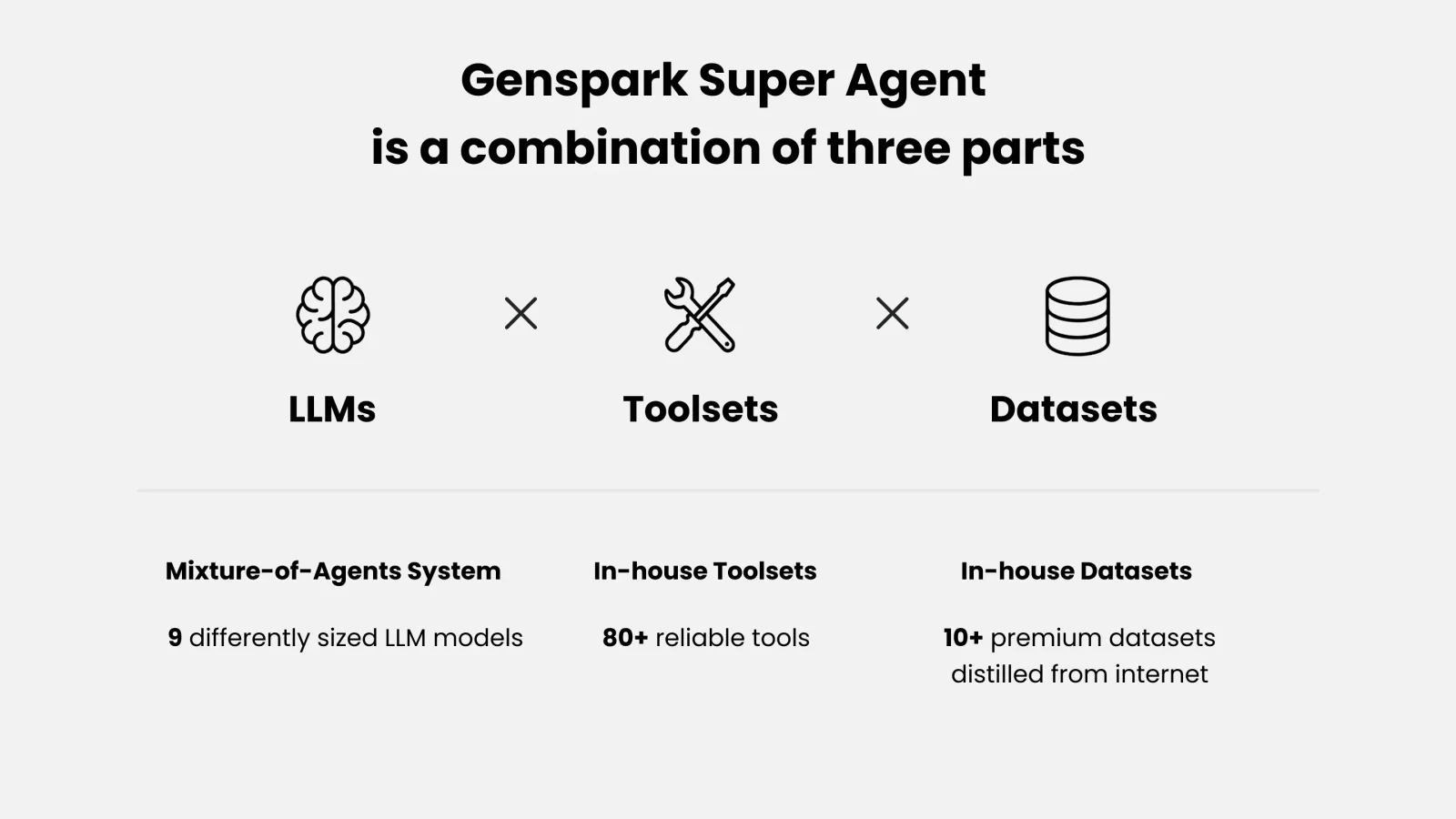
Genspark is an AI-driven workspace and agent engine that turns queries into real-world outcomes rather than only answers. It creates real-time custom pages (Sparkpages) and offers a suite of tools — AI Slides, Sheets, Docs, Chat, Image & Video, Download For Me, Call For Me, and more — plus a no-code Super Agent builder that automates tasks like phone calls, slide design, and video generation. The platform orchestrates multiple specialized language models and integrated tools (including partnerships/integrations with models like GPT-4.1 and Claude) to assign the right component to each subtask, enabling multimodal outputs and adaptive, outcome-focused workflows.
Screenshots
Key Features
Use Cases



Frequently asked questions about Genspark
What are the pricing options for Genspark?
Genspark offers a flexible pricing structure, including a FREEMIUM model with a Free tier that provides daily credits. Paid options include the Plus plan at $24.99 per month and the Pro plan at $249.99 per month, catering to various user needs and usage levels.
Key Points
- FREEMIUM Model: Access to daily credits with the Free tier.
- Plus Plan: Priced at $24.99/month for enhanced features.
- Pro Plan: Available for $249.99/month, ideal for extensive usage.
Detailed Explanation
Genspark's pricing options are designed to accommodate a wide range of users, from casual to professional.
-
FREEMIUM Model: The Free tier allows users to access basic features without any cost. This includes daily credits that can be used for various functionalities within the platform. This option is ideal for new users who want to explore Genspark's capabilities without financial commitment.
-
Plus Plan: At $24.99 per month, the Plus plan offers additional features that enhance user experience. This plan is suitable for individuals or small teams requiring more extensive functionality, such as increased daily credits, priority support, and access to exclusive features. It provides a balance between cost and usability for those who use the platform regularly.
-
Pro Plan: The Pro plan, priced at $249.99 per month, is aimed at businesses and professionals who need advanced features and higher limits. This plan typically includes unlimited credits, advanced analytics, and dedicated support. It is perfect for organizations that rely heavily on Genspark for their operations, allowing them to maximize the tool's potential.
Best Practices / Tips
- Evaluate Your Needs: Before selecting a plan, assess your usage needs. If you're a beginner, start with the Free tier to understand the platform's capabilities.
- Consider Upgrading: If you find yourself consistently hitting the limits of the Free tier, consider upgrading to the Plus plan for a better experience.
- Utilize Discounts: Keep an eye out for promotional offers or discounts that may be available for longer-term commitments or referrals.
Additional Resources
How do I start using Genspark for creating slides?
To start using Genspark for creating slides, sign up for a free account at genspark.ai. Once registered, navigate to AI Slides to easily generate presentations based on your prompts and content needs.
Key Points
- Sign up for a free account.
- Access the AI Slides feature.
- Generate presentations from text prompts.
Detailed Explanation
Genspark offers a user-friendly platform designed to help you create high-quality presentations effortlessly. Here’s how to get started:
-
Sign Up: Visit genspark.ai and click on the "Sign Up" button. Fill in your details, including your email address and a password. You may also have the option to sign up using social media accounts for quicker access.
-
Explore the Dashboard: After signing up, log into your account to access the main dashboard. Here, you will find various tools, including AI Slides, which simplifies the presentation creation process.
-
Using AI Slides:
- Click on the “AI Slides” feature.
- Enter your presentation topic or prompts in the text box. Be specific to get the best results.
- Choose your preferred slide design and layout options.
- Review and edit the generated slides as needed.
-
Download or Share: Once you’re satisfied with your presentation, you can download it in various formats like PDF or PowerPoint, or share it directly via a link.
Best Practices / Tips
- Be Specific with Prompts: The more detailed your input, the better the AI can tailor the slides to your needs. For instance, instead of just "Marketing," use "Digital Marketing Strategies for Small Businesses."
- Utilize Templates: Explore different slide templates in Genspark to enhance visual appeal. A well-designed template can significantly impact audience engagement.
- Review and Edit: Always review the generated content. While Genspark is highly effective, manual adjustments can ensure accuracy and personalization.
- Incorporate Visuals: Enhance your slides with relevant images or graphics to make your presentation more captivating.
Additional Resources
- Genspark Official Documentation - For detailed user guides and FAQs.
- Genspark Blog - Insights on presentation tips and AI tools.
- YouTube Tutorials - Video walkthroughs on using Genspark effectively.
What features does Genspark offer compared to other AI tools?
Genspark offers a unique combination of features including a no-code automation builder, multimodal content generation, and an agent orchestration engine. These capabilities set it apart from other AI tools by enabling users to automate tasks efficiently and create diverse content without requiring extensive programming skills.
Key Points
- No-Code Automation Builder: Simplifies task automation for users with no coding experience.
- Multimodal Content Generation: Allows the creation of text, images, and videos seamlessly.
- Agent Orchestration Engine: Manages multiple AI agents to enhance workflow efficiency.
Detailed Explanation
Genspark stands out in the crowded AI tool market due to its innovative features tailored for both novice and experienced users.
-
No-Code Automation Builder:
- Genspark's drag-and-drop interface enables users to create automated workflows without writing a single line of code. This feature is particularly beneficial for small businesses and teams that require quick solutions to repetitive tasks. For example, you can design an automated email response system that integrates with your CRM in just a few clicks.
-
Multimodal Content Generation:
- This feature enables users to generate content across different formats such as articles, infographics, and videos. Genspark utilizes advanced algorithms to ensure that all content adheres to your brand's voice and style. Businesses can leverage this to create marketing materials or social media posts efficiently, helping to maintain a consistent online presence.
-
Agent Orchestration Engine:
- The orchestration engine allows users to manage multiple AI agents simultaneously. This is particularly useful for complex projects that require different AI functionalities, such as data analysis, content creation, and customer service automation. For instance, a marketing team can use various agents for social listening, content generation, and performance tracking all within the same platform.
Best Practices / Tips
- Start Small: If you're new to Genspark, begin by automating simple tasks. This helps you familiarize yourself with the interface and capabilities without feeling overwhelmed.
- Leverage Templates: Use pre-built templates to speed up your workflow. Genspark offers numerous templates for common tasks, which can be customized to meet specific needs.
- Monitor Performance: Regularly check the performance of your automated workflows. Genspark provides analytics that can help you understand areas for improvement.
Additional Resources
Can I integrate Genspark with other APIs?
Yes, Genspark allows integration with various APIs, including OpenAI models. This capability enables users to enhance their projects with advanced features, real-time execution, and seamless data exchange, making it a versatile tool for developers and businesses.
Key Points
- Wide API Support: Genspark supports multiple APIs for diverse functionalities.
- Seamless Integration: Effortlessly connect Genspark with other platforms.
- Enhanced Capabilities: Utilize advanced AI models and real-time data processing.
Detailed Explanation
Genspark is designed to be a flexible platform that supports integration with numerous APIs, including popular services like OpenAI, AWS, and Google Cloud. This feature allows users to leverage powerful machine learning models and AI capabilities directly within their applications. For instance, developers can utilize OpenAI's GPT-3 for natural language processing tasks or machine learning predictions seamlessly integrated into their workflows.
Example Use Case
- AI Chatbots: By integrating Genspark with OpenAI's API, developers can create intelligent chatbots that understand and respond to user queries in real-time.
- Data Analysis: Genspark can connect with data analytics APIs to process and visualize large datasets, enabling more informed decision-making.
Step-by-Step Integration Guide
- Choose Your API: Identify which API you want to integrate with Genspark.
- API Key Setup: Obtain an API key from the respective service provider.
- Configure Genspark: Go to the Genspark dashboard and add the API details, including the endpoint and authentication.
- Test the Connection: Run test calls to ensure the API is functioning correctly within Genspark.
- Deploy Your Project: Once tested, deploy your project and monitor its performance.
Best Practices / Tips
- Documentation Review: Always refer to the official API documentation for updates and best practices.
- Error Handling: Implement robust error handling to manage API failures gracefully.
- Limit Requests: Be mindful of API rate limits to avoid service disruptions.
- Security Considerations: Keep your API keys secure and do not expose them in public code repositories.
Additional Resources
What support options are available for Genspark users?
Genspark offers multiple support options for users, including an extensive FAQ section, detailed tutorials, and a direct contact form for personalized assistance with complex inquiries. These resources ensure that users can easily find the help they need for their learning and development journey.
Key Points
- Comprehensive FAQ section available on the website.
- Step-by-step tutorials covering various topics.
- Direct contact for personalized support on complex issues.
Detailed Explanation
Genspark provides a well-rounded support system designed to assist users at various stages of their learning process.
-
FAQs: The frequently asked questions section addresses common issues and queries that users may encounter. It serves as a first-stop resource for quick answers about account management, course content, and technical issues.
-
Tutorials: Genspark features a collection of tutorials that guide users through different topics related to their courses. These tutorials are designed to enhance the learning experience by providing clear, visual content that can help clarify complex subjects.
-
Contact Support: For users facing more intricate issues, Genspark offers a contact form where they can submit their questions. The support team typically responds within 24-48 hours, ensuring that users receive timely assistance.
By utilizing these resources, Genspark users can maximize their learning potential and resolve any challenges they encounter promptly.
Best Practices / Tips
- Utilize FAQs First: Before reaching out for support, check the FAQ section as it may have the answer you're looking for.
- Follow Tutorials Closely: When using tutorials, take notes and practice the steps to reinforce learning.
- Be Clear When Contacting Support: Provide detailed information about your issue when filling out the contact form to facilitate quicker resolution.
Additional Resources
Explore more AI Ai Agents tools
Browse all Ai Agents tools →Browse by use case: Code Generation · Automation & Productivity
Compare Genspark: vs Apache Maka · vs Construct Computer · vs ShogunAI · vs fx