

Ollama
AIOpen SourceA local-first runtime and tooling to run, manage, and integrate large language models on personal or self-hosted infrastructure.
Ollama
A local-first runtime and tooling to run, manage, and integrate large language models on personal or self-hosted infrastructure.
About Ollama
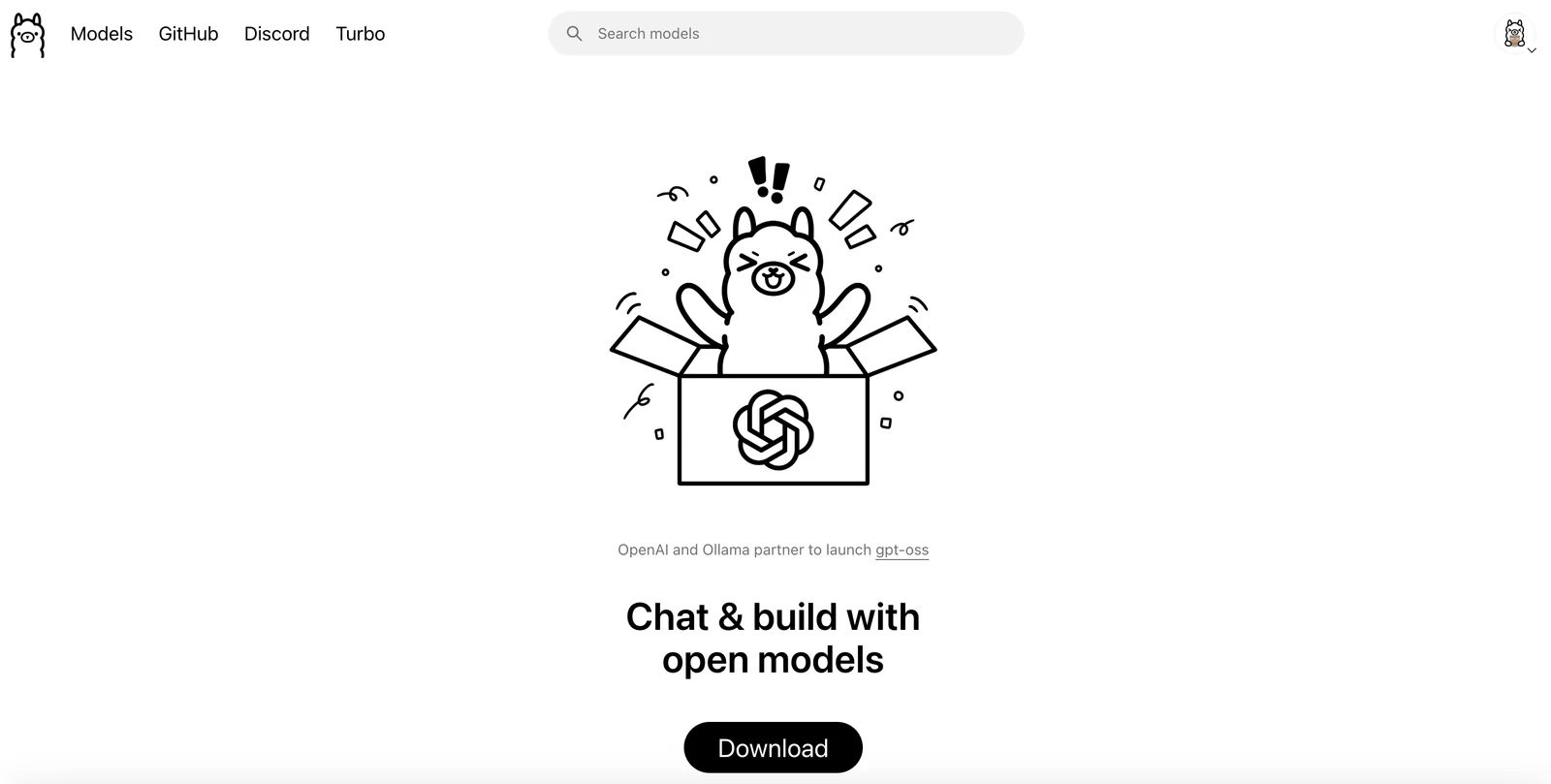
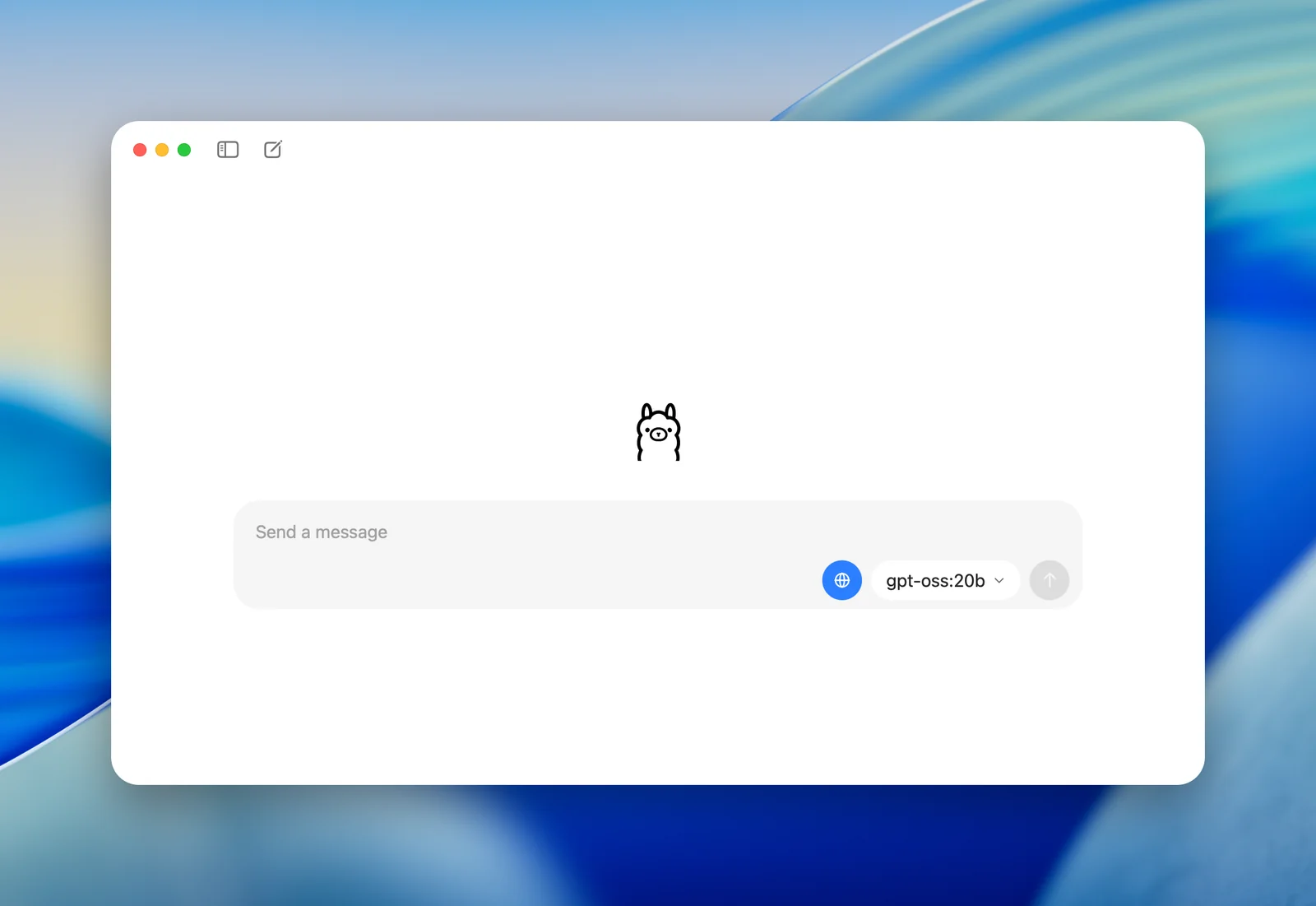
Ollama provides a lightweight, extensible runtime and developer tooling for running large language models locally or on your infrastructure. It exposes a simple API and CLI to create, run, and manage models, offers a library of pre-built models, and supports integrations via community SDKs and apps. Ollama also provides a web-search augmentation API to give models up-to-date information and reduce hallucinations, plus a cross-platform desktop client that connects to local or remote Ollama servers. Its value lies in enabling privacy-preserving, low-latency LLM usage with flexible deployment options and ecosystem integrations.
Screenshots
Key Features
Use Cases


Frequently asked questions about Ollama
What are the pricing options for Ollama?
Ollama provides a freemium pricing model that includes a free tier for local use, cloud plans with variable pricing based on usage, and open-source options at no cost. For detailed cloud pricing, users are encouraged to contact Ollama directly for a tailored quote.
Key Points
- Free Tier: Access to local usage at no cost.
- Cloud Plans: Variable pricing based on usage needs.
- Open-Source Options: Available for users looking for free solutions.
Detailed Explanation
Ollama's pricing structure is designed to accommodate a wide range of users, from individuals to larger organizations.
-
Free Tier: This option allows users to utilize Ollama's features locally without incurring any costs. It's ideal for developers and small projects, providing a risk-free way to explore the platform's capabilities.
-
Cloud Plans: Ollama's cloud offerings are flexible, with pricing that adjusts based on the level of usage. This means that users only pay for what they use, making it suitable for businesses that may have fluctuating demands. To get precise pricing details, users should reach out to Ollama directly, as they will provide a custom quote based on individual needs.
-
Open-Source Options: For those interested in flexibility and control, Ollama also provides open-source tools at no cost. This option is perfect for developers who want to customize their experience or integrate Ollama's solutions into their own software.
Best Practices / Tips
- Evaluate Your Needs: Before deciding on a plan, assess your usage patterns to determine whether a free tier or a cloud plan is more suitable.
- Contact for Custom Pricing: Don’t hesitate to reach out to Ollama for cloud pricing. They can provide a quote tailored to your specific usage requirements.
- Explore Open-Source: If you're comfortable with coding, take advantage of the open-source options to experiment and potentially contribute to the community.
Additional Resources
How do I get started with Ollama?
To get started with Ollama, first download the open-source software from the official website. Install it on your machine, then explore the extensive pre-built model library. Additionally, you can utilize community SDKs to facilitate integration into your applications and enhance your projects with AI capabilities.
Key Points
- Download and install Ollama from the official website.
- Explore the extensive library of pre-built models.
- Utilize community SDKs for application integration.
Detailed Explanation
Step 1: Download and Install
Begin by visiting the Ollama official website. Here, you will find the latest version of the open-source software available for various operating systems. Follow the installation instructions tailored for your OS—Windows, macOS, or Linux. Installing Ollama is straightforward and typically involves running an installer or executing a command in your terminal.
Step 2: Explore Pre-Built Models
Once installed, launch the Ollama application. You will find access to an extensive library of pre-built models. These models can perform various tasks ranging from natural language processing to image recognition. Take time to explore these models, as they can significantly boost your productivity and project capabilities. For example, if you are developing a chatbot, you can utilize a pre-built conversational model.
Step 3: Utilize Community SDKs
Ollama has a vibrant community that actively contributes SDKs for various programming languages. These SDKs facilitate seamless integration of Ollama's capabilities into your applications. Check platforms like GitHub or the Ollama community forums for available SDKs. Integrating these tools can streamline your AI application development process.
Best Practices / Tips
- Stay Updated: Regularly check the official website for updates to the software and models. New features and optimizations are frequently added.
- Engage with the Community: Participate in forums and discussions to learn from other users' experiences. This can provide insights into best practices and innovative use cases.
- Experiment with Models: Don’t hesitate to try out different models provided in the library to find which best suits your specific use case. Experimentation can often lead to unexpected and valuable results.
Additional Resources
By following these steps and utilizing the resources available, you can effectively harness the power of Ollama for your AI projects.
What are the main features of Ollama?
Ollama offers a robust suite of features, including a local model runtime for low-latency inference, an API for seamless model management, a library of pre-built models, and web search augmentation to improve accuracy. It supports cross-platform functionality on macOS, Windows, and Linux for versatile usage.
Key Points
- Local Model Runtime: Enables low-latency inference for quick responses.
- API for Model Management: Facilitates easy integration and management of models.
- Pre-built Models and Web Search Augmentation: Enhances model accuracy through external data sources.
Detailed Explanation
Ollama's features are designed to streamline the use of AI models across various platforms.
-
Local Model Runtime: This feature allows users to run models directly on their machines, significantly reducing latency. For instance, users can deploy natural language processing models that respond in real-time without needing cloud connectivity.
-
API for Model Management: The API enables developers to manage their AI models efficiently. They can upload, update, and monitor model performance with ease, making it ideal for businesses that require frequent model adjustments.
-
Library of Pre-built Models: Ollama provides a comprehensive library of pre-built models, covering various applications like text generation, image recognition, and sentiment analysis. This feature allows users to save time and effort by leveraging existing solutions.
-
Web Search Augmentation: By integrating web search capabilities, Ollama enhances the accuracy of its models. For example, a model answering queries can pull in real-time data from the web, ensuring the information is up-to-date and relevant.
Ollama is also designed for cross-platform compatibility, functioning seamlessly on macOS, Windows, and Linux, making it accessible to a wider audience.
Best Practices / Tips
- Optimize Local Environment: Ensure that your local environment is well-configured to maximize the performance of the local model runtime.
- Utilize the API Efficiently: Familiarize yourself with the API documentation to make full use of its capabilities for model management.
- Explore Pre-built Models: Take advantage of the library to find models that can meet your specific needs without having to build from scratch.
Additional Resources
How does Ollama compare to other AI model tools?
Ollama distinguishes itself from other AI model tools by offering a local-first approach that prioritizes data privacy and low-latency performance. Unlike cloud-only solutions, Ollama supports offline capabilities and flexible model hosting, making it a top choice for users who prioritize data security and operational efficiency.
Key Points
- Local-first Approach: Ensures data remains on-device, enhancing privacy.
- Offline Capabilities: Operates without internet, ideal for remote work.
- Flexible Hosting: Allows users to choose model deployment options.
Detailed Explanation
Ollama's local-first architecture means that all data processing occurs on the user's device rather than relying on cloud servers. This minimizes the risk of data breaches and ensures that sensitive information stays confidential. Additionally, users experience low-latency performance since processing does not depend on internet speed or connectivity.
In contrast, many conventional AI tools depend solely on cloud infrastructures, which can lead to latency issues and potential service outages. For instance, if a cloud server goes down, users of those tools may face disruptions. Ollama's ability to function offline not only provides reliability but also supports users in environments with limited or unreliable internet access.
Furthermore, Ollama offers flexibility in model hosting. Users can deploy models on their own hardware or integrate them into various applications. This versatility is especially beneficial for businesses that require customized AI solutions tailored to their specific needs.
Use Cases
- Remote Work Environments: Professionals can utilize Ollama for AI tasks without worrying about internet connectivity.
- Sensitive Data Handling: Organizations in finance or healthcare can leverage Ollama to ensure compliance with data protection regulations.
- Custom Applications: Developers can easily integrate Ollama into their applications without depending on external servers.
Best Practices / Tips
- Evaluate Your Needs: Consider your data privacy requirements before choosing between local and cloud-based solutions.
- Test Offline Capabilities: Use Ollama in various scenarios to assess its performance without internet access.
- Stay Updated: Regularly check for updates and improvements to Ollama to leverage new features and optimizations.
Additional Resources
How can I integrate Ollama's API into my application?
You can integrate Ollama's API into your application using its command-line interface or REST API for effective model management and inference. For comprehensive guidance and setup instructions, refer to the detailed documentation available on Ollama's official website.
Key Points
- Utilize the command-line interface for direct integration.
- Leverage the REST API for scalable model management.
- Access thorough documentation for step-by-step instructions.
Detailed Explanation
Integrating Ollama's API involves two main approaches: the command-line interface (CLI) and the REST API.
-
Command-Line Interface:
- To get started, install the Ollama CLI by following the installation instructions available on the official website.
- Once installed, you can run commands to manage models and perform inference tasks directly from your terminal.
- Example command:
ollama run model_nameto execute a specific model.
-
REST API:
- For applications requiring more extensive interaction, the REST API is ideal.
- This allows your application to perform operations over HTTP, making it suitable for web and mobile applications.
- To use the REST API, you'll need to authenticate your requests, typically through an API key.
- Example endpoint for inference:
POST https://api.ollama.com/v1/models/{model_id}/inferwhere you send your request payload in JSON format.
Use Cases:
- Machine Learning Applications: Integrate Ollama’s models into data science pipelines for tasks like natural language processing or image recognition.
- Web Services: Use the REST API to create web applications that utilize Ollama's models for real-time predictions.
Best Practices / Tips
- Authentication: Always ensure that your API keys are secure. Don’t hard-code them in your application; consider using environment variables.
- Rate Limiting: Be aware of the API rate limits to avoid service interruptions. Monitor your usage and optimize your requests accordingly.
- Error Handling: Implement robust error handling to manage failed requests gracefully and provide feedback to users.
Additional Resources
Explore more AI Ai Models tools
Browse all Ai Models tools →- Soup CLI
- VibeVoice
- Laguna by Poolside
- Arena AI: The Official AI Ranking & LLM Leaderboard
- PromptLayer
- PHBench
Compare Ollama: vs Soup CLI · vs VibeVoice · vs Laguna by Poolside · vs Arena AI: The Official AI Ranking & LLM Leaderboard