

ChatGPT - Google Workspace Marketplace
AIIntegrates ChatGPT into Google Sheets to build, analyze, and update spreadsheets using natural-language instructions.
ChatGPT - Google Workspace Marketplace
Integrates ChatGPT into Google Sheets to build, analyze, and update spreadsheets using natural-language instructions.
About ChatGPT - Google Workspace Marketplace
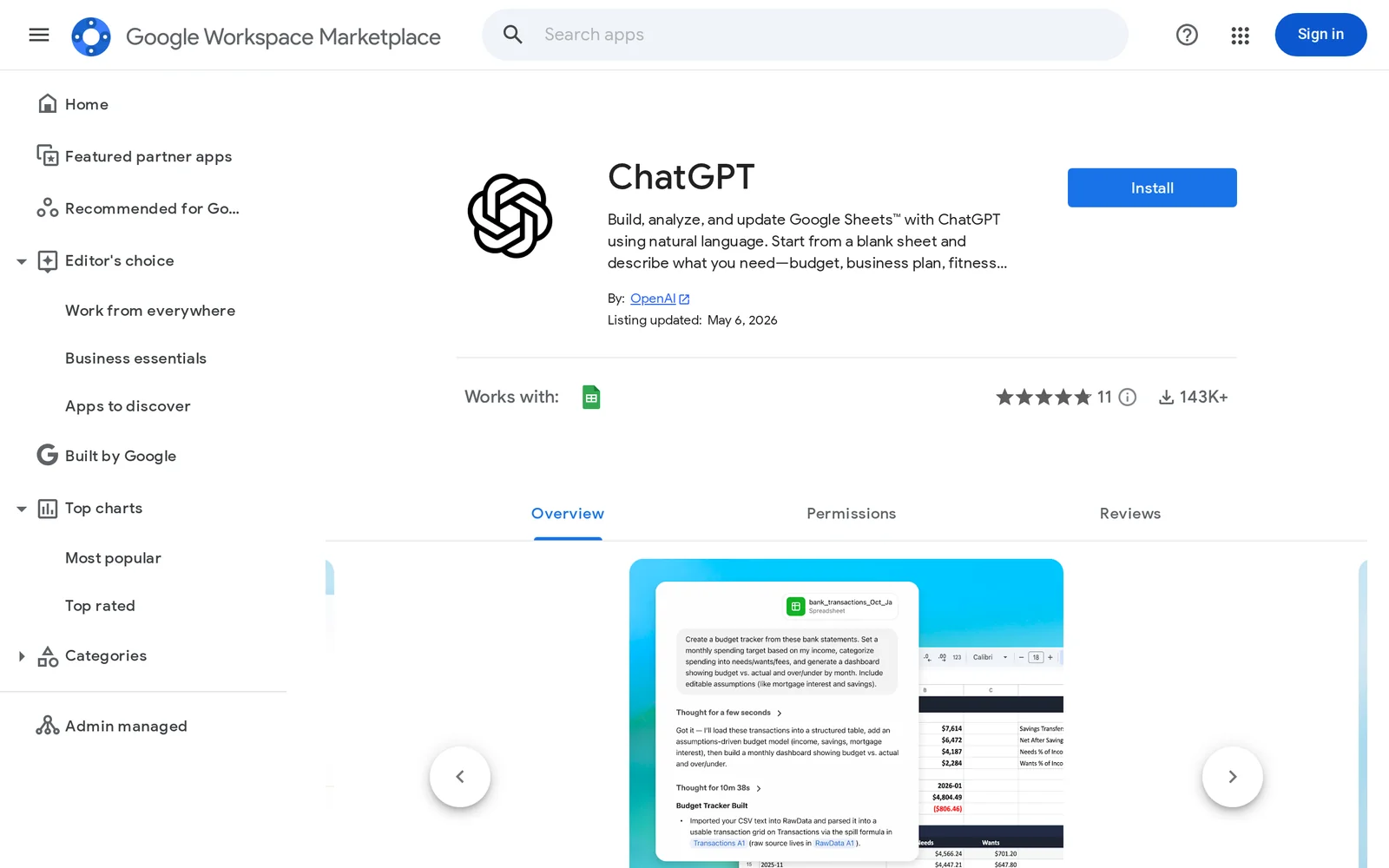
ChatGPT for Google Workspace (Sheets) embeds ChatGPT functionality directly into Google Sheets so users can create, modify, and analyze spreadsheets by typing natural-language commands. Users can start from a blank sheet or provide existing data and ask ChatGPT to generate budgets, business plans, fitness trackers, formulas, and analyses. The integration supports admin-managed setup for Google Workspace, enabling enterprise deployment with controlled service-account permissions. Its value is reducing manual formula-writing and data-cleanup time, enabling non-technical users to produce complex sheets and insights quickly within the Google Workspace environment.
Screenshots
Key Features
Use Cases



Frequently asked questions about ChatGPT - Google Workspace Marketplace
What is ChatGPT - Google Workspace Marketplace?
ChatGPT in the Google Workspace Marketplace allows users to enhance Google Sheets™ by utilizing natural language commands. Users can create, analyze, and update spreadsheets effortlessly, whether they need to develop budgets, business plans, fitness trackers, or other data-driven projects.
Key Points
- Natural Language Processing: Interact with Google Sheets using simple text prompts.
- Versatile Applications: Suitable for various tasks like budgeting, project management, and fitness tracking.
- User-Friendly Interface: Seamless integration within Google Workspace for enhanced productivity.
Detailed Explanation
ChatGPT in the Google Workspace Marketplace leverages advanced AI to simplify interactions with Google Sheets™. By typing commands in plain language, users can perform complex functions without needing deep spreadsheet knowledge. For example, you can type “Create a monthly budget with income and expenses categories” and ChatGPT will generate a structured sheet with appropriate formulas.
Use Cases
-
Budget Planning: Users can easily set up a financial plan by specifying categories like income, rent, groceries, and entertainment. ChatGPT will automatically format the sheet and insert necessary calculations.
-
Business Proposals: Users can draft business plans by providing key details. The tool will help in creating sections for market analysis, financial projections, and operational strategies in a well-organized format.
-
Fitness Tracking: Users can track their fitness goals by inputting data such as workouts, calories burned, and progress. ChatGPT can set up a tracker that visually represents progress over time.
Best Practices / Tips
- Be Specific: When giving commands, the more specific you are, the better the results. For instance, instead of saying “Create a budget,” specify “Create a budget for a family of four with income and fixed expenses.”
- Utilize Templates: Explore pre-built templates available through ChatGPT to save time. Customize them as needed for your specific use case.
- Double-Check Formulas: While ChatGPT is powerful, always review any formulas generated for accuracy, particularly in complex financial calculations.
Additional Resources
How does ChatGPT - Google Workspace Marketplace work?
ChatGPT - Google Workspace Marketplace integrates advanced AI capabilities into Google Workspace, enhancing productivity by automating tasks and streamlining workflows. This tool allows users to utilize ChatGPT directly within apps like Google Docs and Sheets, facilitating natural language processing for various applications.
Key Points
- AI Integration: ChatGPT enhances Google Workspace functions with AI-driven assistance.
- Workflow Automation: Streamlines day-to-day tasks, improving overall productivity.
- User-Friendly: Accessible directly within familiar applications like Docs and Sheets.
Detailed Explanation
ChatGPT - Google Workspace Marketplace works by embedding artificial intelligence into the Google Workspace suite, providing users with the ability to interact with AI in real-time. By leveraging natural language processing, users can generate content, summarize documents, or analyze data effortlessly.
Use Cases
- Content Creation: Users can draft emails, reports, or articles using ChatGPT's writing assistance, improving speed and creativity.
- Data Analysis: In Google Sheets, users can ask questions about their data, and ChatGPT can provide insights, identify trends, or suggest next steps based on the information.
- Brainstorming Ideas: Teams can collaborate on project ideas or marketing strategies, leveraging AI to stimulate creative discussions.
Step-by-Step Guidance
- Install the Add-on: Navigate to the Google Workspace Marketplace, search for ChatGPT, and click "Install."
- Access in Google Apps: Open Google Docs or Sheets, and find ChatGPT in the 'Add-ons' menu.
- Utilize Features: Start typing prompts or questions, and ChatGPT will provide responses directly within your document.
Best Practices / Tips
- Clear Prompts: Use specific questions or requests to get the most accurate responses from ChatGPT.
- Iterate Responses: Don't hesitate to ask follow-up questions for clarification or deeper insights.
- Explore Functionality: Regularly check for updates or new features in the add-on to maximize its benefits.
- Avoid Overreliance: Use ChatGPT as a tool to enhance your work, but ensure personal input remains in your projects.
Additional Resources
- Google Workspace Marketplace - ChatGPT
- Official ChatGPT Documentation
- Exploring AI in Productivity Tools
By capitalizing on ChatGPT's capabilities within Google Workspace, users can significantly enhance their productivity, making everyday tasks easier and more efficient.
What are the main features of ChatGPT - Google Workspace Marketplace?
ChatGPT on the Google Workspace Marketplace offers robust AI capabilities, including natural language understanding, seamless integration with Google applications, and automation features that enhance productivity. Users can leverage these tools for writing assistance, data analysis, and improved communication within their teams.
Key Points
- Natural Language Understanding: Interacts intelligently with users.
- Integration with Google Apps: Works seamlessly with Docs, Sheets, and Gmail.
- Automation Features: Streamlines repetitive tasks, saving time.
Detailed Explanation
ChatGPT is designed to enhance productivity within Google Workspace by providing advanced AI features.
-
Natural Language Understanding: This feature allows ChatGPT to comprehend and generate human-like text. It can assist users in drafting emails, creating documents, or generating meeting notes, making communication smoother and more efficient.
-
Integration with Google Apps: ChatGPT integrates effortlessly with various Google applications, such as Google Docs and Sheets. For example, users can generate summaries or insights directly within a Google Doc or automate data entry in Sheets, enhancing workflow efficiency.
-
Automation Features: Users can automate repetitive tasks, such as scheduling meetings or sending reminders, using ChatGPT's AI capabilities. This feature is particularly beneficial for teams, as it allows members to focus on more critical tasks while ChatGPT handles routine activities.
Best Practices / Tips
- Maximize Integration: Use ChatGPT to create templates in Google Docs for reports or presentations to save time.
- Experiment with Automation: Set up ChatGPT to send weekly summaries of project updates, keeping your team informed without manual effort.
- Utilize Feedback: Regularly provide feedback to ChatGPT to improve its responses and tailor its functionality to your specific needs.
Additional Resources
- Official ChatGPT Documentation
- Google Workspace Marketplace
- ChatGPT for Google Workspace - User Guide
By leveraging these features, organizations can significantly enhance their productivity, streamline operations, and improve communication within teams.
Who is ChatGPT - Google Workspace Marketplace for?
ChatGPT - Google Workspace Marketplace is designed for individuals and teams seeking to enhance their productivity through AI-driven workflows. It is particularly beneficial for professionals in areas such as content creation, project management, and data analysis, enabling seamless integration of AI tools into everyday tasks.
Key Points
- Target Audience: Professionals, teams, and businesses.
- Use Cases: Content creation, project management, data analysis.
- Integration: Seamless incorporation into Google Workspace tools.
Detailed Explanation
ChatGPT - Google Workspace Marketplace is an invaluable resource for anyone looking to leverage AI to streamline daily tasks.
Who Can Benefit?
- Content Creators: Writers, marketers, and social media managers can utilize ChatGPT to generate ideas, draft posts, and create engaging content faster.
- Project Managers: Teams can enhance collaboration by using AI for task assignments, progress tracking, and automated reminders, leading to improved efficiency.
- Data Analysts: Professionals can harness ChatGPT for data interpretation, report generation, and predictive analytics, saving time and increasing accuracy.
How to Get Started
- Access the Marketplace: Visit the Google Workspace Marketplace and search for ChatGPT.
- Install the Tool: Click "Install" and follow the prompts to integrate it with your Google account.
- Explore Features: Familiarize yourself with functionalities such as document editing, email drafting, and data analysis tools.
Best Practices / Tips
- Customize Responses: Use specific prompts to guide ChatGPT in producing more relevant outputs tailored to your needs.
- Test Different Scenarios: Experiment with various use cases to discover the full potential of ChatGPT.
- Stay Updated: Regularly check for new features and updates in the Google Workspace Marketplace to maximize your tool’s efficiency.
Common Pitfalls to Avoid
- Over-Reliance: While AI can enhance productivity, don't rely solely on it for critical decision-making without human oversight.
- Ignoring Updates: Not keeping abreast of updates can lead to missed features that could improve your workflow.
Additional Resources
By understanding the diverse applications of ChatGPT within the Google Workspace Marketplace, users can significantly boost their productivity while efficiently managing their daily tasks.
How much does ChatGPT - Google Workspace Marketplace cost?
ChatGPT - Google Workspace Marketplace has various pricing plans depending on the features you choose. For the most accurate and up-to-date pricing details, visit the official ChatGPT - Google Workspace Marketplace website.
Key Points
- Flexible Pricing Plans: Offers different tiers based on user needs.
- Free Trial Available: Users can test features without immediate payment.
- Subscription Options: Monthly and annual payment plans are available.
Detailed Explanation
ChatGPT's integration with Google Workspace Marketplace allows users to enhance productivity and collaboration through AI-powered tools. Pricing varies based on the plan selected:
-
Free Plan: Often includes basic features, perfect for casual users or small teams looking to explore ChatGPT's capabilities.
-
Personal Plan: Typically priced around $10/month, this plan offers enhanced features for individual users who require more functionalities.
-
Business Plan: For larger teams, this plan usually costs approximately $30/month per user and includes advanced features like team collaboration tools and priority support.
-
Enterprise Solutions: Custom pricing is available for organizations needing tailored solutions, integration support, and additional security features.
To determine the exact costs, visit the ChatGPT - Google Workspace Marketplace website, where you can also find details on any promotional offers or discounts.
Best Practices / Tips
- Evaluate Your Needs: Before committing to a plan, assess your team's requirements to choose the most cost-effective option.
- Utilize Free Trials: Take advantage of any available trials to ensure the tool meets your expectations before purchasing.
- Stay Updated: Regularly check the official website for changes in pricing or new features, as these can impact your decision.
Additional Resources
How do I get started with ChatGPT - Google Workspace Marketplace?
To get started with ChatGPT on the Google Workspace Marketplace, visit this link to sign up, install the app, and begin exploring its features that enhance productivity and collaboration within your Google Workspace applications.
Key Points
- Easy installation from the Google Workspace Marketplace
- Enhances productivity with AI-driven assistance
- Integrates seamlessly with Google applications like Docs and Sheets
Detailed Explanation
To begin using ChatGPT in the Google Workspace Marketplace, follow these steps:
-
Visit the Marketplace: Go to the Google Workspace Marketplace and search for "ChatGPT."
-
Sign In: You will need to sign in with your Google account. If you don’t have one, create a new account.
-
Install the App: Click the "Install" button. The installation process is straightforward and usually takes just a few minutes.
-
Grant Permissions: After installation, grant the necessary permissions for ChatGPT to access your Google Workspace applications.
-
Explore Features: Once installed, you can start utilizing ChatGPT for various tasks, such as drafting emails, generating documents, and summarizing information in Google Docs and Sheets.
Use Cases
- Content Creation: Generate articles or reports directly within Google Docs.
- Email Drafting: Use ChatGPT to compose professional emails quickly in Gmail.
- Data Insights: Analyze data in Google Sheets with AI-generated insights.
Best Practices / Tips
- Start Simple: Begin with straightforward tasks like drafting emails to get familiar with the tool.
- Provide Context: When using ChatGPT, offer clear context or specific prompts to receive better responses.
- Regular Updates: Keep the app updated to benefit from new features and improvements.
Additional Resources
Explore more AI Ai Tools tools
Browse all Ai Tools tools →Browse by use case: Automation & Productivity
Compare ChatGPT - Google Workspace Marketplace: vs Agents Never Sleep · vs Port Radar for macOS · vs SubtitleGenerator · vs Zero