

Side Space 2.0
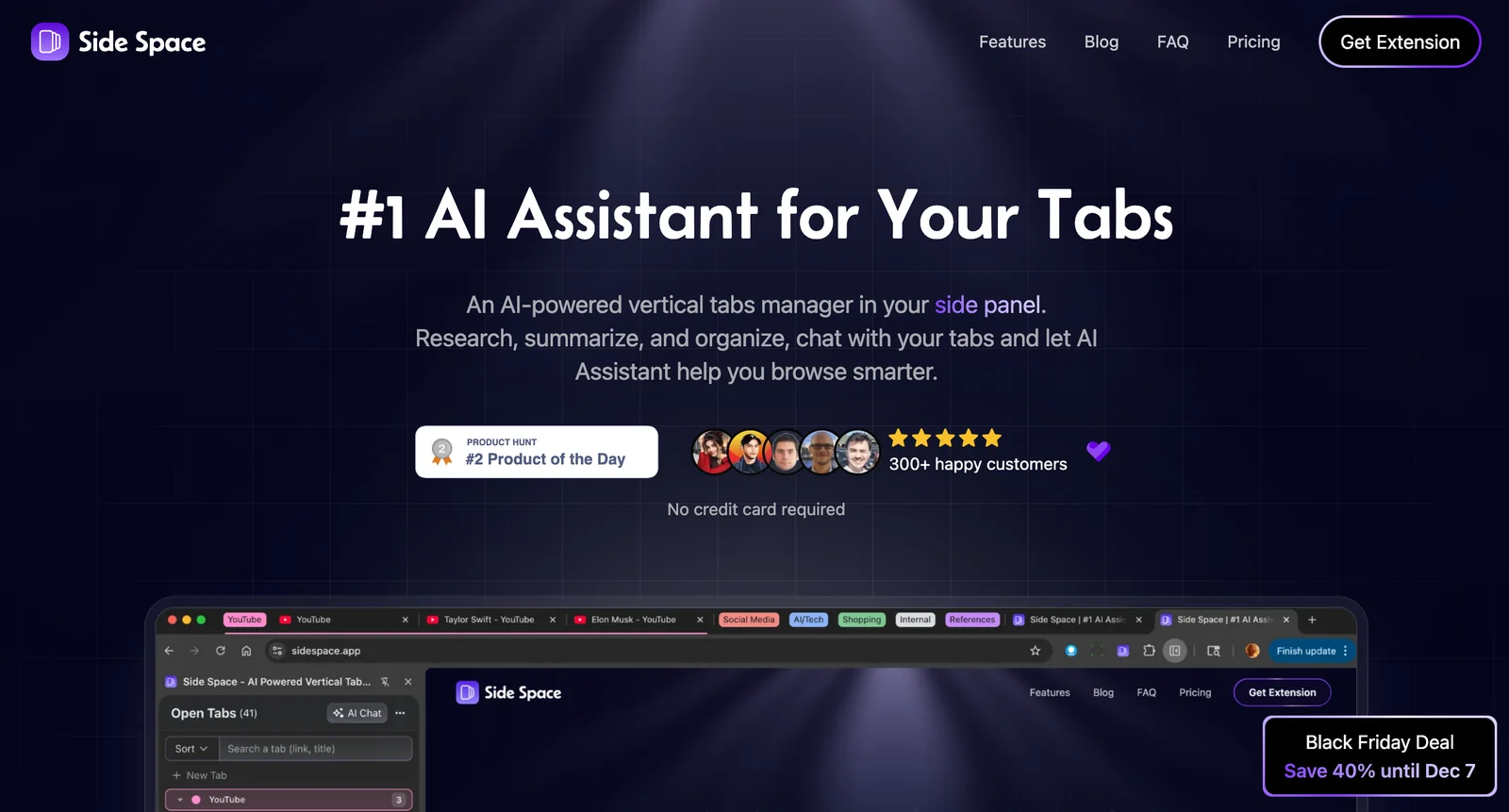
AIAn AI-powered vertical tabs manager in the browser side panel that helps research, summarize, organize, and chat with your tabs.
Side Space 2.0
An AI-powered vertical tabs manager in the browser side panel that helps research, summarize, organize, and chat with your tabs.
About Side Space 2.0
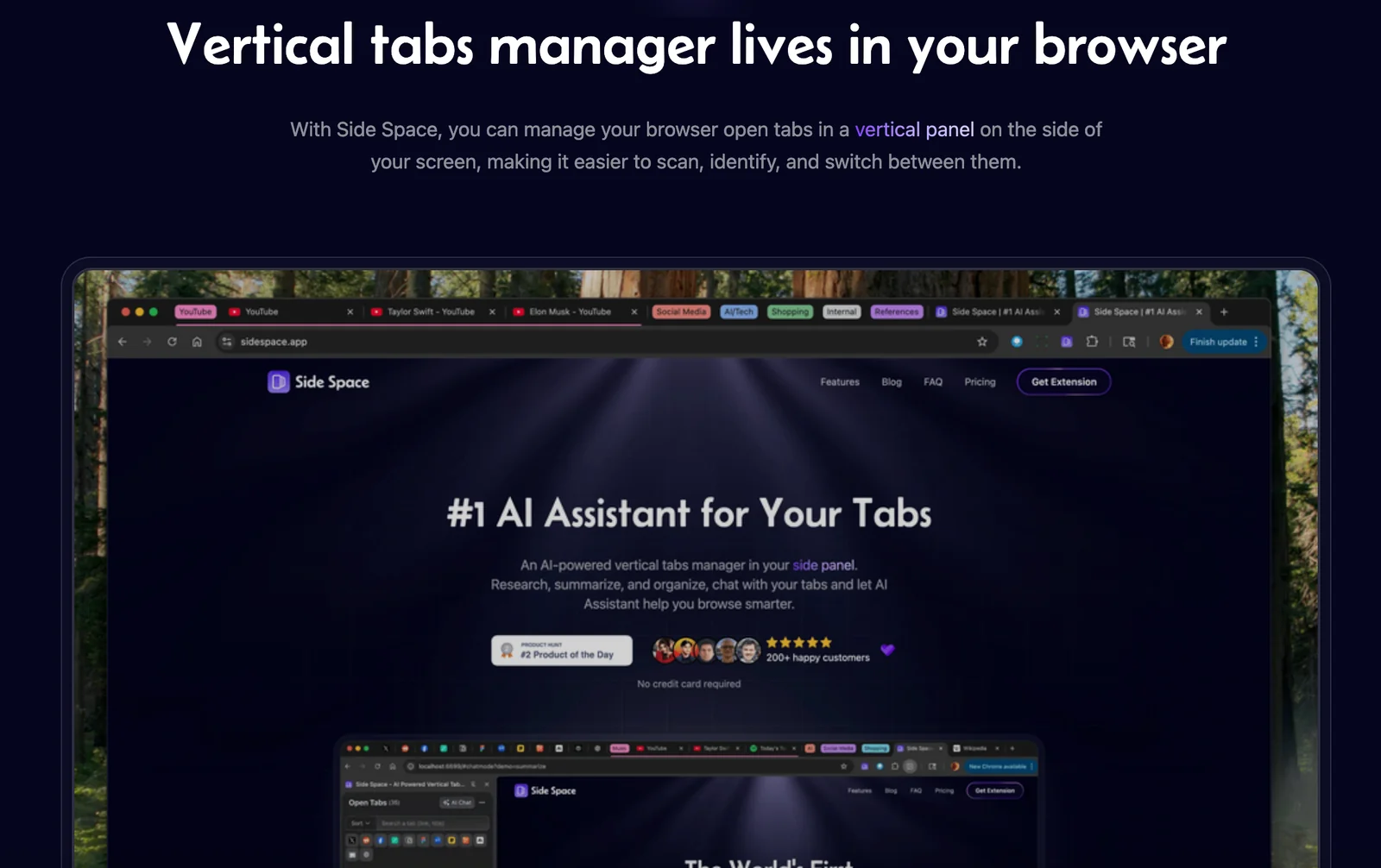
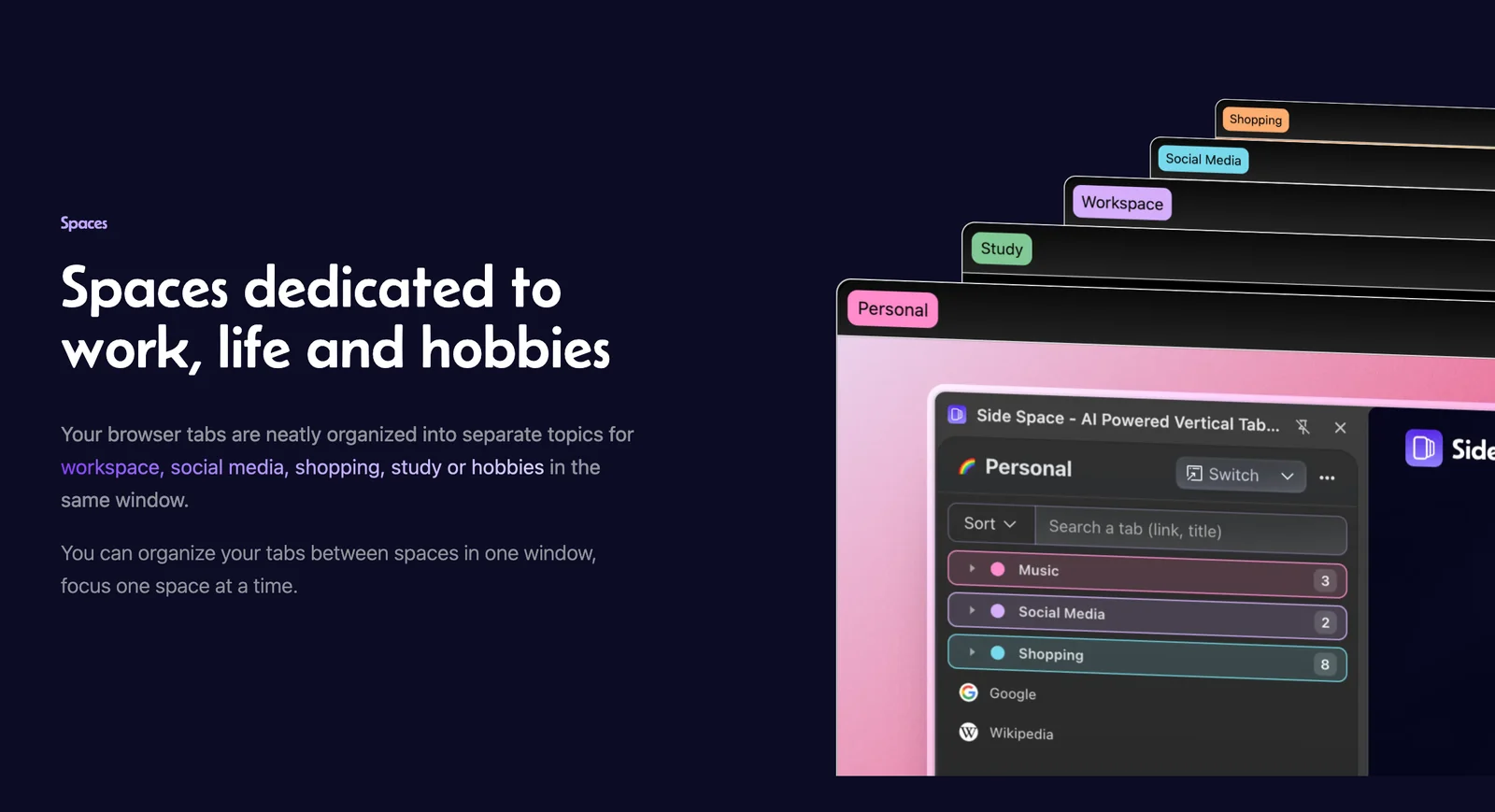
Side Space is an AI-driven browser extension that places a vertical tabs manager in the side panel to help users browse more efficiently. It enables users to research, summarize, and organize open tabs, and provides a chat interface to interact with the content across tabs. The tool is designed to surface concise summaries, assist with multi-tab research workflows, and keep browsing sessions organized so users can find insights and resume work faster.
Screenshots
Key Features
Use Cases


Frequently asked questions about Side Space 2.0
What are the pricing options for Side Space 2.0?
Side Space 2.0 employs a freemium pricing model, offering a free tier for users. While specific details for Pro or Enterprise plans are not publicly disclosed, interested customers can obtain customized pricing by contacting Side Space directly for more information.
Key Points
- Side Space 2.0 features a freemium pricing structure.
- A free tier is available for users to explore the platform.
- For advanced plans, users must directly contact Side Space for pricing details.
Detailed Explanation
Side Space 2.0 provides a flexible freemium pricing model designed to cater to a variety of users, from individuals to organizations. The free tier allows users to experience basic functionalities without any financial commitment, making it an attractive option for newcomers to the platform or those looking to test its capabilities.
Free Tier Benefits
- Access to Basic Features: Users can access essential tools and features at no cost, allowing them to familiarize themselves with the platform's interface and functionalities.
- User-Friendly Experience: The freemium model encourages user engagement, as individuals can explore the platform without immediate financial pressure.
Pro and Enterprise Plans
While specific pricing information for Pro or Enterprise plans is not publicly available, these plans typically offer enhanced features and capabilities tailored to meet the needs of larger teams or organizations. It's recommended to reach out to Side Space's sales team directly for personalized quotes and to discuss the unique requirements of your organization.
Best Practices / Tips
- Start with the Free Tier: If you're new to Side Space 2.0, begin by utilizing the free tier to understand its features and assess how they align with your needs.
- Contact Sales for Custom Solutions: If the free tier doesn't meet your requirements, don’t hesitate to contact Side Space for tailored solutions that can fit your budget and operational needs.
- Evaluate Your Needs: Consider what features and functionalities are most important for your projects when deciding to upgrade to a paid plan.
Additional Resources
By following these guidelines and utilizing the resources provided, users can effectively navigate the pricing options available with Side Space 2.0 and find the best plan for their needs.
How does the tab summarization feature work in Side Space 2.0?
The tab summarization feature in Side Space 2.0 creates brief and informative summaries of open webpages or groups of tabs, enabling users to quickly grasp essential information and streamline their research process. This innovative tool enhances productivity by saving time and improving focus during online activities.
Key Points
- Concise Summaries: Automatically generates short descriptions of content.
- Improved Research Efficiency: Helps users identify relevant information quickly.
- User-Friendly Interface: Easy to access and utilize within the browser.
Detailed Explanation
The tab summarization feature in Side Space 2.0 leverages advanced AI algorithms to analyze the content of open tabs and generate concise summaries. This process involves the following steps:
- Content Analysis: The tool scans the text, images, and metadata of each webpage to identify key themes and points.
- Summarization Process: Utilizing natural language processing (NLP), it condenses the information into a few sentences, making it easier for users to understand the page's main ideas without reading everything.
- Display Options: Summaries are presented in a simple, intuitive format, allowing users to view multiple summaries at once, facilitating quick comparisons and decision-making.
For example, if you have ten tabs open related to a specific research topic, Side Space 2.0 will provide you with a summary for each tab. This helps you quickly assess which pages contain the most relevant information, thus optimizing your research workflow.
Best Practices / Tips
- Regularly Update the Tool: Ensure that Side Space 2.0 is updated to benefit from the latest features and improvements.
- Use Specific Keywords: When looking for summaries, use specific terms related to your research topic to get more accurate results.
- Limit Open Tabs: To enhance summarization accuracy, try to minimize the number of open tabs to those directly related to your research topic.
- Combine with Bookmarking: Use bookmarks for important pages to revisit later, alongside summaries for immediate insights.
Additional Resources
How can I get started with using Side Space 2.0?
To get started with Side Space 2.0, install the extension from the official website and follow the setup prompts. After installation, you can efficiently organize and manage your tabs in the convenient side panel, enhancing your browsing experience.
Key Points
- Easy installation from the official website
- User-friendly setup prompts guide you through initial configuration
- Effective tab organization in a side panel for better productivity
Detailed Explanation
To begin using Side Space 2.0, follow these steps:
-
Installation: Visit the official Side Space 2.0 website or your browser's extension store. Click on the “Install” button to download the extension. Ensure you are using a compatible browser, such as Google Chrome or Microsoft Edge.
-
Setup Prompts: After installation, a setup wizard will guide you through the initial configuration. Follow the prompts to customize your settings, including choosing your preferred theme and layout for the side panel.
-
Organizing Tabs: Once set up, you can start adding tabs to the side panel. Drag and drop tabs from the main browser window into Side Space 2.0. You can create folders to categorize tabs, making it easier to access frequently used sites.
-
Advanced Features: Explore features such as tab grouping and the ability to save sessions. These allow you to quickly switch between different tasks or projects without losing your place.
-
Sync Across Devices: If you use Side Space 2.0 on multiple devices, ensure you enable synchronization settings to keep your tabs organized everywhere.
Best Practices / Tips
- Regularly Clean Up: Periodically review your tabs and folders to remove any that you no longer need, which helps maintain an organized workspace.
- Utilize Shortcuts: Familiarize yourself with keyboard shortcuts provided by Side Space 2.0 to navigate quickly and enhance efficiency.
- Stay Updated: Check for updates regularly to ensure you are using the latest features and improvements.
Additional Resources
Does Side Space 2.0 integrate with other browser extensions?
Currently, Side Space 2.0 does not integrate with other browser extensions. It is primarily designed to function as an independent vertical tabs manager within your browser, allowing users to organize tabs without relying on additional extensions for enhanced functionality.
Key Points
- Standalone Functionality: Side Space 2.0 operates independently, focusing solely on vertical tab management.
- No Public Integrations: As of now, no partnerships or integrations with other extensions have been announced.
- User Experience: The extension enhances browsing efficiency without the need for external tools.
Detailed Explanation
Side Space 2.0 is crafted to streamline your browsing experience by providing vertical tab management. This means that users can view and organize tabs in a vertical layout, which can be particularly beneficial for those who tend to have multiple tabs open simultaneously.
Use Cases
- Organizing Work Projects: Users working on multiple projects can easily categorize their tabs by dragging and dropping them into designated groups.
- Research: For researchers, keeping track of numerous sources becomes easier with a vertical layout, allowing for quick access and management.
- Enhanced Focus: By minimizing distractions and clutter, Side Space 2.0 helps users maintain focus on their current tasks.
Limitations
While the lack of integration may seem like a drawback, the standalone design ensures that Side Space 2.0 remains lightweight and efficient without the potential bloat from other extensions. This approach prioritizes performance and stability, which is crucial for users who rely heavily on their browsers for productivity.
Best Practices / Tips
- Maximize Organization: Use the grouping feature to categorize tabs based on projects or themes.
- Regularly Update: Keep the extension updated to benefit from the latest features and improvements.
- Feedback Loop: Engage with the development team through forums or support channels to suggest desired integrations or features.
Additional Resources
This comprehensive guide should help users understand the current capabilities of Side Space 2.0 while optimizing their usage for the best browsing experience.
How does Side Space 2.0 compare to other tab management tools?
Side Space 2.0 stands out among tab management tools by offering AI-driven summarization and an intuitive chat interface for managing and interacting with tabs. These innovative features significantly enhance research efficiency, making it a unique choice compared to traditional tab management solutions.
Key Points
- AI-Driven Summarization: Quickly condenses tab content for easy understanding.
- Chat Interface: Facilitates interactive tab management and discussion.
- Research Efficiency: Streamlines workflow, saving time during information gathering.
Detailed Explanation
Side Space 2.0 is designed to optimize the way users manage their browser tabs. Unlike conventional tab management tools that simply organize and categorize tabs, Side Space 2.0 incorporates AI technology to summarize web pages. This feature allows users to grasp essential information quickly without needing to click through each tab.
For instance, a researcher can open multiple tabs on a specific topic and utilize the AI summarization feature to generate concise summaries of each page, enabling them to identify the most relevant information effectively. The chat interface further enhances usability; users can interact with their tabs conversationally, asking questions or requesting specific summaries as if they were chatting with a colleague.
This combination of features not only saves time but also improves productivity, particularly for professionals and students who juggle multiple sources of information simultaneously.
Best Practices / Tips
- Utilize Summarization: Make the most of the AI summarization feature by regularly summarizing tabs to keep track of critical information.
- Experiment with Chat Interface: Engage with the chat interface to streamline your workflow; try asking for specific data or insights related to your research.
- Organize Your Tabs: Regularly categorize tabs into different projects or topics to maintain focus and reduce clutter.
Additional Resources
Explore more AI Ai Services tools
Browse all Ai Services tools →Browse by use case: Chatbots & Assistants
Compare Side Space 2.0: vs BAND for Developers · vs NitroStack · vs GBrain · vs MentionBird