

Mercury Edit 2
AIDiffusion-native next-edit LLM for hosted edit prediction, code editing, and high-throughput classification by Inception Labs.
Mercury Edit 2
Diffusion-native next-edit LLM for hosted edit prediction, code editing, and high-throughput classification by Inception Labs.
About Mercury Edit 2
Mercury Edit (Mercury-2 / Mercury Edit family) is a diffusion-native next-edit prediction model from Inception Labs that generates edit suggestions, multi-line and multi-edit changes, and cursor-aware completions for code and text. Because it is diffusion-based it generates tokens in parallel, enabling very high throughput and low-latency edit prediction while offering improved controllability for multimodal tasks compared with autoregressive models. Mercury is offered as a hosted API (Mercury API / mercuryapi provider) that integrates with editors, CLIs, and agent pipelines; it is commonly used for inline code edits, autocomplete-style refactors, classification and structured-output generation (e.g., SQL). A notable limitation of diffusion LLMs like Mercury-2 is limited support for iterative function-calling protocols (pause → tool call → continue), so they are best used for single-shot structured output, classification, and edit prediction workflows.
Screenshots
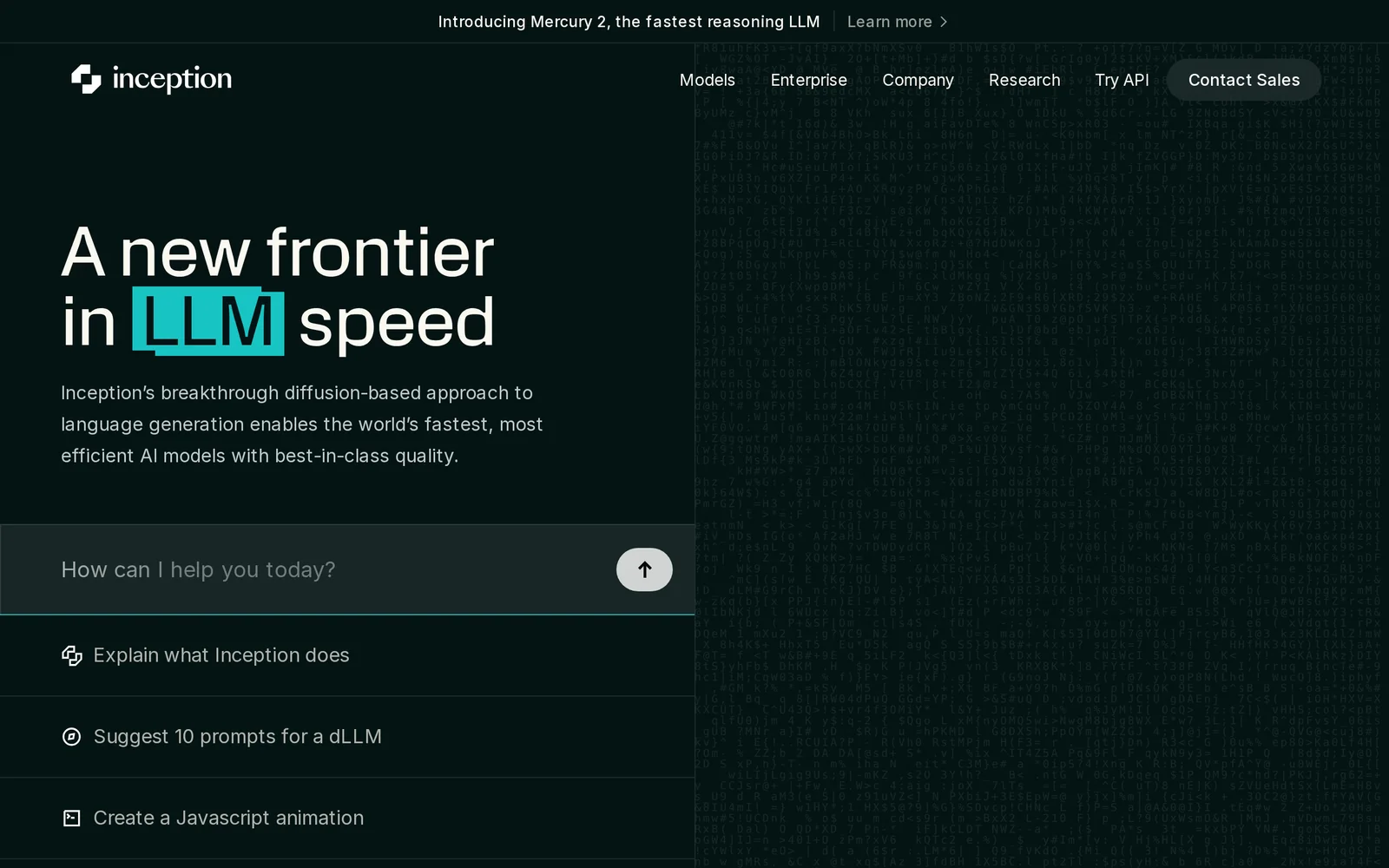
Key Features
Use Cases



Frequently asked questions about Mercury Edit 2
What is Mercury Edit 2?
Mercury Edit 2 is an advanced AI tool developed by Inception Labs, designed for diffusion-native next-edit large language model (LLM) applications. It offers capabilities for hosted edit prediction, efficient code editing, and high-throughput classification, making it a powerful asset for developers and data scientists.
Key Points
- Diffusion-Native Technology: Utilizes cutting-edge AI for improved editing efficiency.
- Versatile Applications: Suitable for code editing, text generation, and classification tasks.
- User-Friendly Interface: Designed to enhance user experience and productivity.
Detailed Explanation
Mercury Edit 2 is at the forefront of AI-driven editing solutions. Its diffusion-native next-edit LLM technology allows for seamless integration into various workflows, making it ideal for both software development and content creation.
Key Features:
- Hosted Edit Prediction: This feature anticipates user edits, allowing for real-time suggestions that enhance writing and coding speed.
- Code Editing Capabilities: Mercury Edit 2 excels in understanding programming syntax and context, making it invaluable for developers. It can suggest code corrections, optimizations, and even generate snippets based on user input.
- High-Throughput Classification: The tool can classify large datasets rapidly, enabling data scientists to process information efficiently. This is particularly useful in machine learning tasks where speed and accuracy are crucial.
Use Cases:
- Software Development: Automate repetitive coding tasks and improve code quality with intelligent suggestions.
- Content Creation: Writers can enhance their productivity with real-time editing suggestions and content optimization.
- Data Analysis: Analysts can quickly classify and analyze large datasets, streamlining their workflows.
Best Practices / Tips
- Leverage AI Suggestions: Always review AI-generated suggestions to ensure they align with your project goals.
- Customize Settings: Tailor the AI parameters to fit your specific needs, enhancing the tool's performance.
- Stay Updated: Regularly check for updates from Inception Labs to benefit from new features and improvements.
Additional Resources
How does Mercury Edit 2 work?
Mercury Edit 2 leverages advanced AI capabilities to streamline day-to-day workflows for users. By automating routine tasks and enhancing productivity, it offers tools for editing, managing, and organizing content efficiently, making it an essential tool for professionals in various industries.
Key Points
- AI-Powered Automation: Automates repetitive tasks to save time.
- User-Friendly Interface: Designed for ease of use, requiring minimal training.
- Versatile Applications: Suitable for diverse industries such as marketing, publishing, and more.
Detailed Explanation
Mercury Edit 2 integrates sophisticated AI algorithms to assist users in managing their daily tasks more effectively. The platform offers functionalities that include:
-
Content Editing: Users can streamline the editing process with AI suggestions that improve grammar, style, and coherence. For instance, the AI can suggest rephrasing sentences for clarity or conciseness, making it easier to produce high-quality content.
-
Task Management: By automating repetitive tasks, such as file organization and data entry, Mercury Edit 2 allows professionals to focus on more strategic activities. For example, it can automatically sort documents based on keywords, saving hours of manual work.
-
Collaboration Tools: The software includes features for real-time collaboration, enabling teams to work together seamlessly. Users can track changes, leave comments, and manage project timelines within the platform, enhancing overall productivity.
-
Custom Workflows: Mercury Edit 2 allows users to create tailored workflows that fit their specific needs. For example, a marketing team can set up a workflow for content creation, review, and publication, ensuring a smooth process from start to finish.
Best Practices / Tips
- Explore Tutorials: Familiarize yourself with the software by using available tutorials and guides.
- Take Advantage of AI Features: Regularly use the AI suggestions to improve your content quality and efficiency.
- Customize Workflows: Tailor the platform's features to fit your unique business processes for maximum efficiency.
- Stay Updated: Keep an eye out for software updates that may include new features and enhancements.
Additional Resources
What are the main features of Mercury Edit 2?
Mercury Edit 2 features advanced AI capabilities, including automated editing tools, seamless collaboration options, and extensive support for various file formats. These features streamline video editing processes, making it easier for users to produce high-quality content efficiently.
Key Points
- Automated Editing Tools: Leverage AI for quick edits.
- Collaboration Features: Real-time teamwork capabilities.
- File Format Support: Compatible with multiple video formats.
Detailed Explanation
Mercury Edit 2 stands out with its automated editing tools, which utilize artificial intelligence to analyze footage and suggest edits that enhance storytelling. For example, users can quickly generate highlight reels or cut down footage based on content analysis, saving hours compared to manual editing.
The collaboration features allow multiple users to work on a project simultaneously, making it ideal for teams. Users can comment, share feedback, and make adjustments in real time, thus improving project efficiency and reducing turnaround time.
Moreover, Mercury Edit 2 supports a wide array of file formats, ensuring that users can import and export footage from various sources without compatibility issues. This versatility is crucial for professionals who work with different equipment and software.
Best Practices / Tips
- Maximize AI Tools: Familiarize yourself with all automated editing features to speed up your workflow.
- Utilize Collaboration: Encourage team members to engage with the platform’s collaboration tools to enhance productivity.
- Regularly Update: Keep the software updated to access the latest features and improvements.
Additional Resources
Who is Mercury Edit 2 for?
Mercury Edit 2 is designed for professionals and hobbyists in video editing, content creation, and film production. It enhances day-to-day workflows by leveraging AI to streamline repetitive tasks, making it ideal for anyone looking to improve efficiency and creativity in their projects.
Key Points
- Target Audience: Video editors, filmmakers, content creators.
- AI Integration: Automates repetitive tasks to boost productivity.
- Versatile Applications: Suitable for personal, educational, and commercial projects.
Detailed Explanation
Mercury Edit 2 is particularly beneficial for those in the creative industries, including video editors, filmmakers, and content creators. The software employs advanced AI algorithms to optimize workflows, allowing users to focus on creative aspects rather than mundane tasks.
Use Cases:
- Video Editing: Mercury Edit 2 can automatically organize and tag video clips, making it easier to find the right footage.
- Content Creation: For YouTubers and social media influencers, it helps in quickly assembling video segments and optimizing them for platform specifications.
- Film Production: Filmmakers can utilize its batch processing capabilities to manage large volumes of footage efficiently.
Examples of Features:
- Automatic Tagging: AI-powered tagging allows for swift access to specific clips based on content.
- Smart Editing Tools: Functions like auto-cutting and scene detection save time during the editing process.
- Custom Workflows: Users can create tailored workflows that suit their unique editing styles and project needs.
Best Practices / Tips
- Utilize Templates: Start with pre-built templates for common projects to save time.
- Regular Updates: Keep the software updated to access the latest AI enhancements and features.
- Learn Shortcuts: Familiarize yourself with keyboard shortcuts to speed up your editing process further.
Additional Resources
How much does Mercury Edit 2 cost?
Mercury Edit 2 is a premium software product with pricing that typically starts around $99. For the most accurate and up-to-date pricing, visit the official Mercury Edit website, as prices may vary due to promotions or updates.
Key Points
- Mercury Edit 2 is a paid software application.
- Typical starting price is around $99.
- Pricing may vary based on promotions or updates.
Detailed Explanation
Mercury Edit 2 is a specialized software tool designed for efficient video editing and management, primarily targeting professionals in the film and media industries. The software is known for its user-friendly interface and powerful editing capabilities, making it an attractive option for both beginners and seasoned editors.
Pricing Breakdown
-
Standard License: The basic license generally starts at approximately $99. This license includes the core features necessary for effective video editing.
-
Upgrades and Discounts: Users may find seasonal discounts or upgrades available on the official website. For instance, educational institutions or non-profit organizations might receive special pricing.
-
Subscription Options: Some versions may offer subscription models that provide continuous updates and additional features, typically priced per month or year.
Use Cases
- Film Editing: Professionals use Mercury Edit 2 for cutting, splicing, and refining film projects.
- Content Creation: YouTubers and social media content creators benefit from its intuitive editing tools.
- Collaborative Projects: The software supports collaborative editing, allowing teams to work simultaneously on projects.
Best Practices / Tips
- Check for Promotions: Always visit the official site for the latest deals before purchasing.
- Trial Versions: If available, utilize free trials to determine if the software meets your editing needs.
- Stay Updated: Regularly check for software updates to access new features and improve performance.
Additional Resources
How do I get started with Mercury Edit 2?
To get started with Mercury Edit 2, visit Inception Labs to sign up for an account. Once registered, you can explore the features and tools offered by Mercury Edit 2, designed for seamless video editing and collaboration.
Key Points
- Sign Up: Create your account on the Inception Labs website.
- Explore Features: Familiarize yourself with Mercury Edit 2's tools and functionalities.
- Start Editing: Begin your video editing projects using the platform's intuitive interface.
Detailed Explanation
To get started with Mercury Edit 2, follow these simple steps:
- Visit the Website: Go to Inception Labs and navigate to the Mercury Edit 2 section.
- Create an Account: Click on the sign-up button and fill out the necessary information, including your email address and password. You may also need to verify your email.
- Explore the Dashboard: Once your account is set up, log in to the dashboard. This is where you'll find all the editing tools, project management features, and resources.
- Familiarize with Tutorials: Take advantage of the built-in tutorials and documentation. This will help you understand the capabilities of Mercury Edit 2, such as multi-track editing, audio synchronization, and collaborative features.
- Start a New Project: Click on “Create New Project” and upload your media files. The interface is user-friendly, allowing you to drag and drop files easily.
- Utilize Features: Make use of various features like color correction, transitions, and text overlays to enhance your video. You can also collaborate with team members in real time, making it ideal for group projects.
- Export Your Work: Once you’re satisfied with your edits, export your video in the desired format and resolution. Mercury Edit 2 supports various output options to meet your needs.
Best Practices / Tips
- Use Templates: Take advantage of pre-made templates for quicker project setup.
- Save Regularly: Ensure you save your work frequently to avoid losing progress.
- Collaborate Effectively: Use the commenting feature when working with a team to streamline feedback and revisions.
- Stay Updated: Regularly check for software updates to access new features and improvements.
- Learn Keyboard Shortcuts: Familiarize yourself with keyboard shortcuts to speed up your editing process.
Additional Resources
Getting started with Mercury Edit 2 is easy and efficient, allowing you to unleash your creativity in video editing while collaborating with others.
Explore more AI Ai Models tools
Browse all Ai Models tools →Browse by use case: Code Generation
Compare Mercury Edit 2: vs Mouse-1 · vs Milliseconds.ai · vs SWE-2 · vs Desert Ant Labs