

Make
AIOfficial MCPCommand-line build automation tool that executes Makefiles to compile and link software projects.
Make
Command-line build automation tool that executes Makefiles to compile and link software projects.
About Make
Make is a command-line build automation utility that processes Makefiles to determine dependencies and run compilation/linking commands. It is invoked from shells (e.g. bash, zsh) as 'make' or via an absolute path like '/usr/bin/make'. Commonly used to build C/C++ projects producing object files and libraries; shows diagnostic errors when compilation or Makefile rules fail. It integrates with shell environments and CI, and can experience failures if the shell defines a conflicting function named 'make' or when platform-specific issues (e.g., Cygwin on Windows) cause compiler or header incompatibilities.
Screenshots


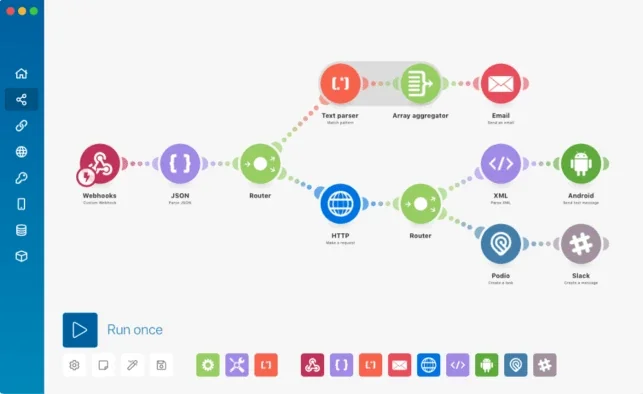
Key Features
Use Cases
MCP Server
https://developers.make.com/mcp-serverhttps://mcp.make.com/sse💡 MCP (Model Context Protocol) enables AI assistants to securely interact with local and remote resources.



Frequently asked questions about Make
What is the pricing for Make and are there free options available?
Make offers a freemium pricing model, providing a free plan with 1,000 credits per month. Paid plans start at $9 per month, catering to various user needs. The free tier is perfect for beginners and small projects, allowing users to explore the platform's capabilities without any financial commitment.
Key Points
- Freemium Model: 1,000 credits available monthly for free users.
- Affordable Paid Plans: Pricing begins at $9/month, scaling with features.
- Ideal for Beginners: The free tier supports learning and small-scale projects.
Detailed Explanation
Make's pricing structure is designed to accommodate a wide range of users, from novices to seasoned professionals. The freemium plan allows users to access basic functionalities without any cost. With 1,000 credits each month, users can experiment with automation and integrations to understand how the platform works.
For those seeking more advanced features, Make offers several paid plans:
- Basic Plan: Starting at $9/month, this plan includes additional credits and functionalities suitable for small businesses or individual users looking to scale.
- Professional and Team Plans: These plans offer enhanced features, more credits, and collaboration tools designed for larger teams or complex projects. Pricing tiers vary based on the number of users and required capabilities.
This tiered approach allows users to choose a plan that best fits their project size and budget. For example, a freelancer may find the basic plan sufficient, while a growing business might opt for a higher-tier plan that supports collaboration and advanced features.
Best Practices / Tips
- Maximize Free Credits: Use the free plan to test different scenarios and workflows before committing to a paid plan.
- Evaluate Needs: Assess your project requirements before upgrading to a paid plan. Consider factors like team size, project complexity, and frequency of use.
- Stay Informed: Regularly check for any promotions or updates on pricing, as Make may offer limited-time discounts or additional features.
Additional Resources
- Make Pricing Plans - Official pricing page with detailed plan comparisons.
- Make Documentation - Comprehensive guide on how to use the platform effectively.
- Make Community Forum - Engage with other users for tips and shared experiences.
How do I get started using Make for my software projects?
To get started using Make for your software projects, first install it on your Unix-like system. Then, create a Makefile to define your build rules and dependencies. Finally, use terminal commands to compile and link your projects efficiently.
Key Points
- Install Make on your Unix-like system.
- Create a Makefile to define build rules.
- Utilize terminal commands for project compilation.
Detailed Explanation
Installation
To install Make, open your terminal and use your package manager. For example, on Ubuntu, you can run:
sudo apt-get install make
For macOS, you can use Homebrew:
brew install make
Creating a Makefile
A Makefile is a text file that contains a set of directives used by Make to build your software. Here’s a simple example of a Makefile for a C project:
CC=gcc
CFLAGS=-I.

main: main.o util.o
	$(CC) -o main main.o util.o

main.o: main.c
	$(CC) -c main.c $(CFLAGS)

util.o: util.c
	$(CC) -c util.c $(CFLAGS)
Running Make
Once your Makefile is set up, navigate to your project directory in the terminal and simply type:
make
This command will read the Makefile, check for dependencies, and compile your project accordingly. You can also specify targets, like make clean to remove compiled files.
Best Practices / Tips
- Keep it Simple: Start with simple rules and gradually add complexity as needed.
- Use Variables: Define compiler and flags at the beginning of your Makefile to maintain consistency and ease modifications.
- Comment Your Makefile: Use comments to explain complex rules or dependencies for future reference.
Common pitfalls include not having the necessary permissions to execute scripts or incorrect file paths in your Makefile. Always ensure your terminal is in the correct directory where the Makefile is located.
Additional Resources
By following these steps, you'll be well on your way to efficiently managing your software projects using Make.
What are the main features of Make as a build automation tool?
Make is a powerful build automation tool that executes Makefiles, manages build dependencies, invokes compilers, and supports parallel job execution. It is specifically designed to streamline the build process for C and C++ projects, enhancing efficiency and reducing build times.
Key Points
- Execution of Makefiles: Automates the build process using Makefile scripts.
- Dependency Management: Tracks and resolves dependencies between files to avoid unnecessary recompilation.
- Parallel Job Execution: Allows simultaneous compilation, speeding up the overall build time.
Detailed Explanation
Make is an open-source build automation tool that primarily uses Makefiles to define build processes. A Makefile is a script that contains a set of directives used by Make to compile and link applications. This tool is highly beneficial for C and C++ developers as it optimizes build processes by managing dependencies and facilitating parallel executions.
Execution of Makefiles
Make simplifies the execution of Makefiles through command-line interfaces. When you run make in your project directory, it reads the Makefile and executes the specified rules, which typically include compiling source code files into object files and linking them into executables. For example:
all: main.o utils.o
    gcc -o my_program main.o utils.o

main.o: main.c
    gcc -c main.c

utils.o: utils.c
    gcc -c utils.c
Dependency Management
Make automatically tracks dependencies between files. If a source file is modified, Make identifies the affected files and recompiles only those, significantly reducing build times. This is particularly useful in large projects where recompiling everything is inefficient.
Parallel Job Execution
Make supports parallel execution using the -j flag, allowing multiple jobs to run simultaneously. For instance, make -j4 will execute up to four jobs at once, leveraging multi-core processors to speed up the build process. This is especially advantageous in larger projects where compilation tasks can be performed independently.
Best Practices / Tips
- Organize Your Makefile: Keep your Makefile organized with clear targets and comments to enhance readability and maintainability.
- Use Phony Targets: Define phony targets for tasks that do not produce files, such as
clean, to avoid conflicts with actual files. - Employ Variables: Utilize variables in your Makefile for compiler options and paths to simplify modifications and enhance portability.
Common pitfalls include failing to update dependencies properly, which can result in outdated binaries, and neglecting to test parallel builds. Always verify that your Makefile works in both single and parallel modes to ensure reliability.
Additional Resources
Can I integrate Make with other tools or APIs?
Yes, you can integrate Make with other tools and APIs. Make offers a robust API for seamless integration and supports connections with over 2000 apps, enhancing automation workflows and extending functionality to meet diverse business needs.
Key Points
- API Access: Make provides a powerful API for custom integrations.
- Wide App Compatibility: Connect with over 2000 applications, including popular tools like Google Sheets, Slack, and Trello.
- Automation Enhancements: Streamline workflows and improve efficiency through automated tasks.
Detailed Explanation
Make's integration capabilities allow users to connect various applications and services, enhancing their automation capabilities significantly. With its user-friendly API, developers can create custom integrations tailored to specific business requirements.
How to Integrate Make with Other Tools
- API Access: Begin by accessing the Make API documentation available on their website. This documentation provides detailed guidelines on authentication, endpoints, and data handling.
- Choose Your Tools: Identify the apps or services you want to integrate. Make supports a vast range of applications, from CRM systems like Salesforce to marketing tools like Mailchimp.
- Create Scenarios: Use Make's intuitive visual builder to create scenarios that define how the different tools will interact. For example, automate the process of transferring data from Google Sheets to a CRM whenever a new entry is added.
- Testing: After setting up your integrations, thoroughly test each scenario to ensure data flows correctly and triggers are functioning as expected.
- Deployment: Once tested, deploy your integrations and monitor their performance, making adjustments as necessary.
Use Cases
- E-Commerce: Automatically update inventory levels in your store when new orders are placed.
- Marketing: Sync leads collected from a landing page directly into your email marketing tool.
- Project Management: Notify team members in Slack whenever tasks are updated in Trello.
Best Practices / Tips
- Explore Existing Integrations: Before creating a custom integration, check Make’s library for existing connections that meet your needs.
- Documentation is Key: Familiarize yourself with the API documentation to avoid common integration pitfalls.
- Monitor Performance: Regularly review the performance of your integrations to identify and resolve any issues quickly.
Additional Resources
By leveraging Make's integration capabilities, businesses can significantly enhance their operational efficiency and productivity through effective automation.
How does Make compare to other build automation tools?
Make stands out among build automation tools due to its simplicity, efficiency in managing dependencies, and free command-line interface. Unlike some competitors, it minimizes complexity while maximizing performance, making it a preferred choice for developers who seek straightforward and effective solutions for automating builds.
Key Points
- Simplicity: Easy to learn and use, ideal for beginners.
- Dependency Management: Effectively handles complex project dependencies.
- Cost-Effective: Free to use, which is attractive for individual developers and small teams.
Detailed Explanation
Make is a build automation tool that has been widely adopted due to its clear syntax and powerful capabilities. It operates on a makefile, a simple text file that defines a set of tasks to be executed.
Comparison with Other Tools
-
Simplicity: Unlike tools like Gradle or Maven, which have steep learning curves, Make provides a straightforward approach to build automation. This makes it easier for new developers to get started without extensive training.
-
Dependency Management: Make excels in managing file dependencies. For example, if you are building a C project, you can specify that a
.ofile depends on a.cfile. If the.cfile changes, Make will automatically rebuild the.ofile, saving time and ensuring that the latest code is always compiled. -
Cost: Make is open-source and free to use, making it an attractive option for developers and startups with budget constraints. Other tools like Jenkins or TeamCity may require licensing fees or costly infrastructure.
Use Cases
- C/C++ Projects: Popular for compiling large projects where dependency management is crucial.
- Automating Scripts: Ideal for scenarios where you need to execute a series of scripts in a specific order, such as data processing or deployment tasks.
- Cross-Platform Builds: Works seamlessly across different operating systems, making it versatile for diverse development environments.
Best Practices / Tips
- Use explicit rules: Clearly define your targets and dependencies in the makefile to avoid ambiguity.
- Keep it simple: Start with basic rules and gradually add complexity as needed. This approach helps in maintaining readability.
- Document your makefile: Include comments in your makefile to explain non-obvious rules or dependencies, making it easier for others to understand.
Common Pitfalls
- Overcomplicating makefiles: Avoid adding unnecessary complexity that can confuse users.
- Neglecting dependencies: Always define dependencies accurately to ensure that builds are up-to-date.
Additional Resources
Explore more AI Mcps tools
Browse all Mcps tools →Browse by use case: Automation & Productivity
Compare Make: vs ai-memory · vs CrawlForge MCP · vs Popcraft · vs Pomerado