

Atlassian Jira
AIOfficial MCPProject and issue-tracking platform for planning, tracking, and releasing software with Agile boards, workflows, and integrations.
Atlassian Jira
Project and issue-tracking platform for planning, tracking, and releasing software with Agile boards, workflows, and integrations.
About Atlassian Jira
Atlassian Jira is a project and issue tracking platform used by software and product teams to plan, track, and release work. It provides configurable workflows, Scrum and Kanban boards, roadmaps, and advanced search (JQL) to organize tasks and track progress. Jira integrates with development tools (GitHub, Jenkins, Bitbucket), supports automation rules and a large marketplace of apps, and is available as cloud and self-managed deployments to fit team scale and security requirements. Its combination of customizable processes, developer integrations, and reporting makes it a central hub for software delivery and cross-team collaboration.
Screenshots
Key Features
Use Cases
MCP Server
https://www.atlassian.com/platform/remote-mcp-serverhttps://mcp.atlassian.com/v1/sse💡 MCP (Model Context Protocol) enables AI assistants to securely interact with local and remote resources.



Frequently asked questions about Atlassian Jira
What are the pricing options for Atlassian Jira?
Atlassian Jira offers flexible pricing options, including a free version for teams of up to 10 users. Paid plans start at $7 per user per month for the Standard plan, $14 per user per month for the Premium plan, and custom pricing is available for Enterprise solutions.
Key Points
- Free Tier: Suitable for small teams (up to 10 users).
- Standard Plan: $7/user/month, ideal for growing teams.
- Premium Plan: $14/user/month, designed for larger organizations with advanced needs.
- Enterprise Solutions: Custom pricing for large-scale deployments and additional features.
Detailed Explanation
Atlassian Jira provides various pricing tiers to cater to different team sizes and project management needs. Here’s a breakdown of each option:
-
Free Version:
- Ideal for small teams, this plan allows up to 10 users.
- It includes essential features like Scrum and Kanban boards, backlog prioritization, and basic reporting tools.
-
Standard Plan ($7/user/month):
- Best for growing teams.
- Offers features such as project tracking, customizable workflows, and integration with over 1,000 apps on the Atlassian Marketplace.
- Provides 24/7 support and 250 GB of storage.
-
Premium Plan ($14/user/month):
- Tailored for larger teams that require more advanced features.
- Includes everything from the Standard plan plus advanced roadmaps, unlimited storage, and enhanced security features.
- Offers greater insights with advanced reporting and analytics.
-
Enterprise Solutions:
- Custom pricing based on specific business needs.
- This plan includes dedicated support, advanced compliance features, and personalized onboarding.
- Ideal for organizations scaling rapidly or requiring tailored solutions.
Best Practices / Tips
- Evaluate Your Needs: Before choosing a plan, assess your team's size, project complexity, and required features to select the most cost-effective option.
- Utilize the Free Trial: Take advantage of the free version or trial periods of paid plans to explore features before committing.
- Consider Future Growth: If you anticipate scaling your team, consider starting with the Standard or Premium plans to avoid future migration hassles.
- Monitor Usage: Regularly review user activity to ensure you are on the right plan and not overpaying for unused licenses.
Additional Resources
- Atlassian Jira Pricing Page
- Jira Software Features Overview
- Atlassian Community Discussions for user experiences and tips.
How do I get started with Atlassian Jira?
To get started with Atlassian Jira, visit the official website, create an account, and select a pricing plan that suits your needs. You can easily launch your first project using built-in templates and guided tutorials that help you navigate the platform effectively.
Key Points
- Create an Account: Register on the Jira website.
- Choose a Plan: Select a pricing tier based on your team size and project needs.
- Set Up Projects: Utilize templates and tutorials for project initiation.
Detailed Explanation
-
Create an Account: Go to the Atlassian Jira website and click on the “Try for free” button. Fill in your details, including your email address, to create an account. You may also choose to sign up using Google or Microsoft accounts for convenience.
-
Choose a Plan: Jira offers various pricing plans, including Free, Standard, and Premium options. The Free plan is perfect for small teams of up to 10 users, while the Standard and Premium plans cater to larger teams with additional features like advanced permissions and project archiving. Review the pricing page for details.
-
Set Up Your First Project: Once you've registered and selected a plan, you can create your first project. Jira provides several templates, including Scrum, Kanban, and Bug Tracking, to streamline the setup process. Follow the guided tutorials that appear upon your first login to familiarize yourself with Jira’s interface and functionalities.
-
Customize Your Workspace: After setting up your project, customize your workspace by adding team members, configuring workflows, and setting up issue types. You can also integrate other Atlassian tools like Confluence and Bitbucket for enhanced collaboration.
Best Practices / Tips
- Explore Templates: Use the various project templates available in Jira to save time and ensure you’re following best practices for project management.
- Utilize Integrations: Leverage integrations with tools like Slack, GitHub, and Trello to enhance team communication and productivity.
- Regularly Update Issues: Encourage team members to update issues regularly to maintain transparency and keep track of progress.
- Training Resources: Invest time in training your team through Atlassian’s learning resources to maximize the tool's potential.
Additional Resources
By following these steps and utilizing the provided resources, you can effectively get started with Atlassian Jira and enhance your project management efficiency.
What are the key features of Atlassian Jira?
Atlassian Jira is a powerful project management tool featuring Agile boards, customizable workflows, advanced search capabilities with JQL, automation rules, and extensive integrations with popular tools like GitHub and Jenkins. These features make it an essential choice for teams practicing Agile methodologies.
Key Points
- Agile Boards: Visualize and manage workflows.
- Customizable Workflows: Tailor processes to fit team needs.
- Advanced Search with JQL: Perform complex queries for issue tracking.
Detailed Explanation
Atlassian Jira is renowned for its robust features that cater to software development and project management teams.
Agile Boards
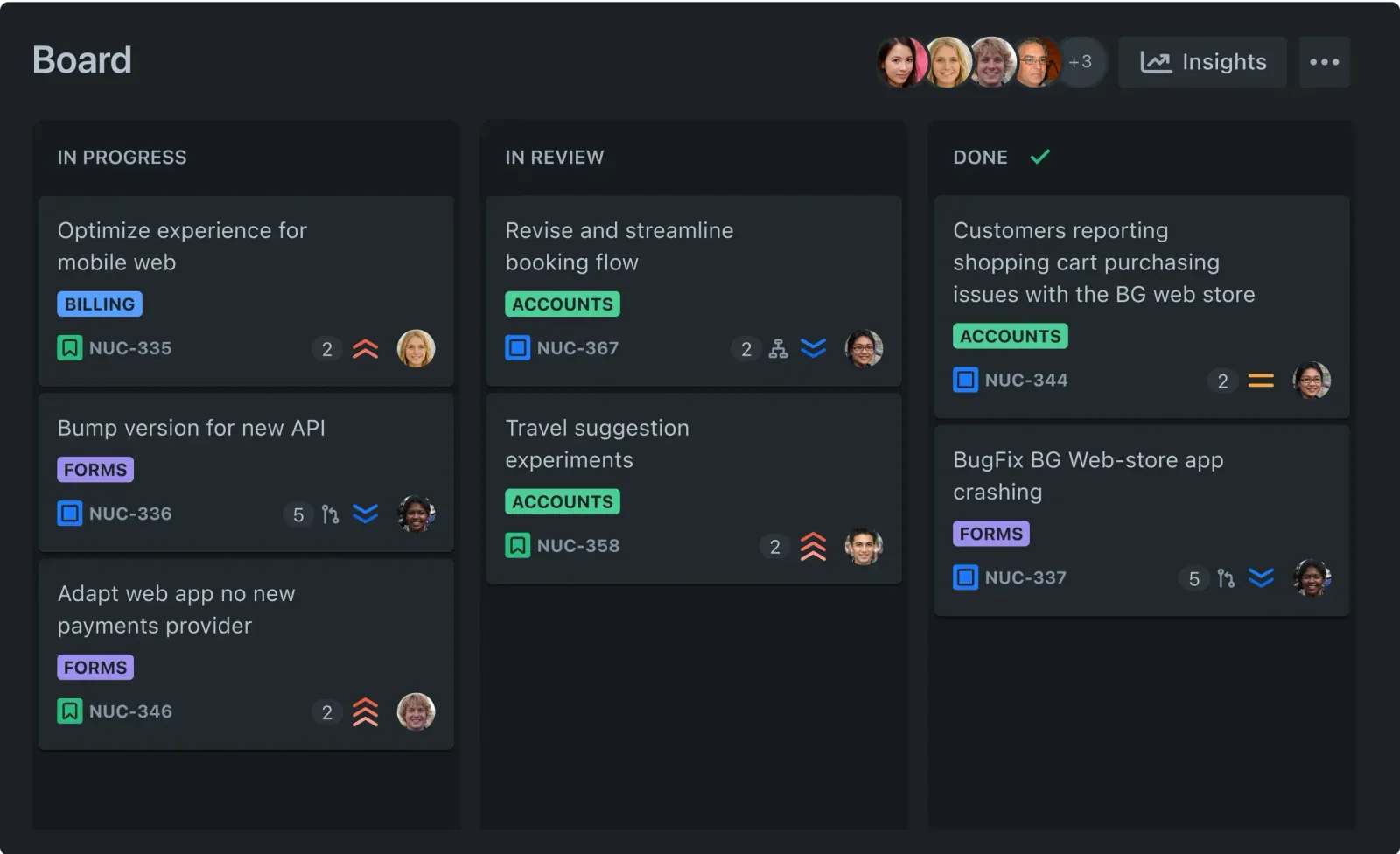
Agile boards, including Scrum and Kanban boards, allow teams to visualize tasks, track progress, and manage backlogs effectively. For example, a software development team can use Scrum boards to manage sprints, while a marketing team might prefer Kanban boards to visualize ongoing campaigns.
Customizable Workflows
Jira's customizable workflows enable teams to define their processes uniquely. This feature allows users to set specific statuses, transitions, and permissions tailored to their workflow, ensuring that everyone follows the required steps. A customer support team might create a workflow that includes statuses like "New," "In Progress," and "Resolved."
Advanced Search with JQL
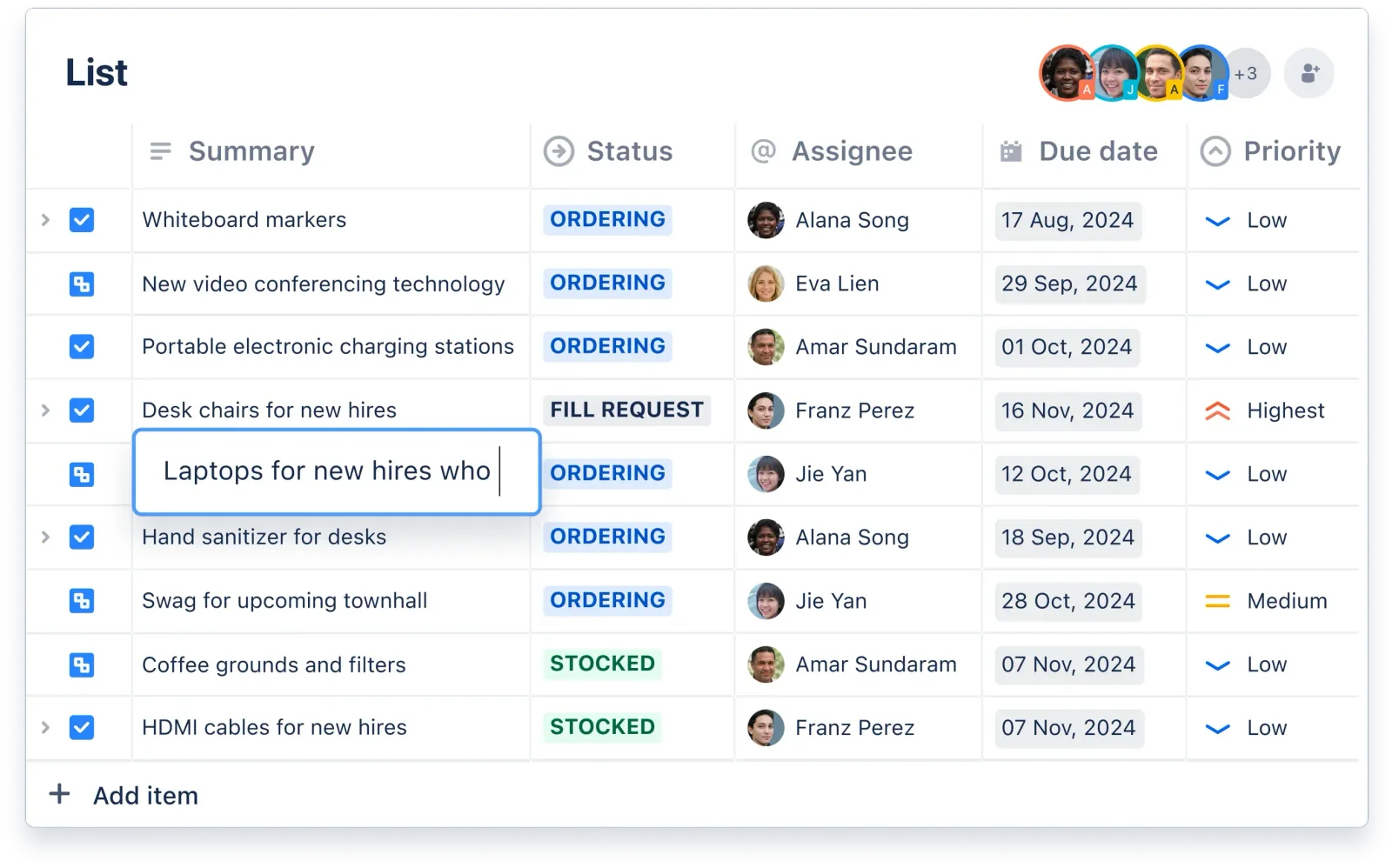
Jira Query Language (JQL) provides advanced search capabilities, enabling users to filter and sort issues based on various criteria. This is particularly useful for teams with large volumes of tasks, allowing them to quickly find relevant tickets. For instance, a project manager can search for all unresolved bugs assigned to a specific developer using a simple JQL command.
Automation Rules
Jira's automation rules help streamline repetitive tasks, reducing manual work and minimizing errors. For example, users can set rules to automatically transition issues when certain conditions are met, like moving a ticket to "In Review" once the associated pull request is merged.
Deep Integrations
Jira integrates seamlessly with tools like GitHub and Jenkins, allowing for continuous integration and delivery. This ensures that development teams can track code changes and deployments directly within Jira, enhancing collaboration and visibility across teams.
Best Practices / Tips
- Leverage Templates: Use Jira's templates for common project types to accelerate setup.
- Regularly Review Workflows: Periodically assess your workflows to ensure they meet current team needs.
- Utilize Dashboards: Create customized dashboards to provide visibility into project health and team performance metrics.
- Train Team Members: Ensure all team members understand how to use JQL and automation features to maximize efficiency.
Additional Resources
How does Atlassian Jira compare to other project management tools?
Atlassian Jira excels in Agile project management, offering robust features and integrations designed for software development. In contrast, tools like Trello and Asana provide simpler task management capabilities, making Jira more suitable for complex projects requiring customization and detailed tracking.
Key Points
- Agile Focus: Jira is tailored for Agile methodologies, supporting Scrum and Kanban frameworks.
- Integration Capabilities: Jira integrates seamlessly with various development tools and platforms.
- Customization: Offers extensive options for customizing workflows and issue types.
Detailed Explanation
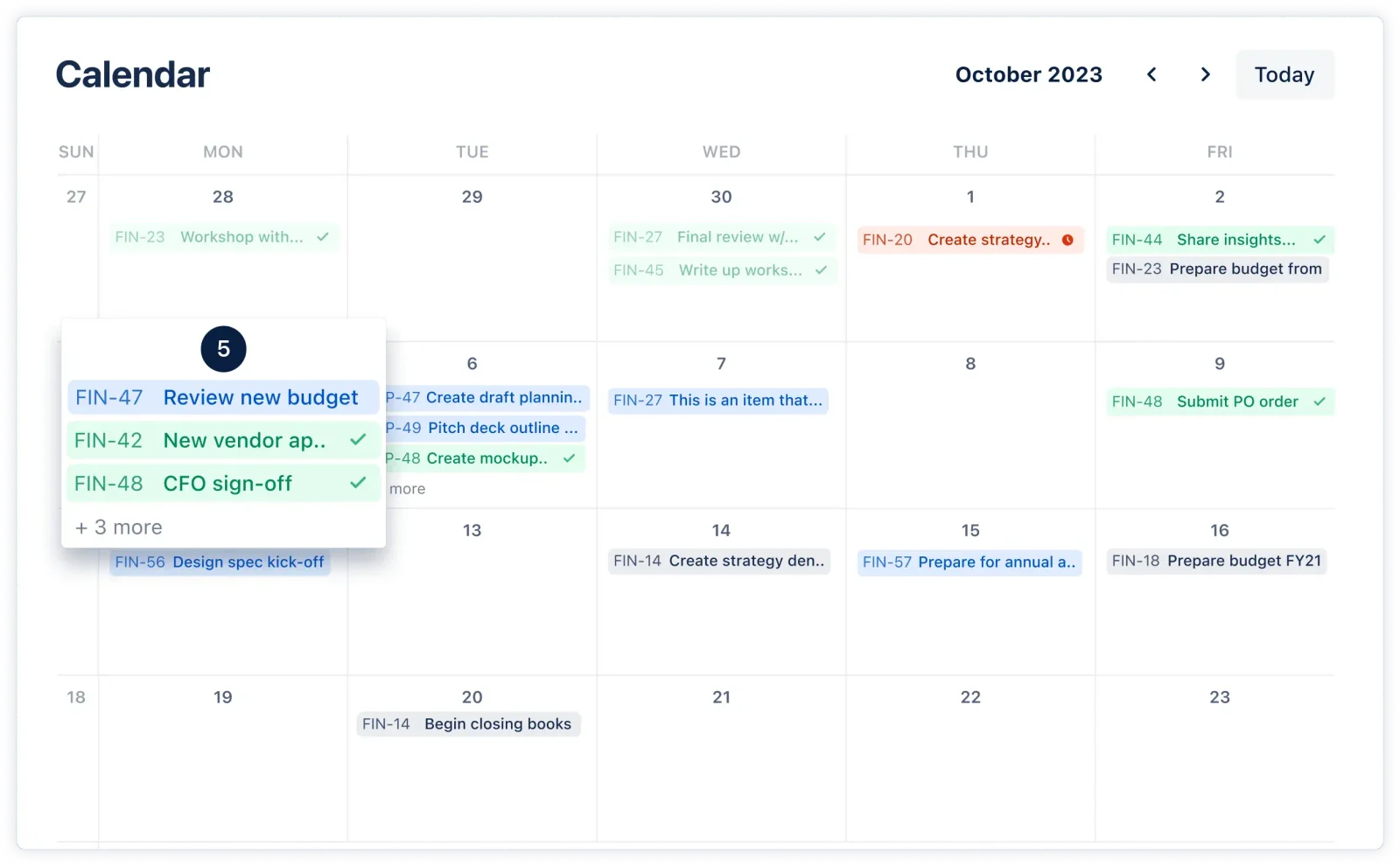
Atlassian Jira stands out primarily because of its comprehensive support for Agile project management. It facilitates Scrum and Kanban methodologies, enabling teams to manage backlogs, sprints, and releases efficiently. For instance, with Jira, teams can create user stories, prioritize tasks, and visualize progress through customizable dashboards.
In comparison, Trello is more visually oriented and utilizes boards and cards for task management, making it ideal for smaller projects or teams that prefer a more straightforward approach. Asana, on the other hand, offers a balance; while it supports team collaboration and task assignments, it lacks the depth of Agile features present in Jira.
Use Cases:
- Software Development: Development teams can leverage Jira's issue tracking, sprint planning, and reporting to streamline their workflows.
- Project Tracking: Large projects with multiple teams can benefit from Jira’s ability to customize workflows and track progress across different departments.
Best Practices / Tips
- Explore Integrations: Leverage Jira’s extensive integrations with tools like Bitbucket, Confluence, and Slack to enhance productivity.
- Customize Workflows: Tailor Jira workflows to fit your team's specific needs, making it easier to track progress and manage tasks.
- Utilize Dashboards: Create customized dashboards to visualize key performance indicators and team progress at a glance.
Additional Resources
By understanding these distinctions, teams can select the right project management tool that aligns with their specific needs and methodologies.
Does Atlassian Jira have an API for integrations?
Yes, Atlassian Jira provides a robust REST API that enables developers to integrate with various applications. This API allows programmatic access to issues, projects, workflows, and other functionalities, making it easier to automate processes and enhance team collaboration.
Key Points
- REST API Functionality: Access to issues, projects, and workflows.
- Integration Capabilities: Connects with various applications and tools.
- Automation and Customization: Enhances workflows through automation.
Detailed Explanation
Atlassian Jira's REST API is a powerful tool designed for developers seeking to integrate Jira with other applications. The API offers endpoints for a wide range of functionalities, including:
-
Issue Management: Create, update, and delete issues programmatically. For example, you can automate the creation of tickets from customer support queries.
-
Project Management: Retrieve project details or modify project settings. This is useful for generating reports or syncing project data with other management tools.
-
Workflow Automation: Transition issues through different states in a workflow. This can significantly streamline processes, such as automatically moving tasks between stages based on defined triggers.
For developers, the API is well-documented, with examples provided for common use cases. You can find the documentation on the Atlassian Developer site, where it explains how to authenticate, make requests, and handle responses.
Best Practices / Tips
-
Authentication: Use OAuth or Basic Auth for secure API access. Ensure you follow best practices for managing API keys.
-
Rate Limiting: Be mindful of Jira's rate limits to avoid throttling. Monitor your API usage, especially during peak times.
-
Error Handling: Implement robust error handling in your integration to gracefully manage issues like network errors or unexpected response formats.
-
Testing: Use a staging environment to test API interactions before deploying to production. This helps identify potential issues without affecting live data.
-
Documentation: Regularly refer to the official API documentation for updates or changes to endpoints. Atlassian frequently enhances its API capabilities.
Additional Resources
Explore more AI Mcps tools
Browse all Mcps tools →Browse by use case: Automation & Productivity
Compare Atlassian Jira: vs ai-memory · vs CrawlForge MCP · vs Popcraft · vs Pomerado