

Jam
AIOfficial MCPReport bugs in seconds with screenshot-based, engineer-friendly reports to help teams build bug-free products.
Jam
Report bugs in seconds with screenshot-based, engineer-friendly reports to help teams build bug-free products.
About Jam
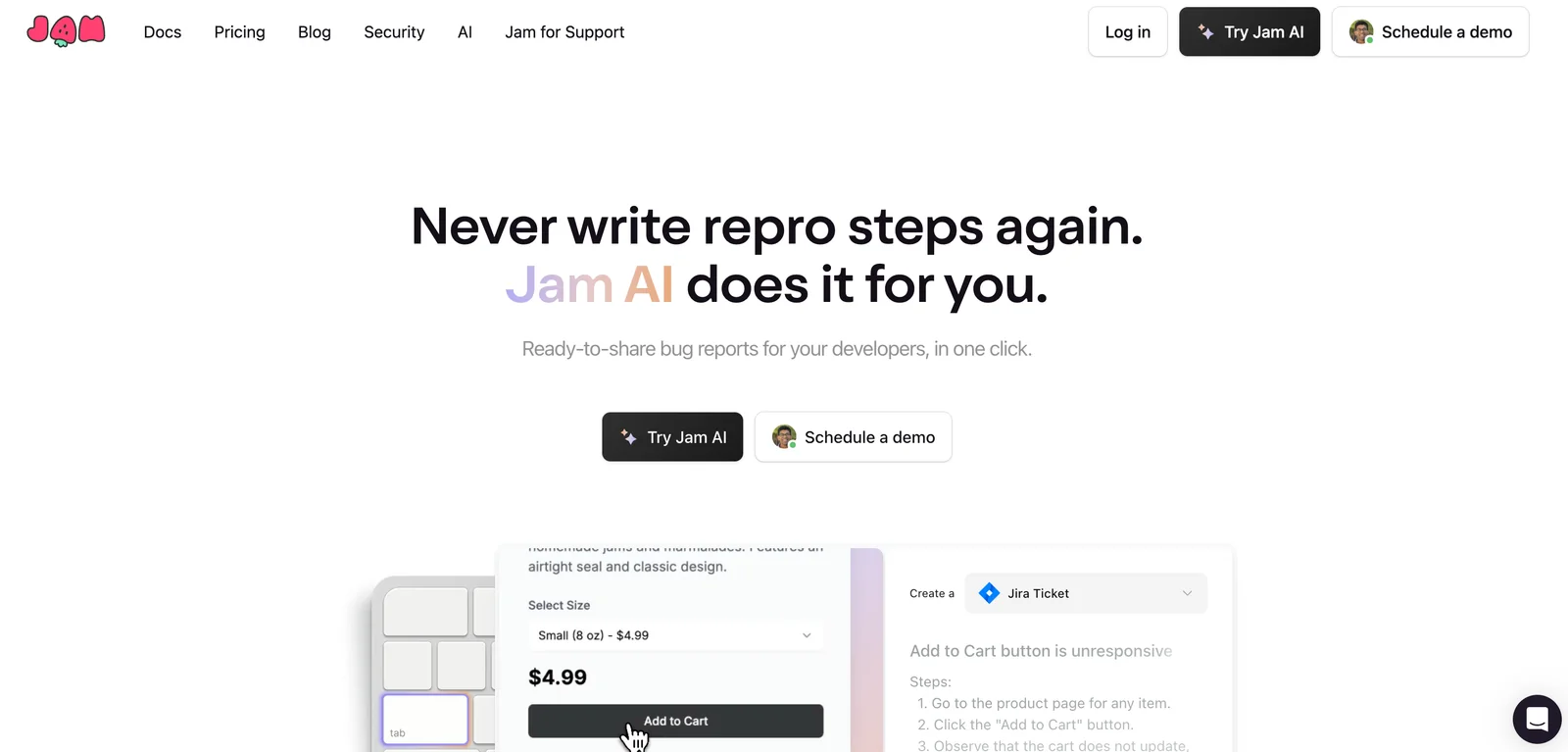
Jam is a lightweight bug-reporting tool that lets users report issues as easily as taking a screenshot. It focuses on speed for reporters and clarity for engineers by producing concise, actionable reports with visual context. Jam aims to reduce friction in capturing and communicating bugs so teams can triage and fix issues faster and spend less time chasing vague or incomplete problem descriptions.
Screenshots
Key Features
Use Cases
MCP Server
https://jam.dev/docs/debug-a-jam/mcphttps://mcp.jam.dev/mcp💡 MCP (Model Context Protocol) enables AI assistants to securely interact with local and remote resources.



Frequently asked questions about Jam
What are the pricing options for Jam?
Jam offers three pricing tiers: a free Viewer plan at $0/month, a Creator/Paid tier with variable pricing based on user needs, and an Enterprise tier with custom pricing tailored for larger organizations. Each plan includes distinct features and varying quotas for reporting bugs.
Key Points
- Free Viewer Plan: $0/month with basic features.
- Creator/Paid Tier: Pricing varies based on user requirements.
- Enterprise Tier: Custom pricing for organizations needing advanced features.
Detailed Explanation
Jam's pricing model is designed to accommodate a variety of users, from individuals to large enterprises.
-
Free Viewer Plan: Ideal for users who want to explore Jam's capabilities without any financial commitment. This plan allows access to basic features, making it suitable for casual users or those just beginning to engage with Jam.
-
Creator/Paid Tier: This tier provides enhanced functionalities designed for creators and professionals. Pricing is not publicly listed, as it can vary significantly based on the specific features and user quotas selected. Users can typically expect access to advanced tools for bug reporting, collaboration, and project management. Interested users should contact Jam for a personalized quote based on their needs.
-
Enterprise Tier: Tailored for larger organizations, this plan offers custom pricing that reflects the scale and requirements of the business. Organizations opting for this tier can expect additional features such as enhanced security, dedicated support, and extensive customization options to fit their operational needs.
Best Practices / Tips
- Evaluate Your Needs: Before selecting a pricing tier, assess your specific requirements regarding features, number of users, and the scale of your projects.
- Contact Sales for Custom Quotes: For the Creator/Paid and Enterprise tiers, reach out to Jam's sales team to get a detailed breakdown of costs and features available.
- Utilize the Free Plan: Use the free Viewer plan to familiarize yourself with Jam's interface and functionalities before committing to a paid tier.
Additional Resources
What features does Jam provide for bug reporting?
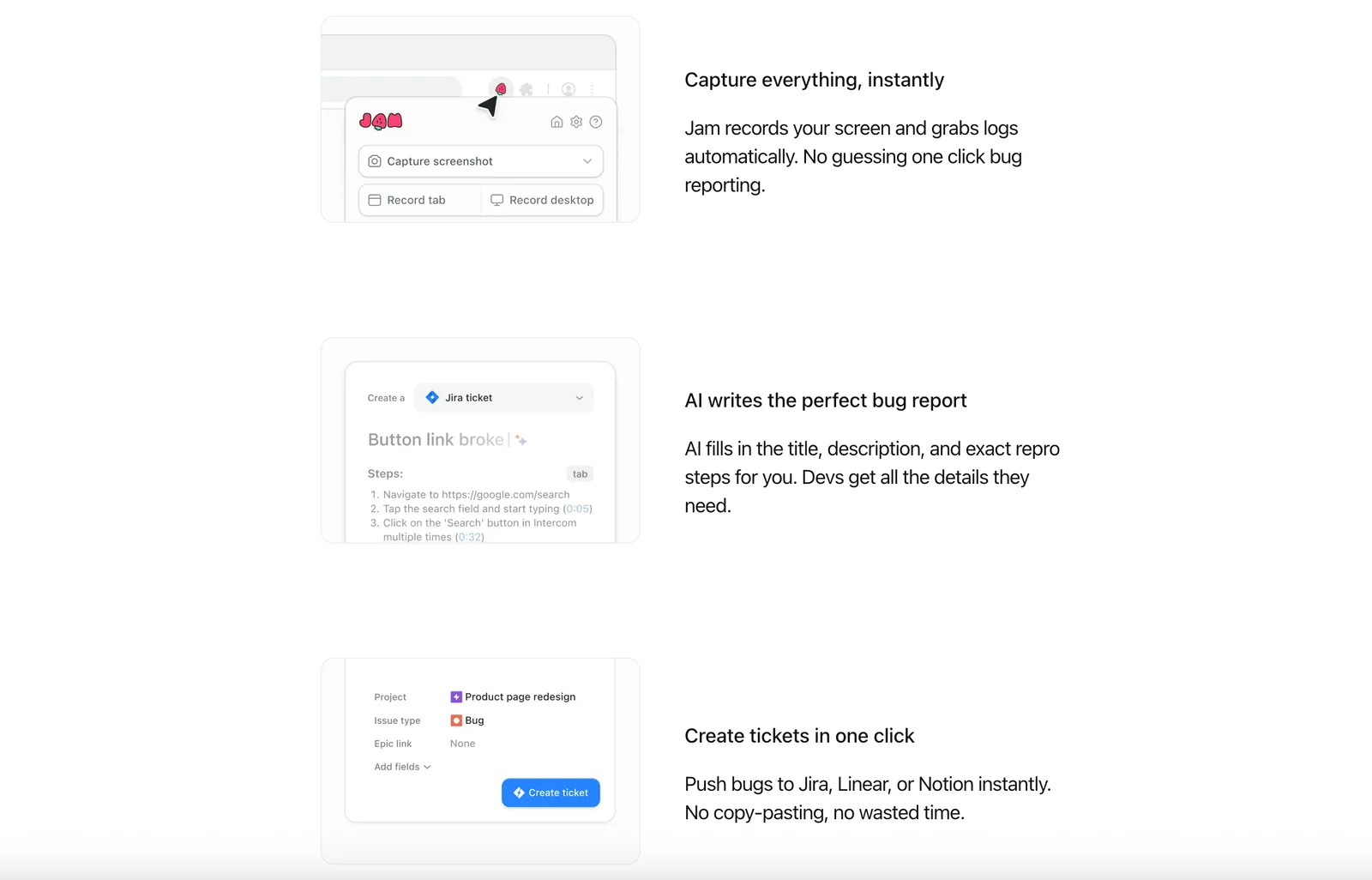
Jam provides robust features for bug reporting, including one-click screenshot capture, automatic compilation of browser logs, and engineer-friendly report formats. These tools enable users to swiftly document bugs while offering developers rich contextual information necessary for efficient troubleshooting and resolution.
Key Points
- One-Click Screenshot Capture: Quickly document visual issues.
- Automatic Browser Logs: Collect relevant performance data effortlessly.
- Engineer-Friendly Formats: Streamlined reports make it easier for developers to understand and address bugs.
Detailed Explanation
Jam simplifies the bug reporting process significantly, catering to both users and developers.
-
One-Click Screenshot Capture: Users can take screenshots of bugs instantly with a single click. This feature is particularly useful for visual issues, as it allows the user to show exactly what went wrong. For example, if a button doesn’t respond, the screenshot can illustrate the state of the interface.
-
Automatic Browser Logs: When a bug is reported, Jam automatically gathers browser logs, which include vital performance metrics and error messages. This saves time and ensures that developers have access to all relevant data, making it easier to identify the root cause of the issue.
-
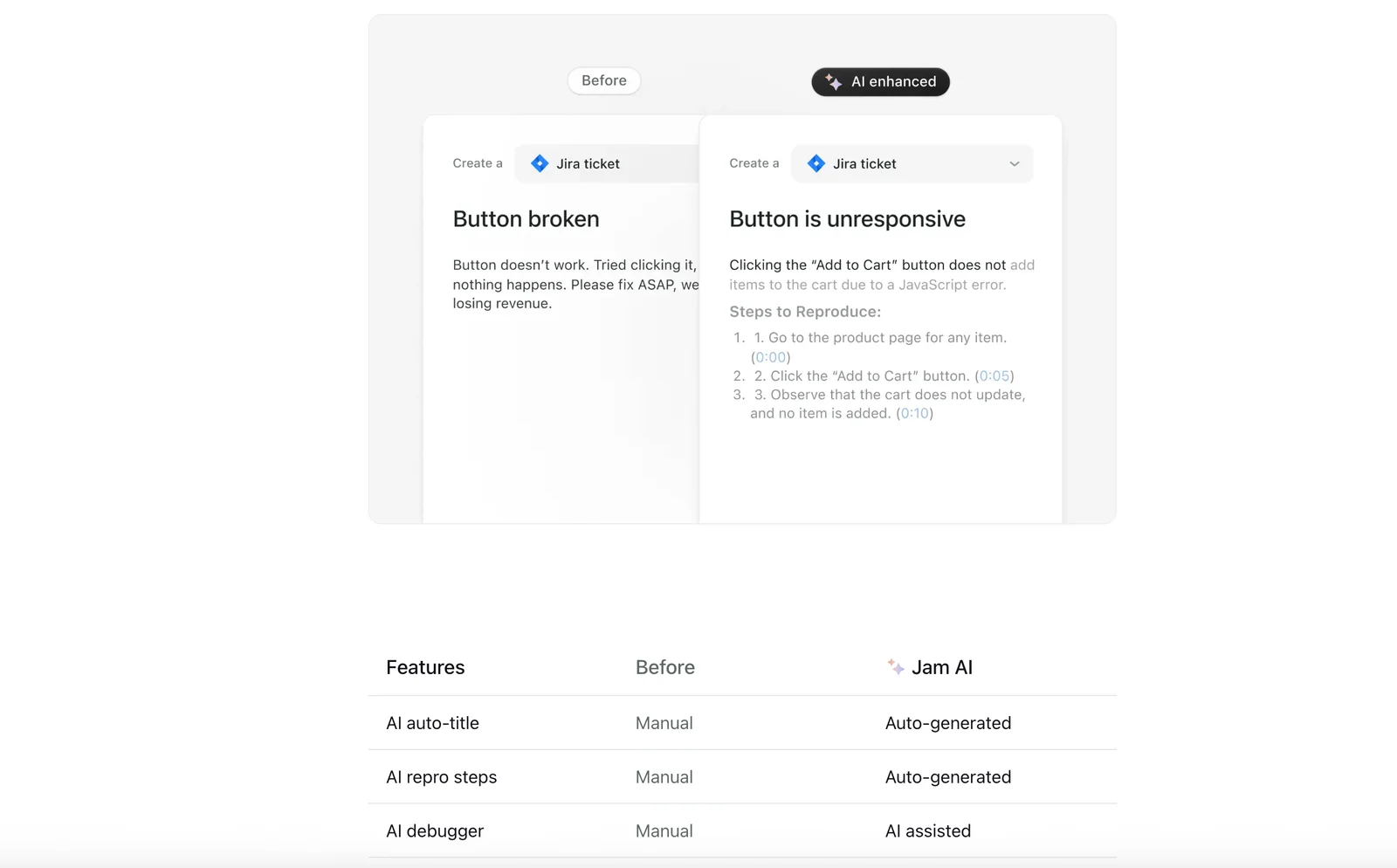
Engineer-Friendly Report Formats: Jam formats bug reports in a way that is easy for developers to read and understand. This includes structured data that highlights the bug's context, steps to reproduce it, and any relevant logs. By minimizing the need for back-and-forth communication, Jam speeds up the bug resolution process.
Best Practices / Tips
- Capture Context: Always encourage users to provide as much detail as possible about the bug, including steps to reproduce and the environment in which it occurred.
- Use Tags: Utilize tagging features to categorize bugs by severity or type, which helps in prioritizing fixes.
- Regular Updates: Keep the development team informed about recurring issues by analyzing the data collected through Jam, enabling proactive improvements.
- Training: Conduct training sessions for users to familiarize them with Jam’s features, ensuring they can make the best use of its capabilities.
Additional Resources
How do I start using Jam for bug reporting?
To start using Jam for bug reporting, visit the official Jam website, create an account, select a suitable pricing plan, and follow the onboarding instructions. This will guide you through submitting your first bug report efficiently.
Key Points
- Create an Account: Sign up with your email and set a password.
- Choose a Pricing Plan: Select from free or paid options based on your needs.
- Onboarding Instructions: Follow the guided steps to familiarize yourself with the platform.
Detailed Explanation
To begin using Jam for bug reporting, first, navigate to the official Jam website. Click on the “Sign Up” button to create your account. You will need to provide your email address and create a password. Once registered, you will be prompted to verify your email.
Next, select a pricing plan. Jam typically offers a free tier with basic features, ideal for individuals or small teams, and several paid plans that provide additional capabilities like advanced analytics and team collaboration tools. Choose a plan that aligns with your reporting needs.
After selecting your plan, you will enter the onboarding process. Jam offers a user-friendly interface with guided tutorials and tips. This phase is crucial as it helps you understand how to navigate the platform, set up projects, and access the bug reporting features.
Once you’ve completed onboarding, you can start creating your first bug report. Click on the “Report a Bug” button, fill in the required fields such as the bug description, steps to reproduce, and attach relevant screenshots if needed. Submitting your report is usually just a click away!
Best Practices / Tips
- Use Clear Descriptions: When reporting bugs, be as descriptive as possible to ensure developers understand the issue.
- Replicate Steps: Provide clear, step-by-step instructions on how to replicate the bug for quicker resolutions.
- Prioritize Bugs: If possible, categorize bugs by severity to help your team address critical issues first.
Avoid common pitfalls such as submitting vague reports or failing to include necessary details. This can lead to delays in bug resolution and frustration for both you and the development team.
Additional Resources
Does Jam integrate with other tools like Jira or Sentry?
Yes, Jam integrates seamlessly with tools like Jira and Sentry, enhancing bug tracking and management. This integration optimizes workflows for development and support teams, enabling efficient collaboration and timely resolution of issues.
Key Points
- Seamless Integration: Jam connects with Jira and Sentry effortlessly.
- Enhanced Collaboration: Facilitates real-time communication between teams.
- Improved Workflow: Streamlines processes for bug tracking and issue management.
Detailed Explanation
Jam's integration with Jira allows teams to create, update, and manage tickets directly from the Jam platform. This means developers can report bugs while working in Jam, automatically generating Jira tickets. For example, if a developer encounters a bug during testing, they can simply document it in Jam, and a Jira issue will be created, ensuring that the bug is tracked and prioritized correctly.
Similarly, integration with Sentry allows developers to monitor application performance and errors in real-time. When an error is detected, Sentry can automatically create a detailed report in Jam, which includes stack traces, user actions, and other relevant data. This integration ensures that support teams have all the information they need to address issues quickly and efficiently.
Example Use Case:
- Bug Reporting: A user reports a bug in Jam.
- Ticket Creation: The development team converts the report into a Jira ticket with a single click.
- Error Monitoring: If the bug is critical, Sentry captures the error, creating an alert in Jam.
- Resolution: Developers can collaborate in Jam to discuss the bug, track progress, and ensure timely fixes.
Best Practices / Tips
- Utilize Automation: Set up automatic ticket creation for bugs reported in Jam to minimize manual input.
- Leverage Notifications: Configure notifications in both Jira and Sentry to keep your team updated on changes and issues.
- Regularly Sync: Ensure that your Jam, Jira, and Sentry accounts are regularly synchronized to maintain up-to-date information across platforms.
Additional Resources
How does Jam compare to other bug reporting tools?
Jam excels as a bug reporting tool by offering screenshot-based feedback and engineer-friendly reports. Unlike other platforms, it minimizes context switching, enhancing both speed and clarity for users and engineers. This unique approach streamlines the debugging process, making it a preferred choice for teams focused on efficiency.
Key Points
- Screenshot-based Reporting: Capture visual context seamlessly.
- Engineer-Friendly Reports: Tailored for easy understanding and action.
- Reduced Context Switching: Streamlined workflow for users and developers.
Detailed Explanation
Jam distinguishes itself in the crowded bug reporting tool market through its innovative features. The screenshot-based reporting allows users to capture the exact moment an issue occurs, providing engineers with visual context that text descriptions alone cannot convey. This visual aid significantly decreases the time engineers spend deciphering vague bug reports.
Additionally, Jam's engineer-friendly reports are designed to be clear and concise. They highlight crucial information, such as reproduction steps, browser details, and system configurations, enabling engineers to quickly assess and address issues. This efficiency is particularly beneficial for teams operating in agile environments, where rapid iteration and deployment are key.
Another standout feature is Jam's ability to reduce context switching. Traditional bug reporting tools often require users to switch between applications or tabs, which can disrupt workflow and productivity. Jam integrates seamlessly into existing development environments, allowing users to report bugs without leaving their current tasks. This uninterrupted experience helps maintain focus and enhances overall team productivity.
Best Practices / Tips
- Utilize Screenshots Wisely: Always include clear screenshots when reporting bugs to provide context.
- Be Concise: Provide only the necessary details to avoid overwhelming engineers with information.
- Integrate with Existing Tools: Ensure Jam is set up to work with your team's current project management tools to streamline the reporting process.
- Regularly Review Reports: Regularly check and update previously reported bugs to keep your issue tracker organized and relevant.
Additional Resources
By leveraging Jam's unique features, teams can significantly enhance their bug reporting processes, leading to quicker resolutions and improved software quality.
Explore more AI Mcps tools
Browse all Mcps tools →Browse by use case: Code Generation · Automation & Productivity
Compare Jam: vs ai-memory · vs CrawlForge MCP · vs Popcraft · vs Pomerado