

Figma
AIOfficial MCPCollaborative, web-based vector design and prototyping platform for building and iterating product interfaces with real-time feedback.
Figma
Collaborative, web-based vector design and prototyping platform for building and iterating product interfaces with real-time feedback.
About Figma
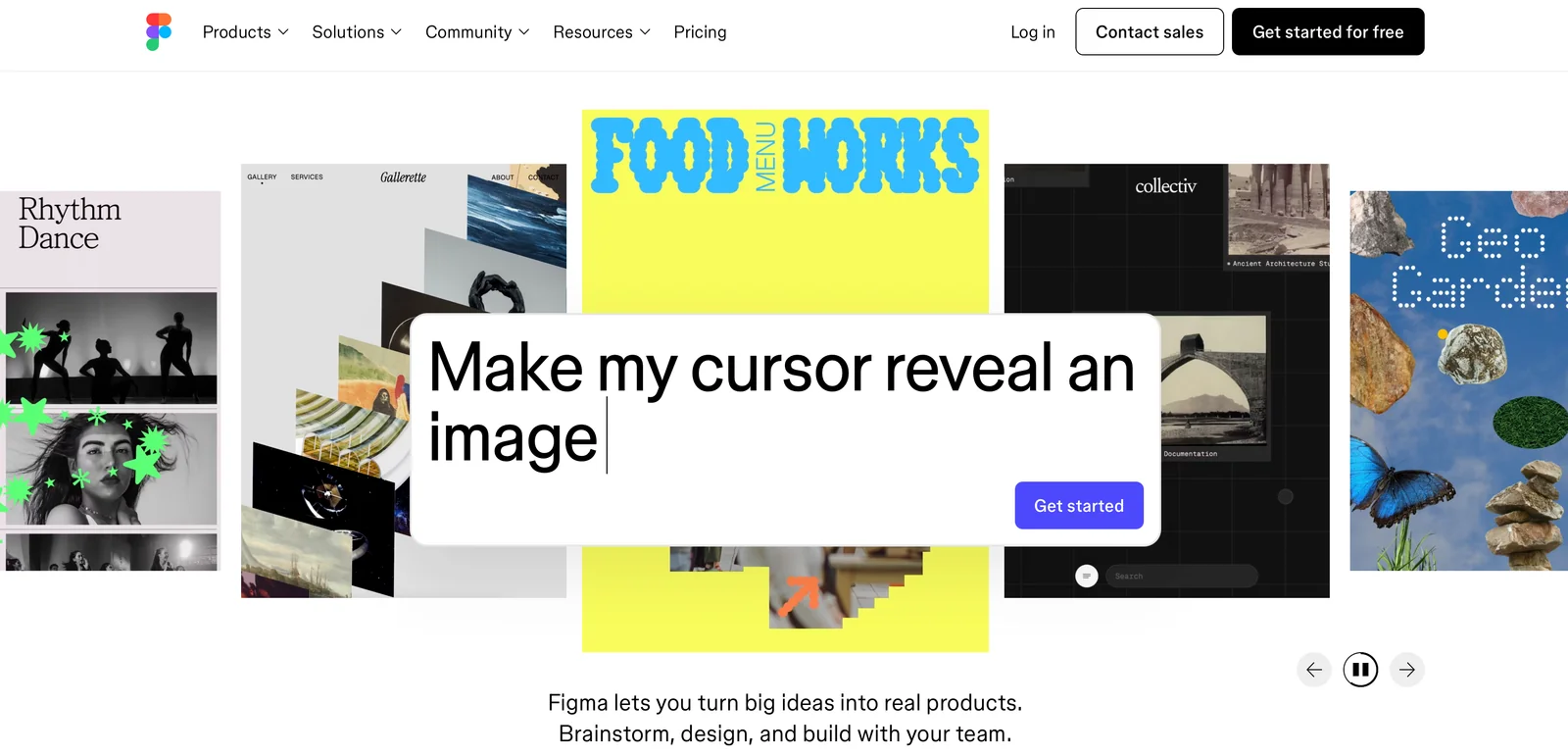
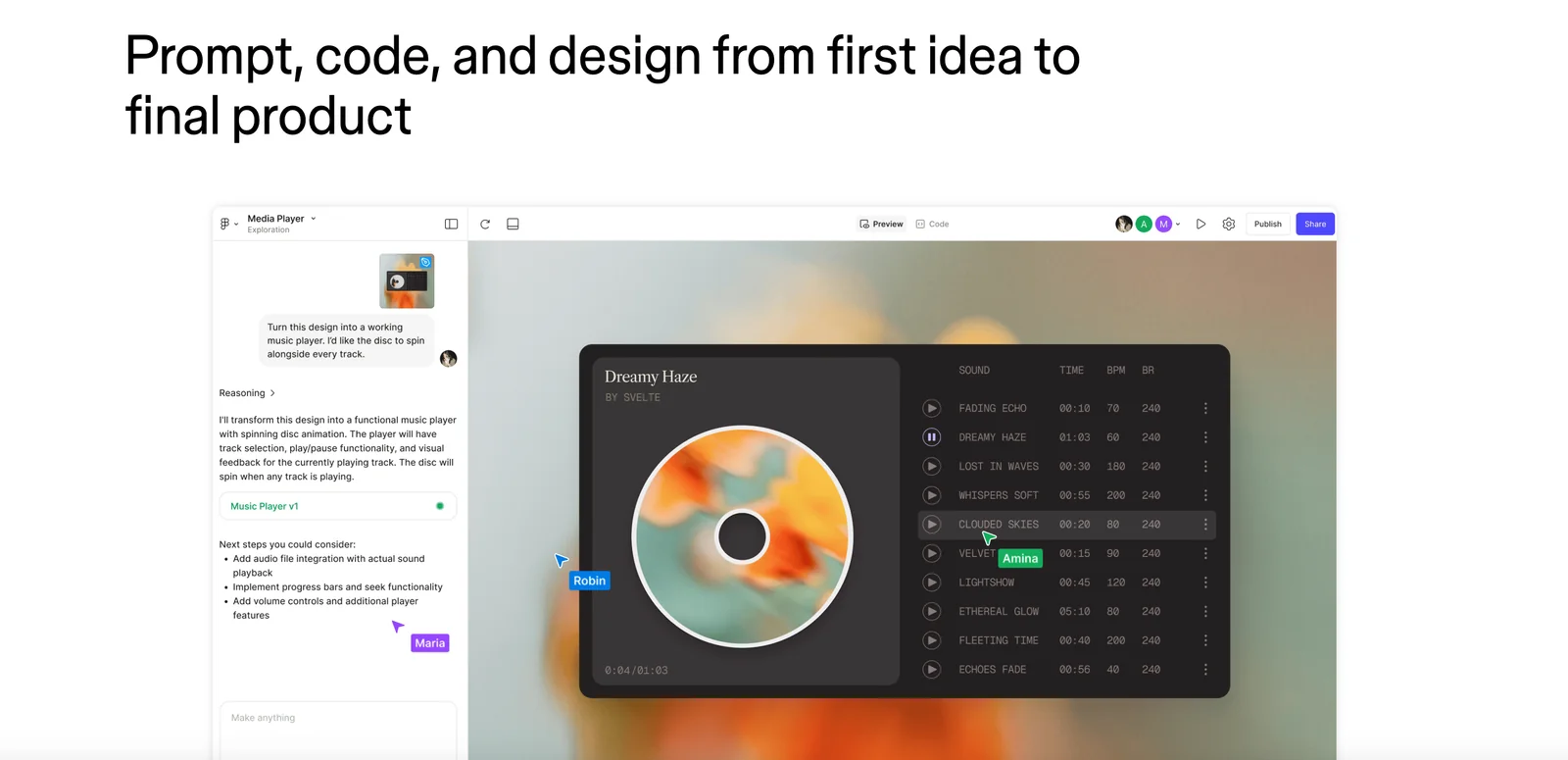
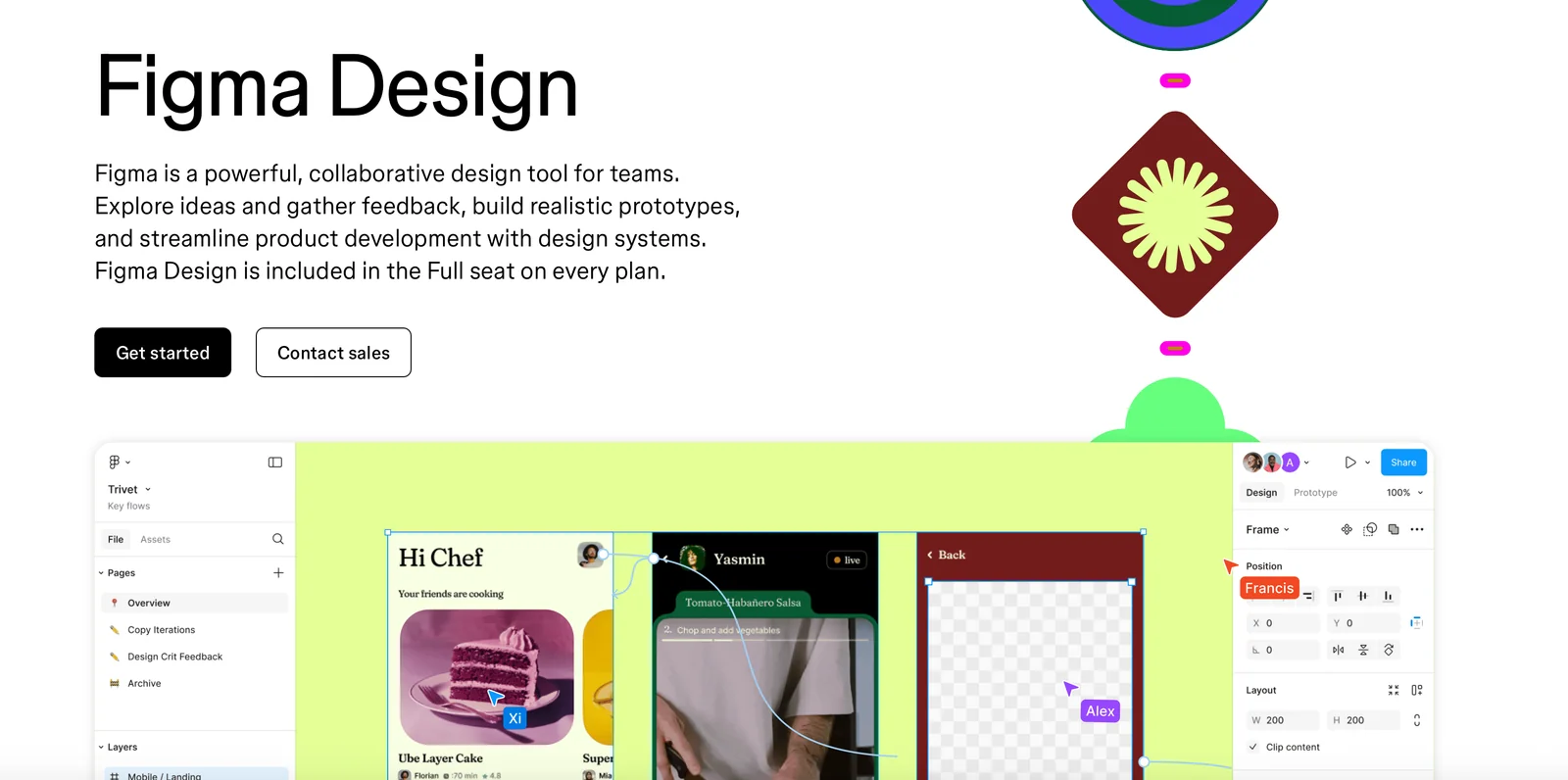
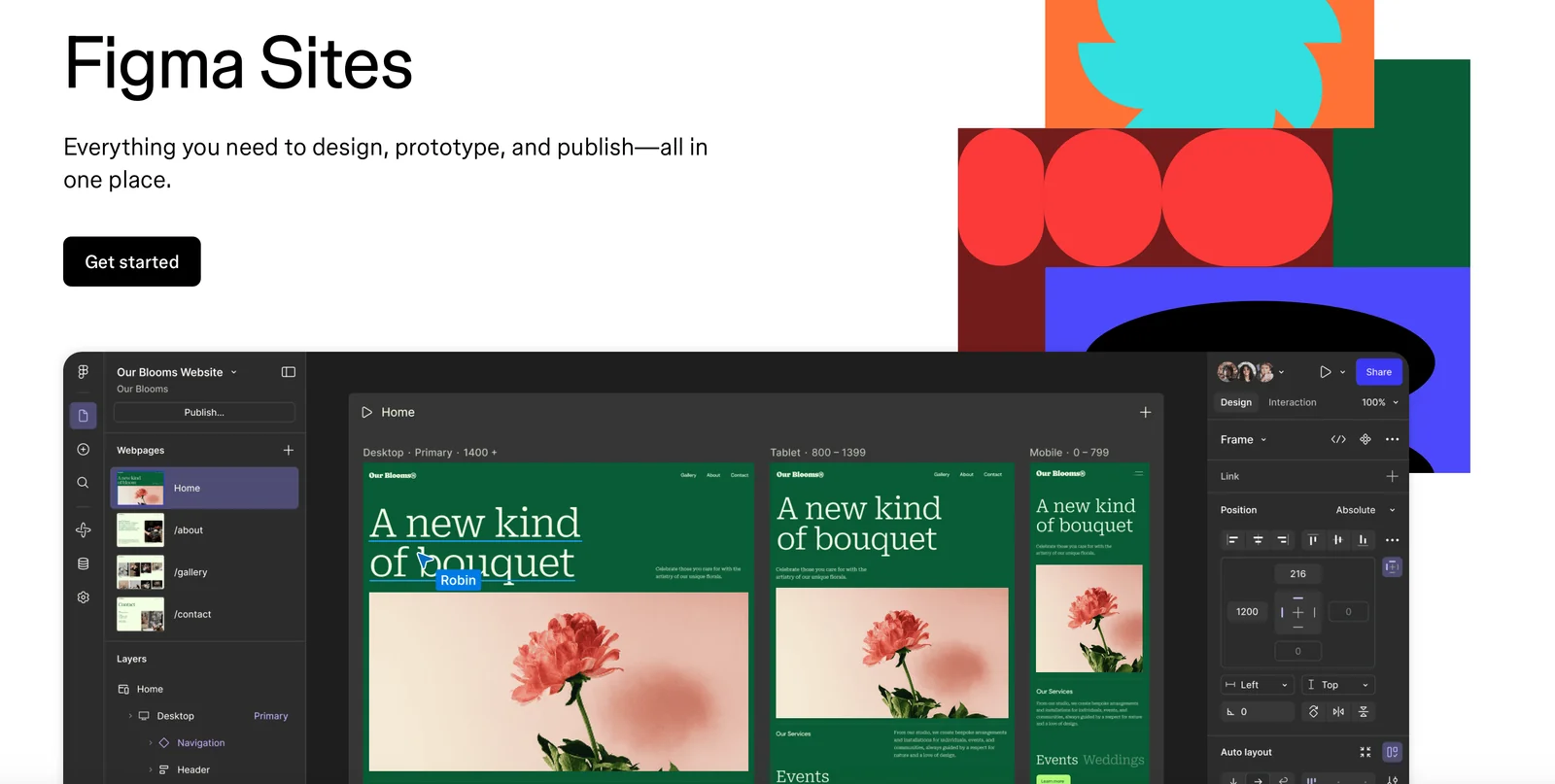
Figma is a collaborative interface design platform focused on UI/UX design, prototyping, and team workflows. It runs primarily in the browser with desktop apps that provide offline capabilities, and includes mobile companion apps (Figma Mirror) for previewing prototypes on devices. Figma emphasizes real-time collaboration so multiple team members can edit, comment, and gather feedback in a single place. It also supports extensibility via a plugin and API ecosystem and is widely used for shared design systems, component libraries, and handoff between design and development.
Screenshots
Key Features
Use Cases
MCP Server
https://help.figma.com/hc/en-us/articles/32132100833559-Guide-to-the-Figma-MCP-serverhttps://mcp.figma.com/mcp💡 MCP (Model Context Protocol) enables AI assistants to securely interact with local and remote resources.



Frequently asked questions about Figma
What are the pricing options for Figma?
Figma provides a freemium pricing structure with four distinct plans: Starter (Free), Professional ($15 per editor/month), Organization ($45 per user/month), and Enterprise (custom pricing). Each plan is designed to cater to different needs, offering unique features and collaboration tools for teams of various sizes.
Key Points
- Starter Plan: Free access for individuals and small teams.
- Professional Plan: Advanced features for $15 per editor/month, ideal for growing teams.
- Organization Plan: Comprehensive tools at $45 per user/month for larger teams.
- Enterprise Plan: Custom pricing for extensive needs and support.
Detailed Explanation
Figma's pricing plans are tailored to accommodate a variety of users, from freelancers to large enterprises:
-
Starter Plan (Free): Ideal for individuals or small teams, this plan includes basic features such as collaborative design, version history, and access to Figma's community resources. It's a great starting point for those new to design tools.
-
Professional Plan ($15/editor/month): This plan is suited for teams that require more advanced collaboration features. It includes unlimited version history, team libraries, and additional design systems. This plan is perfect for teams looking to enhance their workflow and communication.
-
Organization Plan ($45/user/month): Designed for larger teams or organizations, this plan offers advanced security features, centralized administration, and enhanced collaboration tools. This plan is ideal for businesses that require strict control over their design assets and user permissions.
-
Enterprise Plan (Custom Pricing): For organizations with specific needs, Figma offers a customizable plan. This includes everything in the Organization plan, plus dedicated support, custom integrations, and tailored security options. It's perfect for large corporations requiring a high level of service and customization.
Best Practices / Tips
- Evaluate Your Needs: Before choosing a plan, assess your team's size and collaboration requirements.
- Utilize the Free Trial: Take advantage of the free plan to explore Figma's features before committing to a paid plan.
- Stay Updated on Features: Figma frequently updates its features, so regularly check for new tools that may benefit your workflow.
- Consider Team Growth: If you anticipate growth, choose a plan that can scale with your team to avoid frequent upgrades.
Additional Resources
By understanding Figma's pricing options, you can select the best plan for your needs, ensuring that you maximize your design capabilities while staying within budget.
How do I start using Figma for collaborative design?
To start using Figma for collaborative design, sign up for a free account on their website. After registration, create a new design file and invite team members to collaborate in real-time. Explore Figma’s tutorials for additional guidance and tips on maximizing your design workflow.
Key Points
- Create an Account: Sign up for free on Figma’s website.
- Start a New Project: Launch a new design file for collaboration.
- Invite Team Members: Easily share your project with others for real-time editing.
Detailed Explanation
-
Creating Your Figma Account: Visit Figma's website and click on the "Sign Up" button. You can register using your email or link to Google or Slack accounts for quicker access.
-
Starting a New Project: After logging in, click on the “New File” button on the dashboard. This will open the Figma design interface, where you can begin creating your design. Familiarize yourself with the toolbar and design functions available.
-
Collaborating in Real-Time: To invite team members, click on the “Share” button in the top-right corner of your project. Enter the email addresses of your collaborators, set their permissions (view or edit), and send the invites. Your team can now work together in real-time, making instant updates and comments.
-
Utilizing Tutorials: Figma offers a wealth of resources, including video tutorials and community forums. Visit the Figma Learn page to access guides on various topics, such as prototyping, design systems, and more.
Best Practices / Tips
- Use Components: Create reusable components for consistency across your designs. This saves time and maintains a cohesive look.
- Version Control: Regularly save versions of your work. Figma provides a version history feature, allowing you to revert to previous iterations if needed.
- Feedback and Commenting: Encourage team members to leave comments directly on the design file. This feature enhances communication and streamlines feedback collection.
Additional Resources
- Figma Getting Started Guide
- Figma Community - Explore shared design files and plugins.
- Figma Tips and Tricks for enhancing your design skills.
What features make Figma a good choice for prototyping?
Figma is an excellent choice for prototyping due to its intuitive built-in prototyping tools, real-time collaboration features, and the ability to preview designs on mobile devices using Figma Mirror. These capabilities enable designers to create interactive prototypes quickly and gather immediate feedback from team members and stakeholders.
Key Points
- Built-in Prototyping Tools: Create interactive experiences seamlessly.
- Real-time Collaboration: Work simultaneously with team members.
- Mobile Previewing: Test prototypes on actual devices with Figma Mirror.
Detailed Explanation
Figma's prototyping capabilities allow designers to link frames, add transitions, and create interactive elements without the need for additional software. This integrated approach streamlines the design process and encourages experimentation.
-
Built-in Prototyping Tools:
- Designers can easily convert static designs into interactive prototypes. By utilizing features like overlays and smart animate, they can simulate user interactions, providing a realistic experience for testers. For example, linking a button to a new screen can showcase navigation, making it easier to assess usability.
-
Real-time Collaboration:
- Figma's unique cloud-based platform facilitates real-time collaboration, allowing multiple users to work on the same project simultaneously. This is particularly beneficial for teams spread across different locations. Comments can be added directly on the design, ensuring clear communication and immediate feedback from all stakeholders.
-
Mobile Previewing:
- Using Figma Mirror, designers can preview their prototypes on mobile devices. This feature is essential for testing how designs perform on different screen sizes and orientations. It allows for quick iterations based on real user interactions, ensuring that the final product meets user needs.
Best Practices / Tips
- Utilize Components: Leverage Figma's component system to create reusable elements that can be updated globally, saving time and maintaining consistency across designs.
- Organize Your Files: Keep your Figma files organized with clear naming conventions and layers to enhance collaboration and ease of navigation.
- Gather Feedback Early: Share prototypes with stakeholders as early as possible to identify issues before development begins, allowing for adjustments based on user feedback.
Additional Resources
How does Figma integrate with other tools and APIs?
Figma seamlessly integrates with various tools and APIs, enabling users to automate tasks, enhance collaboration, and extend the platform's functionality. Developers can access Figma's comprehensive API documentation on GitHub, which provides all necessary guidance for building and managing integrations effectively.
Key Points
- Extensive API Access: Figma offers a robust API for custom integrations.
- Third-Party Tool Compatibility: Supports numerous design, project management, and productivity tools.
- Automation Capabilities: Facilitates task automation to streamline workflows.
Detailed Explanation
Figma’s integration capabilities are one of its standout features, empowering teams to enhance their design processes. The Figma API allows developers to create custom plugins and automate repetitive tasks, significantly improving efficiency.
Examples of Integrations:
- Slack: Teams can receive notifications about design updates directly in their Slack channels, ensuring everyone stays informed.
- Jira: Designers can link Figma files to Jira tasks, allowing for seamless project tracking and collaboration.
- Zeplin: This integration streamlines handoff between designers and developers, providing design specs and assets directly from Figma.
Use Cases:
- Automating Design Reviews: With API access, teams can automate feedback loops, where design changes trigger notifications to stakeholders.
- Custom Plugins: Developers can create plugins tailored to specific workflows, such as batch exporting assets or generating design tokens.
Best Practices / Tips
- Start Small: When integrating, begin with simple automation tasks to understand the API's capabilities.
- Refer to API Documentation: Always consult Figma's API documentation on GitHub for best practices, sample code, and troubleshooting tips.
- Engage with the Community: Join Figma’s community forums or Discord channels to exchange ideas and gain insights from other developers.
Additional Resources
How does Figma compare to other design tools like Adobe XD?
Figma stands out against design tools like Adobe XD primarily due to its superior real-time collaboration and web-based platform. While Adobe XD is primarily desktop-centric, Figma offers a robust plugin ecosystem and features tailored for design systems, making it a favorite among teams requiring seamless interaction and accessibility.
Key Points
- Real-Time Collaboration: Figma allows multiple users to work simultaneously on the same design, enhancing teamwork.
- Web-Based Platform: Unlike Adobe XD, Figma operates entirely in the cloud, enabling access from any device with an internet connection.
- Robust Plugin Ecosystem: Figma supports numerous plugins that extend its functionality, further streamlining design processes.
Detailed Explanation
Figma's collaborative features allow designers, developers, and stakeholders to provide immediate feedback, streamlining the design workflow. This is especially beneficial in remote work settings, where asynchronous edits can slow down progress. For example, with Figma, users can leave comments directly on designs, ensuring that all feedback is centralized and easily accessible.
In contrast, Adobe XD users often rely on sharing files via cloud storage or email, which can lead to version control issues. Additionally, Adobe XD offers real-time collaboration, but it requires a stable internet connection and is more limited in functionality compared to Figma's seamless cloud integration.
Figma's extensive plugin library enables users to customize their design environment. Popular plugins like "Unsplash" for stock images and "Content Reel" for placeholder text significantly enhance productivity. In comparison, Adobe XD also offers plugins but does not match the breadth and depth that Figma provides.
Best Practices / Tips
- Leverage Figma's Collaboration Features: Encourage your team to utilize Figma’s commenting and version history for better project management and feedback loops.
- Explore Plugins: Invest time in exploring the Figma Community for plugins that can automate tasks, such as accessibility checks or design system integration, to expedite your workflow.
- Design Systems: Use Figma's design system features to create reusable components and styles, promoting consistency across projects.
Additional Resources
Explore more AI Mcps tools
Browse all Mcps tools →Browse by use case: Image Generation
Compare Figma: vs ai-memory · vs CrawlForge MCP · vs Popcraft · vs Pomerado