
Canva
AIVisual design platform for creating presentations, social media graphics, videos, and documents with templates, assets, and AI-powered generation.
Canva
Visual design platform for creating presentations, social media graphics, videos, and documents with templates, assets, and AI-powered generation.
About Canva
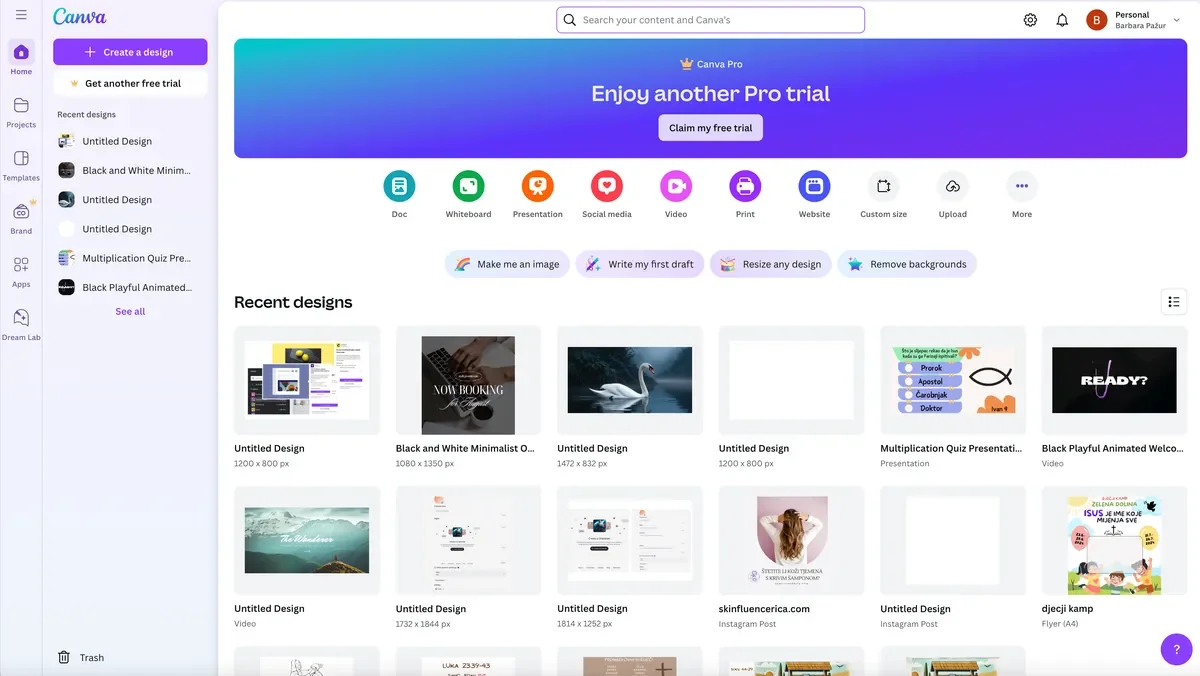
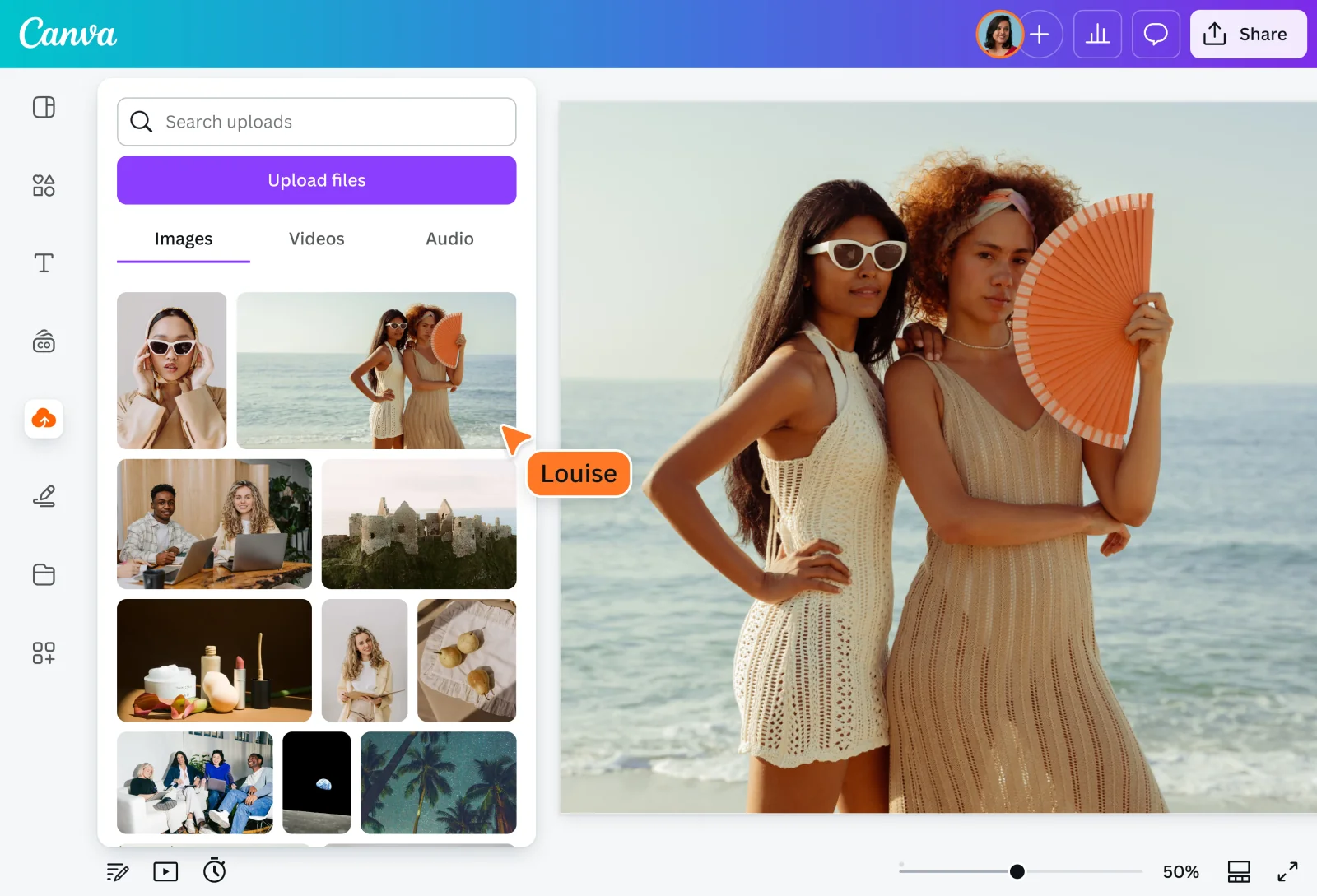
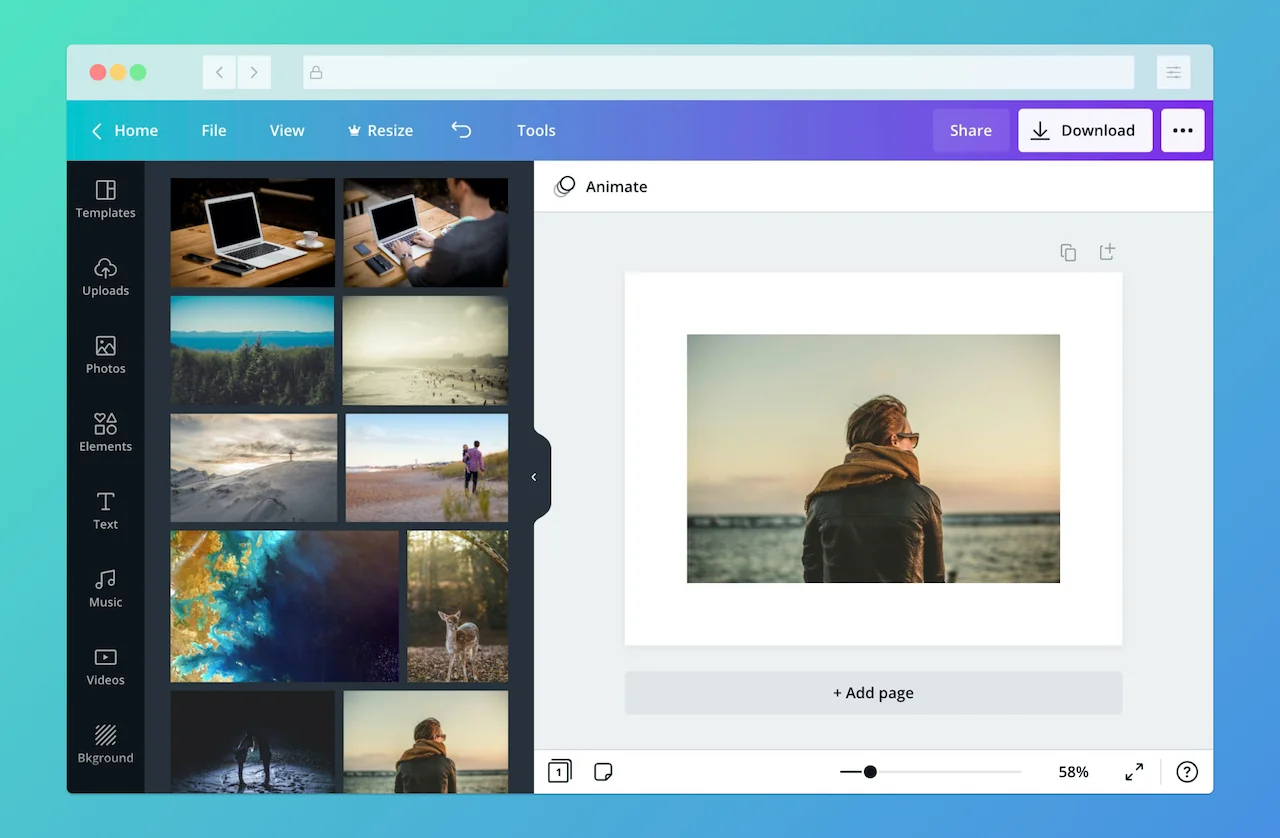
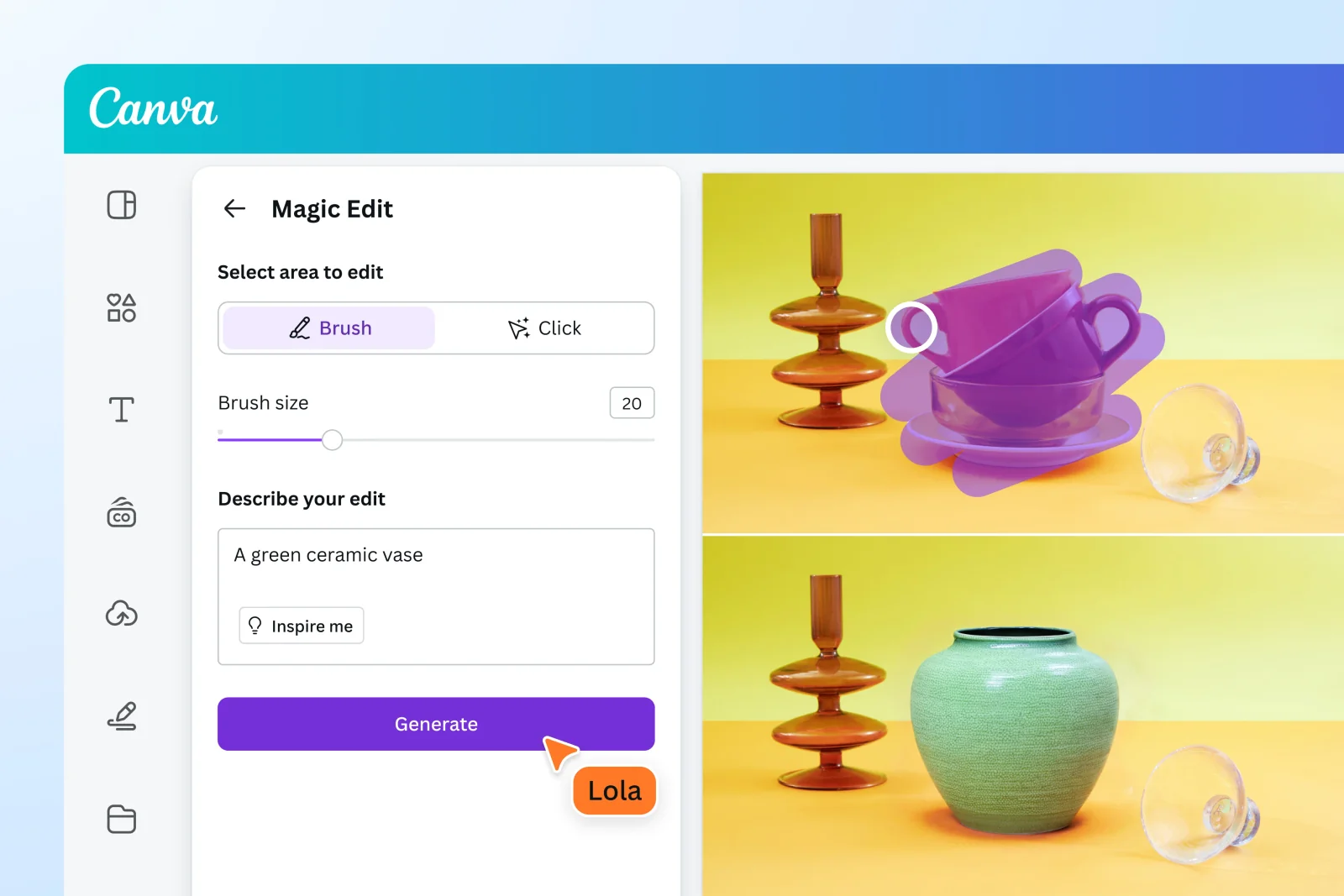
Canva is a visual communication and design platform used by millions to create presentations, social media graphics, videos, documents, and websites. It combines an easy-to-use drag-and-drop interface, a large library of templates and assets, brand management tools, and collaborative editing to let non-designers produce polished content quickly. Canva has integrated generative capabilities (branded as Magic Studio/Magic Design) that pair Canva’s design engine and asset library with external models (e.g., OpenAI) to generate layouts, images, and video content from text prompts. The platform emphasizes simplicity, speed, and scale for teams, marketers, educators, and creators while supporting multi-user collaboration, asset management, and export across formats.
Screenshots
Key Features
Use Cases



Frequently asked questions about Canva
What are the pricing options for Canva?
Canva offers a variety of pricing plans: a free tier with limited features, Canva Pro at approximately $12.99 per month, and Canva for Teams starting at $10 per user per month. Additionally, eligible educational institutions and nonprofits can access free programs.
Key Points
- Free Tier: Access basic features and templates.
- Canva Pro: Advanced features, including brand kits and premium content.
- Canva for Teams: Collaboration tools for businesses and organizations.
Detailed Explanation
Canva provides several pricing options tailored to different user needs:
-
Free Tier: This plan is perfect for individuals or small projects. Users can create designs using a limited selection of templates, images, and graphics. However, access to premium elements and advanced features is restricted.
-
Canva Pro: At around $12.99 per month (when billed annually), this plan unlocks a plethora of features. Users gain access to over 75 million premium stock photos, videos, audio, and graphics. Additionally, Canva Pro includes tools like Brand Kits for consistent branding, Magic Resize for adapting designs across formats, and Background Remover for professional-quality images.
-
Canva for Teams: Starting at $10 per user per month, this plan is designed for organizations needing collaboration tools. It offers features like team folders, real-time collaboration, and advanced permission settings. Canva for Teams also allows users to manage brand assets centrally, ensuring consistency across all designs.
-
Educational and Nonprofit Programs: Canva is committed to supporting educational institutions and nonprofits by offering free access to its Pro features. Eligible users can apply through Canva’s website, providing an opportunity to leverage design tools without incurring costs.
Best Practices / Tips
- Evaluate Your Needs: Determine which features are essential for your projects. If you mainly use basic designs, the free tier may suffice.
- Take Advantage of Free Trials: Consider trying Canva Pro for a month to explore its advanced features before committing to a subscription.
- Utilize Templates: Canva offers thousands of templates that can save time and enhance design quality. Use them as a starting point for your projects.
- Stay Updated on Promotions: Canva occasionally runs promotions or discounts, especially for educational and nonprofit sectors. Keep an eye out for such opportunities.
Additional Resources
How do I start using Canva for my designs?
To start using Canva for your designs, visit canva.com, create a free account, and explore its extensive library of templates and design tools. Take advantage of the various tutorials and guides available on the site to help you familiarize yourself with the platform and enhance your design skills.
Key Points
- Create a Free Account: Sign up easily without any initial costs.
- Explore Templates: Access thousands of customizable templates for various design needs.
- Utilize Tutorials: Learn design techniques through Canva's helpful resources.
Detailed Explanation
Starting with Canva is straightforward and user-friendly, making it an excellent choice for both beginners and seasoned designers. Here’s how to get started:
- Visit the Website: Go to canva.com on your web browser.
- Create an Account: Click on "Sign Up" to create a free account using your email, Google, or Facebook credentials. This gives you access to the platform's features without any cost.
- Choose a Design Type: Once logged in, you can select from a wide array of design types, including social media posts, presentations, flyers, and more.
- Browse Templates: Use the search bar to find specific templates tailored to your project. Canva offers thousands of free and premium templates to jumpstart your design process.
- Customize Your Design: Click on a template to start editing. You can modify text, colors, images, and layouts easily with drag-and-drop functionality.
- Access Tutorials: Canva provides a variety of tutorials and design courses in their "Learn" section. These resources cover everything from basic design principles to advanced techniques.
Best Practices / Tips
- Familiarize Yourself with the Interface: Spend some time navigating through the platform to understand its features and tools fully.
- Use Keyboard Shortcuts: Learn and utilize keyboard shortcuts for quicker editing and navigation.
- Experiment with Elements: Don’t hesitate to try different images, fonts, and colors to find the best combination for your design.
- Save Your Work Regularly: Canva automatically saves your work, but it’s good practice to manually save after significant changes.
- Explore Canva Pro: If you need advanced features, consider upgrading to Canva Pro for additional tools, assets, and custom branding options.
Additional Resources
- Canva Help Center: Access detailed guides and FAQs.
- Canva Design School: Learn design basics and advanced techniques through free courses.
- Canva Blog: Stay updated on design trends, tips, and inspiration.
What features does Canva Pro offer compared to the free version?
Canva Pro offers significant advantages over the free version, including unlimited access to premium templates, advanced AI design tools, and 1 TB of cloud storage. Additionally, Pro users enjoy enhanced export options, brand kits, and team collaboration features, making it ideal for businesses and professional designers.
Key Points
- Unlimited premium templates and elements
- Advanced AI design tools and features
- Enhanced collaboration and export options
Detailed Explanation
Canva Pro stands out with its unlimited access to premium templates and design elements, which allows users to create eye-catching graphics without any restrictions. The free version has a limited selection, making it challenging for users needing diverse design options.
One of the most exciting features of Canva Pro is its advanced AI tools, such as Magic Resize, which automatically adjusts designs for different platforms. Users can create a design optimized for Instagram, Facebook, or print with a single click. These tools save time and streamline the design process, especially for social media managers and marketers.
With 1 TB of cloud storage, Pro users can save and organize their designs without worrying about running out of space. This is particularly beneficial for teams working on multiple projects simultaneously, as they can easily share and access their work.
The team collaboration features in Canva Pro allow multiple users to work on a design in real time, making it perfect for businesses. Users can leave comments, share feedback, and manage projects efficiently. Pro users also have access to brand kits, which enable them to maintain consistent branding across all designs by storing logos, colors, and fonts in one convenient location.
Best Practices / Tips
- Utilize Brand Kits: Set up your brand kit to ensure consistent use of logos, fonts, and colors across all projects.
- Explore AI Tools: Experiment with Canva's AI features like Magic Resize and Background Remover for quicker design processes.
- Leverage Collaboration Tools: Make the most of team collaboration features by assigning tasks, leaving comments, and using shared folders to streamline workflow.
Additional Resources
Does Canva have an API for integrations?
Yes, Canva provides a robust API that enables developers and businesses to integrate Canva's design capabilities into their applications. This API allows for seamless customization of design workflows, enhancing functionality and streamlining the user experience for various applications.
Key Points
- Comprehensive API Access: Canva's API enables deep integrations with external applications.
- Customization Options: Developers can tailor design workflows to meet specific needs.
- Enhanced Functionality: Integrating Canva can improve productivity and user engagement.
Detailed Explanation
Canva's API is part of its developer platform, which supports a variety of integrations. Businesses can utilize this API to embed Canva's design tools directly into their own applications, allowing users to create, edit, and manage designs without leaving the platform. This is particularly beneficial for companies in marketing, education, and e-commerce, where visual content is crucial.
Use Cases:
- Marketing Applications: Integrate Canva’s design features into marketing platforms to enable users to create graphics for social media posts and advertisements directly from their dashboard.
- E-Commerce Platforms: Allow users to customize product images and promotional materials seamlessly, enhancing the shopping experience.
- Education Tools: Enable students and educators to create presentations and infographics using Canva’s intuitive interface within educational software.
Example Steps to Get Started:
- Sign Up: Create a developer account on Canva's developer portal.
- API Documentation: Review the Canva API documentation to understand available endpoints and capabilities.
- Create an App: Follow the guidelines to set up your application and obtain your API key.
- Integration: Use the API to embed Canva functionalities into your application, following the provided code samples and best practices.
Best Practices / Tips
- Understand User Needs: Before building integrations, gather insights on what design features your users would find valuable.
- Keep It Simple: Start with basic functionalities and gradually introduce more complex features based on user feedback.
- Monitor Performance: Use analytics to track how users interact with the integrated Canva tools and make adjustments as needed.
Additional Resources
By leveraging Canva's API, businesses can significantly enhance their offerings, making design more accessible and engaging for users.
What are the pros and cons of using Canva compared to other design tools?
Canva is a user-friendly design tool with a vast asset library and strong collaboration features, making it ideal for teams and beginners. However, advanced users may encounter limitations in customization and functionality compared to professional software like Adobe Creative Cloud, which offers more in-depth design capabilities.
Key Points
- User-Friendly Interface: Canva is designed for ease of use, catering to both novices and experienced users.
- Collaboration Features: The platform allows seamless teamwork with real-time editing capabilities.
- Customization Limitations: Advanced users may find fewer options for detailed design customization compared to tools like Adobe.
Detailed Explanation
Canva shines in its accessibility, featuring a drag-and-drop interface that allows users to create stunning graphics without prior design experience. With thousands of templates, illustrations, and stock photos, Canva empowers users to produce everything from social media posts to presentations effortlessly.
For teams, Canva's collaboration tools are particularly beneficial. Users can share designs, leave comments, and edit projects simultaneously, which enhances productivity. This makes Canva an excellent choice for businesses and organizations looking to streamline their design processes.
However, those with advanced design needs may feel constrained by Canva's capabilities. For instance, while Canva allows for basic image editing and layout adjustments, it lacks the depth of tools found in Adobe Creative Cloud, such as detailed vector manipulation or advanced typography settings. This can be a significant drawback for professional designers who require more control over their projects.
Use Cases
- Small Businesses: Ideal for creating marketing materials quickly and efficiently.
- Social Media Managers: Perfect for generating eye-catching posts and stories.
- Educators: Useful for designing engaging presentations and educational materials.
Best Practices / Tips
- Explore Templates: Start with templates to save time, then customize them to fit your brand.
- Utilize Brand Kit: Leverage Canva’s Brand Kit feature to maintain consistent branding across all designs.
- Stay Organized: Use folders and labels to keep your projects organized, especially if collaborating with a team.
- Export in High Quality: Always download your designs in the highest quality available, especially for print materials.
Additional Resources
- Canva Help Center - Find tutorials and guides on using Canva effectively.
- Adobe Creative Cloud Comparison - Explore the differences between Canva and Adobe tools to see which fits your needs better.
- Design Basics - Learn about design principles to enhance your creations.
Explore more AI Mcps tools
Browse all Mcps tools →Browse by use case: Video Generation
Compare Canva: vs ai-memory · vs CrawlForge MCP · vs Popcraft · vs Pomerado