

Atlassian
AIOfficial MCPA suite of collaboration and development tools (Jira, Confluence, Trello, Bitbucket) that help teams plan, build, and deliver work together.
Atlassian
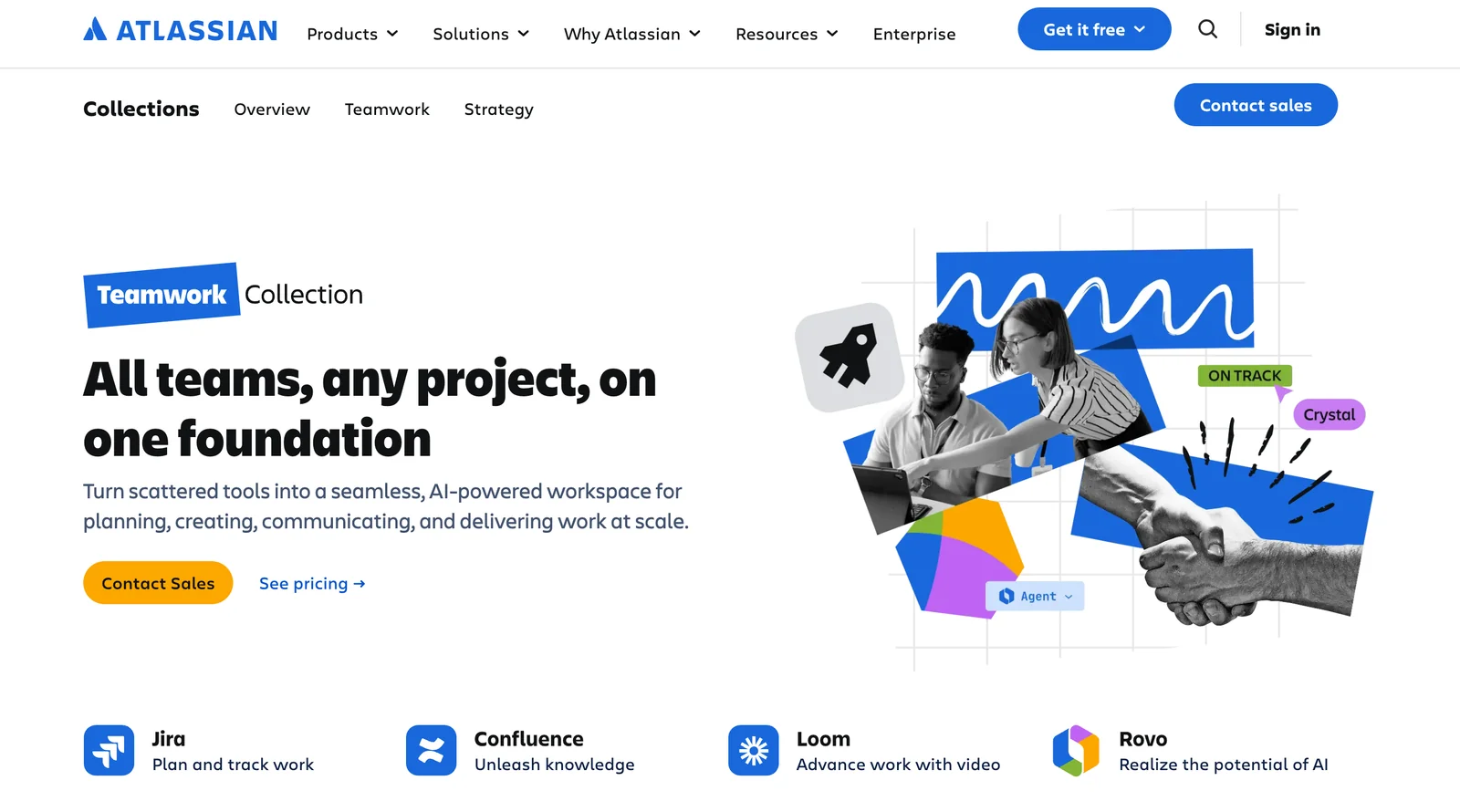
A suite of collaboration and development tools (Jira, Confluence, Trello, Bitbucket) that help teams plan, build, and deliver work together.
About Atlassian
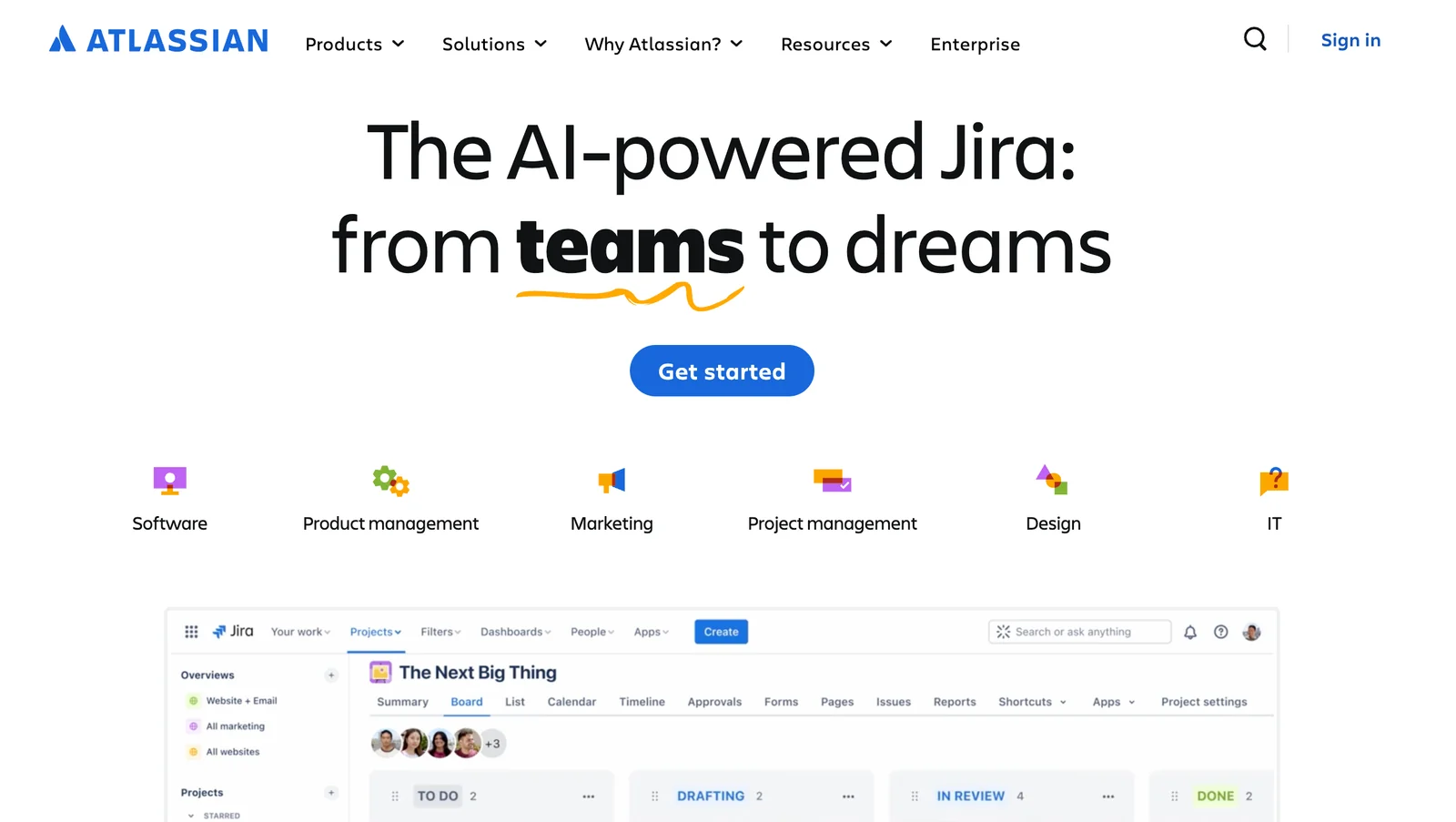
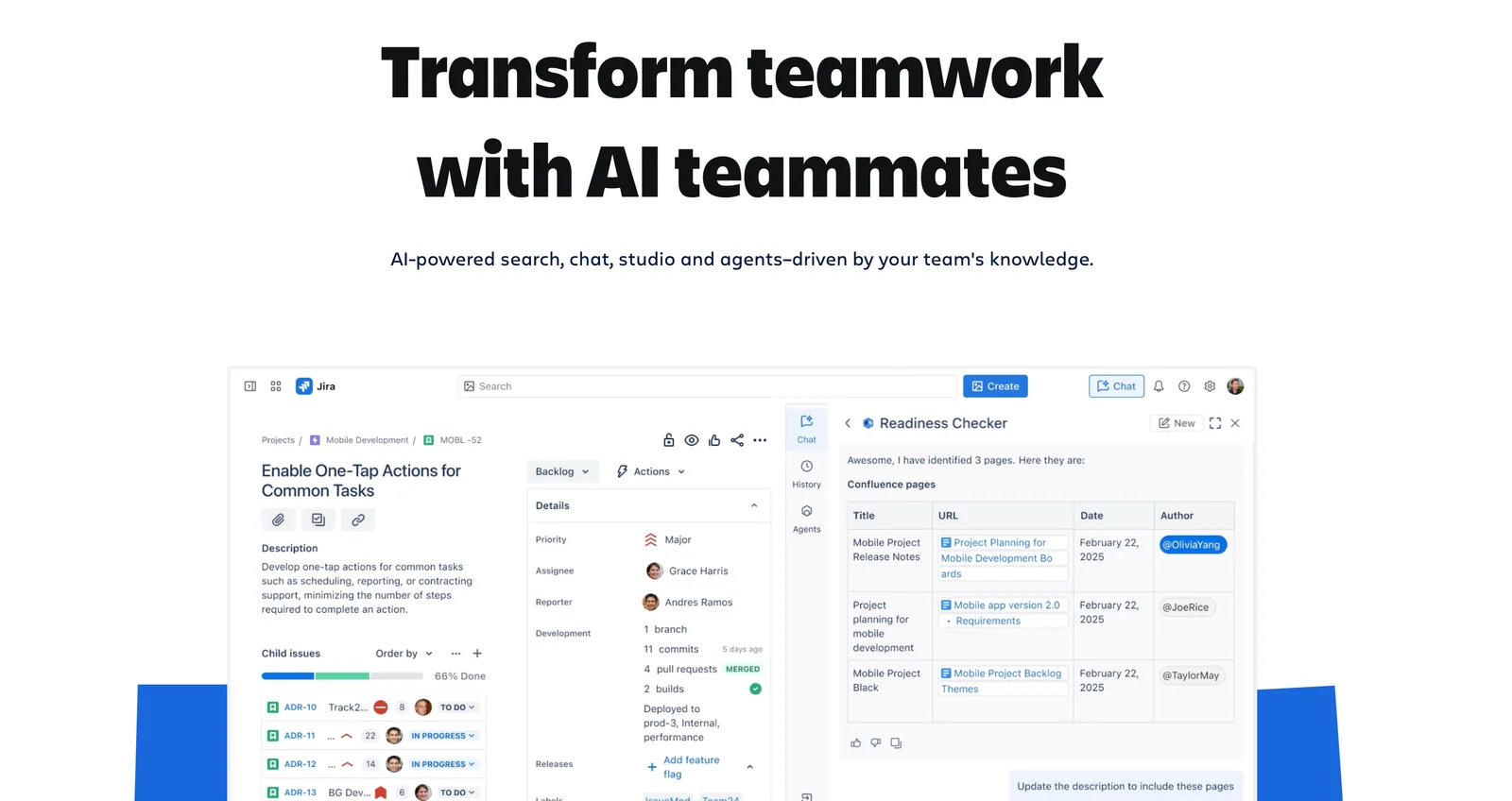
Atlassian provides a portfolio of collaboration, project management, and developer tools for software, IT, and business teams. Core products include Jira for issue and project tracking, Confluence for team documentation and knowledge bases, Trello for visual task boards, and Bitbucket for Git hosting and CI/CD. The platform emphasizes integrations, extensibility via APIs and an app Marketplace, and flexible deployment models (Cloud, Data Center, Server options historically) to support cross-team workflows, automation, reporting, and enterprise governance. Atlassian also offers connectors (including an MCP server) and SDKs to bring Atlassian data into external tools and custom agent/LLM workflows.
Screenshots
Key Features
Use Cases
MCP Server
https://www.atlassian.com/platform/remote-mcp-serverhttps://mcp.atlassian.com/v1/sse💡 MCP (Model Context Protocol) enables AI assistants to securely interact with local and remote resources.



Frequently asked questions about Atlassian
What are the pricing options for Atlassian tools?
Atlassian tools offer a freemium pricing model, providing free tiers for Jira, Confluence, Bitbucket, and Statuspage. Paid plans vary based on the number of users per month, with pricing starting at around $5 per user for Jira Software. For detailed pricing, visit the Atlassian website.
Key Points
- Freemium Model: Free tiers available for all major products.
- User-Based Pricing: Costs scale with the number of users.
- Variety of Tools: Includes Jira, Confluence, Bitbucket, and Statuspage.
Detailed Explanation
Atlassian's pricing structure is designed to accommodate teams of all sizes, from small startups to large enterprises. The freemium model allows users to access essential features without any financial commitment, which is ideal for teams looking to test the tools before making a purchase.
Pricing Breakdown:
-
Jira Software:
- Free for up to 10 users.
- Paid plans start at $5 per user/month for Standard, and $10 per user/month for Premium.
-
Confluence:
- Free tier available for up to 10 users.
- Paid plans begin at $5.75 per user/month for Standard and $11 per user/month for Premium.
-
Bitbucket:
- Free for small teams (up to 5 users).
- Paid plans start at $3 per user/month.
-
Statuspage:
- Free tier available for up to 100 subscribers.
- Paid plans start around $29/month for the Team plan.
These products are designed to improve collaboration and project management, making them invaluable for remote teams and agile environments.
Best Practices / Tips
- Start with Free Tiers: Begin with free tiers to assess your team's needs before upgrading.
- Evaluate User Count: Regularly review your user count as it affects pricing—add or remove users as necessary.
- Check for Discounts: Look for educational or non-profit discounts if applicable to your organization.
Avoid committing to higher-tier plans without a clear understanding of your team's feature requirements.
Additional Resources
How can I start using Jira for project management?
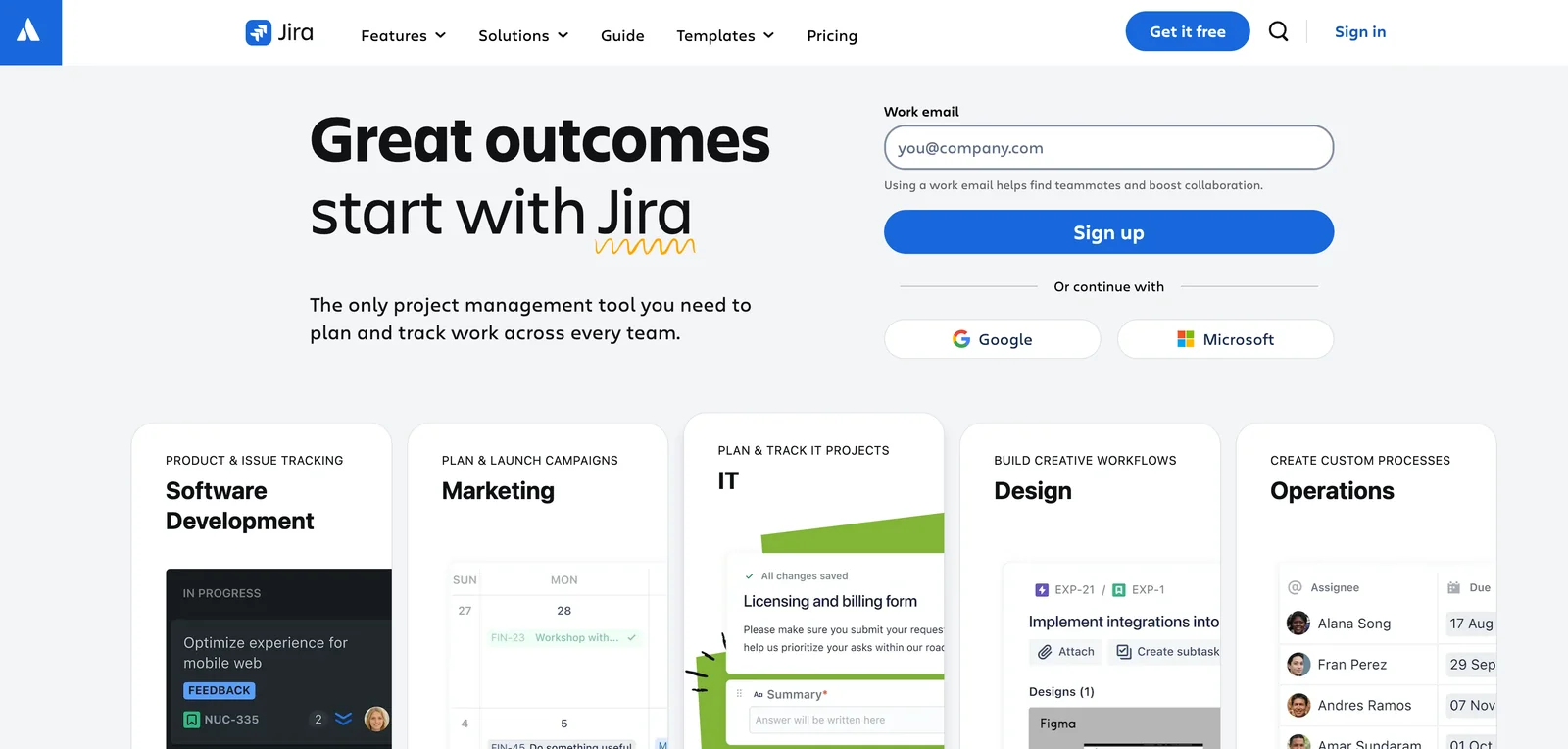
To start using Jira for project management, visit the Atlassian website and sign up for a free account. After registration, you can create projects, customize workflows, and invite team members to efficiently collaborate on tasks, track issues, and manage progress.
Key Points
- Create a Free Account: Sign up on the Atlassian website.
- Set Up Your Projects: Customize project settings and workflows.
- Invite Team Members: Collaborate effectively by adding your team.
Detailed Explanation
Starting with Jira is straightforward. Follow these steps for an effective setup:
-
Sign Up: Go to Atlassian's Jira page and click on "Try for free." Fill out the registration form with your email and create a password. You’ll receive a confirmation email to activate your account.
-
Create a Project: Once logged in, you can create your first project. Click on "Create project" from the dashboard. You’ll have the option to choose from various templates tailored for software development, project management, or bug tracking. Select a template that fits your needs.
-
Customize Workflows: After creating a project, you can modify its workflow. Jira allows you to define different stages of issue resolution, from "To Do" to "Done." Use the "Project settings" tab to access the workflow designer, where you can add, remove, or rename stages to match your team's process.
-
Invite Team Members: Collaborating is key in project management. Go to the "User Management" section to invite team members by entering their email addresses. They will receive an invitation to join your project, allowing them to contribute and track their tasks.
-
Start Using Jira: Once your project is set up and team members are onboarded, start creating issues (tasks, bugs, etc.) under the "Issues" tab. Assign issues to team members, set due dates, and track progress through the Kanban board or backlog view.
Best Practices / Tips
- Utilize Templates: Use Jira templates to save time setting up common project types.
- Leverage Integrations: Connect Jira with other tools like Confluence for documentation or Slack for communication to enhance productivity.
- Regularly Review Workflows: Continually assess your workflows to ensure they remain efficient and aligned with team needs.
- Train Your Team: Provide training sessions for team members unfamiliar with Jira to maximize the tool's effectiveness.
Additional Resources
- Jira Software Documentation
- Jira Tutorials and Guides
- Atlassian Community for support and tips from other users.
What are the key features of Confluence for documentation?
Confluence is an excellent tool for documentation, featuring structured pages, collaborative editing capabilities, customizable templates, and robust version control. These features make it an ideal platform for teams looking to create, manage, and share knowledge efficiently.
Key Points
- Structured Pages: Organize information hierarchically.
- Collaborative Editing: Real-time collaboration among team members.
- Templates: Pre-designed formats for quick documentation.
Detailed Explanation
Confluence serves as a powerful documentation platform designed to enhance team collaboration and knowledge sharing. Here’s a breakdown of its key features:
1. Structured Pages
Confluence allows users to create structured pages that can be organized in a tree format. This hierarchical organization helps teams navigate complex information easily. For example, teams can create a main page for a project and sub-pages for specific tasks, making information retrieval seamless.
2. Collaborative Editing
One of Confluence's standout features is its real-time collaborative editing. Multiple team members can work on a document simultaneously, which boosts productivity and encourages input from different perspectives. Changes are saved automatically, reducing the risk of losing work.
3. Templates
Confluence offers a variety of customizable templates that cater to different documentation needs, such as meeting notes, project plans, and knowledge bases. These templates streamline the documentation process, enabling teams to focus on content rather than formatting. Users can also create their own templates tailored to specific workflows.
4. Version Control
Version control is essential for maintaining the integrity of documentation. Confluence automatically tracks changes made to pages, allowing users to view the history and revert to previous versions if necessary. This feature is crucial for teams that require a clear audit trail and accountability.
Best Practices / Tips
- Use Labels: Tag pages with relevant keywords to enhance searchability within Confluence.
- Regular Updates: Schedule periodic reviews to keep documentation up to date, especially for dynamic projects.
- Engage Team Members: Encourage team members to contribute to documentation regularly, fostering a culture of knowledge sharing.
Additional Resources
How does Atlassian compare to Trello and Asana?
Atlassian tools, such as Jira and Confluence, offer comprehensive project management and documentation capabilities, making them more suitable for complex projects than Trello and Asana, which prioritize lightweight task management and team collaboration. This makes Atlassian a preferred choice for software development and large teams.
Key Points
- Project Management Features: Atlassian tools provide advanced features for tracking progress, managing workflows, and reporting.
- Documentation and Collaboration: Confluence excels in creating and sharing documentation, facilitating team knowledge sharing.
- Target Audience: Atlassian is ideal for software development teams and enterprises, while Trello and Asana cater to small to medium-sized teams.
Detailed Explanation
Atlassian's suite includes Jira, a powerful issue and project tracking tool, and Confluence, a robust documentation platform. Jira allows teams to manage tasks, track bugs, and plan sprints with agile methodologies. It supports customizable workflows, making it easy to adapt to specific project needs.
For example, a software development team may use Jira to track user stories, manage backlogs, and generate reports on team performance. Confluence complements this by enabling teams to create project documentation, meeting notes, and knowledge bases, ensuring information is readily accessible to all team members.
On the other hand, Trello and Asana are designed for simplicity and ease of use. Trello uses a card-based system that is intuitive for managing tasks visually, suited for smaller projects or teams. Asana provides list and board views, focusing on task assignments and deadlines but lacks the depth of reporting and tracking found in Jira.
Best Practices / Tips
- Choose the Right Tool for Your Needs: Assess whether your team requires advanced tracking and reporting (Atlassian) or prefers a straightforward task management solution (Trello/Asana).
- Integrate Tools for Enhanced Functionality: Consider using integrations, such as linking Jira with Confluence or connecting Trello with Slack to improve communication and workflow.
- Train Your Team: Ensure that team members are trained on the chosen tool's features to maximize productivity and minimize confusion.
Additional Resources
Does Atlassian provide API access for developers?
Yes, Atlassian provides API access for developers through a comprehensive set of REST APIs, enabling seamless integration and automation with popular products like Jira, Confluence, and Bitbucket. This access allows developers to enhance workflows and create custom functionalities tailored to their specific needs.
Key Points
- Comprehensive REST APIs: Atlassian offers a wide range of APIs for various products.
- Integration and Automation: APIs enable developers to automate tasks and integrate third-party applications.
- Extensive Documentation: Atlassian provides thorough documentation to assist developers in utilizing the APIs effectively.
Detailed Explanation
Atlassian's REST APIs are designed to facilitate integration and automation across its product suite. Here’s a closer look at each major API:
-
Jira API: The Jira REST API allows developers to create, read, update, and delete issues programmatically. Use cases include automating ticket creation from forms or syncing data with other project management tools.
-
Confluence API: With the Confluence REST API, developers can manage spaces, pages, and content. This is particularly useful for automating content updates or extracting information for reporting purposes.
-
Bitbucket API: The Bitbucket API helps developers manage repositories, pull requests, and user permissions. An example use case is automating code reviews or integrating with CI/CD pipelines.
Atlassian provides extensive documentation for each API, including endpoint details, authentication methods, and example requests. The APIs support JSON format for data interchange, making it easier for developers familiar with web technologies to get started.
Best Practices / Tips
- Start with API Documentation: Always refer to the official Atlassian API documentation for the most accurate and detailed information.
- Use API Tokens: For authentication, utilize API tokens instead of basic authentication for enhanced security.
- Rate Limiting: Be aware of rate limits to avoid throttling issues. This is crucial for applications with high request volumes.
- Error Handling: Implement robust error handling to manage API responses gracefully, especially for integration scenarios.
- Testing Tools: Utilize tools like Postman or cURL for testing API requests before integrating them into your applications.
Additional Resources
- Atlassian Developer Documentation
- Jira REST API Documentation
- Confluence REST API Documentation
- Bitbucket REST API Documentation
By leveraging Atlassian's API access, developers can significantly enhance their workflow efficiency and tailor applications to their specific needs, making it a powerful toolset for modern software development.
Explore more AI Mcps tools
Browse all Mcps tools →Browse by use case: Automation & Productivity
Compare Atlassian: vs ai-memory · vs CrawlForge MCP · vs Popcraft · vs Pomerado