
Adobe Podcast
AIWeb-based audio recording, automatic transcription, and one-click speech enhancement for podcasting and voice content.
Adobe Podcast
Web-based audio recording, automatic transcription, and one-click speech enhancement for podcasting and voice content.
About Adobe Podcast
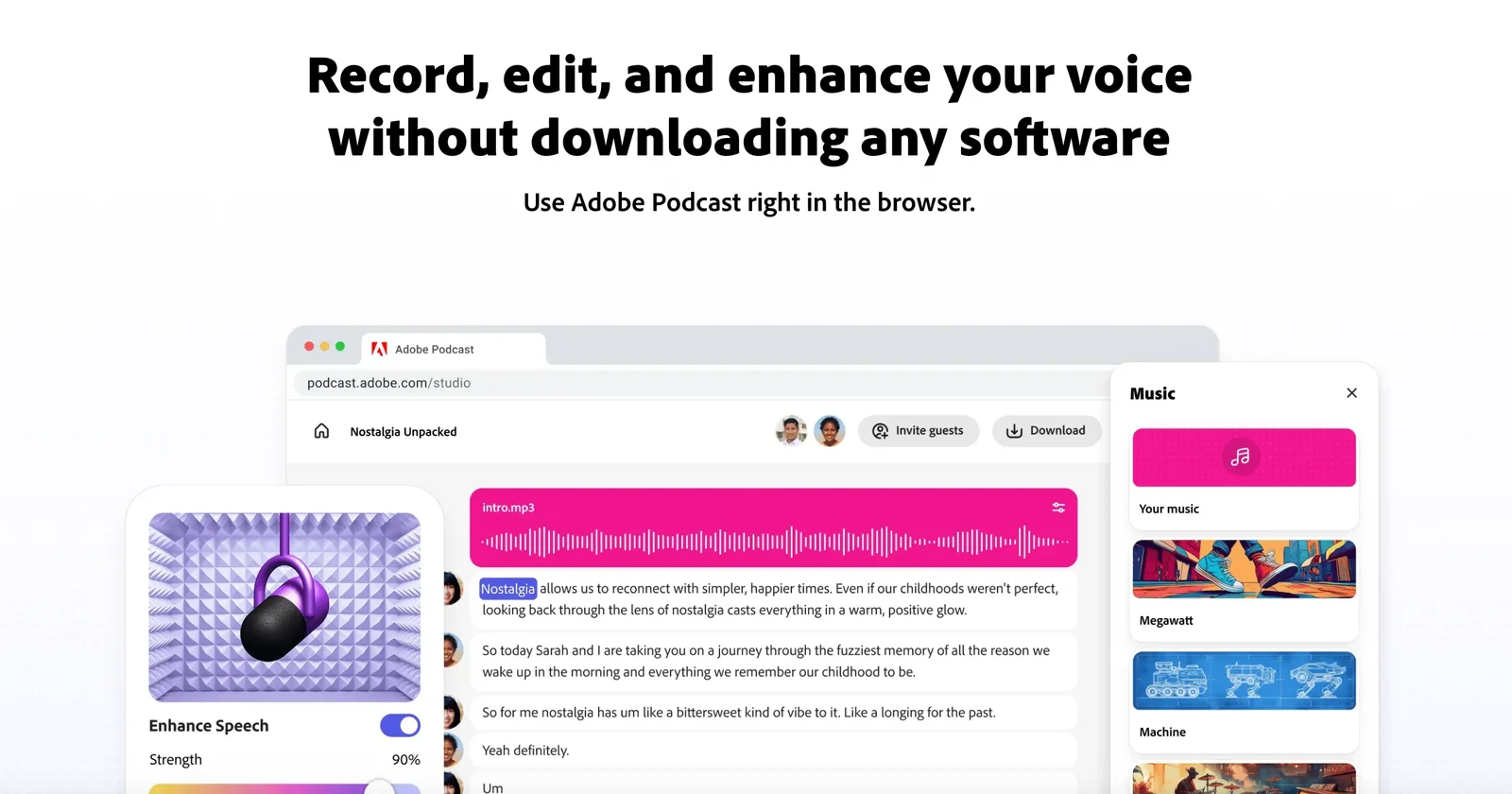
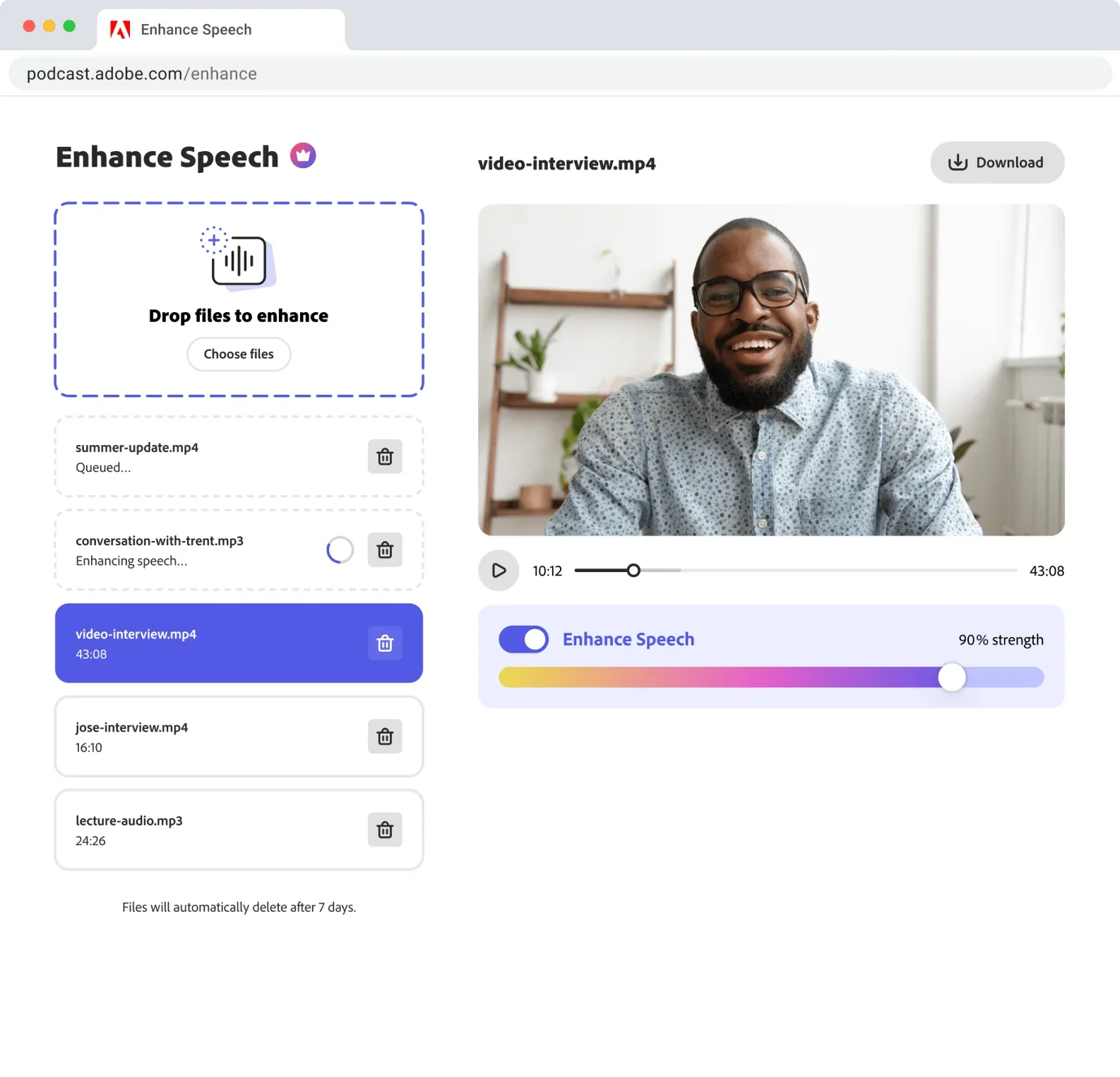
Adobe Podcast is a browser-based audio platform for recording, transcribing, editing, enhancing, and sharing spoken-word content. It combines web recording tools with automatic transcription and one-click audio enhancement to deliver clearer, more polished voice recordings without desktop software. The editor is text-forward—allowing users to edit audio via transcripts—and provides export and sharing options for podcast workflows. Its value lies in simplifying common podcast production tasks into a lightweight, accessible web app backed by Adobe’s audio processing technology.
Screenshots
Key Features
Use Cases



Frequently asked questions about Adobe Podcast
Is Adobe Podcast free or paid?
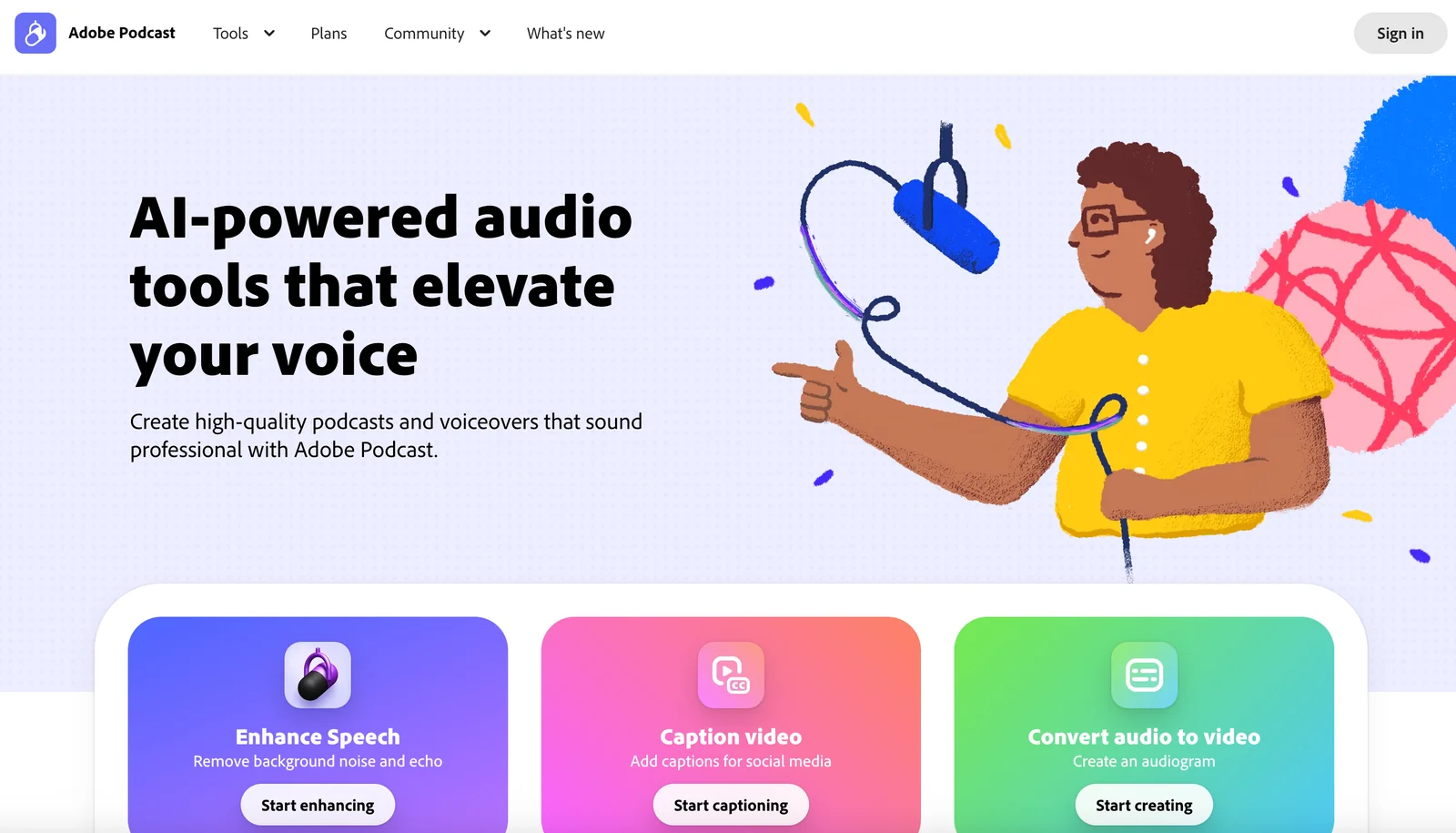
Adobe Podcast offers a freemium model, providing a free tier with basic features such as Enhance Speech and Mic Check. Paid plans start at $9.99 per month, unlocking advanced features through the Express Premium subscription, aimed at enhancing podcast production quality.
Key Points
- Freemium Model: Adobe Podcast has a free tier with essential features.
- Paid Plans: Premium features are available starting at $9.99/month.
- Feature Comparison: The free version includes basic tools, while the paid version offers advanced editing options.
Detailed Explanation
Adobe Podcast is designed to cater to both novice podcasters and seasoned professionals. The free tier allows users to access fundamental features that are crucial for podcasting, including:
- Enhance Speech: This feature improves audio quality by reducing background noise and enhancing vocal clarity.
- Mic Check: Ensures your microphone is set up correctly for optimal sound recording, making it easier to produce high-quality audio.
For users seeking more robust capabilities, Adobe Podcast offers paid plans. Starting at $9.99 per month, the Express Premium plan includes:
- Advanced Editing Tools: Features like multi-track editing and advanced noise reduction.
- Integration with Adobe Creative Cloud: Seamlessly use other Adobe tools for a comprehensive editing experience.
- Collaboration Features: Work with teams on shared projects, improving workflow efficiency.
Use Cases
- Beginners: Ideal for those just starting in podcasting who can use the free version to understand the basics.
- Professionals: Experienced podcasters can benefit from the paid version’s enhanced features to improve their content quality.
Best Practices / Tips
- Start with Free: If you’re new to podcasting, begin with the free version to familiarize yourself with the tools.
- Upgrade Wisely: Evaluate your podcasting needs and consider upgrading to a paid plan once you require advanced features.
- Utilize Tutorials: Take advantage of Adobe’s educational resources to maximize your use of both free and paid features.
Additional Resources
What are the main features of Adobe Podcast?
Adobe Podcast features a powerful suite for podcasters, including web-based multi-track recording, automatic transcription, one-click speech enhancement, text-based editing, and seamless export and sharing of audio files. These tools streamline the podcast production process, making it accessible for users at all levels.
Key Points
- Web-Based Multi-Track Recording: Capture audio from multiple sources simultaneously.
- Automatic Transcription: Convert spoken content into text effortlessly.
- One-Click Speech Enhancement: Improve audio quality instantly.
Detailed Explanation
Adobe Podcast offers a variety of features tailored for both beginners and seasoned podcasters.
Web-Based Multi-Track Recording
This feature allows users to record audio from various sources in real time. Whether you’re conducting interviews or hosting discussions with multiple guests, the multi-track capability ensures each voice is captured distinctly. This setup is ideal for remote collaborations, as it operates entirely through a web browser, eliminating the need for complex software installations.
Automatic Transcription
With Adobe Podcast, automatic transcription is a game-changer. After recording, the software converts your audio into text within moments, making it easier to create show notes, scripts, or captions. This feature not only saves time but also enhances accessibility for hearing-impaired audiences.
One-Click Speech Enhancement
Improving audio quality has never been easier. The one-click speech enhancement feature analyzes your recording and applies necessary adjustments to enhance clarity and reduce background noise. This is particularly useful for users who may not have extensive audio editing experience, allowing them to produce professional-sounding content effortlessly.
Text-Based Editing
Adobe Podcast’s text-based editing is a unique approach that allows users to edit audio by editing the text transcript. This intuitive method enables podcasters to cut, copy, and rearrange segments of audio based on the written script, making the editing process not only quick but also user-friendly.
Easy Export and Sharing
Once your podcast episode is polished, exporting and sharing is straightforward. Users can export their audio files in various formats, including MP3 and WAV, and share them directly to platforms like Spotify, Apple Podcasts, and more, ensuring your content reaches your audience without hassle.
Best Practices / Tips
- Plan Your Episodes: Outline your podcast episodes before recording to ensure coherent content flow.
- Utilize Transcriptions: Always leverage the automatic transcription feature to enhance SEO for your podcast by creating written content from your audio.
- Experiment with Editing: Take time to explore the text-based editing feature for a more intuitive approach to audio editing.
Additional Resources
How do I get started with Adobe Podcast?
To get started with Adobe Podcast, simply visit their official website, sign up for a free account, and utilize the intuitive web-based recording and transcription tools to create your first podcast episode efficiently and effortlessly.
Key Points
- Free Account Creation: Sign up easily at the Adobe Podcast website.
- User-Friendly Interface: Explore intuitive tools for recording and transcribing.
- Podcast Development: Start creating high-quality podcast episodes seamlessly.
Detailed Explanation
Adobe Podcast offers a comprehensive platform for aspiring podcasters. To begin, navigate to the Adobe Podcast website and register for a free account. This process involves providing basic information such as your name and email address. After verification, you will gain access to powerful tools designed specifically for content creators.
Once logged in, you can start exploring the web-based recording feature. Adobe Podcast allows you to record your voice directly through your browser with minimal setup. The platform supports high-quality audio input, ensuring your recordings are clear and professional. Additionally, the transcription tool automatically converts your spoken words into text, making it easier to create show notes or blog posts related to your podcast episodes.
For your first episode, follow these suggested steps:
- Plan Your Content: Outline the main topics you want to discuss.
- Record: Use the recording tool to capture your audio. Ensure you are in a quiet environment for the best sound quality.
- Edit and Transcribe: Utilize the editing tools available to refine your recording and then use the transcription feature to generate text from your audio.
- Publish: Once satisfied with your episode, you can publish it directly from the platform or export it for sharing on other platforms.
Best Practices / Tips
- Invest in Good Equipment: While Adobe Podcast provides quality tools, using a good microphone can significantly enhance audio clarity.
- Keep Episodes Concise: Aim for 15-30 minutes per episode to keep your audience engaged.
- Engage with Your Audience: Encourage feedback and interaction through social media or dedicated email to build a loyal listener base.
- Regular Schedule: Maintain a consistent release schedule to help grow your audience.
Additional Resources
Does Adobe Podcast integrate with other software?
Yes, Adobe Podcast integrates seamlessly with Adobe's audio and video tools, enhancing mixing and production workflows within the Creative Cloud ecosystem. Additionally, it supports third-party software, allowing users to expand their creative possibilities with various audio and video applications.
Key Points
- Integration with Adobe Creative Cloud: Enhances workflow efficiency.
- Third-party software compatibility: Expands creative options.
- User-friendly interface: Simplifies the integration process.
Detailed Explanation
Adobe Podcast is part of the broader Adobe Creative Cloud suite, which includes popular tools such as Adobe Audition and Premiere Pro. This integration allows users to import audio files directly from Adobe Podcast into these applications for advanced editing and mixing. For instance, users can create a podcast episode in Adobe Podcast, then seamlessly transfer it to Adobe Audition for detailed sound editing, applying effects like noise reduction or equalization.
Moreover, Adobe Podcast supports integration with third-party software like Zoom, enabling users to import recorded conversations directly into their podcast projects. This feature is especially helpful for podcasters who conduct interviews remotely, allowing for a smoother workflow from recording to editing.
Example Use Cases
- Podcast Production: Create and edit a podcast episode using Adobe Podcast and export it for further refinement in Adobe Audition.
- Video Content Creation: Use audio from Adobe Podcast in video projects, syncing perfectly with visuals in Premiere Pro.
- Collaborative Projects: Share project files with team members using supported third-party tools for enhanced collaboration.
Best Practices / Tips
- Leverage Adobe Creative Cloud: Utilize the integration with other Adobe tools to streamline your creative process.
- Explore Third-party Integrations: Maximize productivity by connecting Adobe Podcast with software that fits your workflow, such as video conferencing tools.
- Keep Software Updated: Regular updates provide new features and improved integrations, ensuring optimal performance.
Additional Resources
How does Adobe Podcast compare to other podcasting tools?
Adobe Podcast stands out among podcasting tools due to its in-browser recording feature and automatic transcription capabilities, making it user-friendly for both beginners and seasoned podcasters. Its seamless integration with Adobe’s ecosystem enhances the overall production experience, setting it apart from competitors.
Key Points
- In-Browser Recording: Easily record high-quality audio without downloading software.
- Automatic Transcription: Quickly convert audio to text, saving time on editing.
- User-Friendly Interface: Intuitive design caters to all skill levels, simplifying podcast creation.
Detailed Explanation
Adobe Podcast offers several distinctive features that enhance the podcasting experience:
-
In-Browser Recording: With Adobe Podcast, users can record directly within their web browser, eliminating the need for complex software installations. This feature ensures that podcasters can start recording instantly, whether they are at home or on the go.
-
Automatic Transcription: One of the most valuable features is the automatic transcription service. This tool transcribes audio content into text, making it easier to create show notes or improve accessibility. Podcasters can edit the transcription directly within the platform, streamlining the workflow.
-
User-Friendly Interface: The intuitive design of Adobe Podcast is a significant advantage, especially for novice podcasters. The platform provides clear guidance and helpful tutorials, ensuring users can maximize their podcast's potential without a steep learning curve.
-
Integration with Adobe Ecosystem: For users who are already familiar with Adobe tools, such as Audition or Premiere Pro, Adobe Podcast offers seamless integration, allowing for advanced editing and production capabilities.
-
Collaboration Features: Adobe Podcast also supports collaboration, enabling teams to work together on episodes in real-time, which is particularly beneficial for businesses and creative teams.
Best Practices / Tips
- Leverage Automatic Transcription: Always use the transcription feature to enhance SEO by creating show notes that include keywords related to your podcast topic.
- Experiment with Recording Settings: Take advantage of various recording settings to find the best sound quality for your podcast.
- Utilize Adobe’s Resources: Explore Adobe’s tutorials and community forums to fully leverage the platform's capabilities.
Additional Resources
Explore more AI Ai Agents tools
Browse all Ai Agents tools →Compare Adobe Podcast: vs Sai · vs Mycel · vs Proto-Mind · vs Ami