

Google Vids
AIWeb-based, AI-powered video creator and editor in Google Workspace for creating, editing, and sharing rich video content.
Google Vids
Web-based, AI-powered video creator and editor in Google Workspace for creating, editing, and sharing rich video content.
About Google Vids
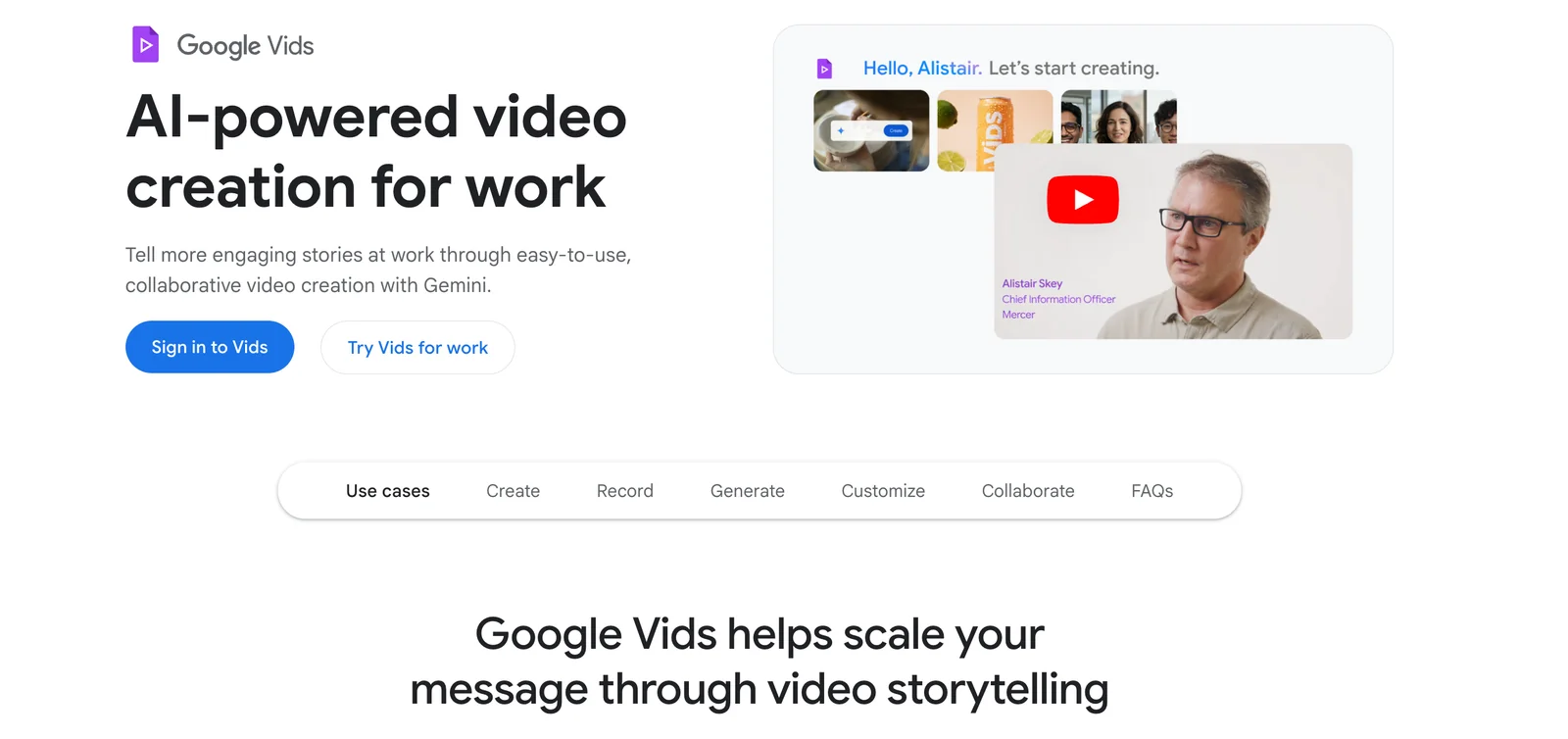
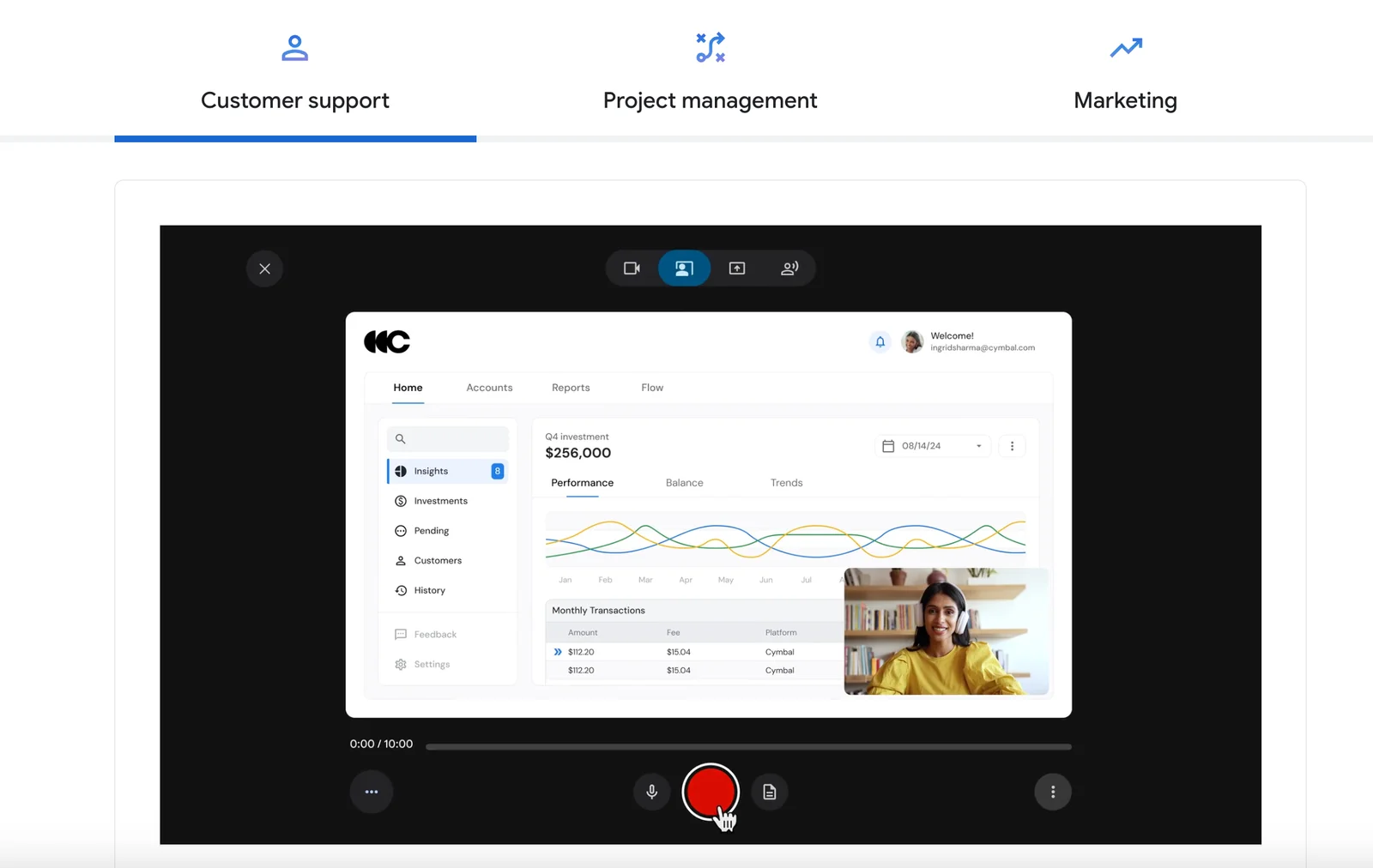
Google Vids is a web-based video creation and editing tool built into Google Workspace that leverages Google's generative and assistive intelligence to simplify video production. It helps employees and teams create, edit, and share polished videos quickly using AI-driven suggestions for editing, captions, and scene composition. As part of Workspace, it emphasizes collaboration, easy sharing, and productivity by integrating into the cloud workflow for teams to iterate on video content without specialized editing software.
Screenshots
Key Features
Use Cases


Frequently asked questions about Google Vids
What is the pricing structure for Google Vids?
Google Vids functions on a freemium model, providing a free tier that includes basic video creation and editing features. For users seeking advanced capabilities, Google Workspace offers various paid plans, with specific pricing contingent upon the selected plan and the features required.
Key Points
- Freemium Model: Basic features available for free.
- Paid Plans: Advanced features require Google Workspace subscription.
- Pricing Variability: Costs depend on the selected plan and features.
Detailed Explanation
Google Vids is designed to cater to a wide range of users by offering a freemium model. The free tier allows individuals to create and edit videos using essential tools such as trimming, adding text, and applying filters. This is ideal for casual users or small businesses looking to produce simple video content without upfront costs.
For those needing more comprehensive tools—like access to premium assets, advanced editing features, or collaborative capabilities—Google Workspace subscriptions are necessary. These plans include Google Workspace Business Starter, Business Standard, Business Plus, and Enterprise levels, each offering a different set of features and storage options.
Pricing for Google Workspace plans generally starts around $6 per user per month for the Business Starter plan, escalating to $25 per user per month for the Enterprise plan. Users should select a plan based on their specific needs, such as the number of users, storage requirements, and advanced video features.
Best Practices / Tips
- Evaluate Your Needs: Before committing to a paid plan, assess whether the free tier meets your requirements.
- Consider Collaboration: If working with a team, choose a plan that supports multiple users and collaborative features.
- Stay Informed: Keep an eye on Google’s updates, as pricing and features may change, impacting your project planning.
Additional Resources
How does Google Vids compare to other video creation tools?
Google Vids stands out among video creation tools due to its seamless integration with Google Workspace, AI-assisted editing features, and emphasis on business applications. This makes it particularly suitable for enterprises looking for efficient cloud collaboration and template-based video production, unlike many alternatives targeting general consumers.
Key Points
- Seamless Integration: Works effortlessly with Google Workspace apps.
- AI-Assisted Editing: Enhances video creation efficiency with intelligent features.
- Business-Focused: Tailored for enterprise needs, unlike many consumer-oriented tools.
Detailed Explanation
Google Vids is a powerful video creation tool designed specifically for businesses. Its strongest feature is its integration with Google Workspace, allowing users to easily pull content from Google Docs, Sheets, and Slides into their videos. This integration makes it incredibly efficient for businesses that already rely on Google products.
The AI-assisted editing functionality streamlines the video creation process. For example, users can leverage AI to automatically edit video clips, add music, and suggest transitions, saving significant time and effort. This feature is particularly beneficial for teams under tight deadlines or those with limited video editing experience.
Furthermore, Google Vids offers template-based creation that allows users to start with pre-designed video formats tailored for various business scenarios such as marketing campaigns, internal communications, or training sessions. These templates can be customized to fit specific brand guidelines, ensuring consistency across all video content.
Best Practices / Tips
- Utilize Templates: Start with templates to save time and maintain brand consistency.
- Leverage AI Features: Use AI-assisted tools for editing to streamline workflows and improve video quality.
- Integrate with Other Tools: Maximize productivity by connecting Google Vids with other Google applications for content sourcing.
Common Pitfalls to Avoid
- Neglecting Brand Guidelines: Always customize templates to align with your brand identity.
- Overlooking Collaboration Features: Make use of cloud collaboration to gather team feedback early in the video production process.
Additional Resources
What are the key features of Google Vids?
Google Vids offers key features such as AI-assisted editing, template-based creation, automatic captions, cloud collaboration, and centralized media management. These features not only streamline video production but also significantly enhance team collaboration, making it easier for users to create professional-quality videos efficiently.
Key Points
- AI-Assisted Editing: Leverages machine learning for smarter editing.
- Template-Based Creation: Simplifies video production with customizable templates.
- Automatic Captions: Increases accessibility and engagement.
Detailed Explanation
Google Vids integrates advanced AI technology to assist users in editing videos quickly and efficiently. The AI-assisted editing feature analyzes video content, offering suggestions for cuts, transitions, and enhancements, thus saving time and reducing the need for extensive editing skills. This is particularly beneficial for businesses and content creators who need to produce videos rapidly.
The template-based creation feature allows users to choose from a wide range of pre-designed templates tailored for various industries and purposes. These templates can be easily customized, enabling users to maintain brand consistency while speeding up the video creation process. For example, a marketing team can quickly create promotional videos using templates designed for social media, which can be adapted in minutes.
Automatic captions are another vital feature of Google Vids. This tool generates captions in real-time, making videos more accessible to a wider audience, including those with hearing impairments. It also enhances SEO by providing text that can be indexed by search engines, thereby improving the video’s discoverability.
Cloud collaboration enables teams to work together seamlessly, regardless of their physical location. Multiple users can access and edit the same project simultaneously, facilitating real-time feedback and improvements. This is especially useful for remote teams or agencies working with clients who need to review and approve content quickly.
Centralized media management allows users to store, organize, and retrieve video assets easily. This feature ensures that all team members can access the latest versions of media files, reducing confusion and errors during the editing process. With cloud storage, files are secure and accessible from anywhere, making it ideal for on-the-go content creation.
Best Practices / Tips
- Leverage AI Features: Embrace the AI-assisted editing tools to enhance efficiency.
- Utilize Templates: Use templates to maintain branding and speed up production.
- Engage with Captions: Always add automatic captions to improve accessibility and SEO.
- Collaborate Effectively: Use cloud collaboration tools to ensure smooth project management and communication.
Additional Resources
By taking advantage of these features, users can significantly improve their video production workflow, create engaging content, and collaborate effectively within their teams.
Can Google Vids integrate with other Google Workspace applications?
Yes, Google Vids seamlessly integrates with Google Workspace applications like Drive, Docs, and Slides. This integration allows users to import assets, share videos, and collaborate in real-time, enhancing productivity and streamlining workflows within familiar environments.
Key Points
- Enhanced Collaboration: Work together in real-time across applications.
- Asset Management: Easily import and manage video assets from Google Drive.
- Streamlined Workflow: Use Google Vids within existing Google Workspace tools.
Detailed Explanation
Google Vids integrates with several Google Workspace applications, fostering a collaborative environment. Users can easily import video assets from Google Drive into their video projects. For instance, if you have a presentation in Google Slides, you can directly include video clips from Google Vids, enhancing the presentation's engagement.
Example of Integration:
-
Importing from Google Drive: Open your Google Vids project. Click on the 'Import' button, then select 'Drive'. Choose the video files stored in your Google Drive and import them with a single click.
-
Collaborating in Google Docs: While drafting a script for a video in Google Docs, you can link to your Google Vids project. This allows team members to view and edit the script while accessing the video simultaneously, ensuring everyone is on the same page.
-
Sharing and Feedback: Share your video projects with team members through Google Drive. They can provide comments or suggestions directly within Google Vids, streamlining the feedback process.
Best Practices / Tips
- Utilize Shared Folders: Organize your video assets in shared Google Drive folders for easy access and collaboration.
- Regular Updates: Keep your Google Workspace applications updated to ensure compatibility and access to the latest features.
- Training and Tutorials: Familiarize yourself and your team with Google Vids' features through Google's official training resources to maximize efficiency.
Additional Resources
This comprehensive integration of Google Vids with Google Workspace applications not only improves collaboration but also enhances the overall productivity of teams working on video projects.
How do I get started with Google Vids?
To get started with Google Vids, simply sign in using your Google account and access the platform via Google Workspace. Once you're logged in, explore the extensive tutorials available on the official website to learn how to create and edit videos effectively.
Key Points
- Sign in with Google Account: Essential for accessing Google Vids.
- Access via Google Workspace: Use the integrated tools for video creation.
- Utilize Tutorials: Step-by-step guides to maximize your video editing skills.
Detailed Explanation
Getting started with Google Vids is a straightforward process. First, ensure you have a Google account. Visit the Google Workspace homepage and sign in. Once logged in, navigate to the Google Vids application, where you will find a user-friendly interface designed for both beginners and advanced users.
Step-by-Step Guidance:
- Sign In: Go to the Google Vids website and click on “Sign In.” Enter your Google account credentials.
- Explore the Interface: Familiarize yourself with the dashboard, which includes options for creating new videos, accessing templates, and reviewing your projects.
- Watch Tutorials: Visit the official Google Vids tutorial section to learn about different features like video trimming, adding effects, and incorporating music. These resources are invaluable for mastering the platform.
Use Cases:
- Personal Projects: Create family videos or vlogs easily with drag-and-drop features.
- Professional Presentations: Edit corporate videos or promotional content using templates tailored for business.
- Educational Content: Develop instructional videos for online courses or webinars.
Best Practices / Tips
- Start Simple: If you're new to video editing, begin with basic projects to build your confidence.
- Experiment with Features: Don’t hesitate to try different editing tools and effects to find your unique style.
- Keep Videos Short: Aim for concise content; videos under 3 minutes often maintain viewer engagement.
- Regular Updates: Check for updates and new features frequently to take advantage of the latest tools available.
Additional Resources
Explore more AI Ai Services tools
Browse all Ai Services tools →Browse by use case: Video Generation · Automation & Productivity
Compare Google Vids: vs Claude Academy · vs Switchyard · vs Router by Ramp · vs Supernova